
Logpoint Portal gives you access to Logpoint SaaS related resources including Logpoint instances, Product Hub, Knowledge Center and Support from a centralized location. You can also manage SaaS users from the portal. To learn more, go to User Management from Logpoint Portal.
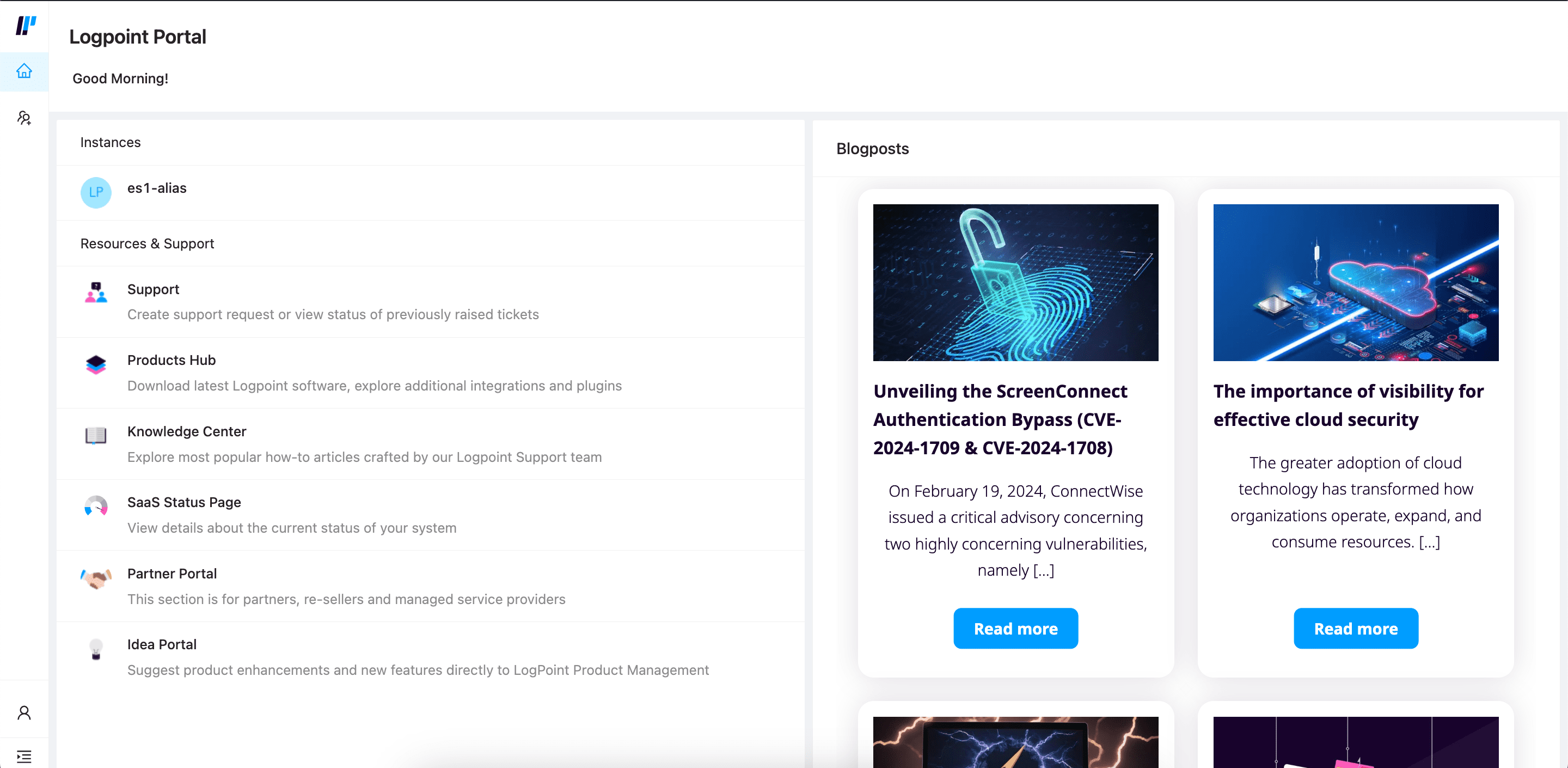
Logpoint Portal
When you buy a SaaS subscription, Logpoint sends you an email with login details, including the Logpoint Portal URL, and initial access credentials. You are provided with a temporary password, which you need to change on the first login. After you change your password, login with your email and new password.
Note
If you don’t see the email, check your spam filter.
After logging in with valid credentials, you access Logpoint. If you are an MSSP administrator you will also have access to all your Logpoint instances.
To login to Logpoint Portal:
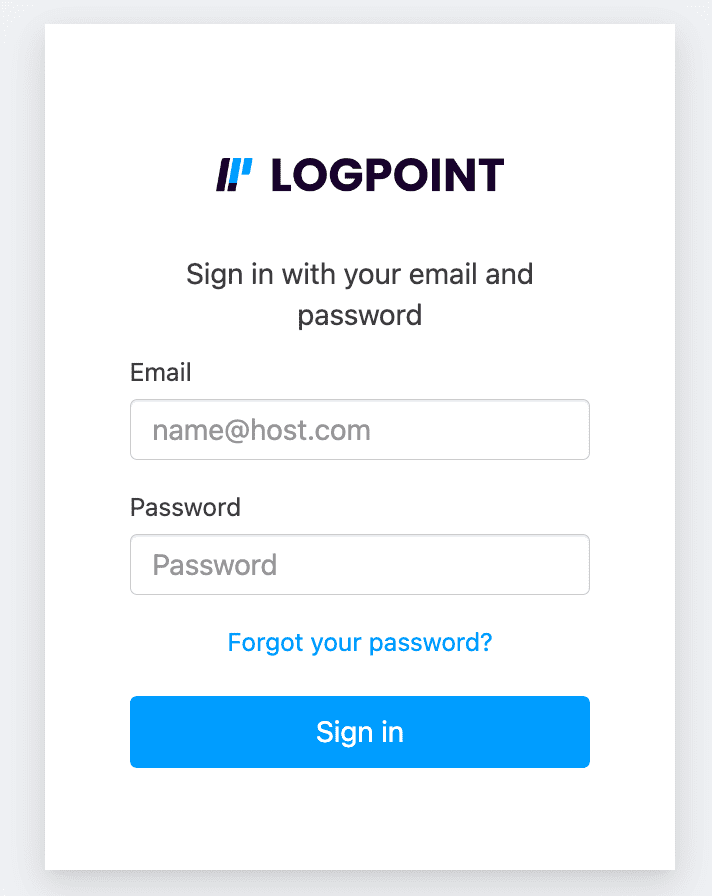
SaaS Login
Enter your access credentials.
Access a Logpoint SaaS instance from Instances.
3.1. If you are a Logpoint user, click your SaaS instance name.
3.2. If you are an MSSP user, click the SaaS instance you want to access. Go to Access Multiple SaaS Instances.
After you access the Logpoint instance:
Configure the repositories in the cloud connector. The number of cloud-based SaaS repos and their names must match those configured on your on-premise Logpoint’s cloud connector.
Warning
If the repositories are not configured this way, logs are discarded and data is lost.
The retention time for the repo in searchable storage is set as per your retention policy in your contract agreement.
Configure alert rules, dashboards, search templates, report templates, and playbooks.
All system settings, SMTP, NTP, SNMP, Syslog, Support Connection, Mode of Operation, SSH Key Pair for li-admin, and Lockout Policy, are pre-configured on the SaaS Instances.
After configuration, you can start:
Responding to Incidents.
Searching and analyzing security events.
Perform investigations and threat hunting with Search Templates and Search Packages.
Schedule, generate and review generated reports.
Logpoint Portal lets you administer User Management. User Management allows you to add a new user, assign them to a user group, update an existing user and delete a user. Only users who are part of the Logpoint Administrator and User Account Administrator user groups are allowed to add, update and delete the users.
Important
Permission Groups and User Groups Management:
You can perform only User Management from Logpoint Portal. You must manage Permission Groups and User Groups inside the SaaS instances.
If you are an MSSP user, you must create the Permission Groups and User Groups within the SaaS instance on which you want to create the new user.
To add a new user:
Click ( ) icon on the navbar.
Click Add User on the top right.
Enter E-mail address.
Enter First Name.
Enter Last Name.
Select an instance from the Instances.
Select user group(s) from the User Groups.
Click Save.
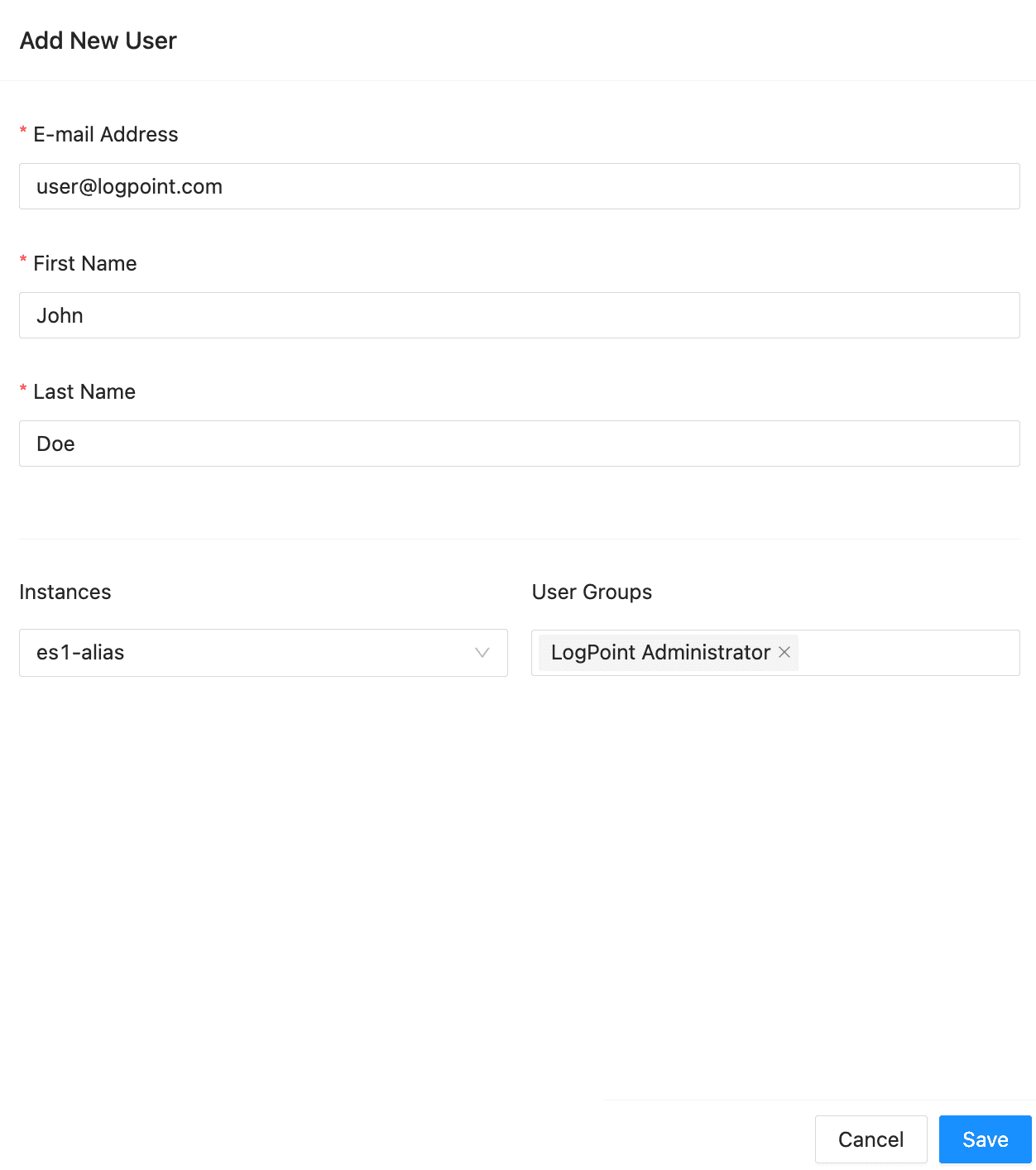
Adding User
To update a user:
Click () icon on the navbar.
Click the user you want to edit.
Make the changes.
Click Save.
To delete a user:
Click () icon on the navbar.
Click the user you want to delete.
Click Delete.
MSSP users can access multiple Logpoint SaaS instances using a single set of credentials from Logpoint Portal. A list of instances appears under Instances for MSSP users.
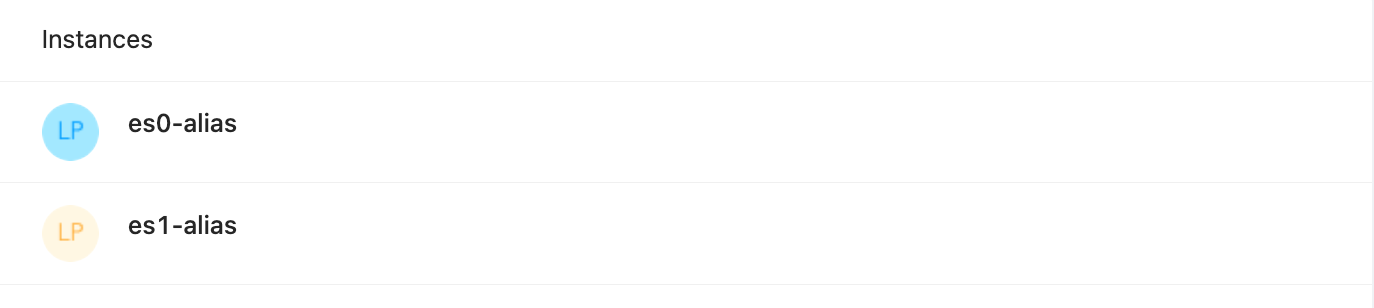
SaaS Instances
Safari
Google Chrome
Firefox
Microsoft Edge