
Go to Settings >> System >> Plugins.
Find AD FS Authentication v6.0.0 and click Manage.
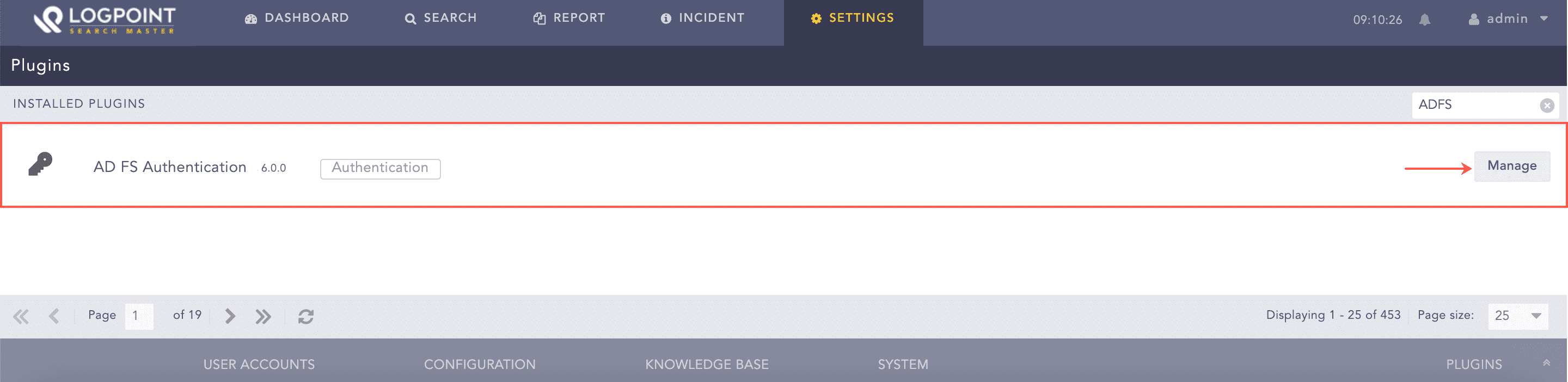
Manage ADFS Authentication
Click Add Server.
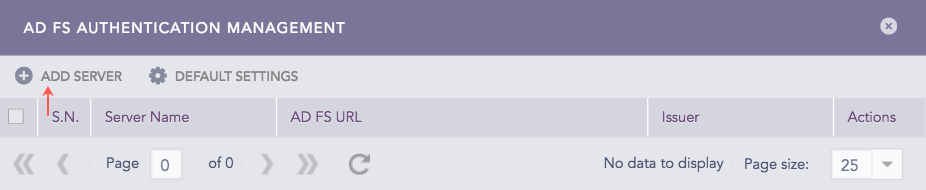
Add ADFS Server
Enter a unique Server Name.
Note
For details on ADFS server side configuration, refer to the Microsoft’s documentation for Active Directory Federation Services.
Enter the fully qualified domain name of your ADFS server in the AD FS URL text box. LogPoint users will be redirected to this domain for authentication.
Copy the automatically generated AD FS Endpoint URL, which you will need while configuring LogPoint in your ADFS server. While adding LogPoint as a Relying Party Trust in the ADFS server, on the Configure URL page, select the Enable support for the SAML 2.0 Web SSO protocol option and provide the AD FS Endpoint URL in the Relying party SAML 2.0 SSO service URL text box.
Enter the Relying party identifier in the Issuer text box. You can find the Relying party identifier under the Identifier column of the Relying Party Trust panel of your ADFS server.
Provide the token-signing certificate of your ADFS server in the AD FS Certificate text box. You can obtain the certificate from the Certificates panel of the ADFS server. Export the certificate in the Base-64 encoded X.509 (.CER) format, and copy the content in the AD FS Certificate text box.
Enter the Response Username Field and Response Role Field, which are used to extract the username and role from the ADFS server.
After adding LogPoint as a Relying Party Trust in the ADFS server, you need to create claim rules for username and role. While creating the claim rules, you must map the LDAP attributes to two outgoing claim types. One of the claim type needs to be Role for the role, and another can be any other attribute for the username. After creating the rules, go to the Edit Claim Rules page and select the created rule. Then, click View Rule Language. The Response Username Field and Response Role Field are the values of the types parameter.
Click Save.
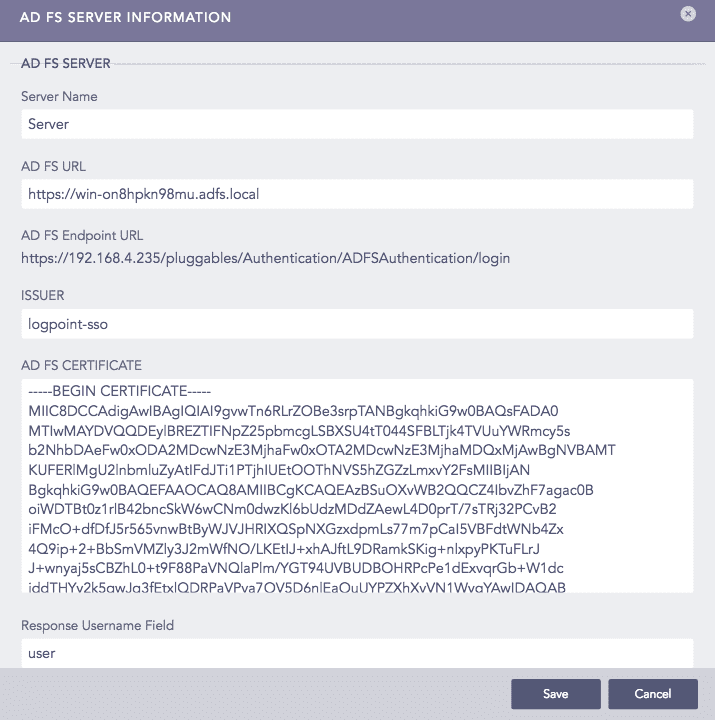
AD FS Server Information Panel
Note
Once you configure the ADFS Authentication application, the panel removes the Add Server option and includes the Roles Mapping option.
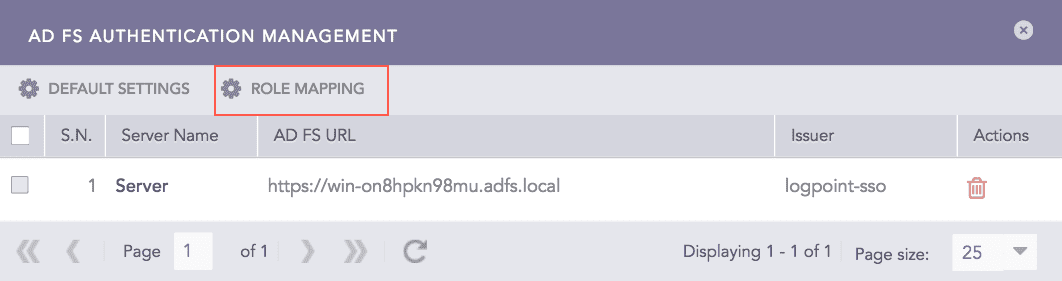
Add ADFS Server
Click the Default Settings.
Select a LPSM user group as the Default Role. The application assigns the user group to the ADFS users whose role attribute has not been returned by the ADFS server.
Click Save.
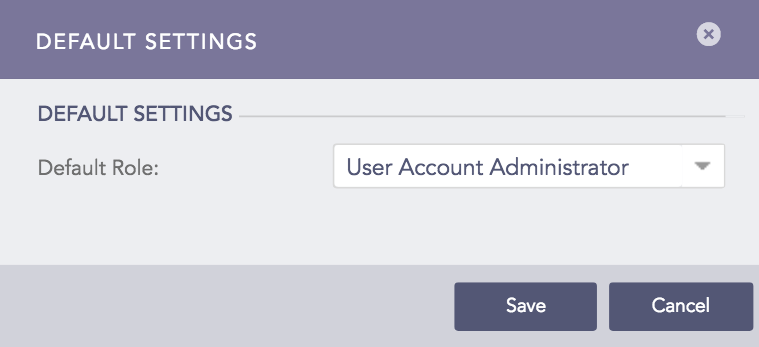
Default Settings Panel
You can map an ADFS role to a LPSM user group to define access permission on LPSM.
Follow these steps to map an ADFS role to a LogPoint user group:
Click Roles Mapping.
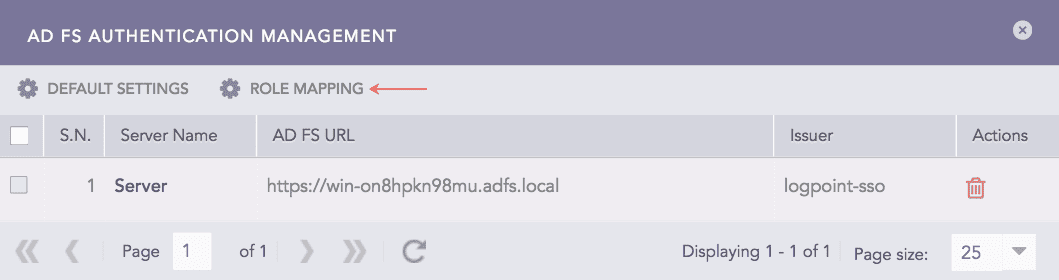
Adding Role Mapping
Enter an AD FS Role.
Select an LPSM User Group in the LogPoint User Group field to assign to the ADFS role mentioned above.
Click Add. A table lists all the mapped ADFS roles and LPSM user groups. You can either edit or delete the added role mappings from the table.
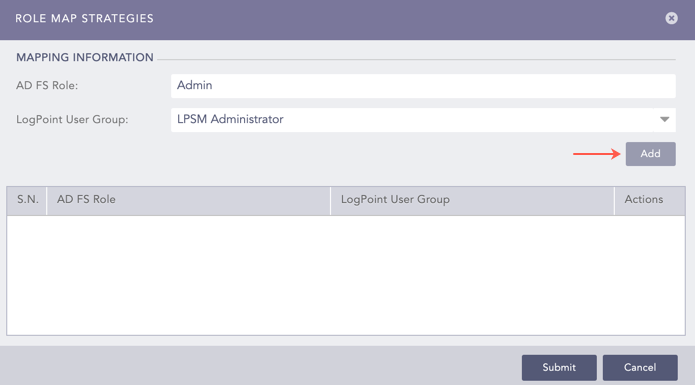
ADFS Role Mapping
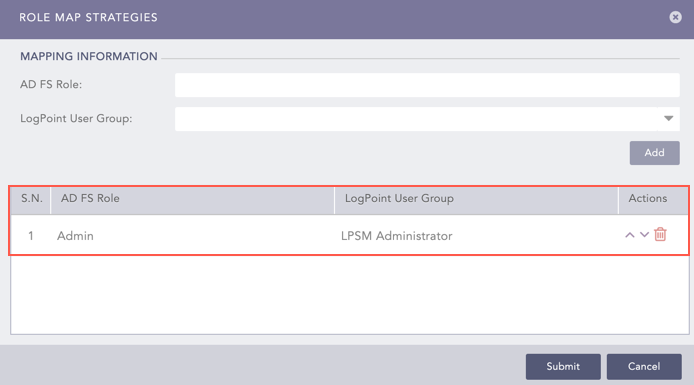
ADFS Role Mapping Added
Note
Mapping roles in the ADFS Authentication application is mandatory.
The ADFS role to LPSM user group mapping is one-to-one, which means you can map an ADFS role to a single LPSM user group only.