
This dashboard consists of the following widgets:
Widget Name |
Description |
|---|---|
Triggered Attack Tactics |
The count of different attack tactics triggered by attackers in your system based on the MITRE ATT&CK framework, categorized and summed by various tactics such as Initial Access, Execution, Persistence, Privilege Escalation, Defense Evasion, Credential Access, Discovery, Lateral Movement, Collection, Command and Control, Exfiltration and Impact. It helps administrators enhance their security posture, prioritize incident response, allocate resources effectively, and improve overall threat detection and mitigation strategies. |
Triggered Attack Tactics - Timetrend |
An hourly trend of various attack tactics triggered within your system, categorized according to the MITRE ATT&CK framework. It helps administrators maintain a robust and responsive security posture, ensuring timely detection and mitigation of potential threats. |
Mitre Att&ck Matrix |
An ATT&CK chart, a heatmap describing the attacks carried out in your system using attack tactics, techniques and procedures defined by MITRE. It shows the count of each attack ID within its respective attack category, helping administrators enhance their security posture, prioritize defences, and improve incident response and threat analysis. |
Top Recurring Attacks |
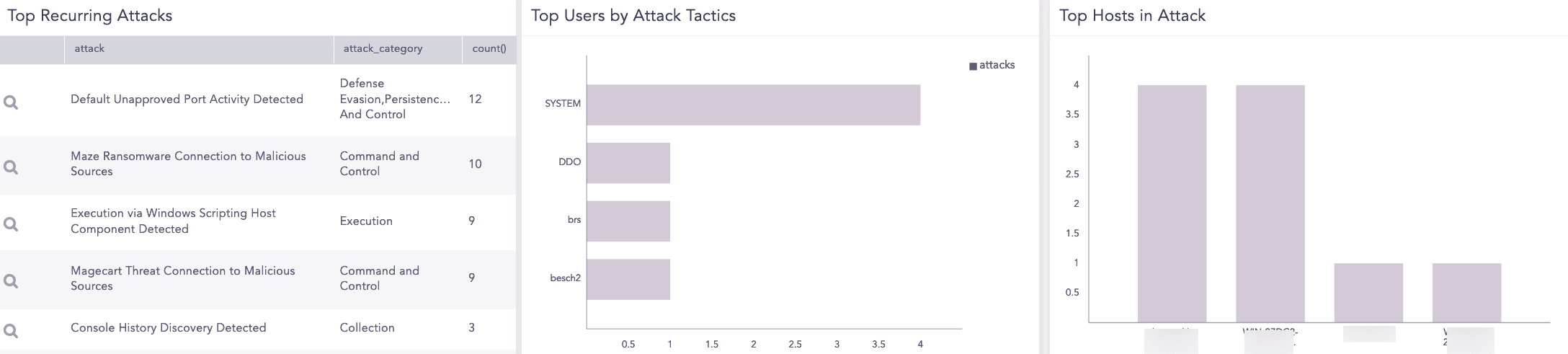
The top ten recurring attacks within your system, categorized by attack type and frequency, allowing administrators to quickly identify the most common and persistent threats. For example, Console History Discover Detected is an attack, Collection is its attack category and the attack occurred three times. |
Top Users by Attack Tactics |
The top ten users based on the number of distinct attack tactics they were associated with, providing insights into which users are most frequently targeted or involved in diverse attack activities. |
Top Hosts in Attack |
The top ten hosts based on the number of distinct attack tactics they were associated with, providing insights into which hosts are most frequently targeted or involved in diverse attack activities. |
Go to Settings >> Knowledge Base from the navigation bar and click Dashboards.
Select VENDOR DASHBOARD from the drop-down.
Click Add from Actions of LP_Mitre Attack Analytics Overview.
Click Choose Repos.
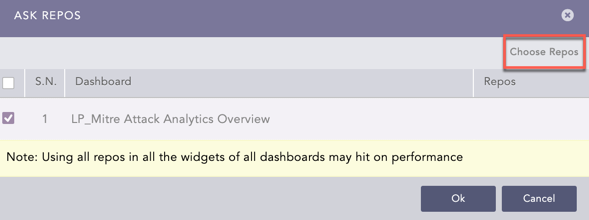
Selecting Repos
Select the repo and click Done.
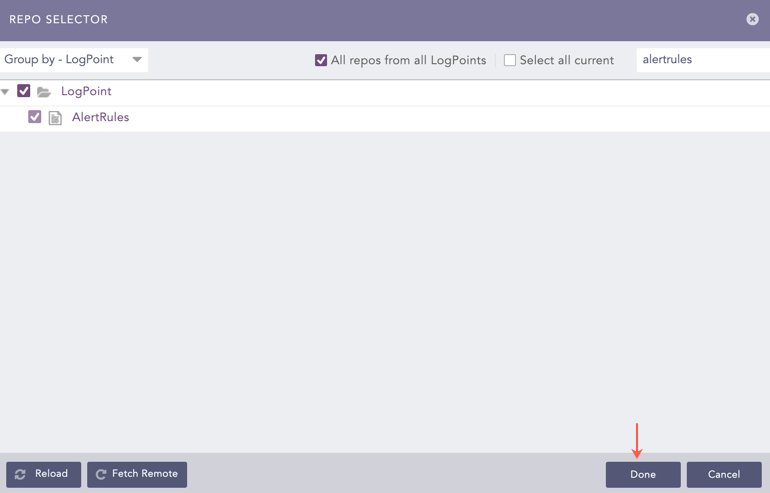
Selecting Repos
Click Ok.
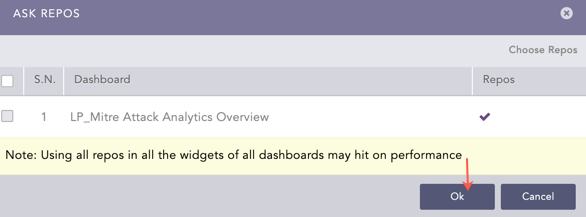
Confirmation for Repo
You can find the Alert Rules dashboard under Dashboards.

Alert Rules Dashboard
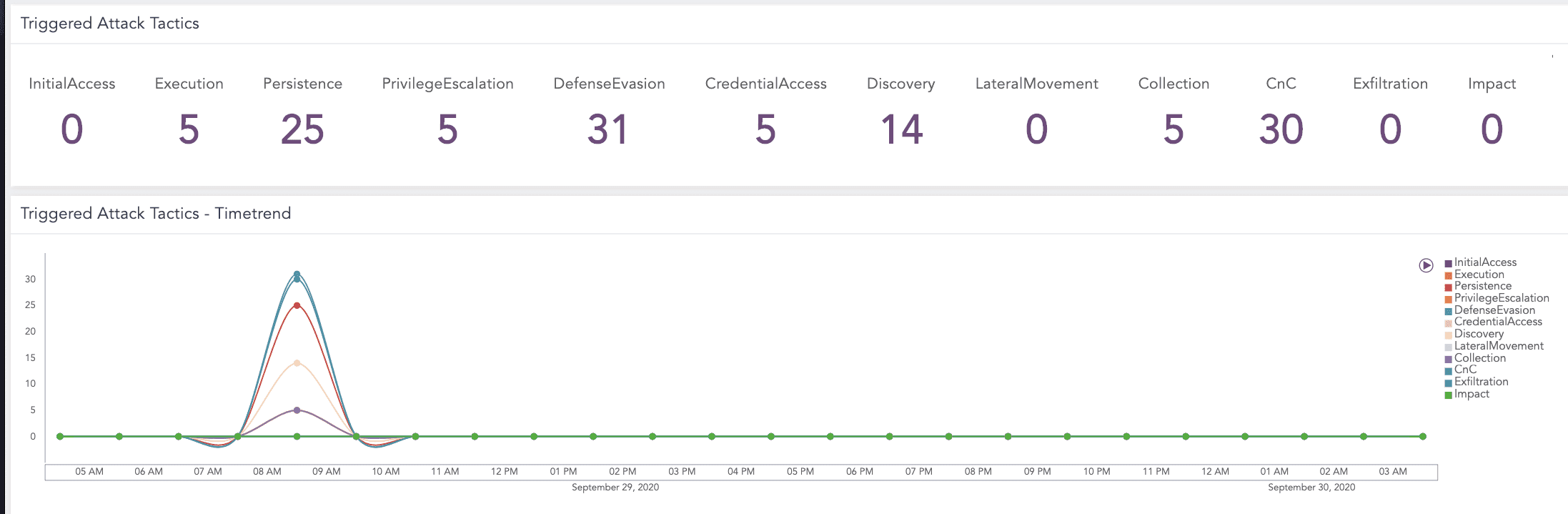
Alert Rules Dashboard
Alert Rules Dashboard
LP_Mitre Attack Analytics Overview: It stores the search queries that provides information on tactics triggered, attack tactics, recurring incidents, and attacks details.
Go to Settings >> Knowledge Base from the navigation bar and click Search Templates.
Select VENDOR SEARCH TEMPLATES from the drop-down, search and click LP_Mitre Attack Analytics Overview.
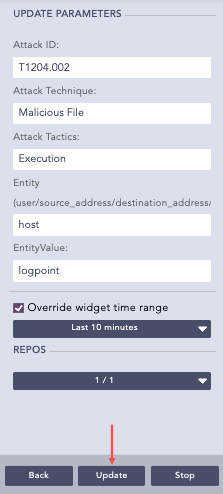
In Update Parameters, enter the required parameters.
3.1 Select Override widget time range to set a time range for the search query.
3.2 Select REPOS to choose repos which contains Alert Rules logs.
3.3 Click Update.
Updating Salesforce Search Template
After updating, the widgets start displaying the result. Logpoint forwards you to Search Template View to access the dashboards of the search template.