
Go to Settings >> Knowledge Base from the navigation bar and click Alert Rules.
Click the Name of the alert rule that you want to edit.
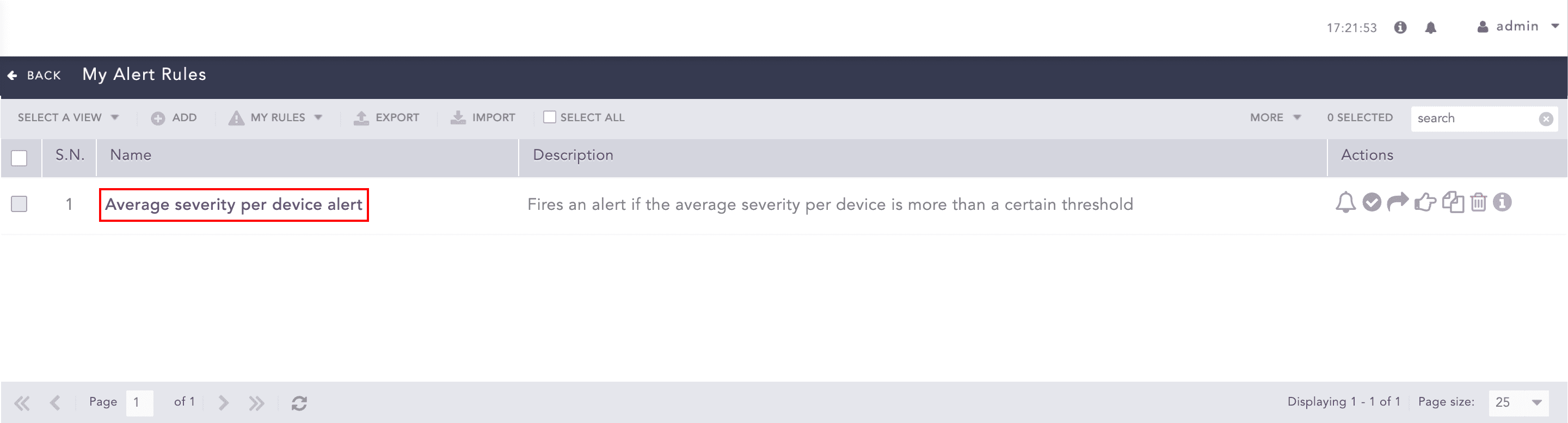
Editing selected Alert Rule
Update the information.
Click Submit.
Go to Settings >> Knowledge Base from the navigation bar and click Alert Rules.
Select the alert rules for which to setup notifications.
Click the More drop-down.
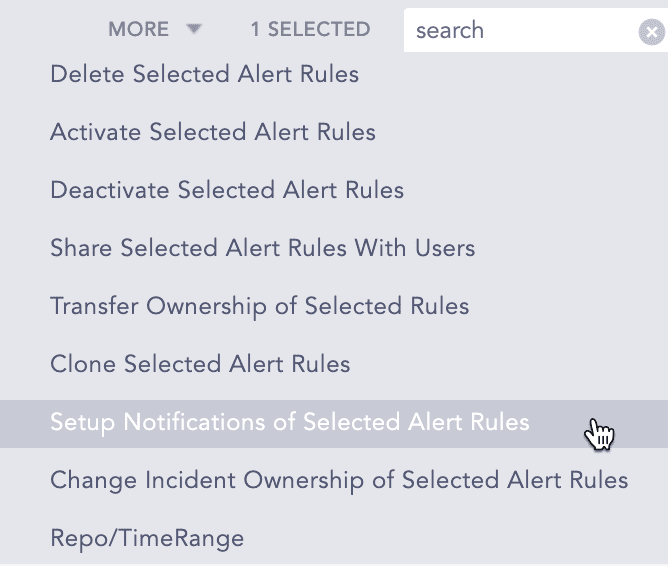
More Drop-down
Select Setup Notifications of Selected Alert Rules.
Configure the notifications and click Save.
Note
By default, LogPoint updates only the alert rules that do not have the notifications configured. To update all the alert rules, select Overwrite existing notifications.
Go to Settings >> Knowledge Base from the navigation bar and click Alert Rules.
Click Select All.

Select All alert rules
Click the More drop-down.
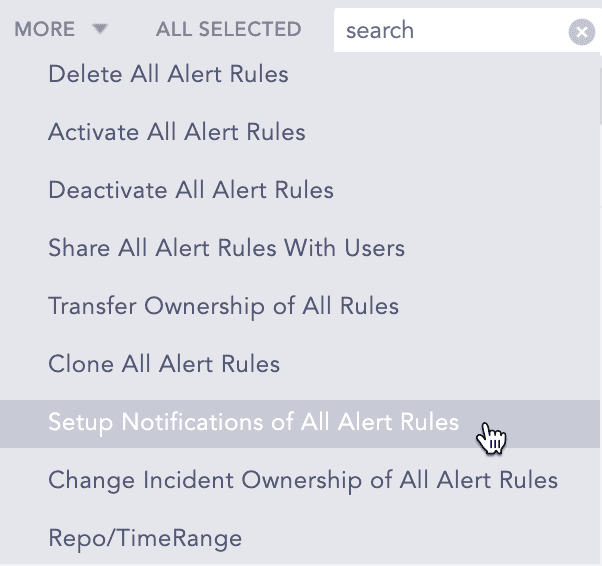
More Drop-down
Select Setup Notifications of All Alert Rules.
Configure the notifications and click Save.
Note
By default, LogPoint updates only the alert rules that do not have the notifications configured. To update all the alert rules, select Overwrite existing notifications.
Go to Settings >> Knowledge Base from the navigation bar and click Alert Rules.
Select the alert rules to edit the ownership for.
Click the More drop-down.
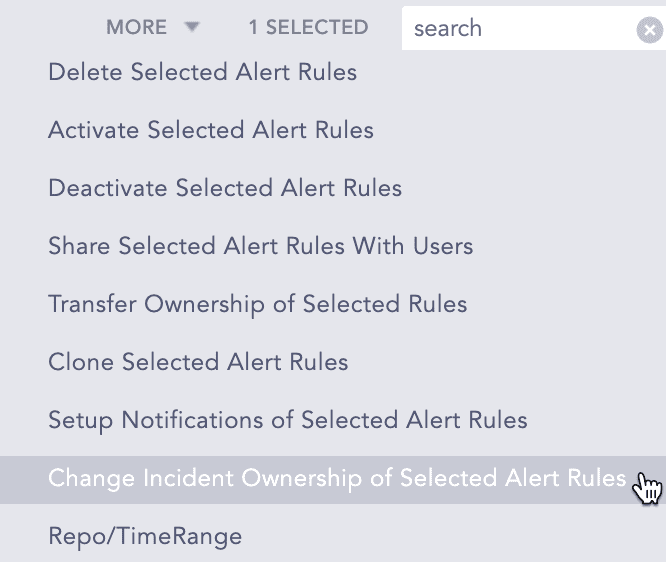
More Drop-down
Select Change Incident Ownership of Selected Alert Rules.
Edit the ownership and click Save.
Note
By default, LogPoint updates only the alert rules that do not have the notifications configured. To update all the alert rules, select Overwrite existing ownership.
Go to Settings >> Knowledge Base from the navigation bar and click Alert Rules.
Click Select All.
Select All alert rules
Click the More drop-down.
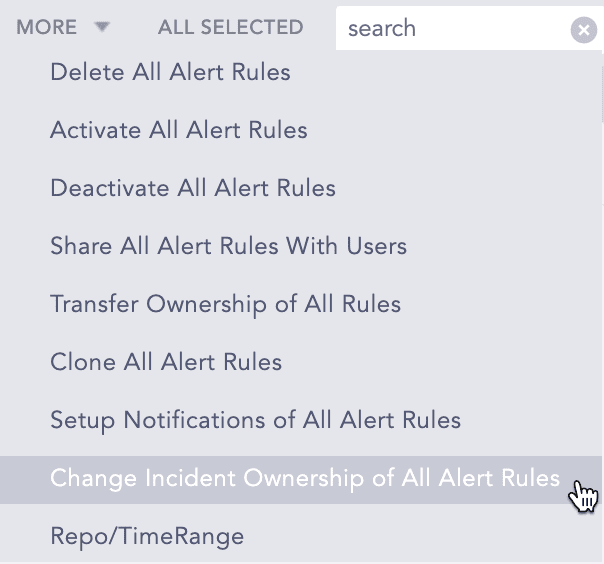
More Drop-down
Select Change Incident Ownership of All Alert Rules.
Edit the ownership and click Save.
Note
By default, LogPoint updates only the alert rules that do not have the notifications configured. To update all the alert rules, select Overwrite existing ownership.