
You can share alert rules with different users and give them read, edit, or full permissions. Incidents for each shared user and owner are triggered independently.
Go to Settings >> Knowledge Base from the navigation bar and click Alert Rules.
Select My Rules from the drop-down.
Click the Share/Unshare to Other Users icon under the Actions column for the alert rule.
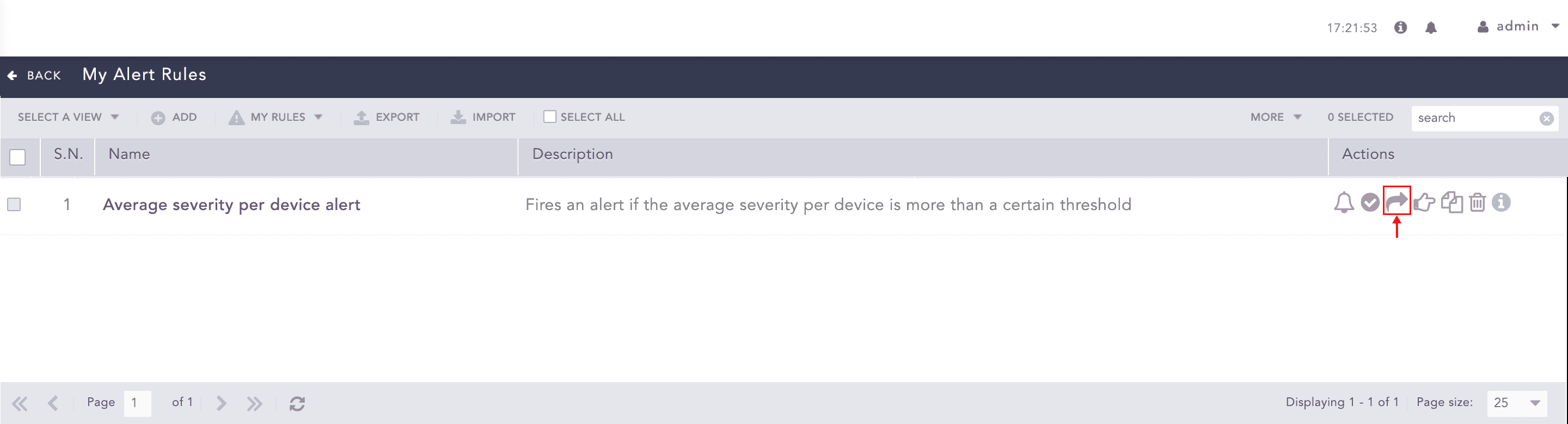
Sharing an Alert Rule
Note
The Unshared. Click to Share (
) icon appears if you have not shared the alert rule previously.
When you upgrade to Logpoint v6.11.0, all the previously shared alert rules are unshared.
To share multiple alert rules, select the alert rules. Click the More drop-down and select Share Selected Alert Rules With Users.
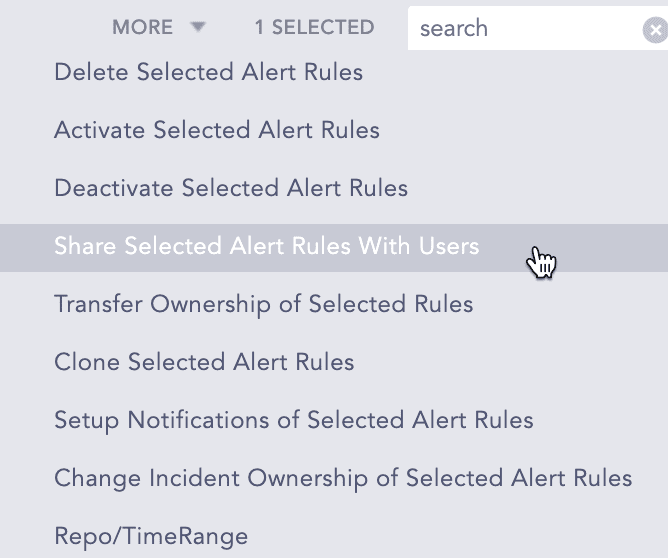
More Drop-down - Share Selected Alert Rules
To share all the alert rules, click Select All. Go to the More drop-down and select Share All Alert Rules With Users.
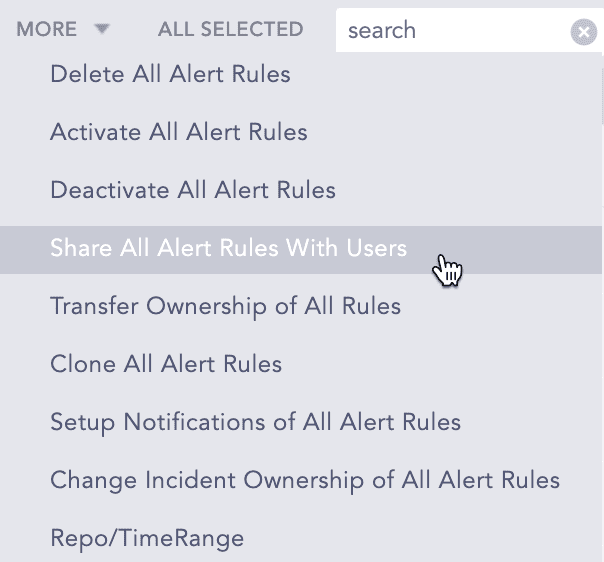
More Drop-down - Share All Alert Rules
Select a User Group. All the users in the user group are listed in the drop-down.
Select Read, Edit, or Full permissions for the users. The read permission allows a user to use and clone the alert rules; the edit permission allows a user to use, clone, and edit the alert rules; and the full permission allows a user to use, clone, edit, remove, and share the alert rules.
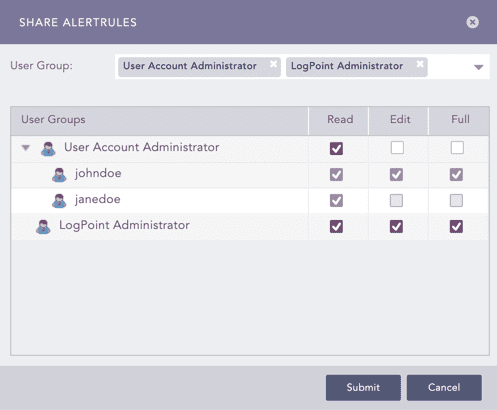
Selecting Permissions for Users
Click Submit
Note
You can unshare alert rules with the users using the same method.
Go to Settings >> Knowledge Base from the navigation bar and click Alert Rules.
Select Shared Rules from the drop-down.
Click the Use icon under the Actions column.
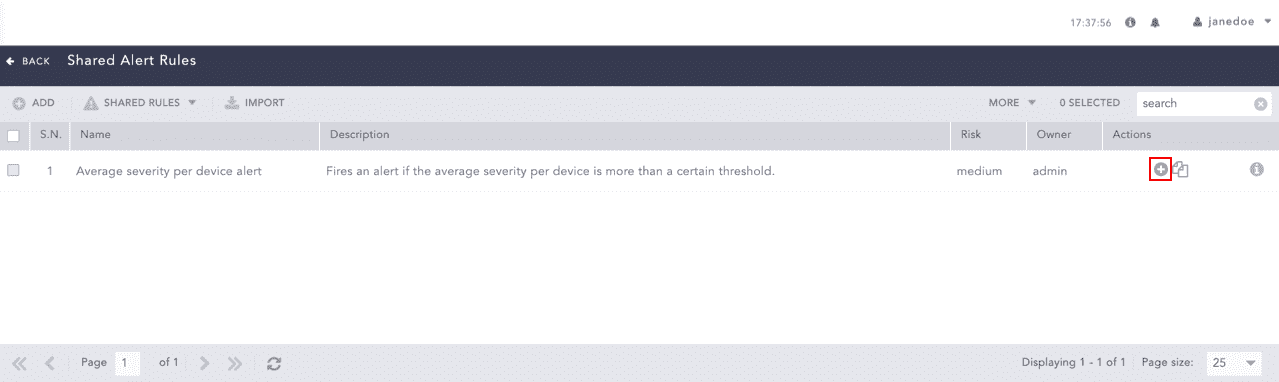
Using a Shared Alert Rule
To use multiple alert rules, select the alert rules. Click the More drop-down and select Use Selected Alert Rules.
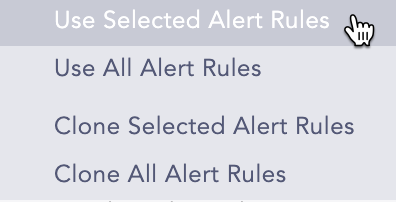
More Drop-down - Use Selected Alert Rules
To use all the alert rules, go to the More drop-down and select Use All Alert Rules.
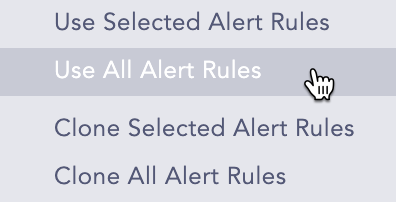
More Drop-down - Use All Alert Rules
Note
If a user does not have access to a repo used in a shared alert rule, the incident is triggered from other selected repos.
If only one repo is selected in the shared alert rule, and the user does not have access to the repo, the incident is not triggered.
Go to Settings >> Knowledge Base from the navigation bar and click Alert Rules.
Select Shared Rules from the drop-down.
Click the Clone icon under the Actions column.
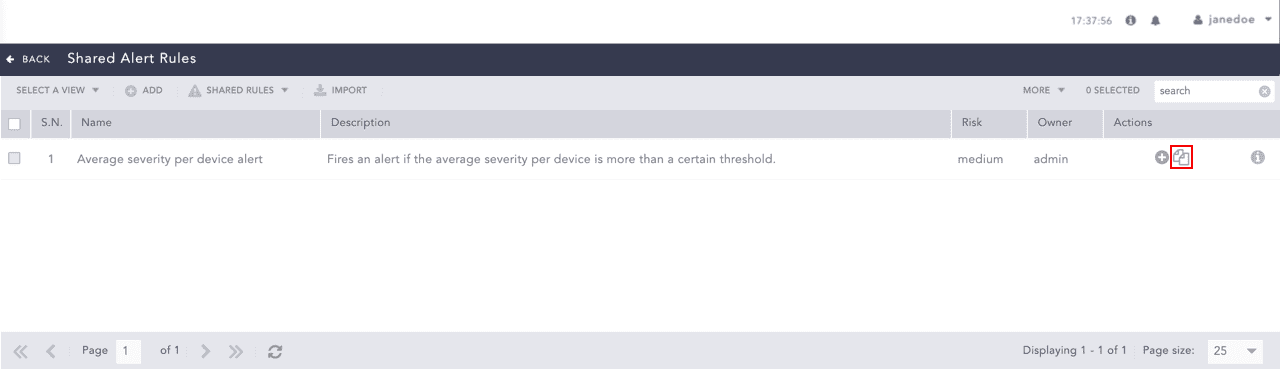
Cloning a Shared Alert Rule
To clone multiple alert rules, select the alert rules. Click the More drop-down and select Clone Selected Alert Rules.
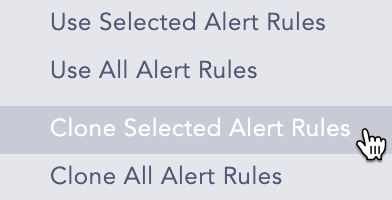
More Drop-down - Clone Selected Alert Rules
To use all the alert rules, go to the More drop-down and select Clone All Alert Rules.
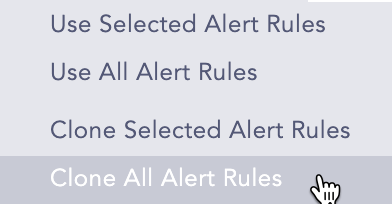
More Drop-down - Clone All Alert Rules
Enter a new Name for the cloned rule.
Select the Replace Existing? checkbox to replace an existing rule with the same name.
Click Clone.