As an admin user of AAHC, you can create and manage the Search, Report, and Super Admin users within AAHC. AAHC supports only one Admin User. So, you cannot asign the Admin Role to any other user.
Select Users from the left navigation bar.
Click Create User to open the Create User panel.
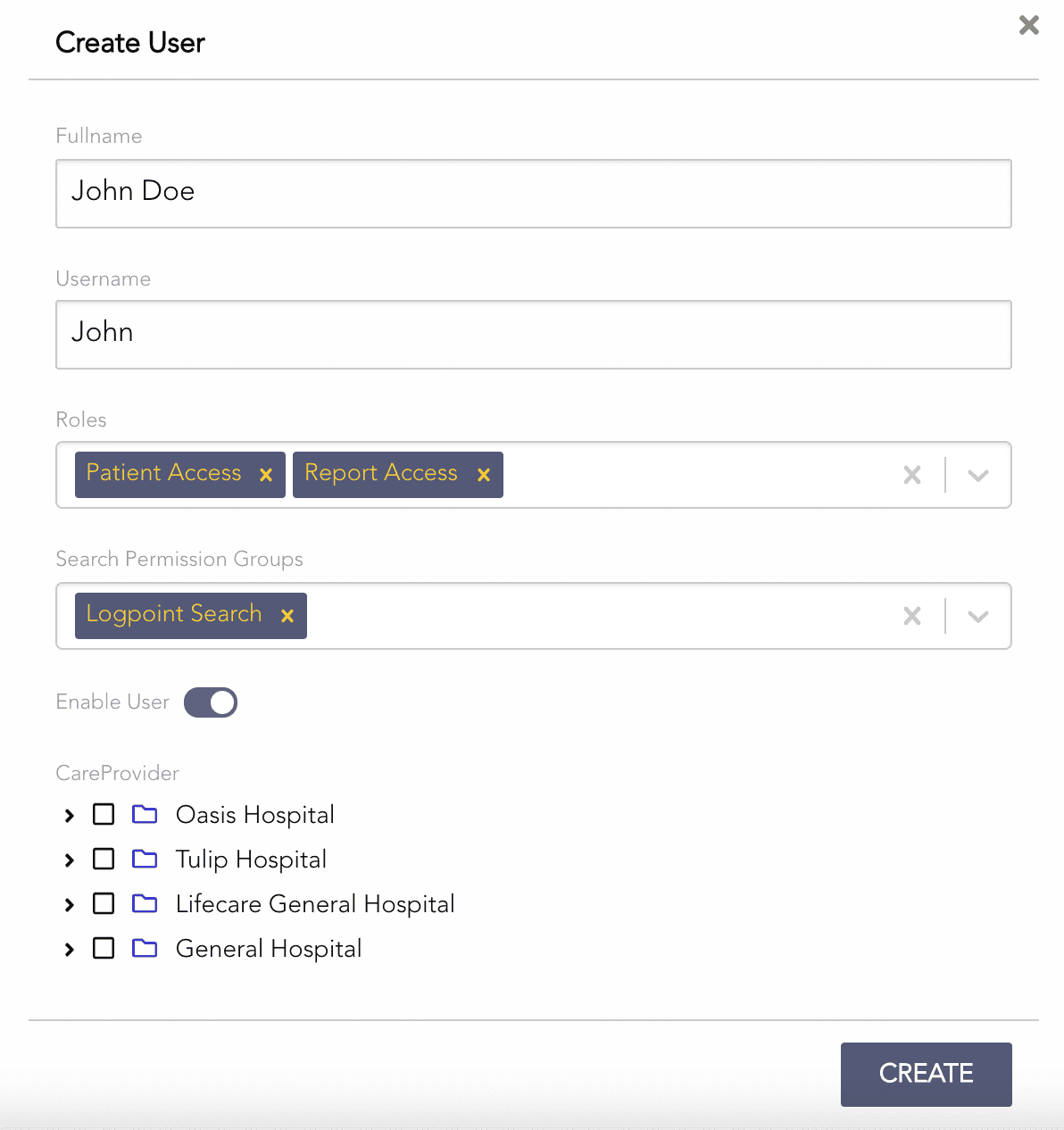
Creating a User
Enter a Fullname for the user.
Enter a Username to log into the AAHC.
Note
By default, the password is set to “1am@aaHc”.
Select the user’s Roles. Refer to the Users section for details.
Select the user’s Search Permission Groups. A user can belong to multiple search permission groups. Refer to the Manage Search Permission Groups section for details.
Deselect Enable User. By default, the user is enabled.
Select the Care Provider and its care units. The user has permission for the selected care units only.
You must import the care providers and their care units in JSON format from the Export & Import page. Otherwise, the Care Provider list is shown empty.
If you upgrade AAHC to v1.8.0 from the previous versions, AAHC adds all the existing users in the default search permission group.
Click Create.
Select Users from the left navigation bar.
Click the View icon from the Actions column.
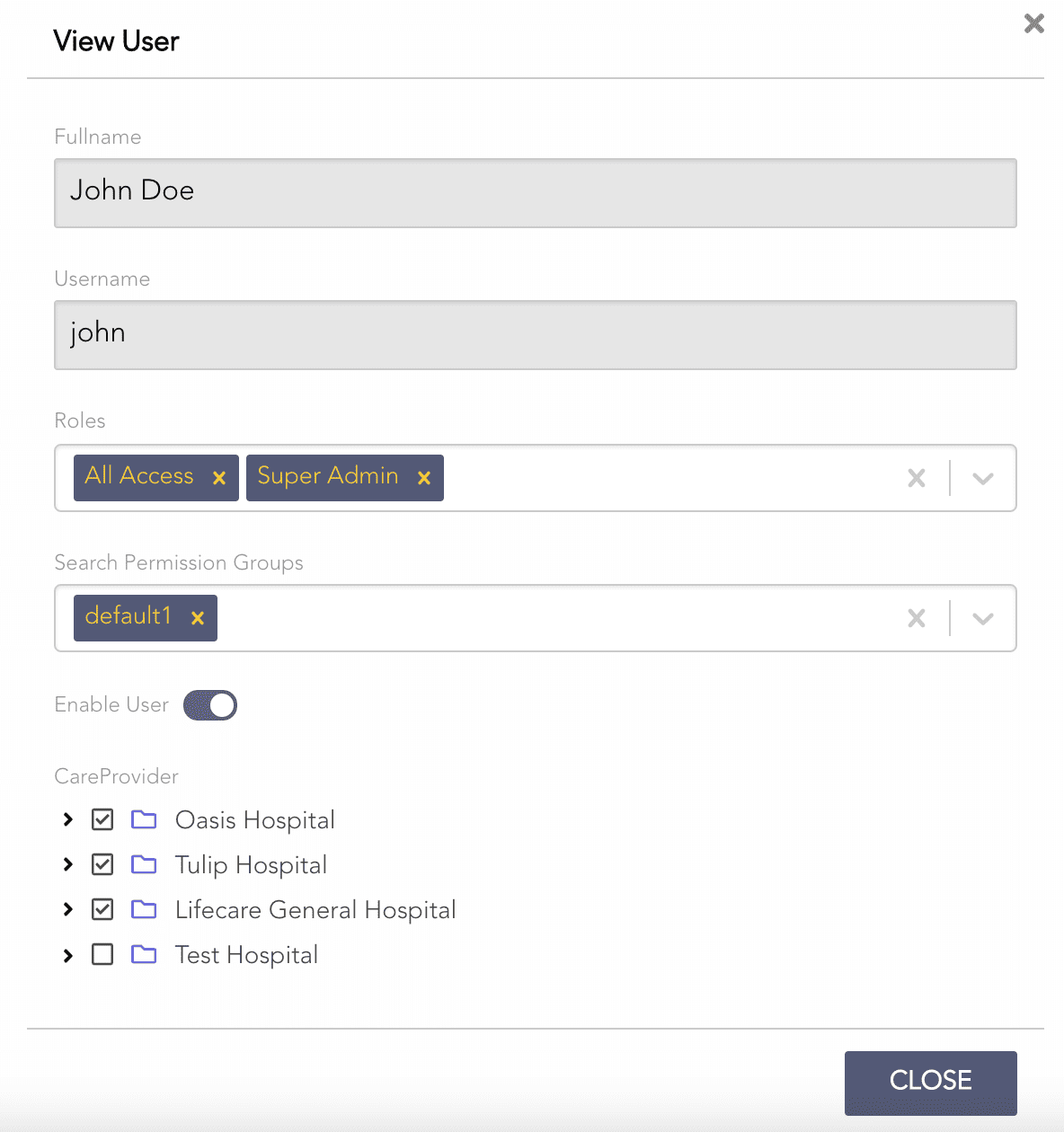
Viewing the Details of a User
Select Users from the left navigation bar.
Click the Edit icon from the Actions column.
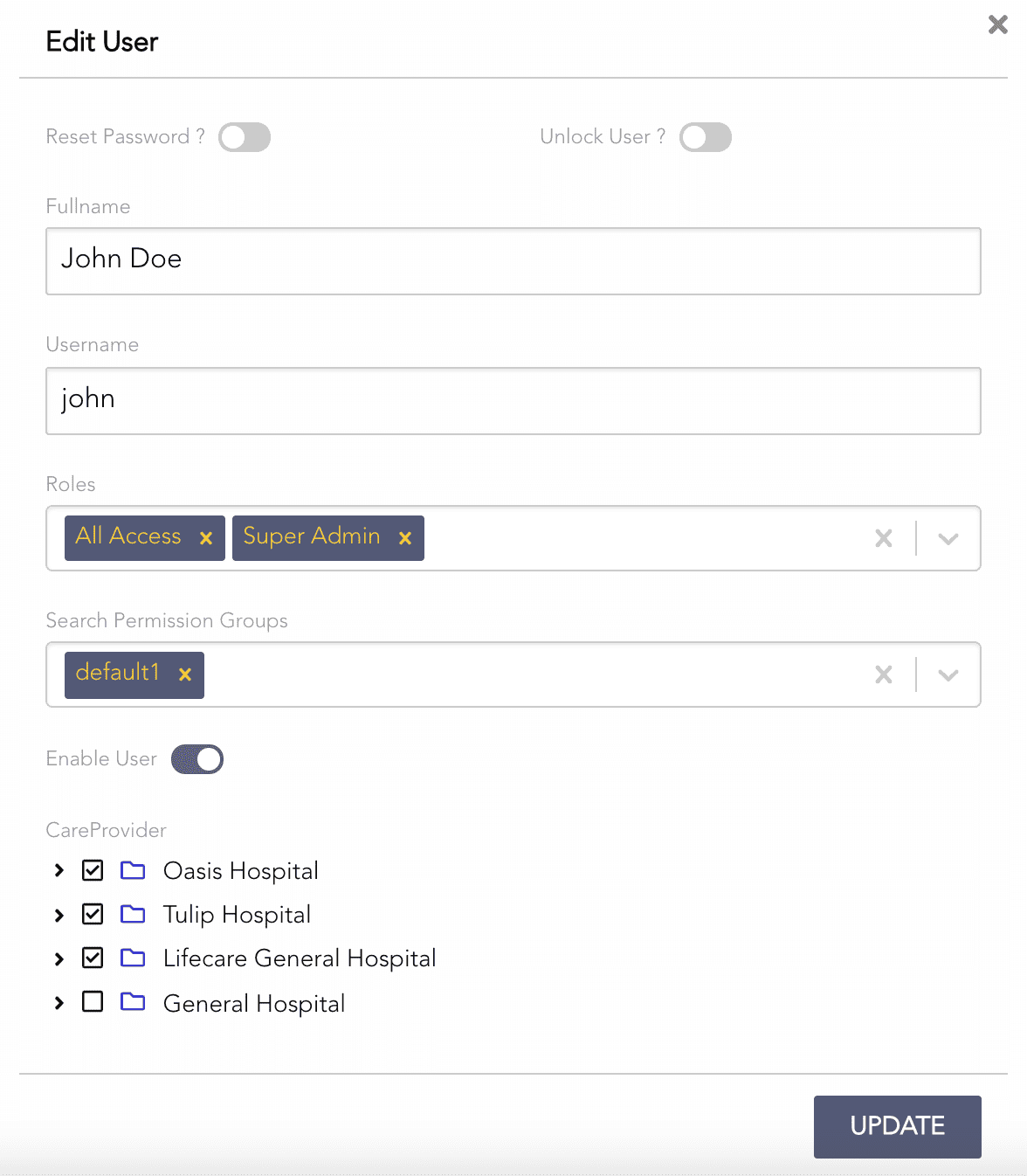
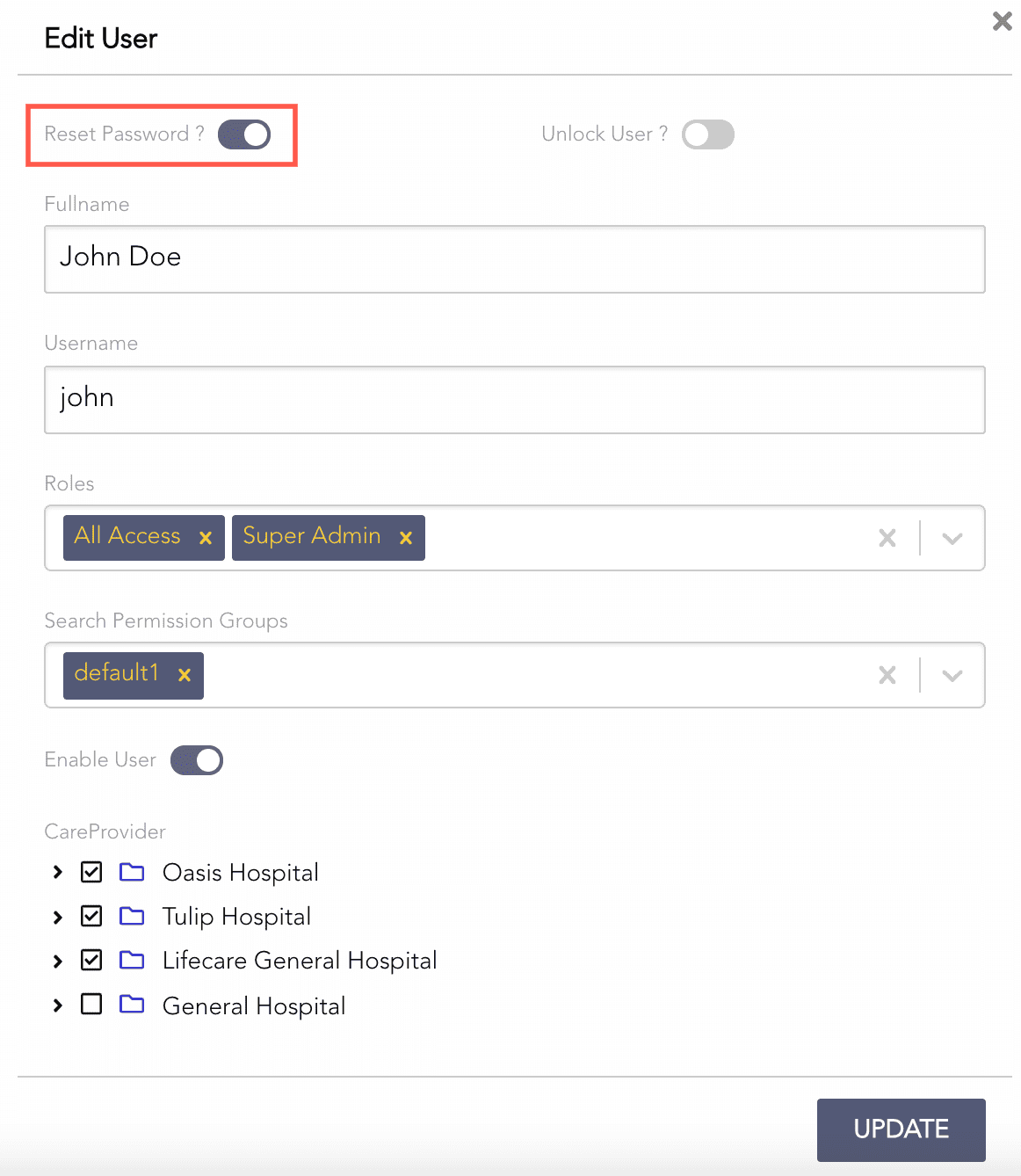
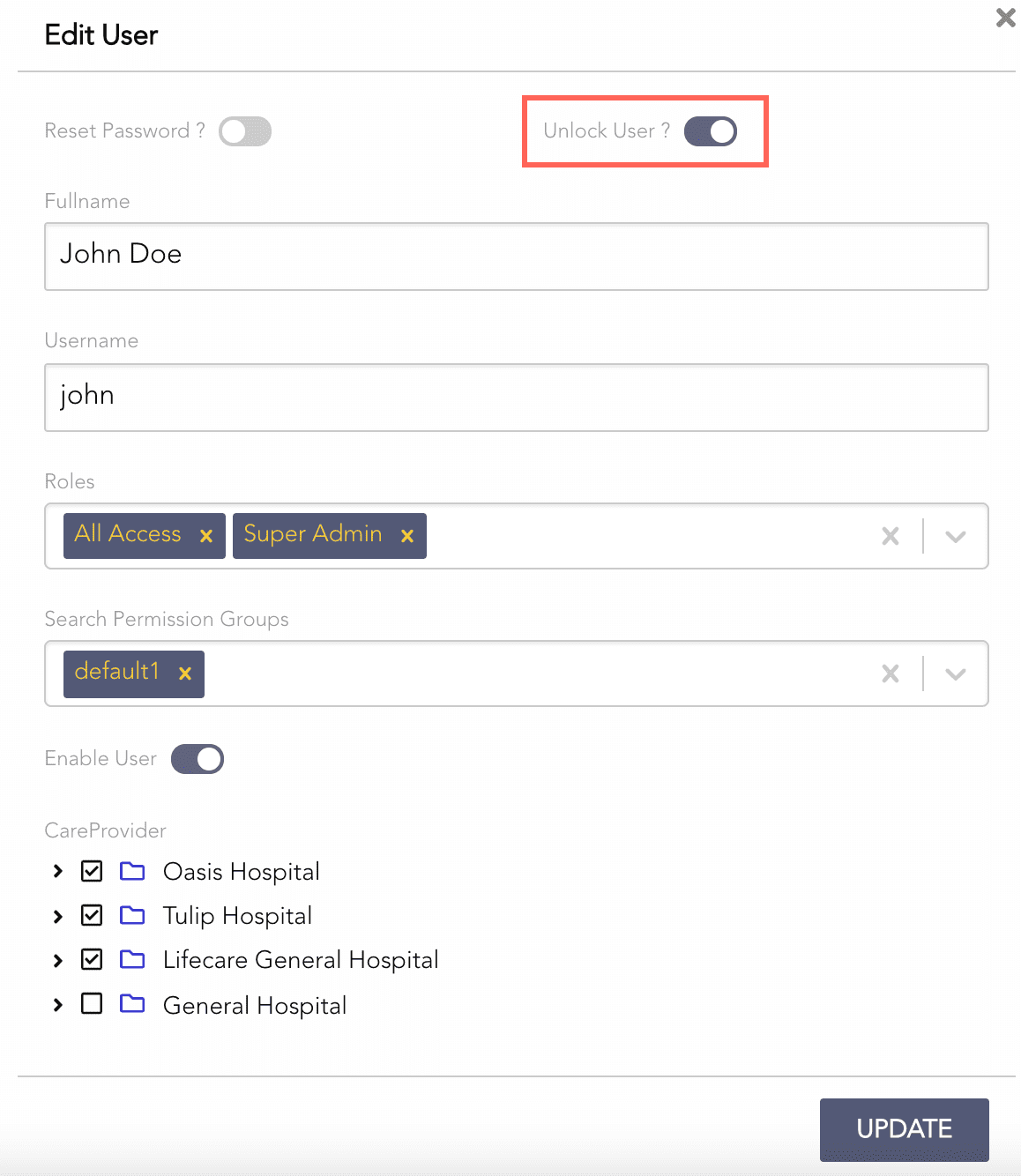
Editing a User
Change the required parameters and click UPDATE.
Select Users from the left navigation bar.
Click the Edit icon from the Actions column.
Deselect Enable User.
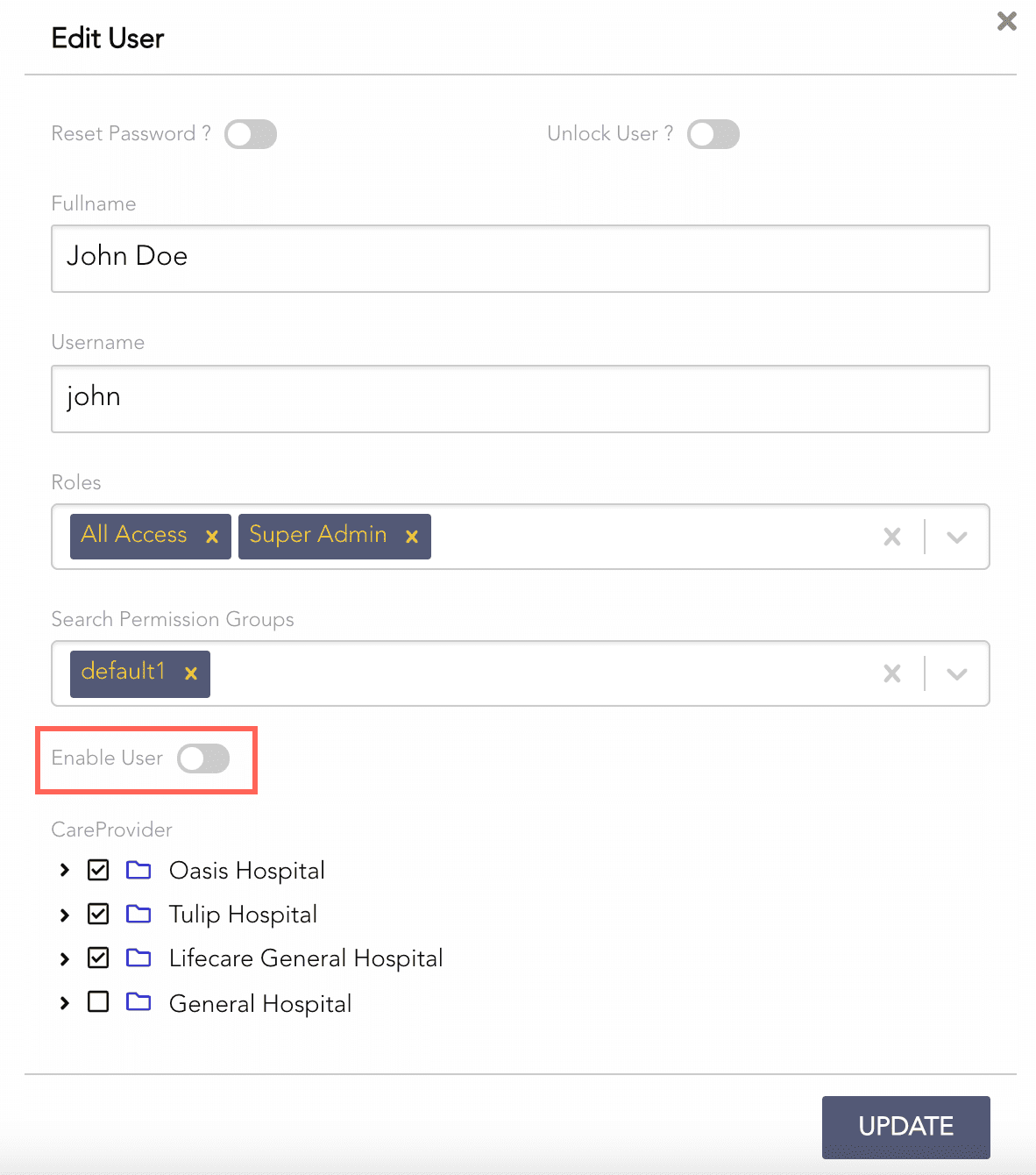
Disabling a User
Click Update.