
From the Export & Import page, you can:
Export and import field mappings and column templates.
Export and import care providers and care units.
Export and import search queries.
Select Export & Import from the navigation bar.
Click the Select Entity Action drop-down.
Select Export - Field mappings and column templates.
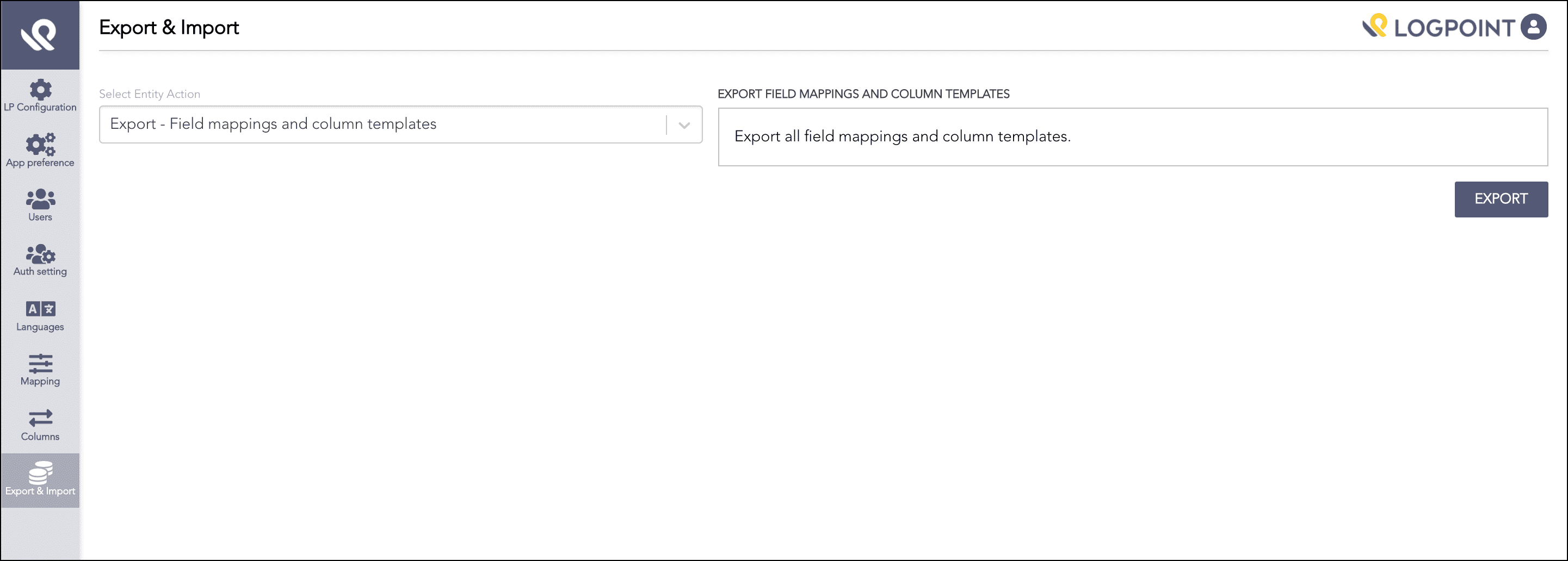
Exporting Field Mappings and Column Templates
Click Export. AAHC exports the pak file.
Select Export & Import from the left navigation bar.
Click the Select Entity Action drop-down.
Select Import - Field mappings and column templates.
Drag and drop the pak file or click the specified area to browse the file.
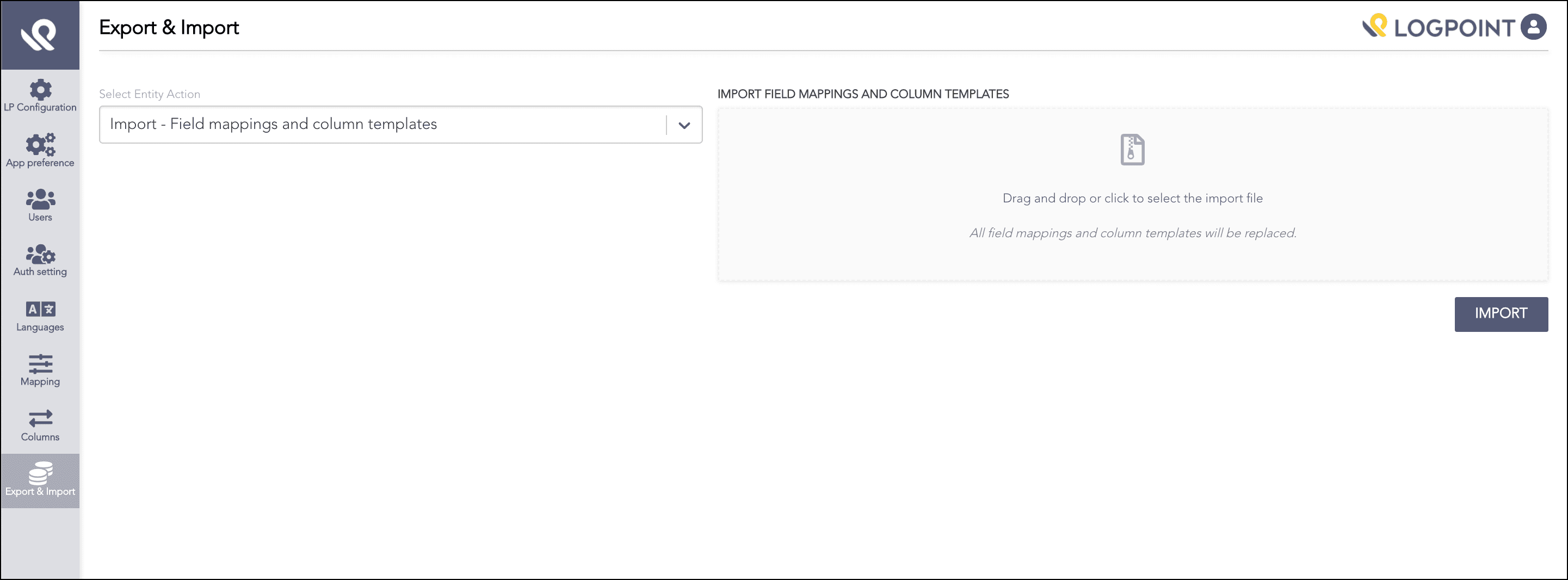
Importing Field Mappings and Column Templates
Click Import.
Note
Importing the file replaces the current field mappings and column templates.
Select Export & Import from the left navigation bar.
Click the Select Entity Action drop-down.
Select Export - Care providers and care units.
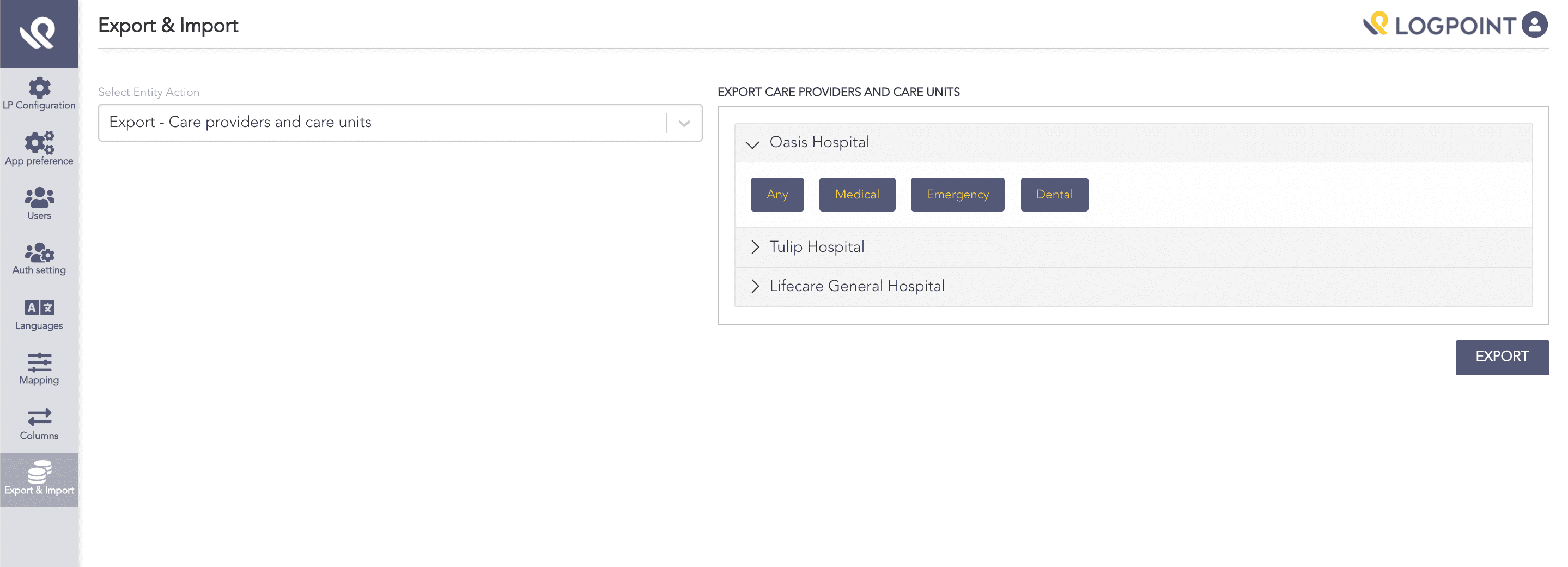
Exporting Care Providers and Care Units
Click Export. AAHC exports the JSON file.
Note
To view a care providers care units, click the arrow to expand the list.
Select Export & Import from the left navigation bar.
Click the Select Entity Action drop-down.
Select Import - Care providers and care units.
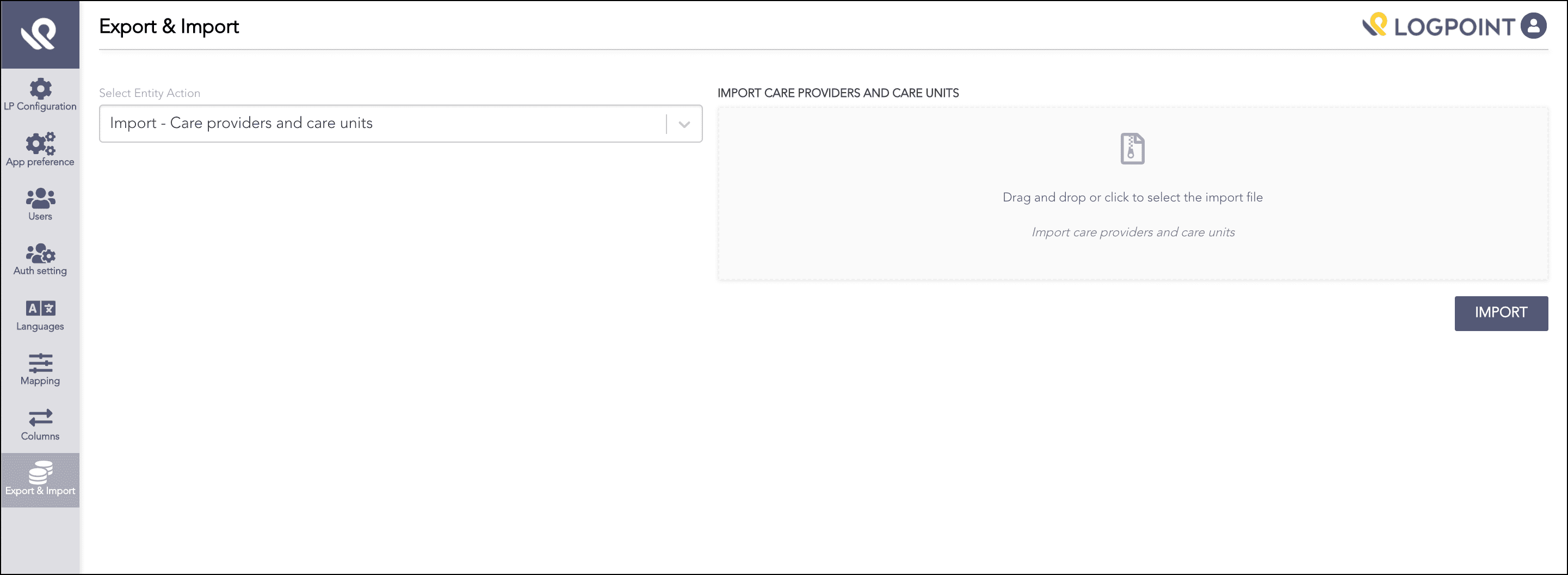
Import Care Providers and Care Units
Drag and drop the JSON file or click the specified area to browse the file. You can also create a JSON file for care providers and care units and import it into AAHC. Refer to the Sample JSON File for Care Providers section in the Appendix.
Click Import.
Select Export & Import from the left navigation bar.
Click the Select Entity Action drop-down.
Select Export - Search queries.
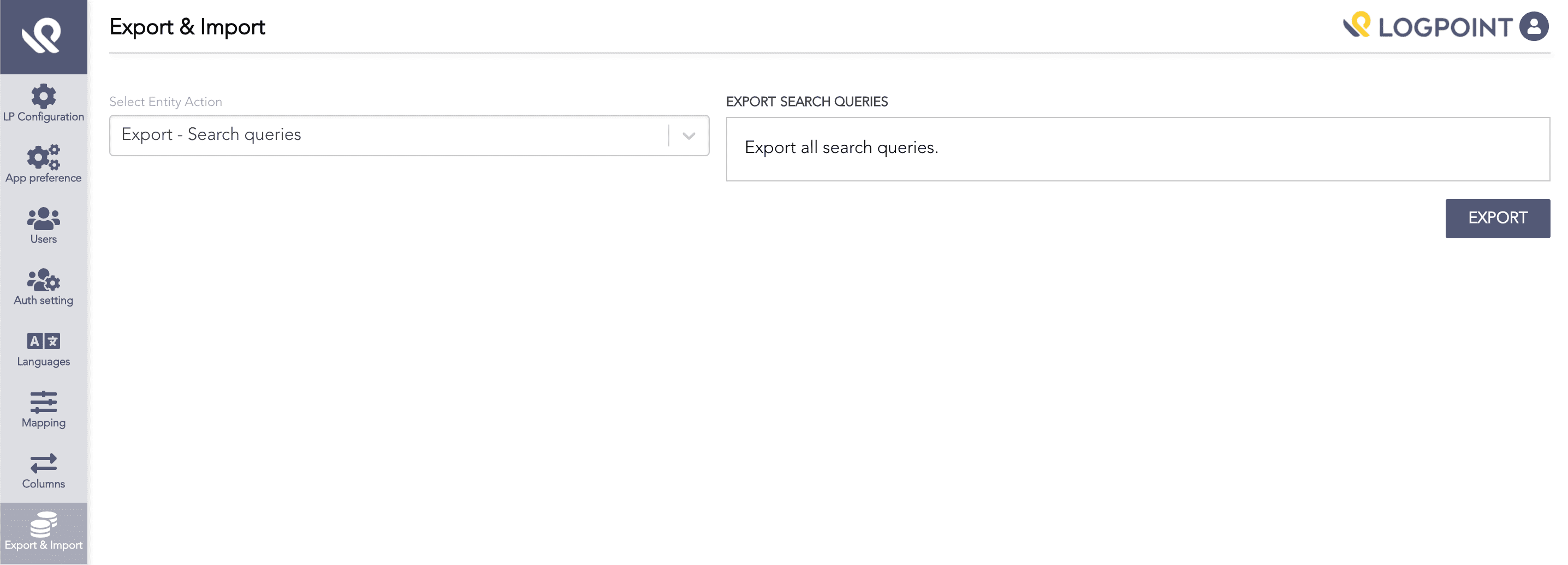
Export Search Queries
Click Export. AAHC exports the JSON file.
Select Export & Import from the left navigation bar.
Click the Select Entity Action drop-down.
Select Import - Search queries.
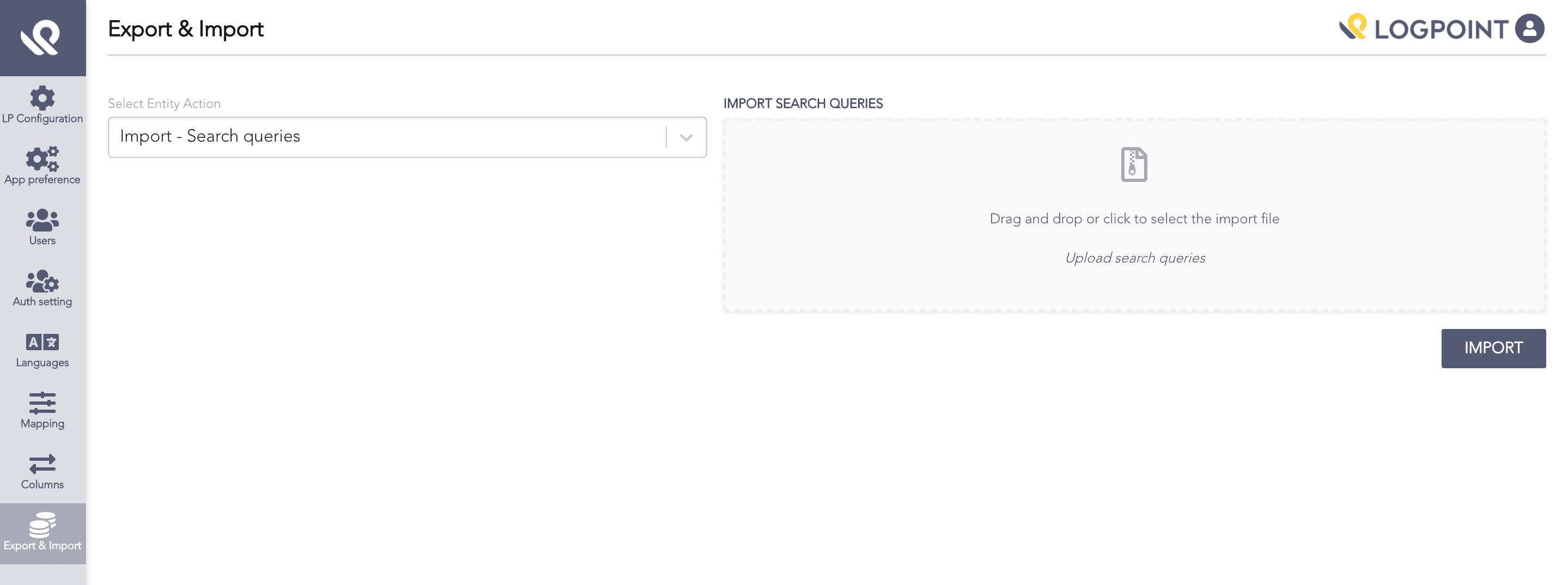
Import Search Queries
Drag and drop the JSON file or click the specified area to browse the file. You can also create a JSON file for search queries and import it into AAHC.
Note
Ensure the search query names in the JSON file do not match the names of search queries in AAHC.
Click Import.