
Cases facilitate a seamless Logpoint SIEM and SOAR workflow and allow you and your team to work collaboratively on SOAR automated threat investigations.
Alerts generate SIEM incidents. If the incident triggers an automated workflow, or playbook, a case is automatically created. Each case represents one or more incidents that make up a potential attack. A case is a series of events where event corresponds to an individual action within a playbook. Using cases, you and your team track and understand what happened through the course of an investigation and automated response.
Go to Investigation >> Cases from the navigation bar to open the Cases page.
The list is an overview of all your organization’s cases. You can use the filters to filter cases according to:
Type
Owner
Severity
Status
Created
Last Modified
When you sort the SOAR cases list or apply a filter, the list is saved with these change even after navigating away or logging out. To reset the list, click Reset View.
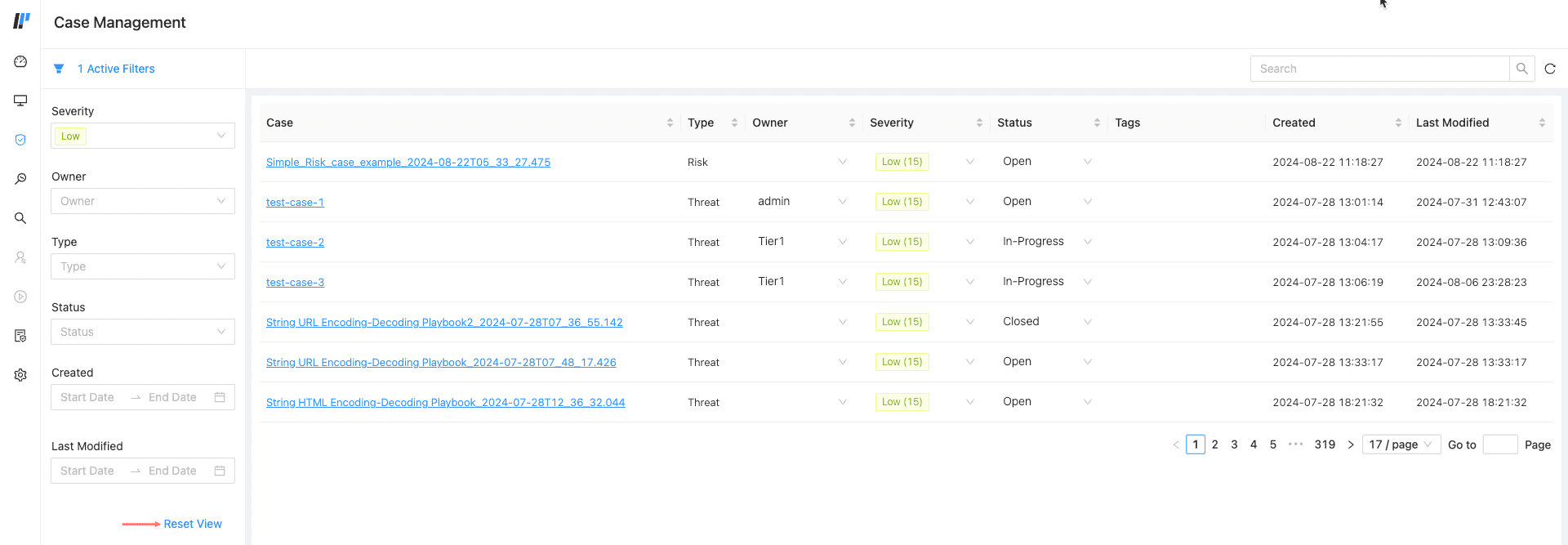
Filtered Cases
A case type is a label given to a security incident to help organize and prioritize it based on its nature, urgency, or impact. You can assign a Threat or Risk type to your case, with Threat being the default. You can change the case type using the Status action block.
To change:
Click Playbooks in the navigation bar.
Search the playbook by filtering the list using the Category or entering the Playbook Name.
Click the Status action block.
In Action, select Set Case Type.
In Type, select Threat or Risk.
Click Save Data.
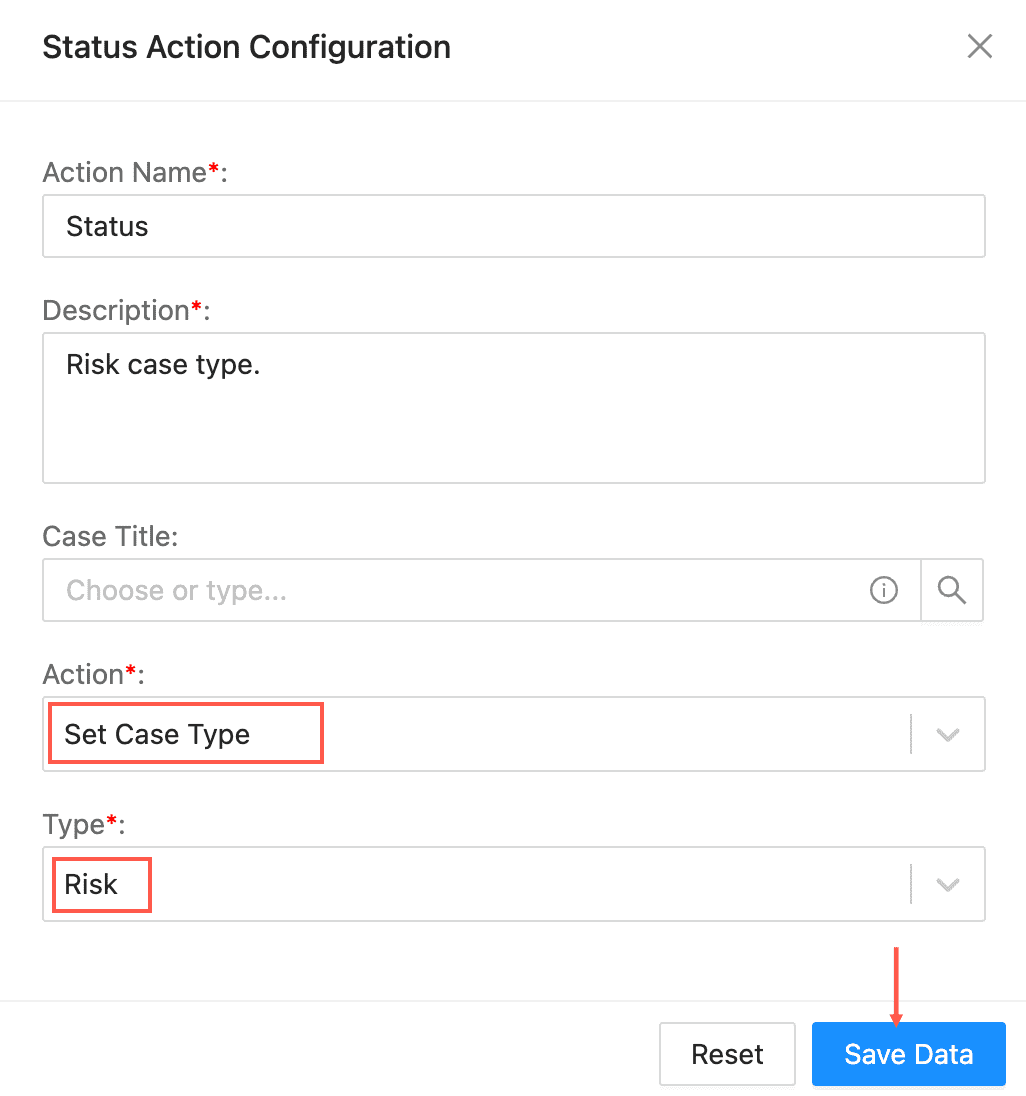
Changing Case Type
Cases can have dedicated owners, individuals who manage a case. If you have the right permissions, you can assign a case to yourself or to someone else. You can also reassign a case to a new owner.
All cases are marked with their potential severity. Their level of severity depends on their severity score:
Low 0 - 30
Medium 31 - 60
High 61 - 80
Critical 81 - 100
You can sort the case list according to severity level.