Click the Edit query icon.
Edit query
Type the name of the case you want.
Press Enter or click the Search button.
Note
The query bar supports the * wildcard character.
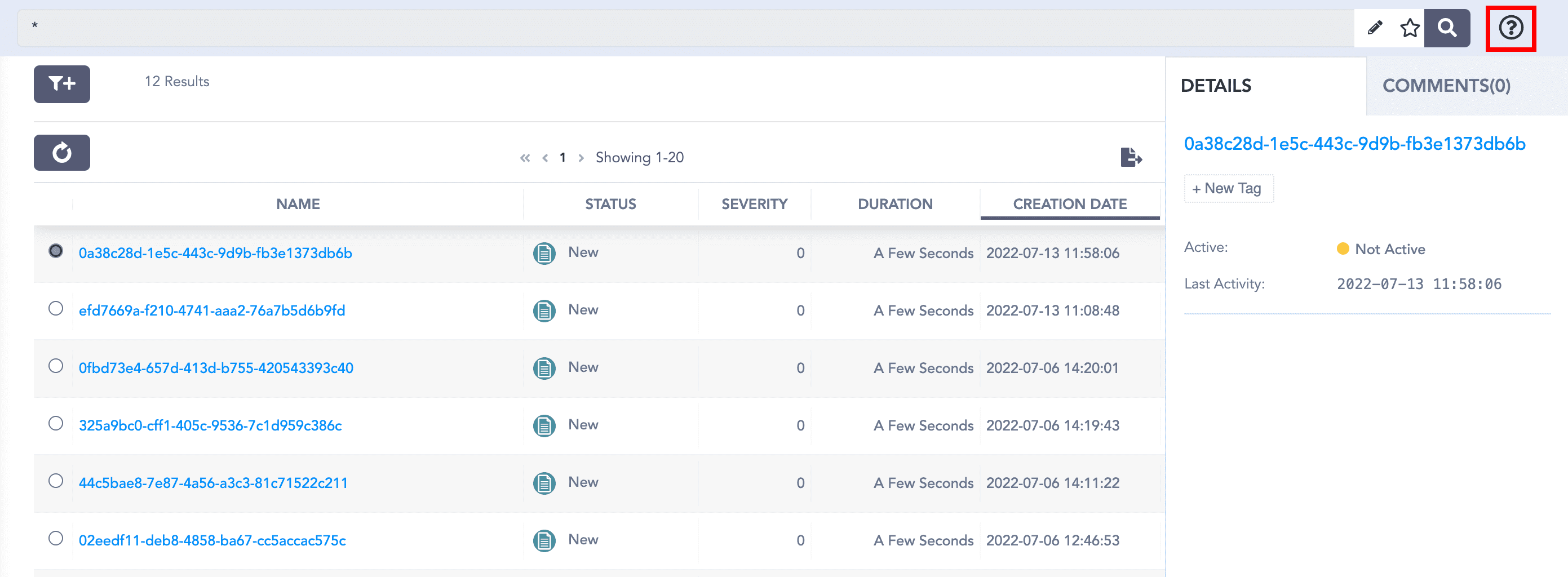
You can view helpful tooltips by clicking Help.
Help button
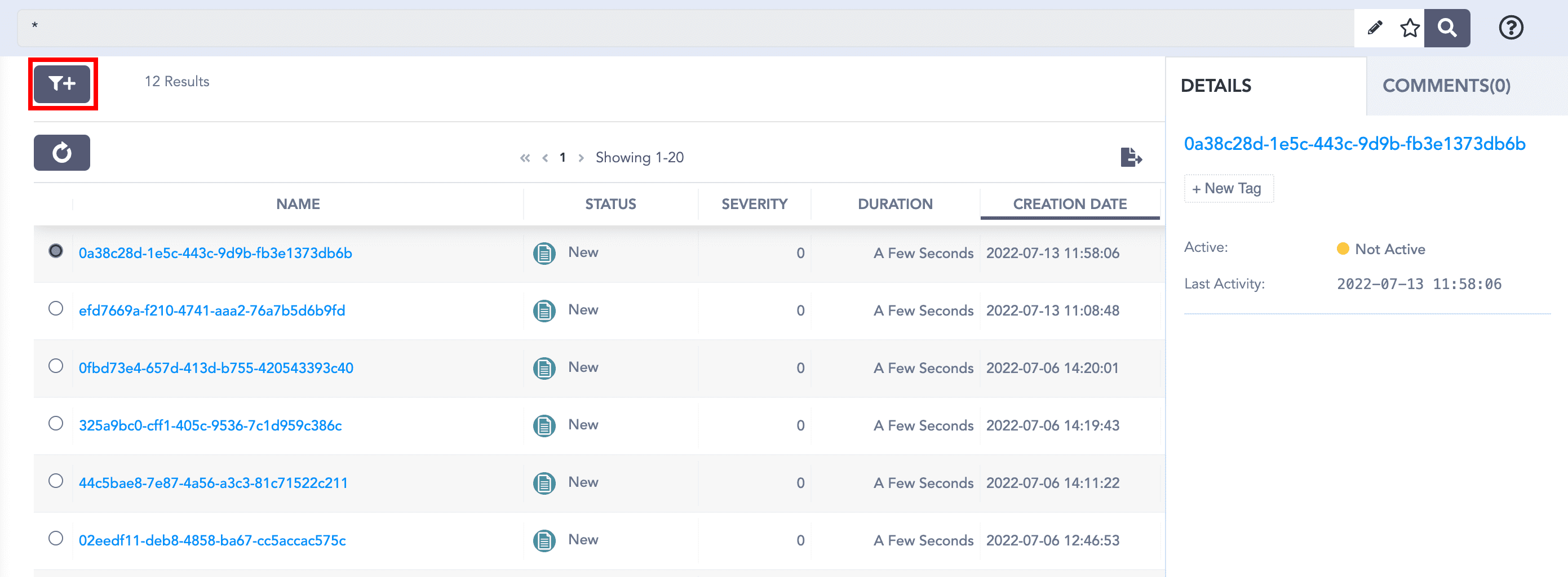
Click the Filter icon.
Filter button
Select a filter from the Available Filters section.
Provide the required values for the selected filter.
Filters panel
Click Save.
We are glad this guide helped.
Please don't include any personal information in your comment