
Cybereason consists of the log source template Cybereason which has predefined settings and configurations to fetch Cybereason Malop logs. However, there are some configurations that must be done manually.
To configure:
Go to Settings >> Log Sources from the navigation bar and click Browse Log Source Templates.
Click Cybereason.
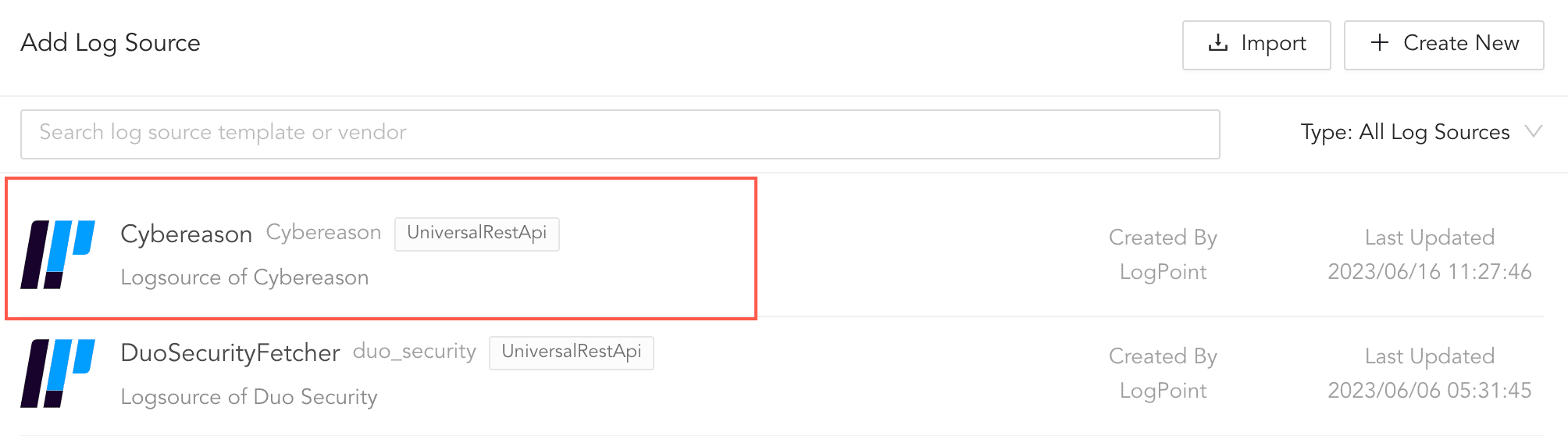
Log Source Templates
In Base URL, enter the endpoint URL and port number using the https://<your server>:port number format. For example, http://1.1.1.1:50.
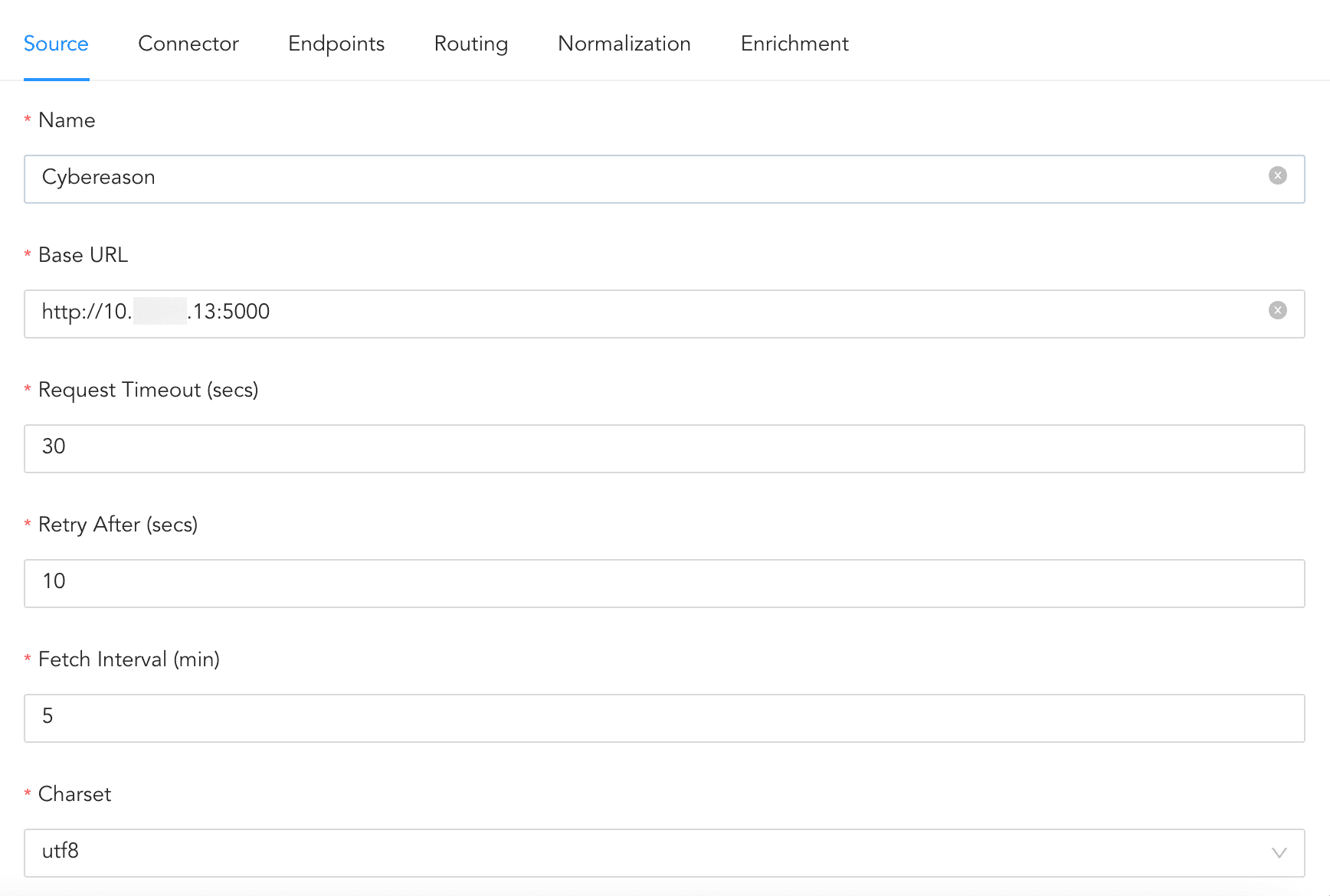
Configuring Source
Click Connector.
In Custom Params,
5.1. In url Value, enter the previously entered Base URL in the https://<your server>:port number/login format. For example, http://1.1.1.1:50/login.
5.2. In username Value, enter your server’s username and in password Value, enter your server’s password.
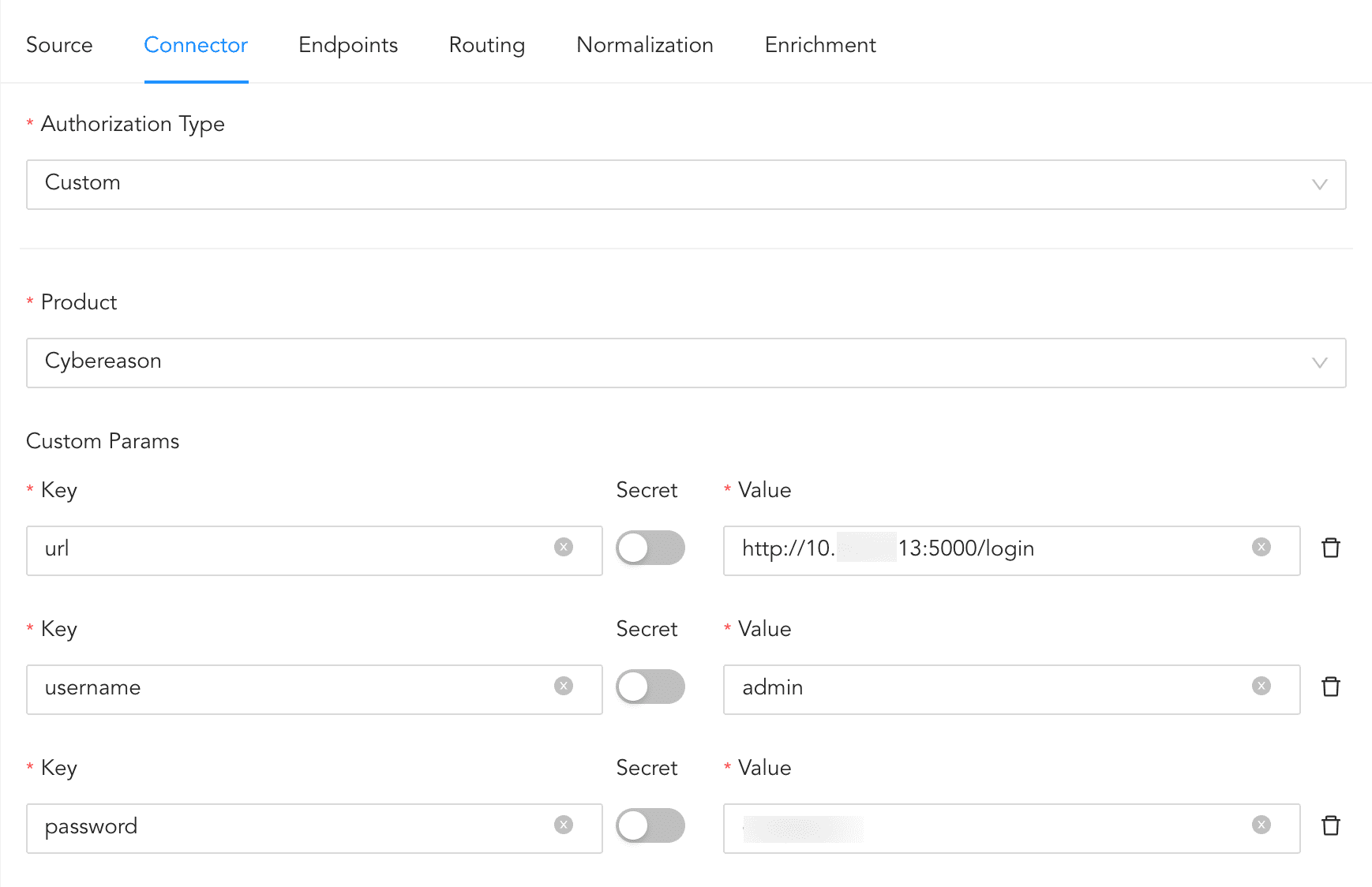
Configuring Connector
Click Routing to create repos and routing criteria.
6.1. Click Routing and + Create Repo.
6.2. Enter a Repo name.
6.3. In Path, enter the location to store incoming logs.
6.4. In Retention (Days), enter the number of days logs are kept in a repository before they are automatically deleted.
6.5. In Availability, select the Remote logpoint and Retention (Days).
6.6. Click Create Repo.
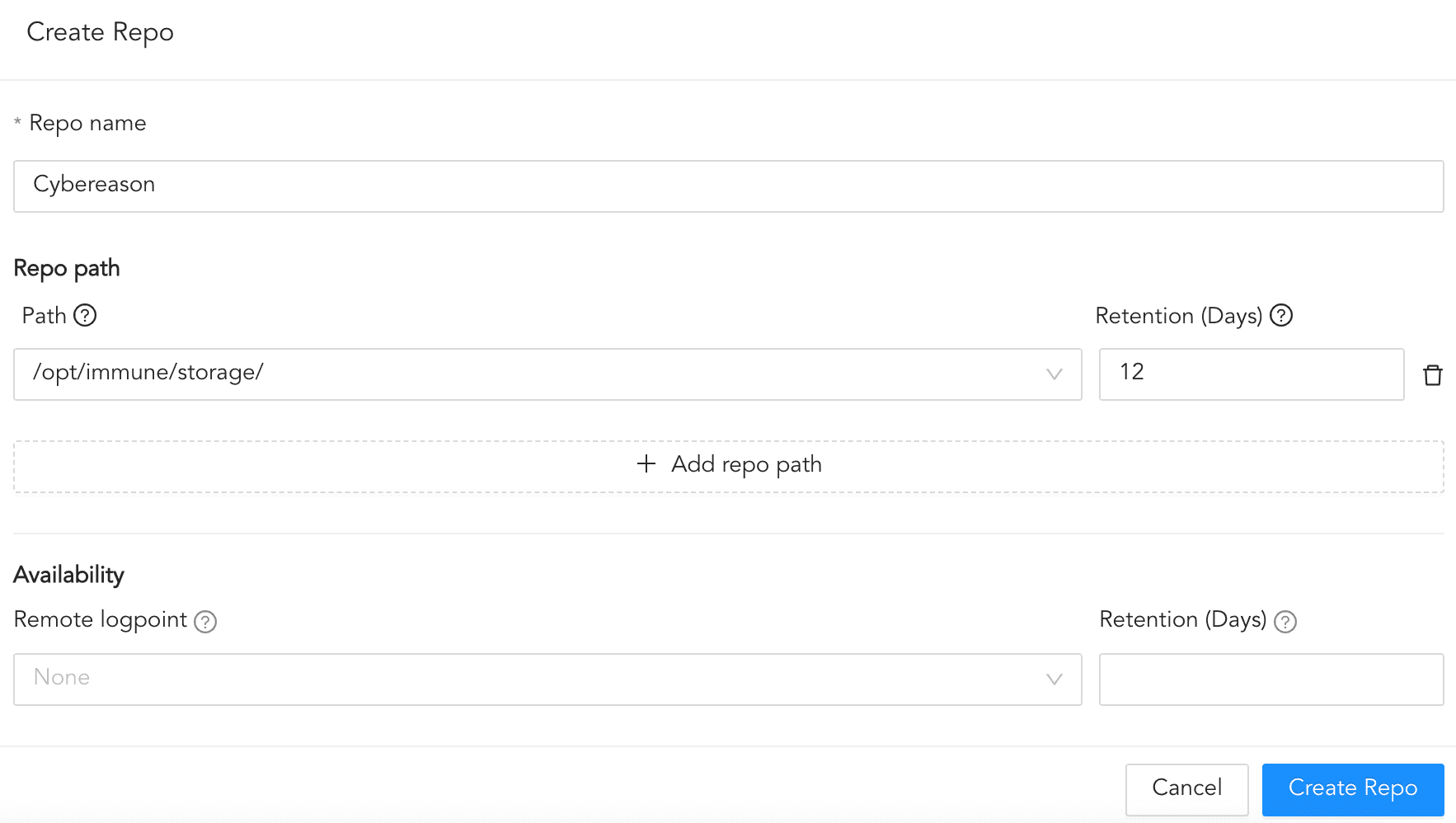
Creating a Repo
6.7. In Repo, select the created repo to store Cybereason logs.
6.8. Click + Add row.
6.9. Enter a Key and Value. The routing criteria are only applied to those logs which have this key value pair.
6.10. Select an Operation for logs that have this key value pair.
6.10.1. Select Store raw message to store both the incoming and the normalized logs in the selected repo.
6.10.2. Select Discard raw message to discard the incoming logs and store the normalized ones.
6.10.3. Select Discard entire event to discard both the incoming and the normalized logs.
6.11. In Repository, select a repo to store logs.
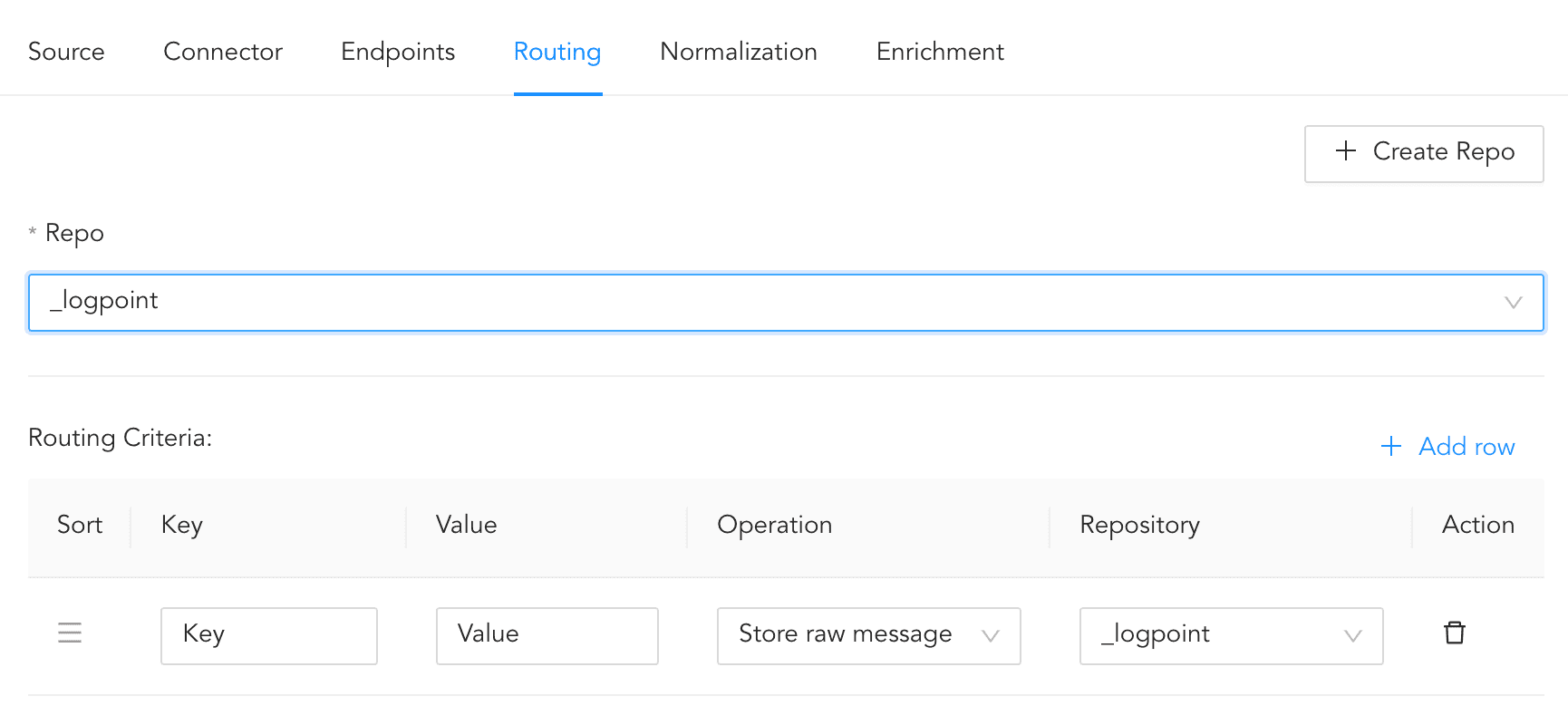
Creating a Routing Criteria
Note
Click the ( ) icon under Action to delete the created routing criteria.
Click Enrichment and select an enrichment policy for the incoming logs.
Click Save Configuration to save all the above configurations.