
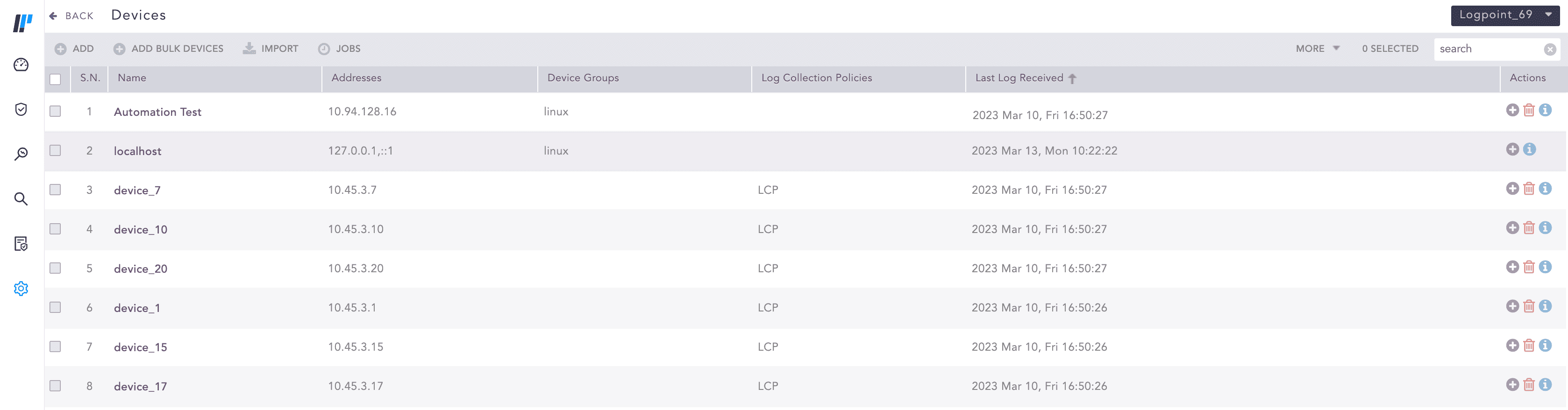
Devices are machines from where logs are collected. You must add and configure them to start receiving logs. In the Devices list, use Last Log Received to view the last time a device sent log(s). To view details of each device, click the Details icon under Actions.
Devices
Go to Settings >> Configuration from the navigation bar and click Devices.
Devices
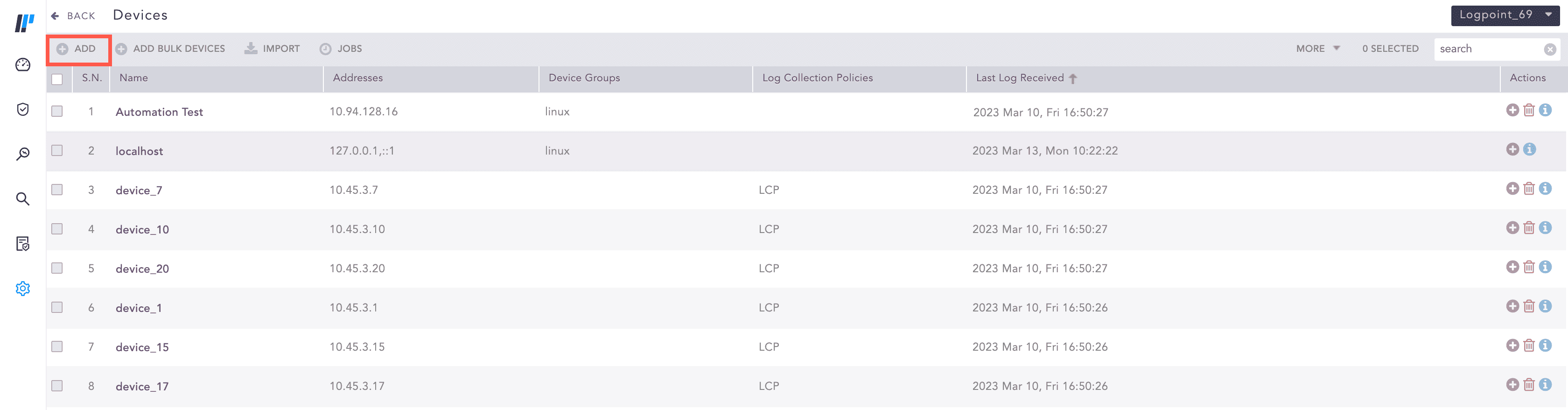
Click ADD.
Adding a new device
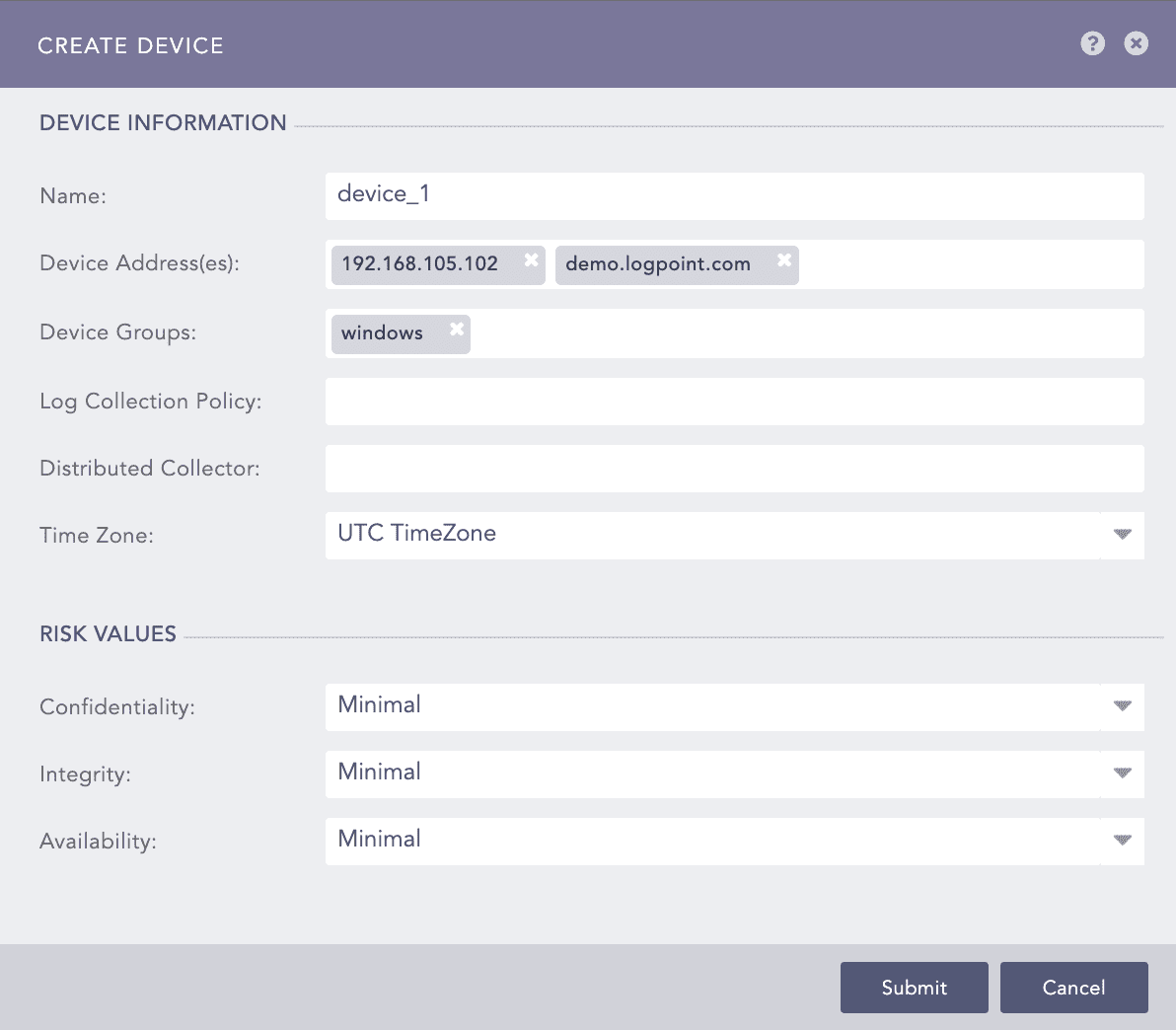
Enter the device’s Name and Device address(es). Device addresses are IP addresses or hostnames of the device.
Select Device Groups and Log Collection Policies.
Select a collector/forwarder from the Distributed Collector drop-down. The drop-down lists all the distributed collectors and syslog forwarders configured in the Distributed Logpoints.
Note
It is optional to select Device Groups, Log Collection Policies, and Distributed Collector.
Select a Time Zone. The timezone of a device must be the same as it’s log source. Logpoint uses timezone to convert the timestamp in the collected logs to the timezone of the user searching the logs. If the timezones do not match, you may not see search results in the expected timeframe.
For example, if you are working in London and want to add two different devices located in Cairo and Brisbane, add the timezones as GMT+2:00 (Cairo) and GMT+10:00 (Brisbane).
Select RISK VALUES for the device. Logpoint uses the values to calculate the risk levels of any alerts generated from the device. For details, see step 19 of Creating an Alert Rule.
Click Submit.
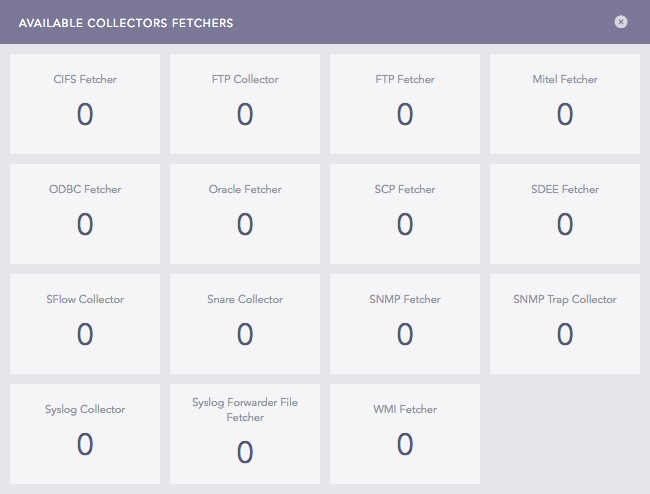
In Available Collectors/Fetchers, select the relevant collectors and fetchers for the device.
Collectors and Fetchers
Click Submit.
To add collectors and fetchers on the existing devices, click the Add Collectors/Fetchers icon under Actions. Go to Built-in Collectors and Built-in Fetchers to configure the built-in collectors and fetchers.
Go to Settings >> Configuration from the navigation bar and click Devices.
Click ADD BULK DEVICES.
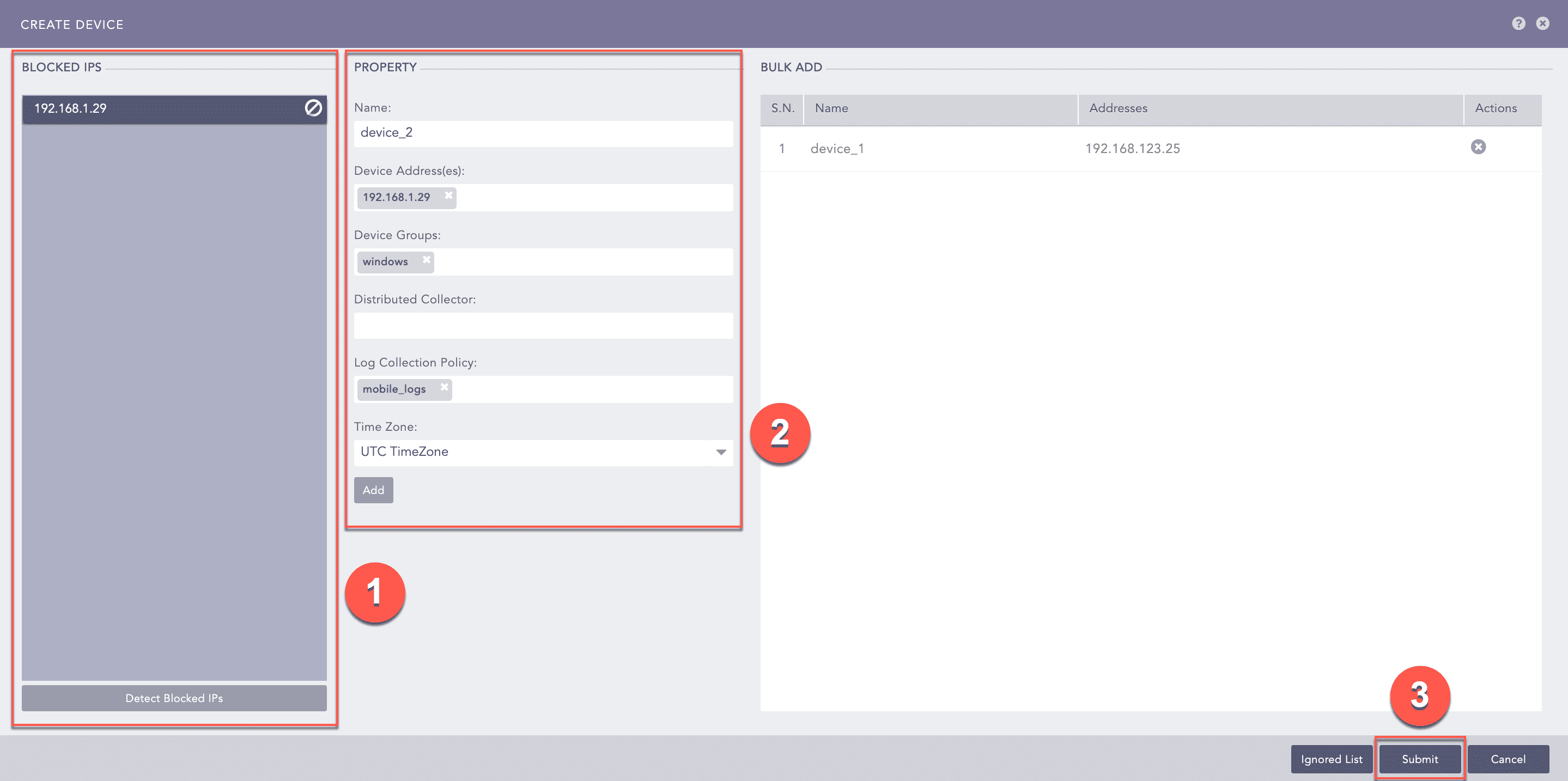
Adding Bulk Devices
Click Add.
Click Submit.
Note
Click Detect Blocked IPs for a list of the IPs blocked on the ports where there are configured collectors. The list is all the devices sending logs to the Logpoint within the last hour.
To add the blocked device, double-click the blocked IP. The device’s details are in PROPERTY, which you can use to manually enter or edit the device’s properties.
You can also add a new device using PROPERTY. Enter the device’s details and click Add.
Click Ignore icon to ignore it.
Click Ignored List button to view a list of all the IGNORED DEVICES.
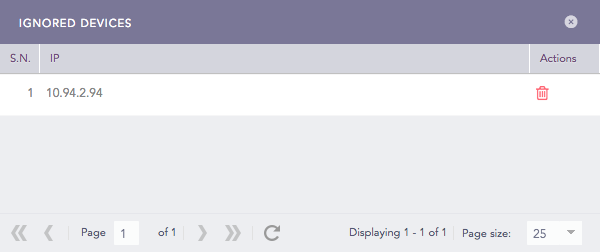
Ignored Devices
To remove the devices from the list, click Remove ( ) icon under Actions.
You can add one or multiple devices at a time by importing them via a CSV file.
The first line of the CSV file must be a header row with the following fields:
device_name
device_ips
device_groups
log_collection_policies
distributed_collector
confidentiality
integrity
availability
timezone
The device_name and device_ips fields are mandatory. The values provided for all the non-mandatory fields must already exist in the system.
The field values are separated with a comma (,) but if a field has multiple values, it should be written within a double quotation mark (“”).
Logpoint predefines which timezone values you need to use in the CSV file. Use the names exactly as listed in the List of Timezones.
To import devices via a CSV file:
During device import, click Jobs to check the status of the import.
Go to Settings >> Configuration from the navigation bar and click Devices.
Click IMPORT.

Importing Devices via a CSV File
Browse for the CSV file.
Click Submit.
You can also configure Syslog Collector while importing devices via a CSV file.
If you want the device to use a proxy, add the uses_proxy, proxy_ip, hostname, and processpolicy fields in the header row and the value of uses_proxy for the corresponding device must be TRUE.
If you want the device to be used as a proxy, add the use_as_proxy, charset, and parser fields in the header row and the value of use_as_proxy for the corresponding device must be TRUE.
Note
Proxy settings are not available for Classless Inter-Domain Routing.
Go to Settings >> Configuration from the navigation bar and click Devices.
Click the Name of the device.
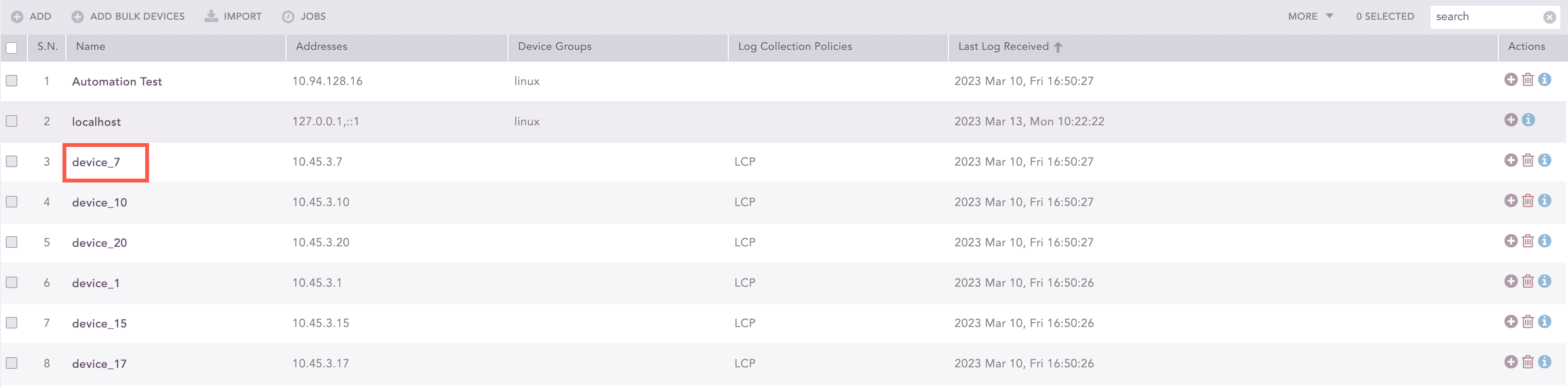
Devices
Update the information.
Update the collectors/fetchers for the device.
Click Submit.
Go to Settings >> Configuration from the navigation bar and click Devices.
Click the Delete icon under Actions of the device.
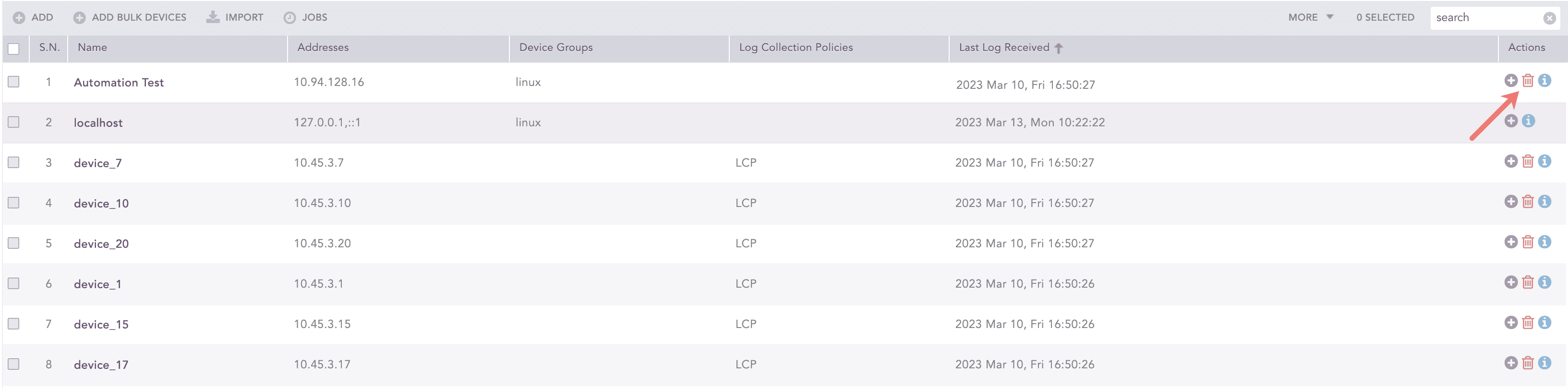
Devices
To delete multiple devices, select the devices. Click More and choose Delete Selected.
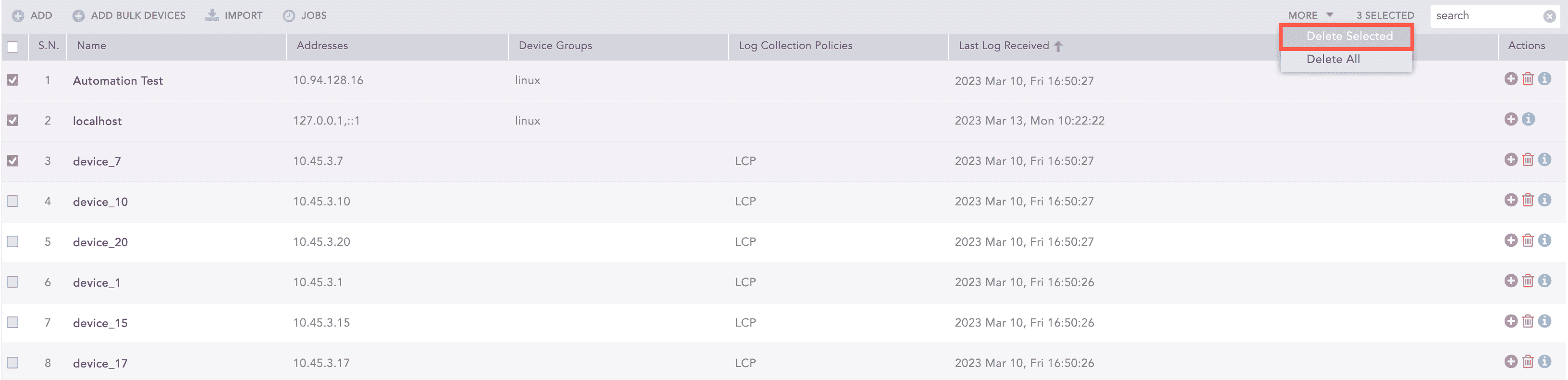
Devices
To delete all the devices, click More and choose Delete All.
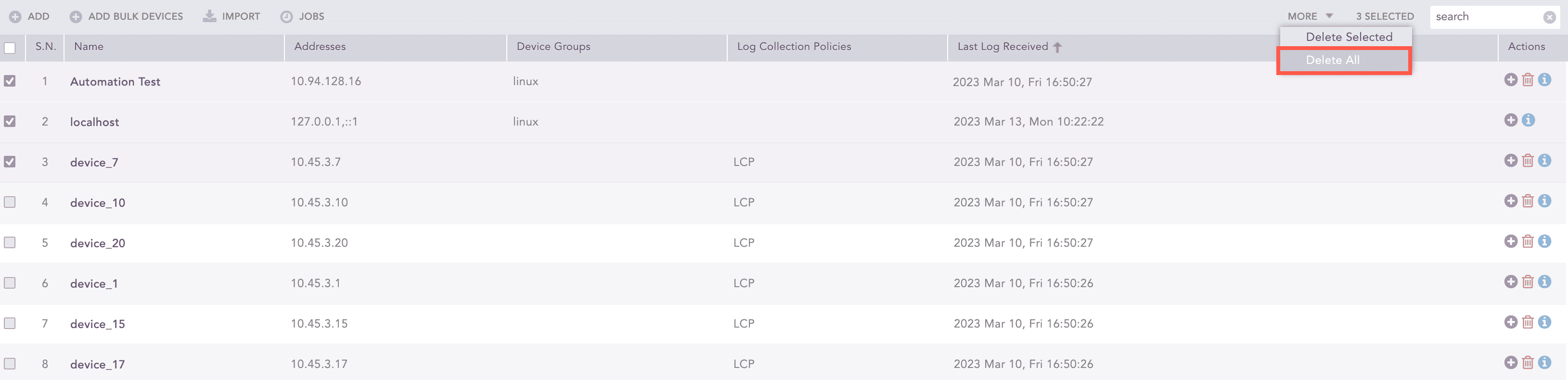
Devices
Click Yes to confirm deletion.