
User groups control which users can access which specific pools. In Director Console, there is All Pools user group by default. Users in All Pools user group have access to all the pools available. The admin user is in All Pools user group by default. You can create a custom user group with access to specific pools.
To create a user group:
Click USER MANAGEMENT from the navigation menu.
Under User Groups, click Create User Group.
Enter Name of the user group.
Enter a Description to describe the user group.
Select at least one Pool which you want the user group to have access to. You can select multiple pools.
Click Create User Group.
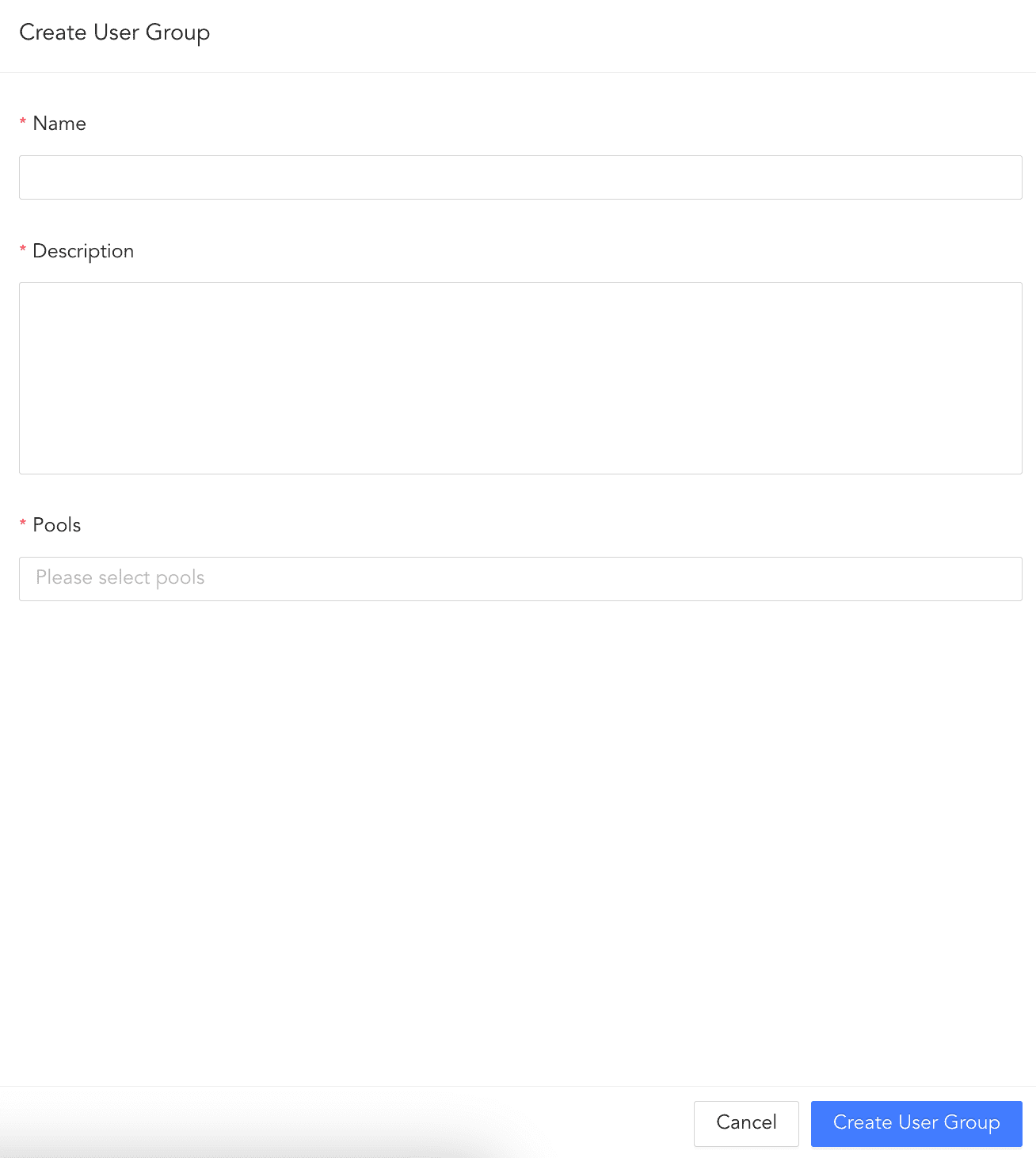
Create User Group
To edit a user group:
Click USER MANAGEMENT from the navigation menu.
Under User Groups, click the user group you want to edit.
Make the necessary changes.
Click Update User Group.
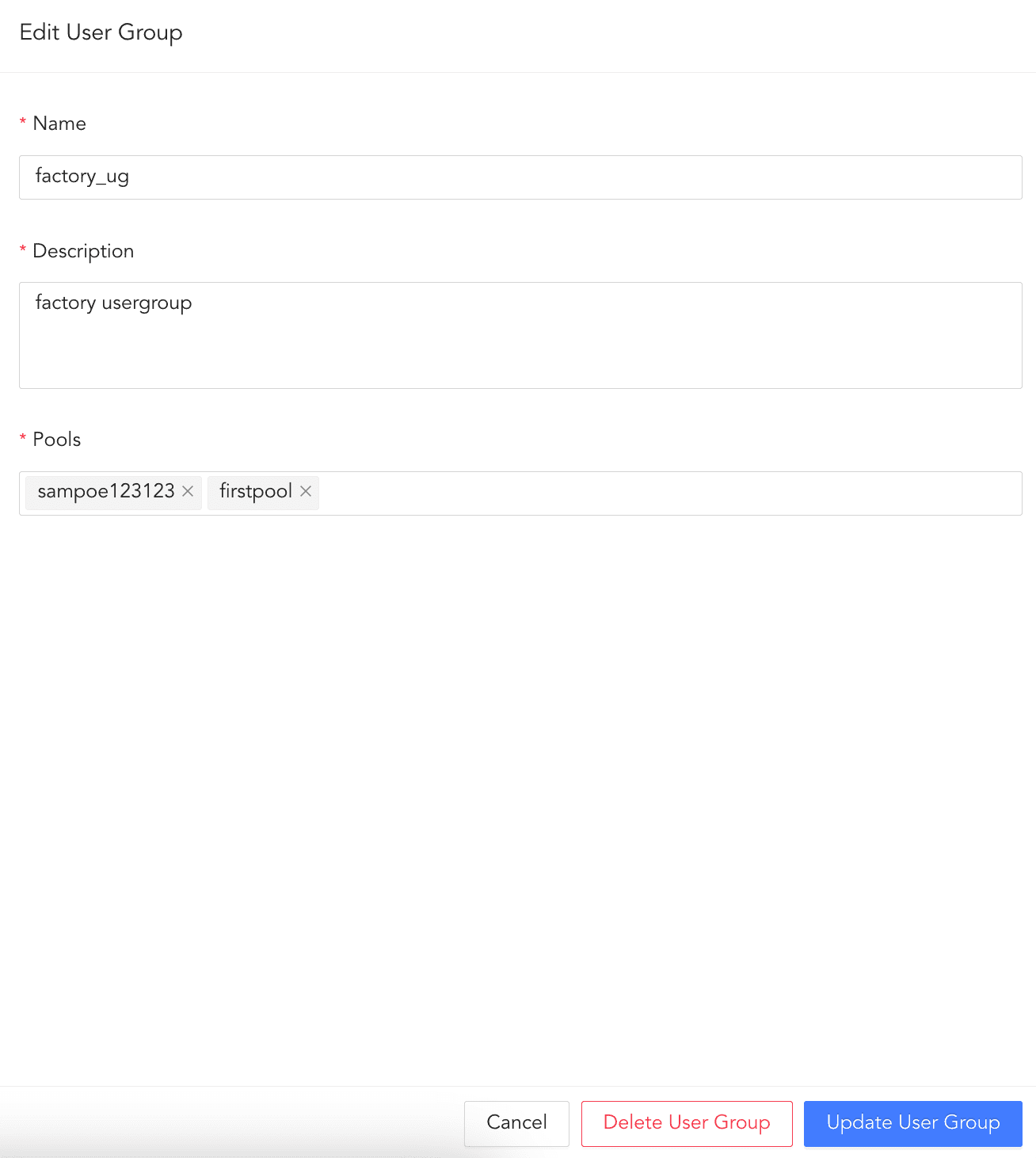
Edit User Group
You can only delete the user group if there is no any user associated to it. To delete the user group:
Click USER MANAGEMENT from the navigation menu.
Under User Groups, click the user you want to delete.
Click Delete User Group.
Confirm by clicking Delete.
Delete User Group
You can also delete a user by clicking the ( ) icon besides the user group and clicking Delete.
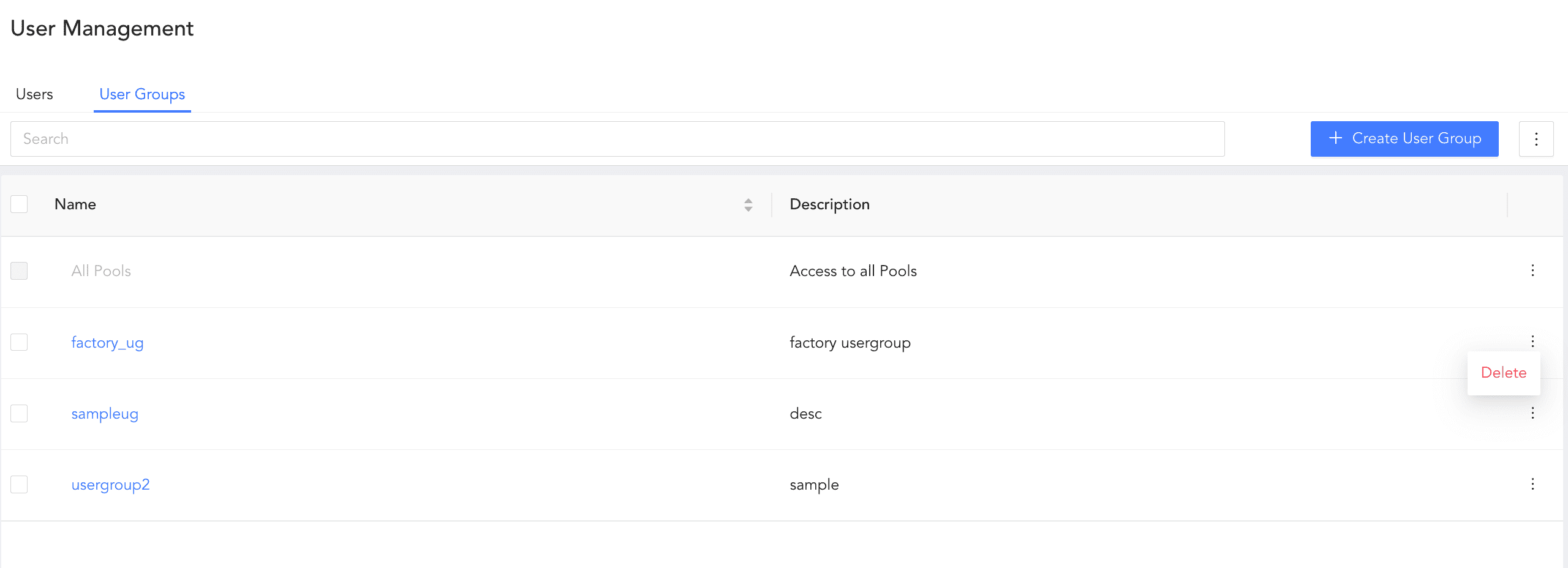
Delete User Group