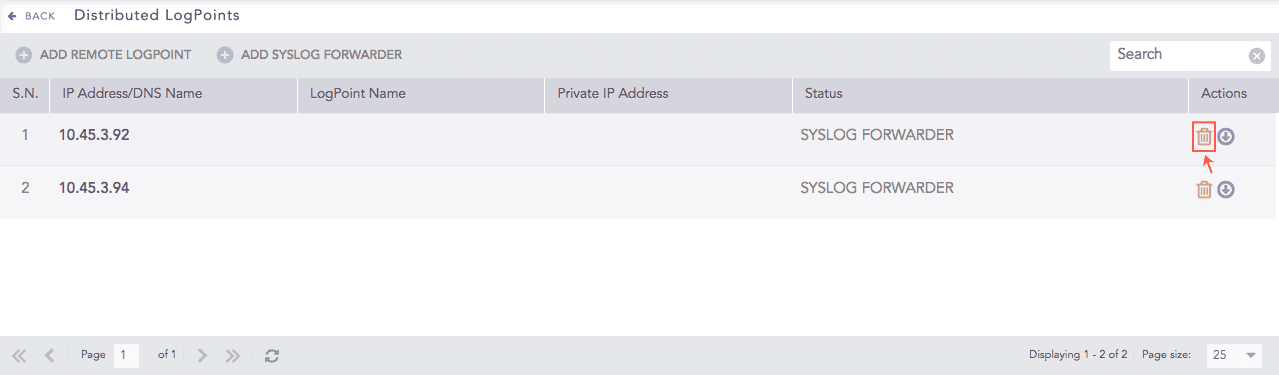
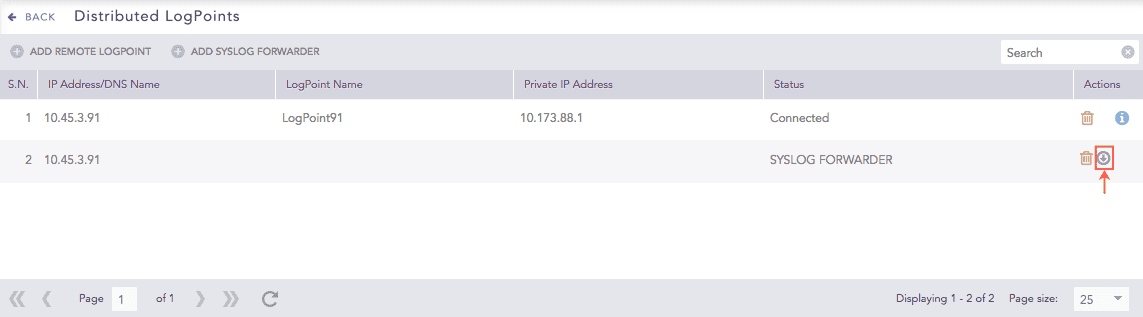
Go to Settings >> Configuration from the navigation bar and click Distributed Logpoint.
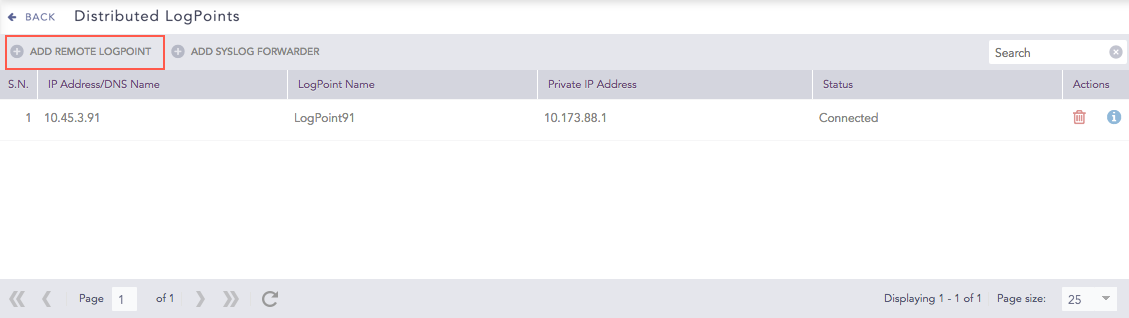
Adding a Remote Logpoint
Click Add Remote Logpoint.
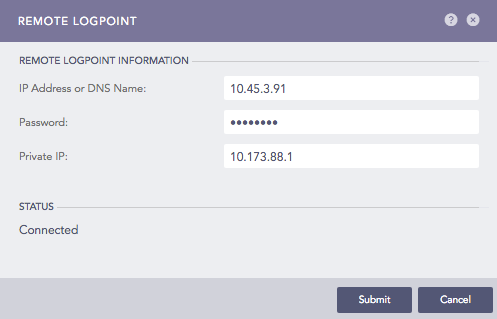
Remote Logpoint Panel
Enter the IP Address or DNS Name of the remote Logpoint.
Enter the Password and the Private IP configured while Enabling Open Door on the remote machine.
Click Submit.
Note
Refresh the page if the status does not change to Connected after a while.
You can see the DLP selector in the title bar in the Settings page.
Go to Settings >> Configuration from the navigation bar and click Distributed Logpoint.
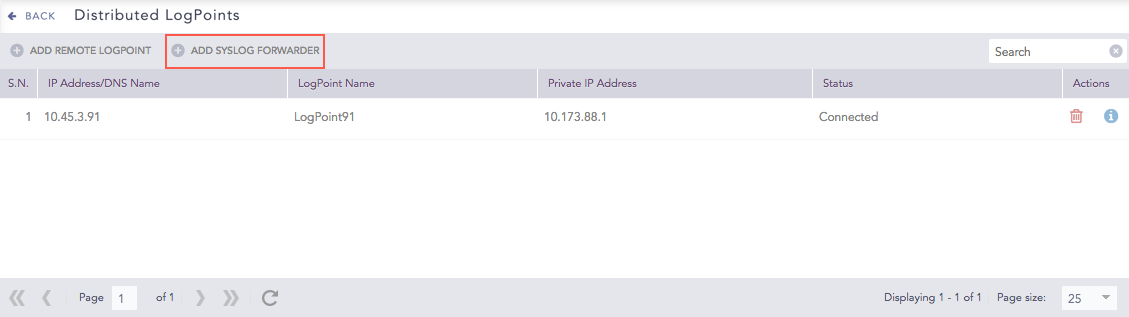
Adding a Syslog Forwarder
Click Add Syslog Forwarder.
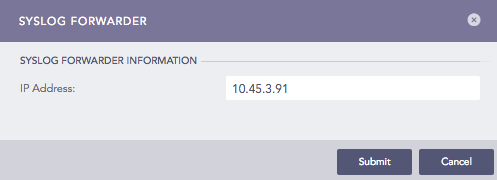
Syslog Forwarder Panel
Enter the IP Address to add as the Syslog Forwarder.
Click Submit.
The Syslog Forwarder is listed in the Distributed Collector drop-down textbox while Adding a Device. To add the corresponding devices, you must first Export the configuration file of the added Syslog Forwarder and then Import it.
Go to Settings >> Configuration from the navigation bar and click Distributed Logpoint.
Click the Name of the Logpoint.
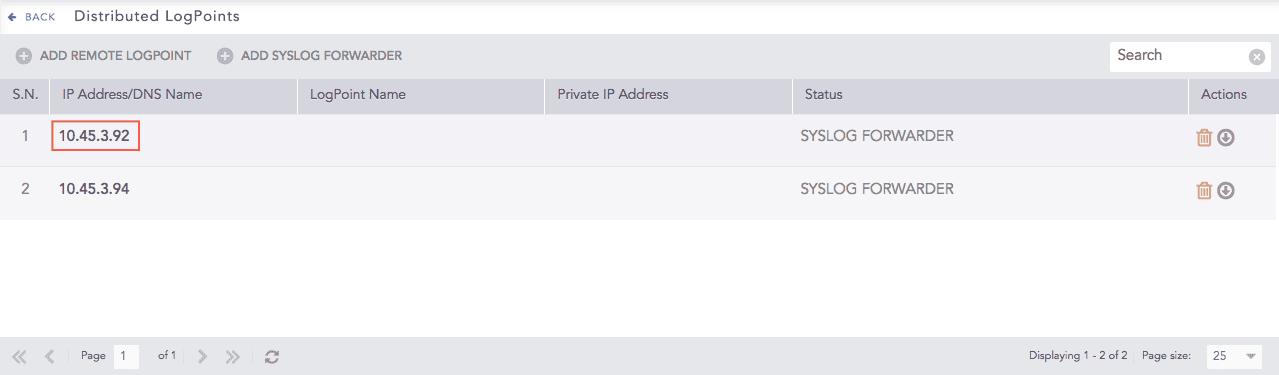
Distributed Logpoint
Update the information.
Click Submit.