
To configure GEOIP, you must first create an account in MaxMind and add the license key to Logpoint, as it uses the MaxMind GeoIP database to determine the geographical location of IP addresses. Then, you must define GEOIP as an enrichment source and configure an enrichment policy to apply geographical data to logs containing IP addresses. This ensures Logpoint uses an updated database to enhance logs with location-based insights.
To add GEOIP license key to Logpoint, create a free or paid MaxMind GeoIP account. We recommend using the paid version, as the free version may have limited updates and less precise data.
To add GEOIP License Key in Logpoint:
Go to MaxMind GeoIP to create an account.
In MaxMind, go to My Account and click MANAGE LICENSE KEYS.
Click Generate new license key and click Confirm to create a new license key. Copy and store the key as it is displayed in full only once.
In Logpoint, go to Settings >> System Settings from the navigation bar and click Plugins.
Find GEOIP EnrichmentSource and click Manage.
Enter the MaxMind GeoIP Account ID and License Key.
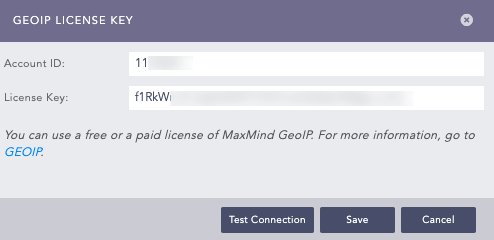
Adding GEOIP License Key
Click Test Connection to check the validity of the account. You need internet connection to test the connection.
Click Save.
You can add fields that contain IP addresses in GEOIP as an enrichment source to enrich log data with geolocation information. To add GEOIP Enrichment Source:
Go to Settings >> Configuration from the navigation bar and click Enrichment Sources.
Click ADD.
Select GeoIp.
Enter a Name.
In IP Field Name, enter the field that contains IP Address.
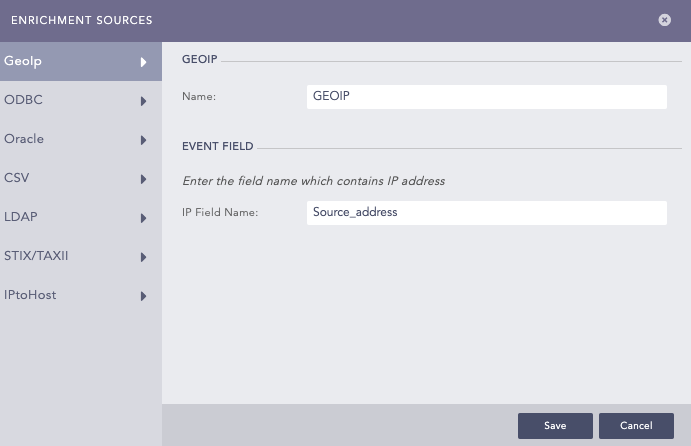
Adding GEOIP as an Enrichment Source
Click Save.
You can add enrichment policy to enrich logs for the created enrichment source. For information on how to add an enrichment policy, go to Adding an Enrichment Policy.
In the example below, GEOIP is used as an enrichment source. If a log contains the field Source_address, Logpoint enriches the log with the geographical data of Source_address.
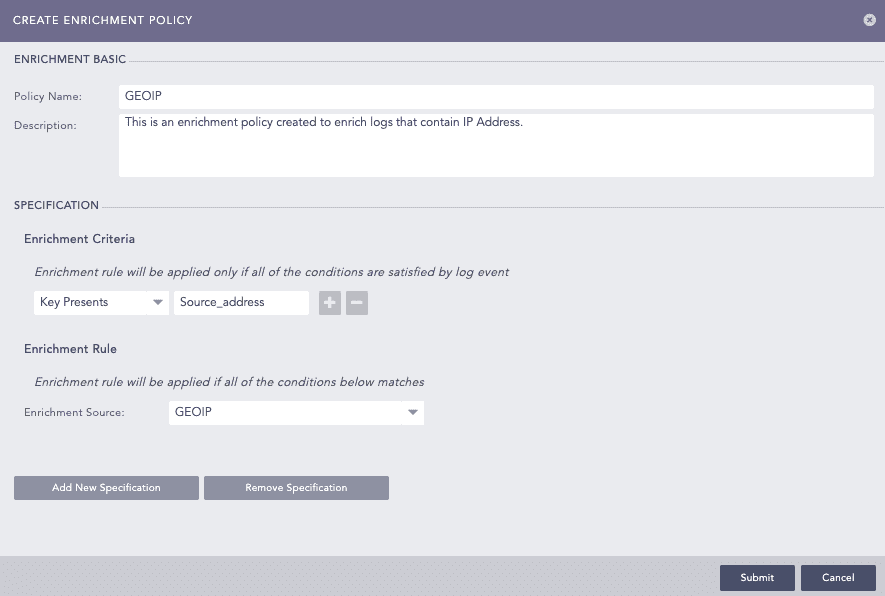
GEOIP Enrichment Policy