
The following section guides you through the process of retrieving your G Suite service account’s private key JSON file, creating a service account in the google cloud console and giving the required authorization to your project in google admin.
Go to the Cloud Console page and enter your credentials.
Click IAM & Admin > Manage Resources.
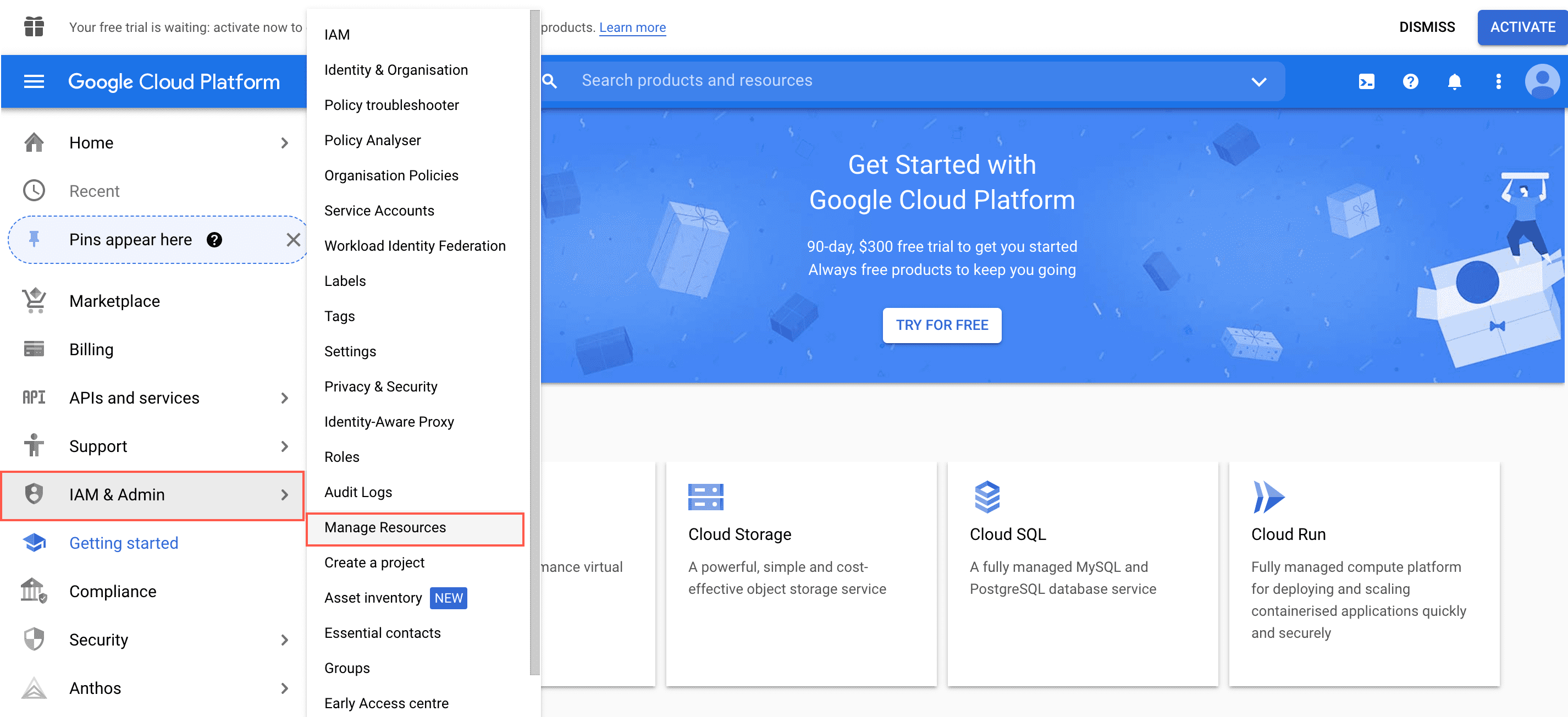
Manage Resources
Click Create Project.
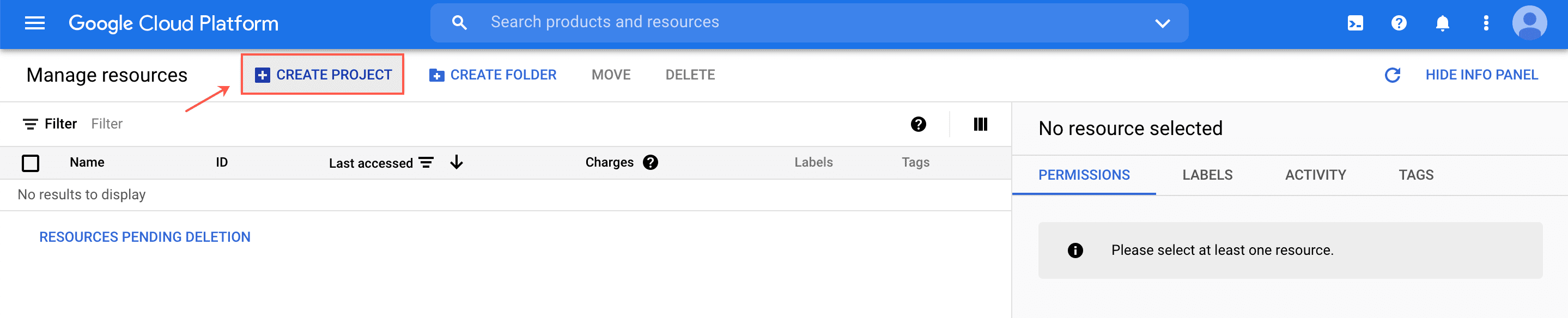
Create Project
Enter a project name.
Click Create.
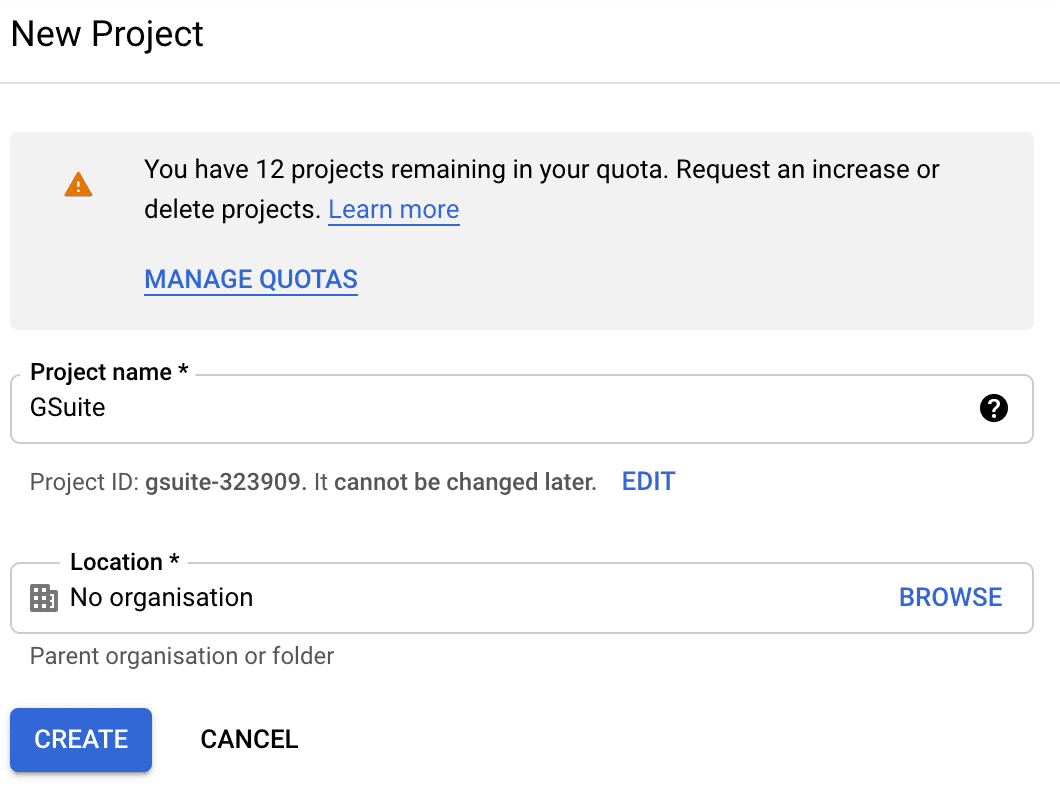
New Project
Click Select Project.
Click APIs and services > Library.
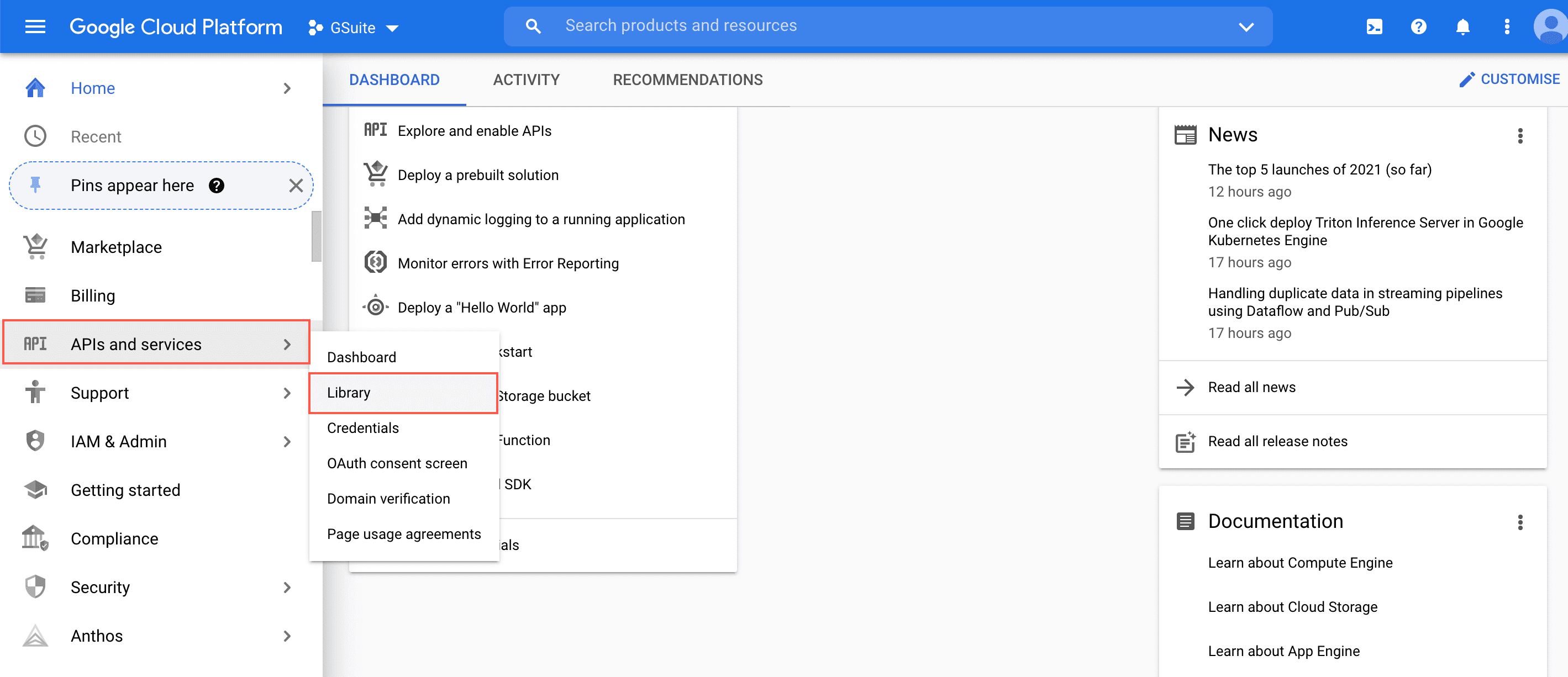
APIs and Services
Search for Admin SDK API and Gmail API in the search bar and enable them both.
Click APIs and services > Credentials from the navigation bar.
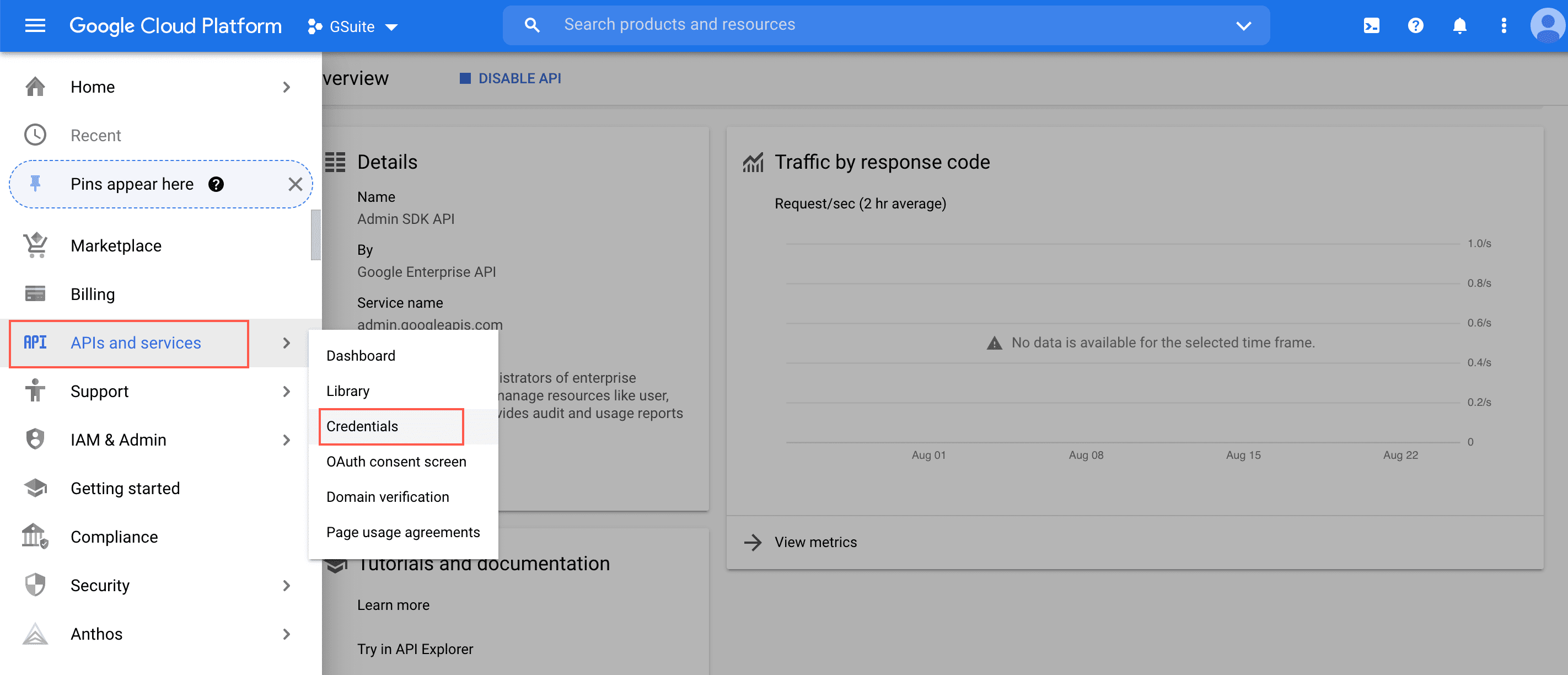
APIs and Services
Click Create Credentials and select Service account.

Service Account
Enter a Service account name and click Create and Continue.
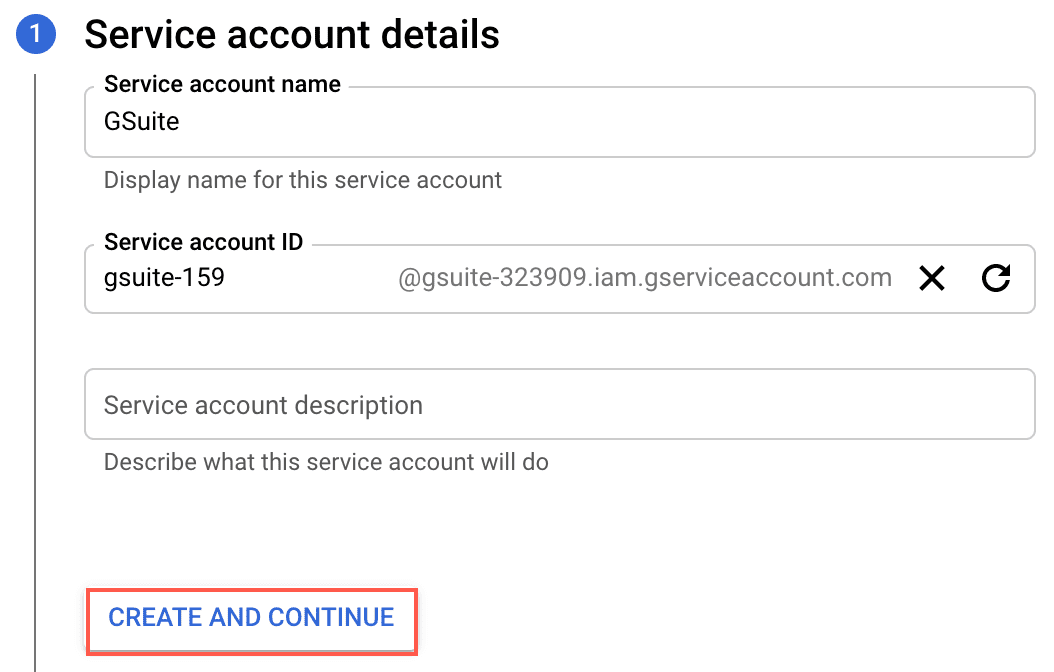
Service Account Name
Select a role and click Continue.
Click Done.
Go back to APIs and services > Credentials and select the created Service Account.
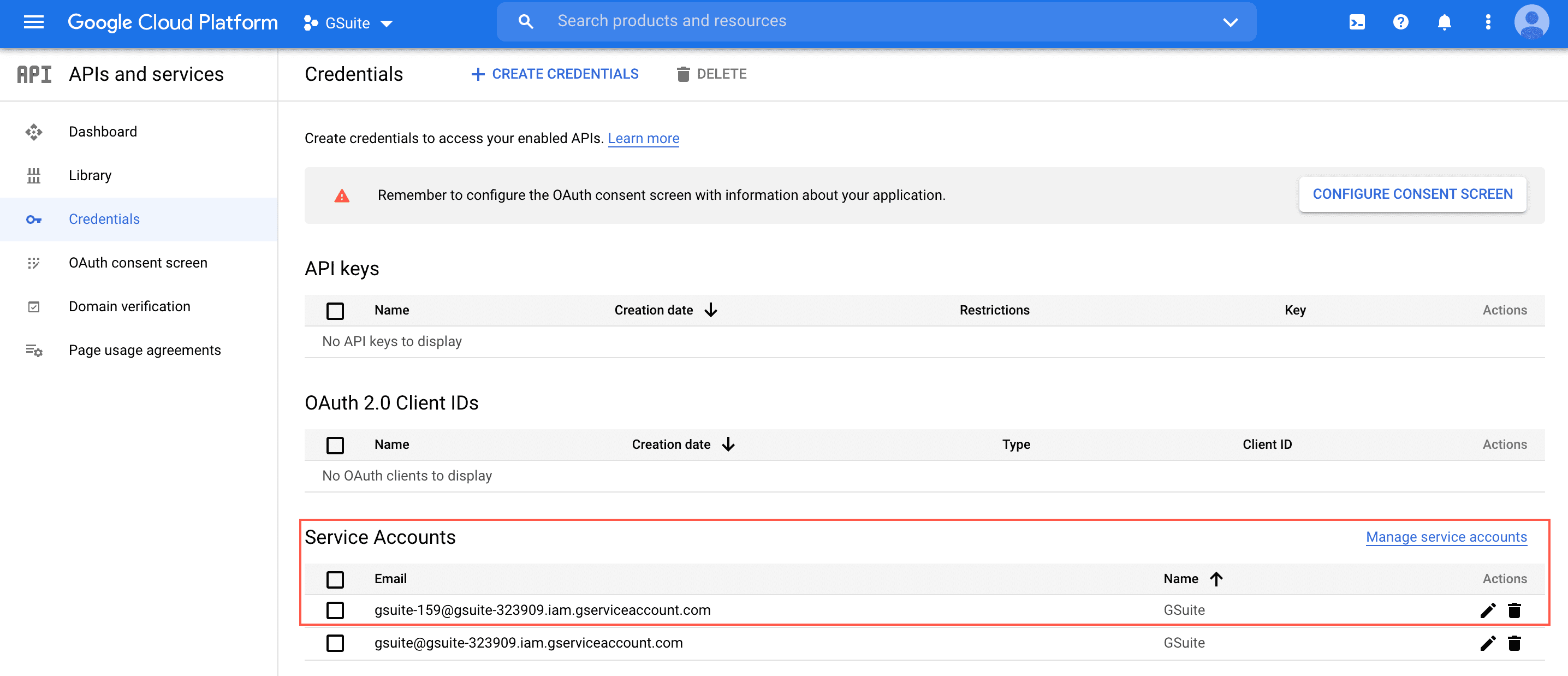
Service Account
Click Keys > Add Key > Create new key.
Select JSON as Key type and click Create.
The G Suite service account’s private key JSON file will be automatically downloaded to your computer.
Go to the Google Admin page and enter your credentials.
Click Security > API Controls.
Click Manage Domain Wide Delegation.
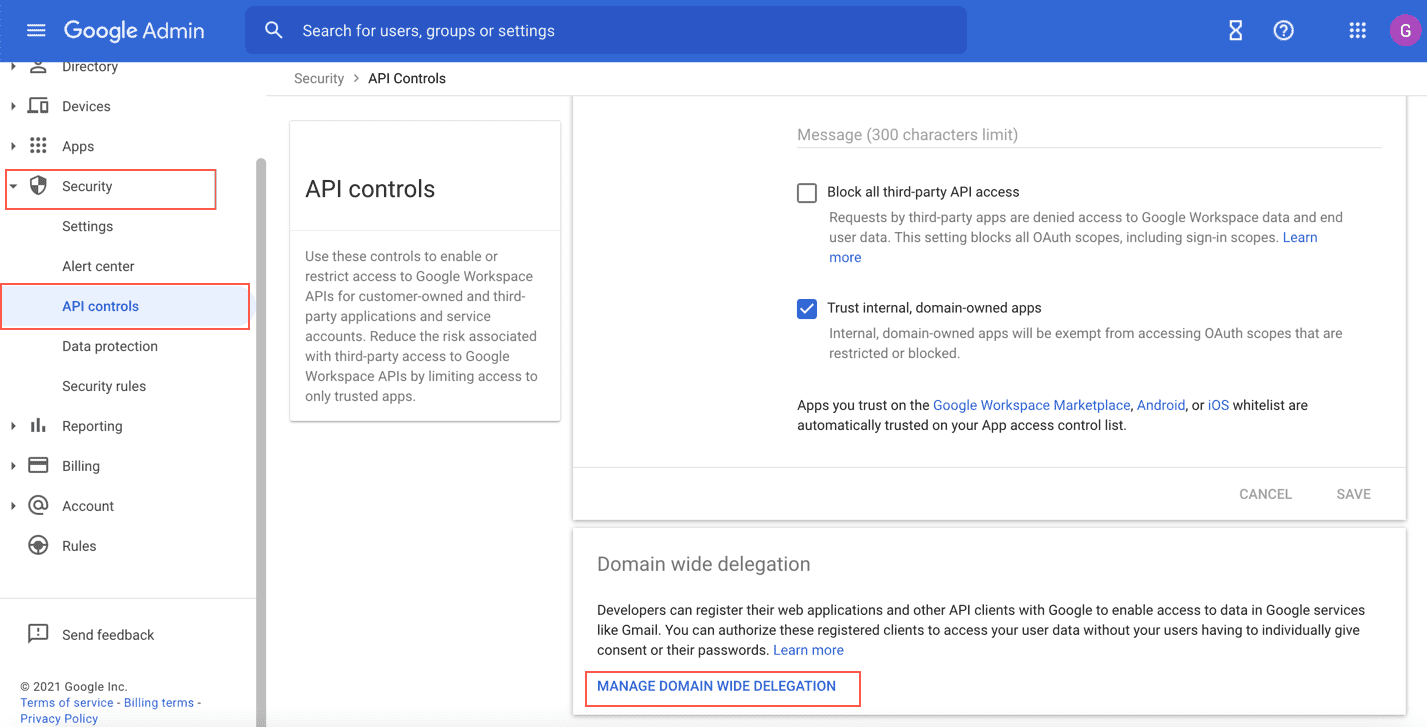
Manage Domain Wide Delegation
Click Add new.
Enter your Client ID from the previously downloaded JSON file.
In the One or More API Scopes field, enter the following scopes:
https://www.googleapis.com/auth/admin.reports.audit.readonly
https://www.googleapis.com/auth/admin.reports.usage.readonly
https://www.googleapis.com/auth/gmail.readonly
Click Authorize.