
You can use a Syslog Collector to collect data from sources that follow the syslog protocol.
The log sources created using Syslog Collecter are not listed under Settings >> Configuration >> Devices.
To create Log Source:
Go to Settings >> Log Sources from the navigation bar.
Click Add Log Source.
Click Create New and select Syslog Collector.
In source, you can add details about the log source from where the Syslog Collector fetches logs.
Click Source.
Enter Log Source’s Name.
Enter Device Addresses. Device addresses are IP addresses or hostnames of the device whose logs to monitor.
Select the Device Groups.
Select a Time Zone.
Enter the Inactivity Threshold in minutes. It specifies the time after which to mark a log source as inactive in Last Log Received under Settings >> Log Source if no logs are received. You can enter a value from 5 to 525600.
Configure the Risk values for Confidentiality, Integrity, and Availability used to calculate the risk levels of the alerts generated from the device.
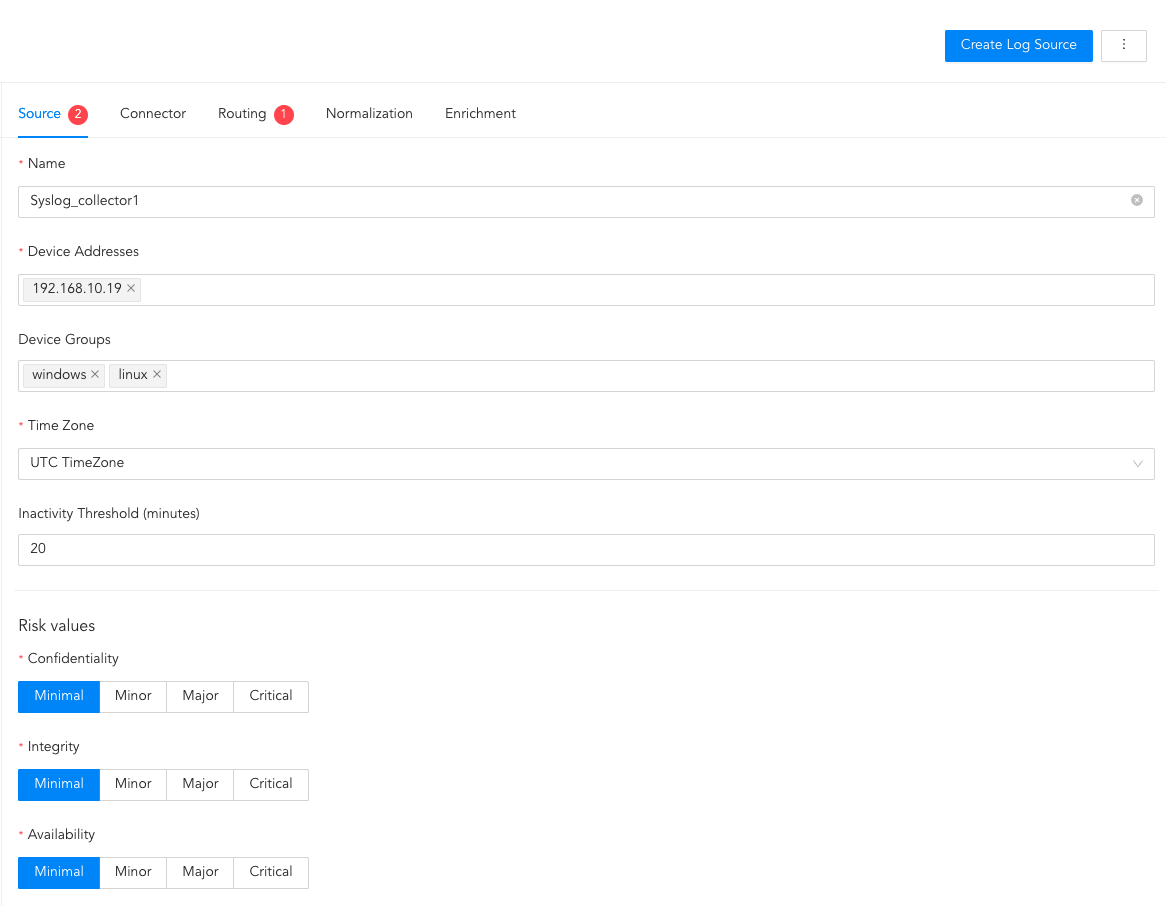
Configuring Source
Connector is a pathway for transmitting logs from various sources to Logpoint. In connector, you can configure how the Syslog Collector and the log source communicate with each other.
Click Connector.
In Proxy Server, select
2.1. None for the device to work as a Syslog Collector.
2.1.1 Select Parser and Charset.
2.1.2 If you use a distributed Logpoint, select a collector/forwarder from the Distributed Collector dropdown.
2.2. Use as Proxy to use the device as a proxy.
2.2.1 Select Parser and Charset.
2.2.2 If you use a distributed Logpoint, select a collector/forwarder from the Distributed Collector dropdown.
2.3. Uses Proxy, for the device to use a proxy device to collect the logs.
2.3.1 If you use a distributed Logpoint, select a collector/forwarder from the Distributed Collector dropdown.
2.3.2 Select a Proxy IP address of a proxy device and enter the Hostname of the source, which is case-sensitive.
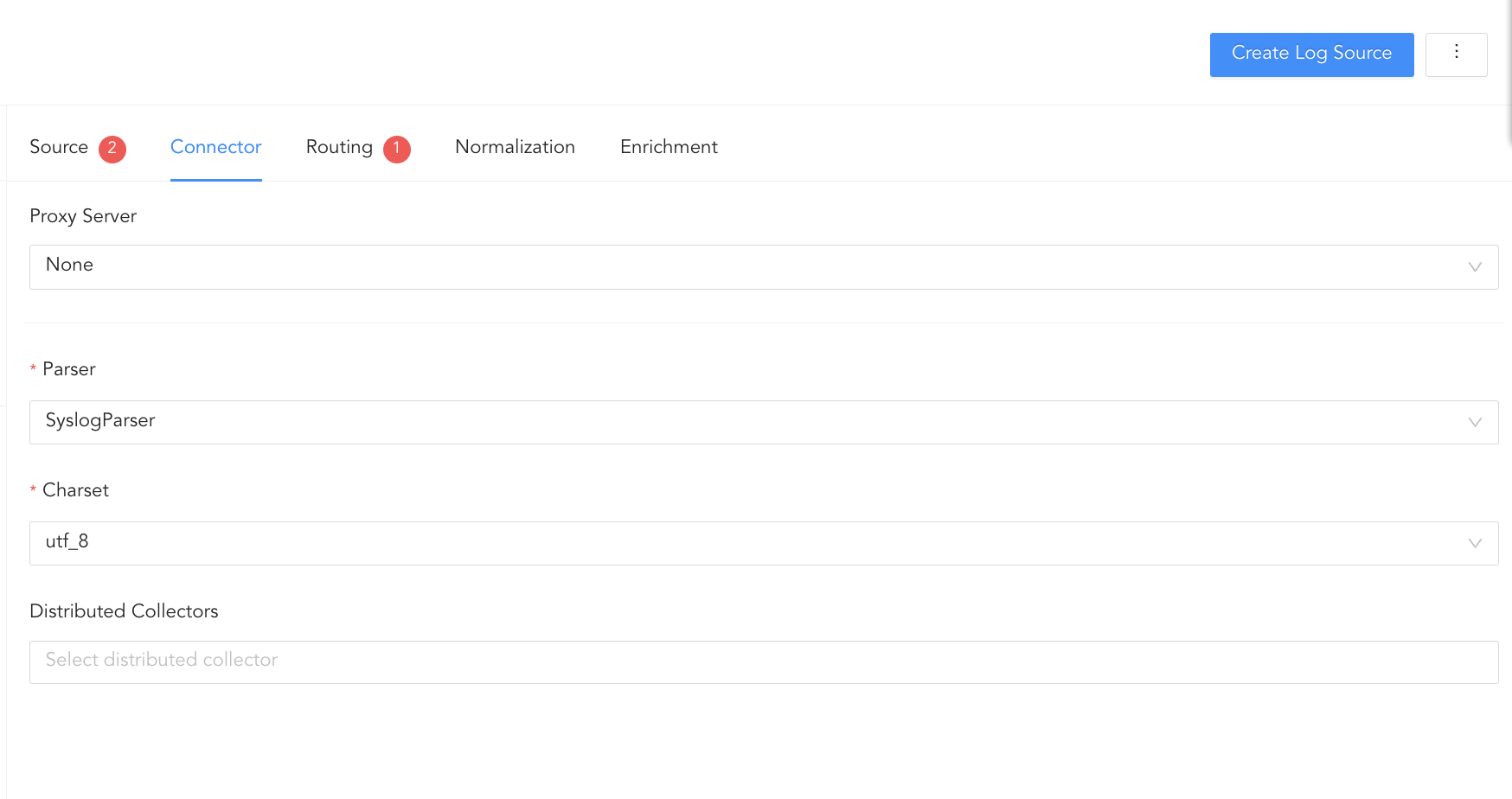
Configuring Connector
In Routing, you can create repos and routing criteria. Repos are locations where incoming logs are stored and routing criteria is created to determine the conditions under which these logs are sent to repos.
Click Routing and + Create Repo.
Enter a Repo name.
Enter the location in Path to store incoming logs.
In Retention (Days), enter the number of days logs are kept in a repository before they are automatically deleted. The retention days must be at least 2 days.
In Availability, select the Remote logpoint and Retention (Days).
Click Create Repo.
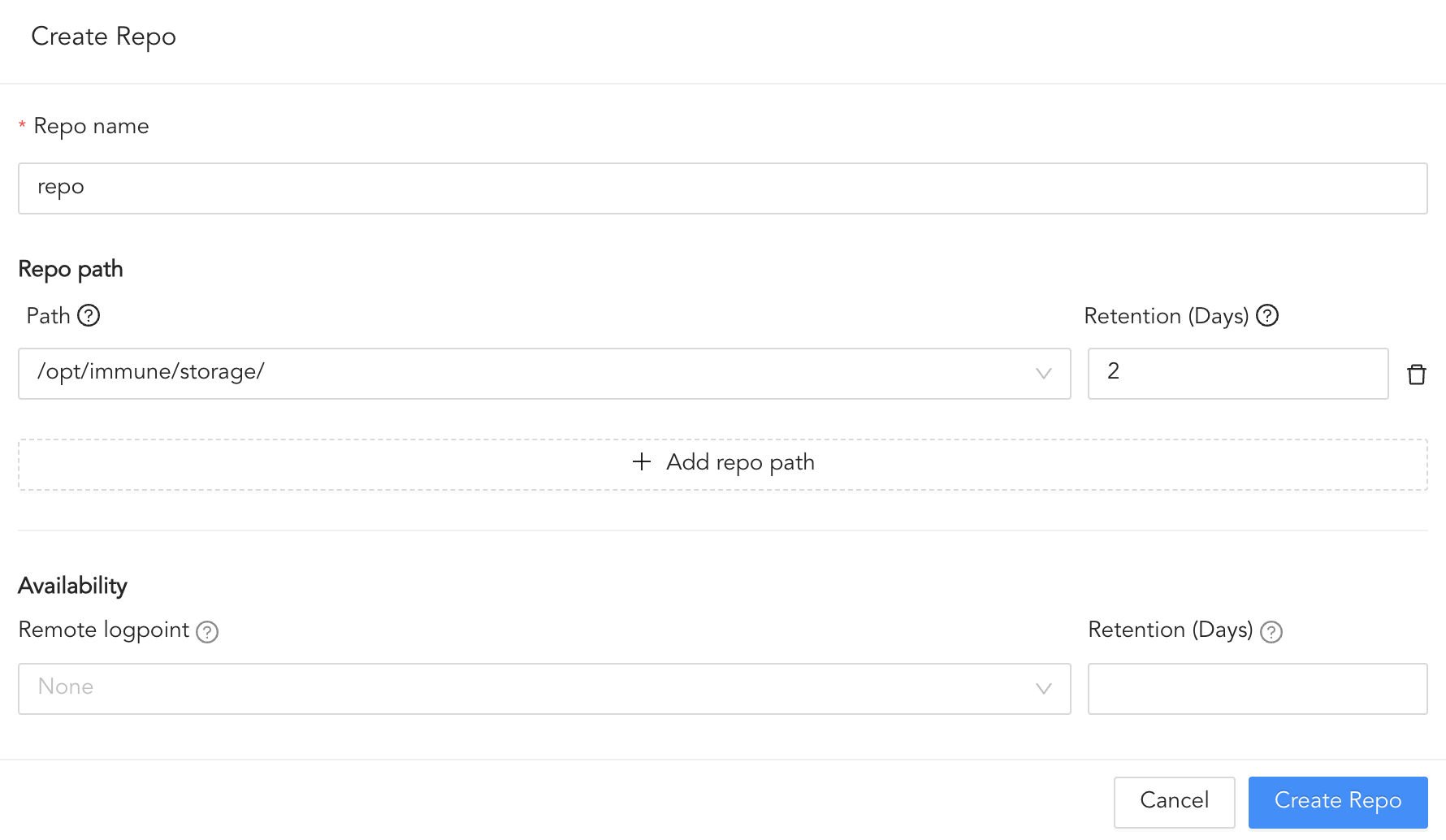
Creating a Repo
In Repo, select the created repo to store logs.
To create Routing Criteria:
Click + Add row.
Enter a Key and Value. The routing criteria is only applied to those logs which have this key value pair.
Select an Operation for logs that have this key value pair.
3.1. Select Store raw message to store both the incoming and the normalized logs in the selected repo.
3.2. Select Discard raw message to discard the incoming logs and store the normalized ones.
3.3. Select Discard entire event to discard both the incoming and the normalized logs.
In Repository, select a repo to store logs.
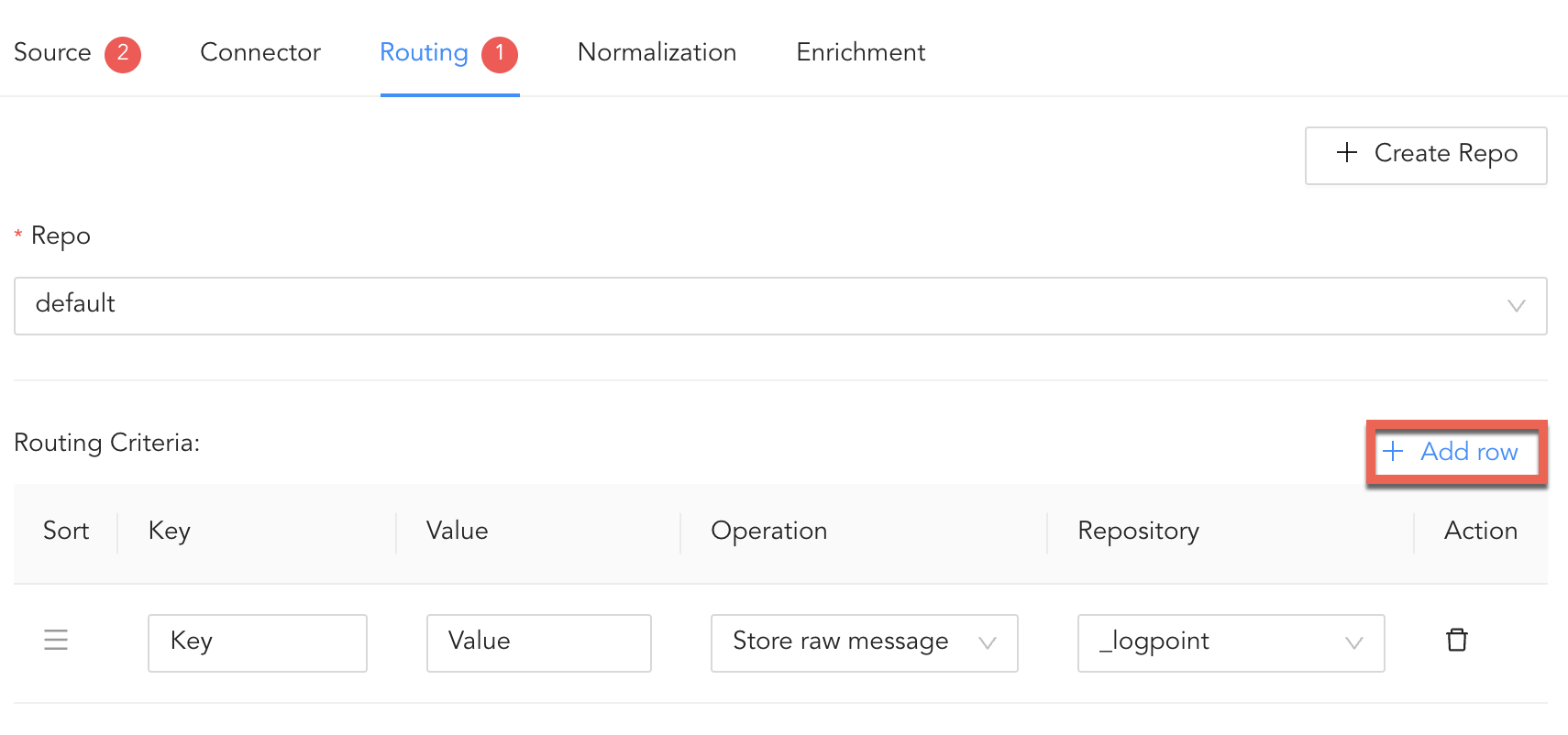
Creating a Routing Criteria
Click the ( ) icon under Action to delete the created routing criteria.
In normalization, you can select normalizers for the incoming logs. Normalizers transform incoming logs into a standardized format for consistent and efficient analysis.
Click Normalization.
You can either select a previously created normalization policy from the Select Normalization Policy dropdown or select a Normalizer from the list and click the swap( ) icon.
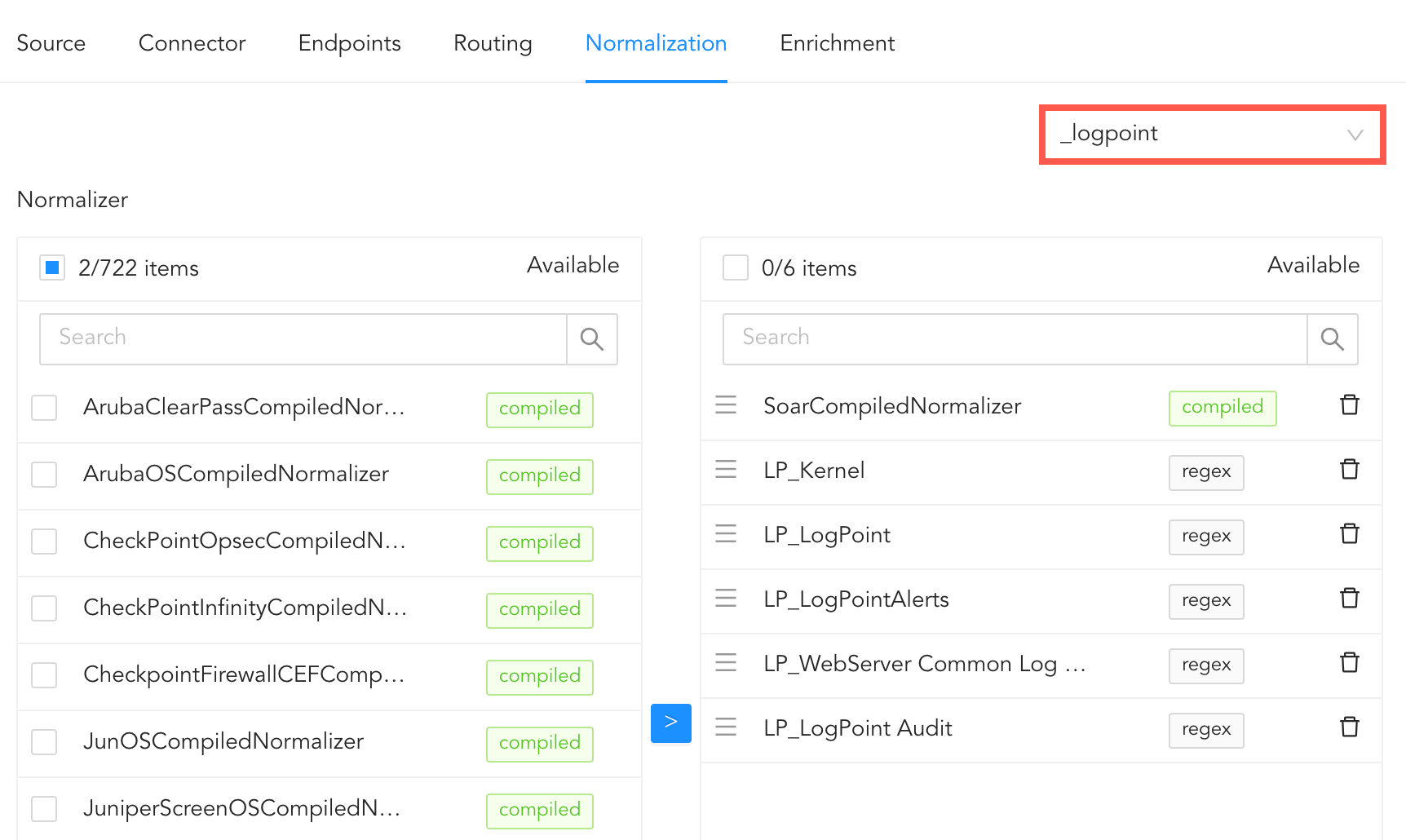
Adding Normalizers
In enrichment, you can select an enrichment policy for the incoming logs. Enrichment policies are used to add additional information to a log, such as user information, device type or geolocation, before analyzing it. For more information on enrichment, go to Enrichment Policies.
Click Enrichment.
Select an Enrichment Policy.
Click Create Log Source to save the configurations of Source, Connector, Routing, Normalization, and Enrichment.