
To receive the SAS URL of the Logpoint Azure VHD, contact the Logpoint Sales team. Then, you can use the URL to copy the Logpoint VHD to your Storage Account in the Azure platform. Make sure you note down your Storage Account Name and Storage Account Key before copying the VHD.
Log into the Microsoft Azure portal and go to Storage accounts.
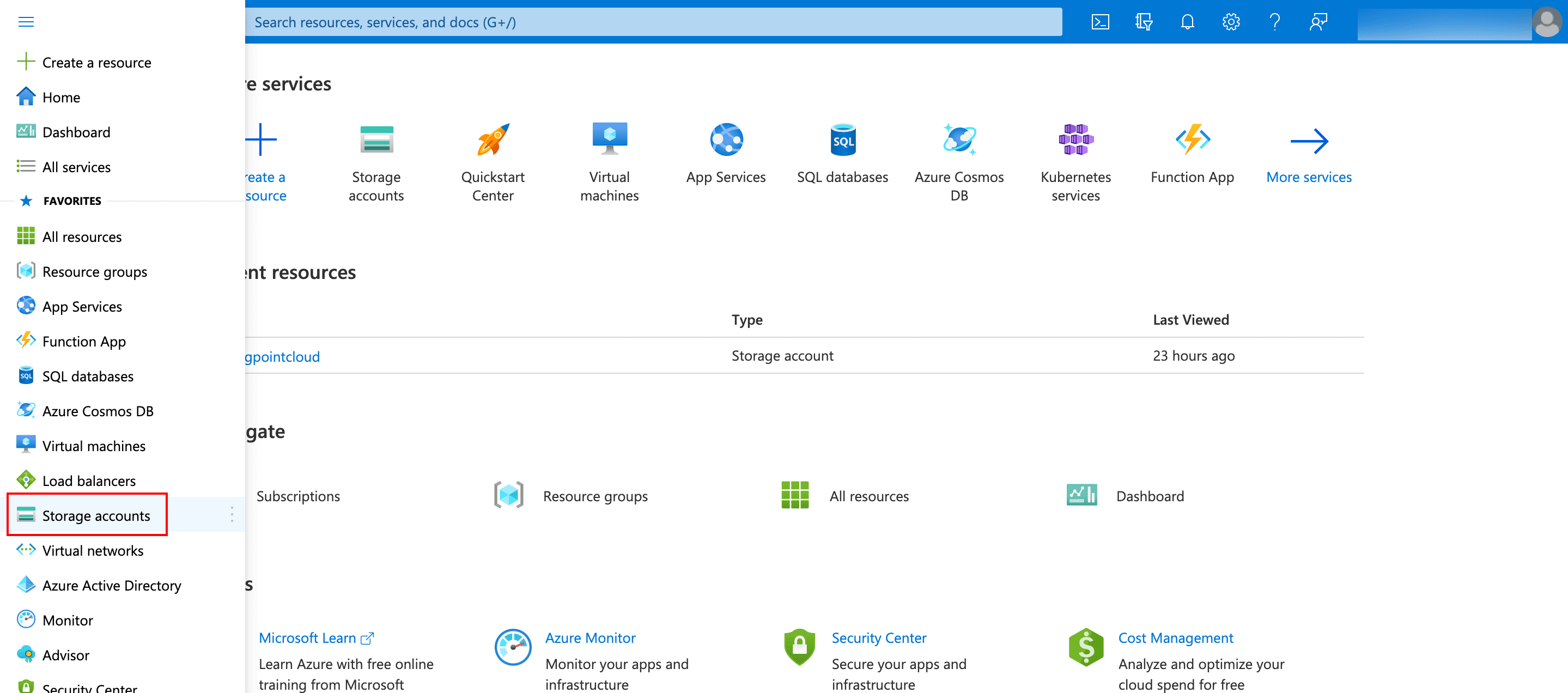
Selecting Storage Accounts
Click the name of your account.
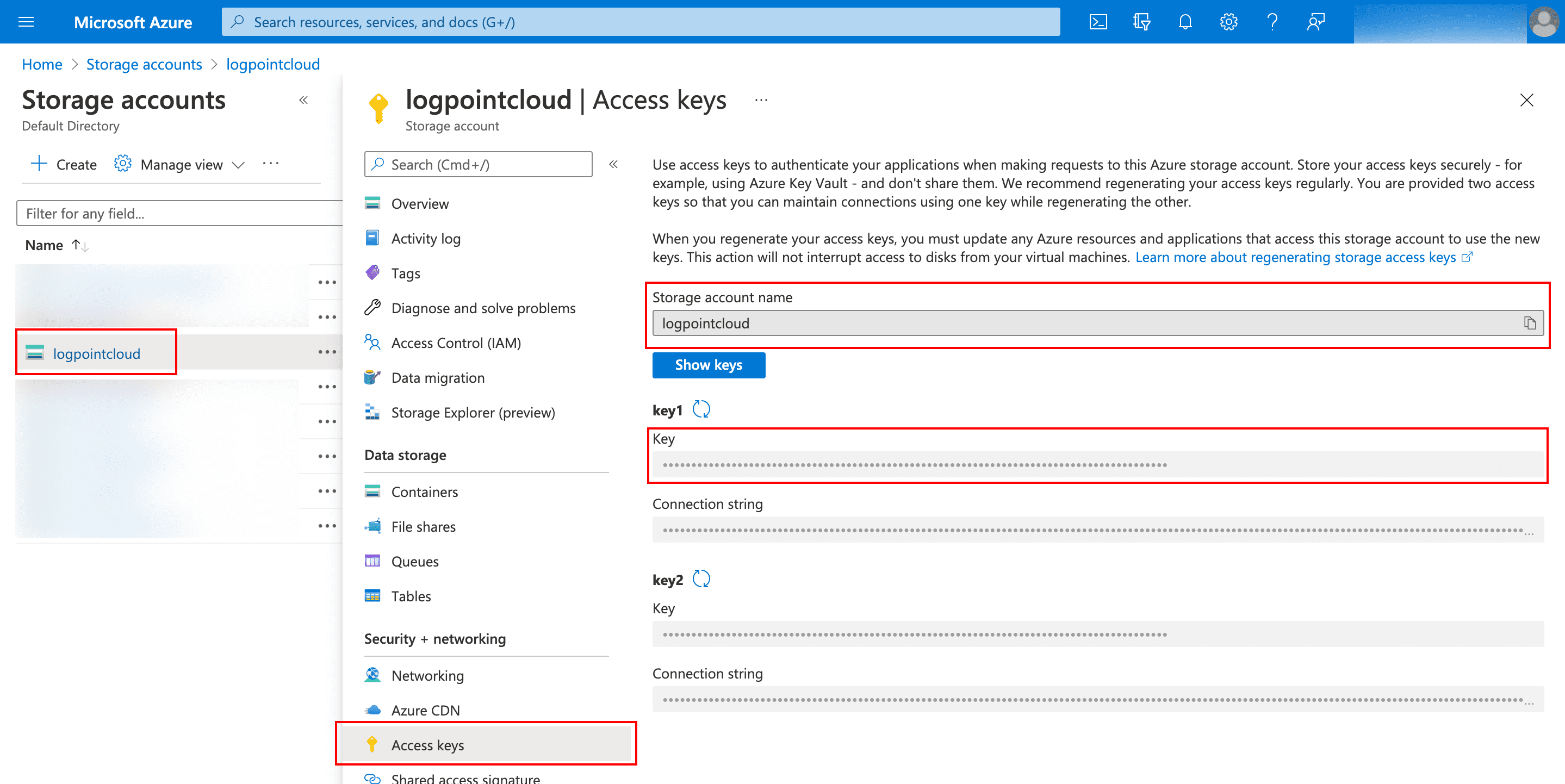
Obtaining Storage Account Name and Account Key
Click Access keys.
Copy the Storage account name and key1 or key2.
Open the Command Line Interface (CLI).
Enter the following command:
az storage blob copy start --destination-blob <Name of the VHD>.vhd --destination-container <Name of the Destination Storage Container> --account-name <Storage Account Name> --account-key <Storage Account Key> --source-uri <SAS URL of Logpoint Azure VHD>
The parameters required to copy the Logpoint Azure VHD to your storage account are:
Name of the VHD (in the .vhd format) as per your preference
Name of the Destination Storage Container as per your preference
Storage Account Name
Storage Account Key
SAS URL of Logpoint Azure VHD (provided by the Logpoint Sales team)
Note
It may take up to 30 minutes to copy the VHD to the storage account. To track the progress status use the following command:
az storage blob show -c <Name of the Storage Container> -n <Name of the VHD> --account-name <Storage Account Name> --account-key <Storage Account Key>