
The Analytics Packages section enables you to upload .pak files of Alert Rules, Dashboards, and Report Templates. You can install these .pak files over any Fabric-enabled LogPoint of any LogPoint Pool.
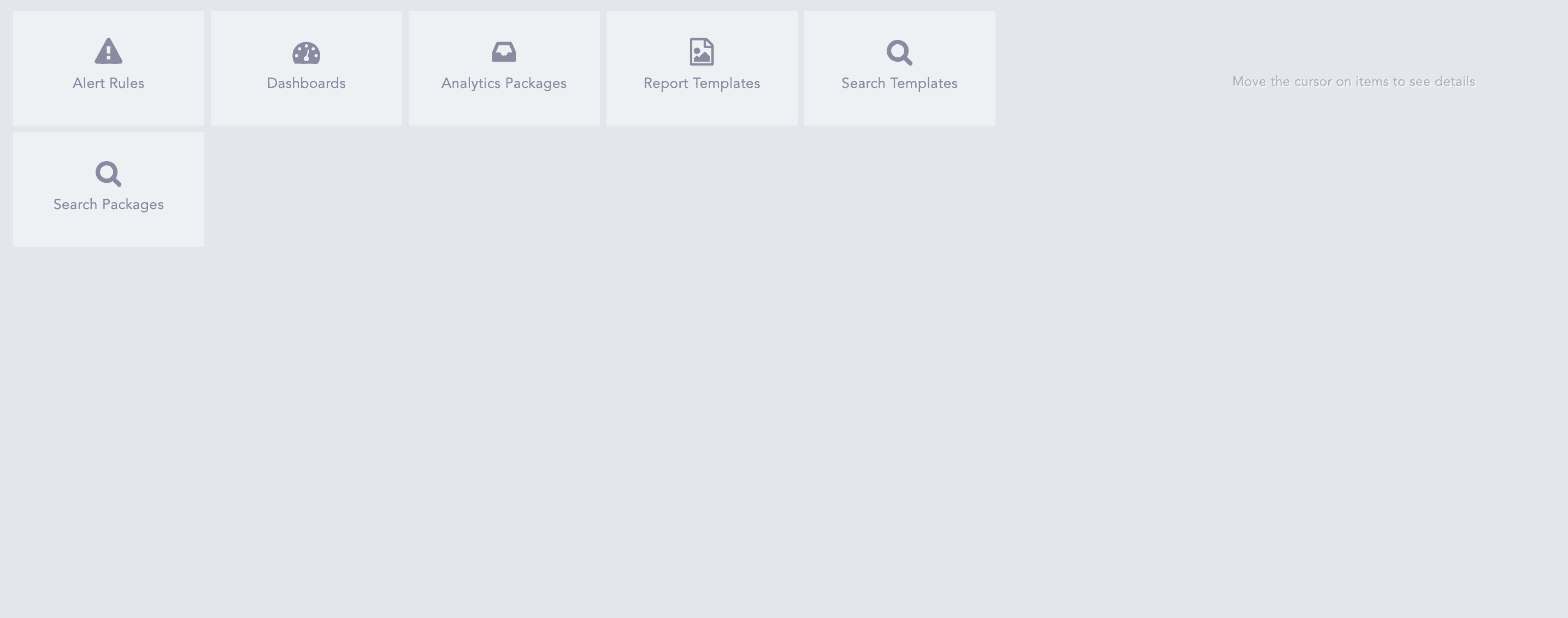
Analytics Packages
Note
The .pak files of Alert Rules, Dashboards, and Report Templates are exported using the Export button of the corresponding sections. Refer to the Exporting Alert Rules, Exporting Report Templates, and the Exporting Dashboards sections for details.
Go to Settings >> LogPoint Configuration >> Analytics Packages.
Click Upload Package to open the Upload Packages panel.
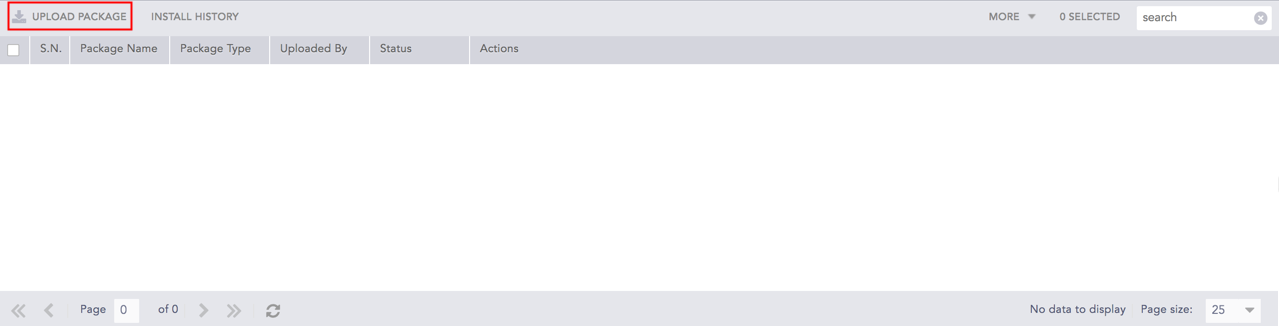
Upload Package
Select the type of analytics package in the Package drop-down.
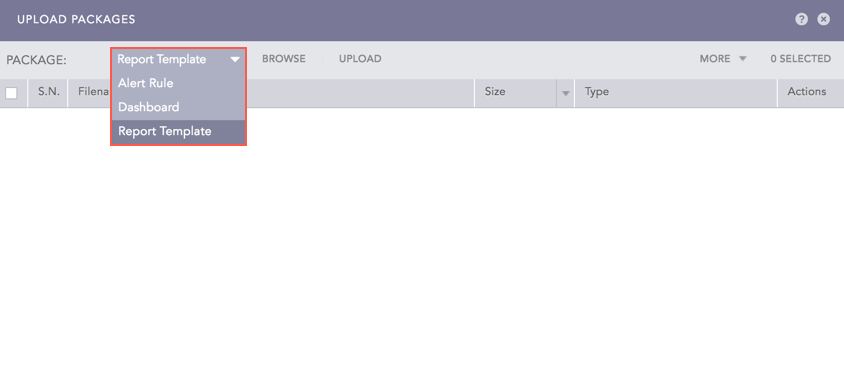
Upload Packages
Browse for the analytics package in your local machine. This package is a .pak file that can be exported from the Actions column of alert rules, report templates, and dashboards.
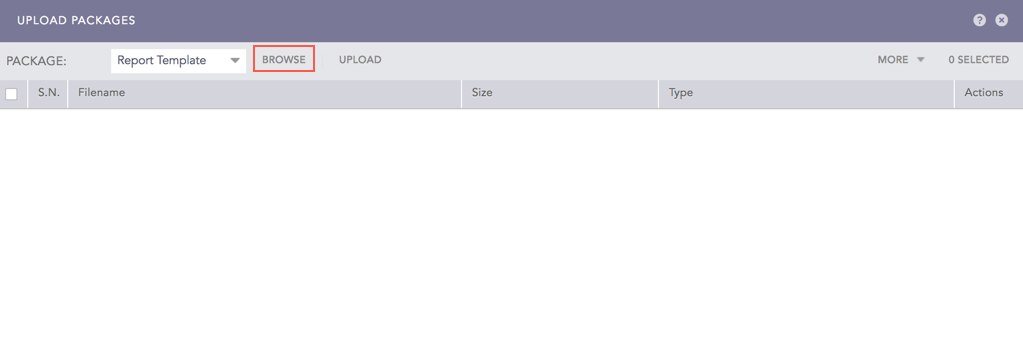
Browse Packages
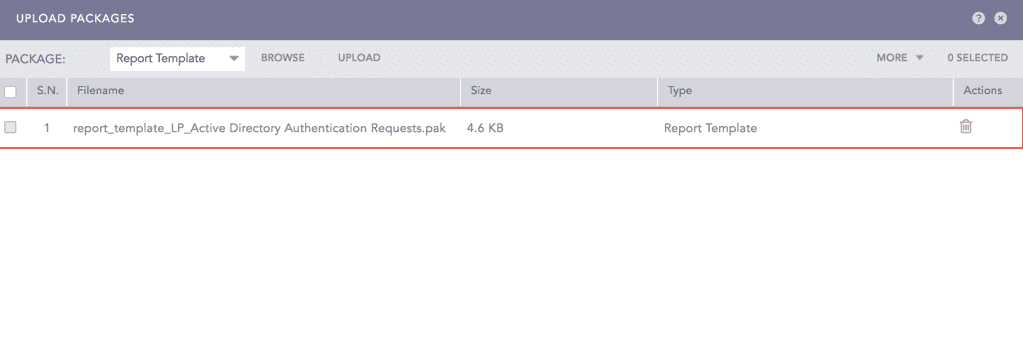
Analytics Packages list
You can click the Delete ( ) icon from the Actions column to delete the uploaded analytics package.
Select the required analytics package and click Upload.
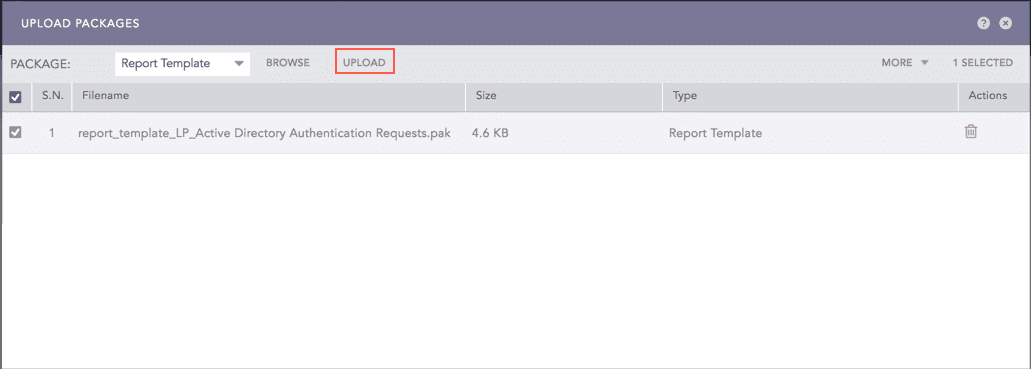
Upload Analytics Package
You are re-directed to the Analytics Packages page.
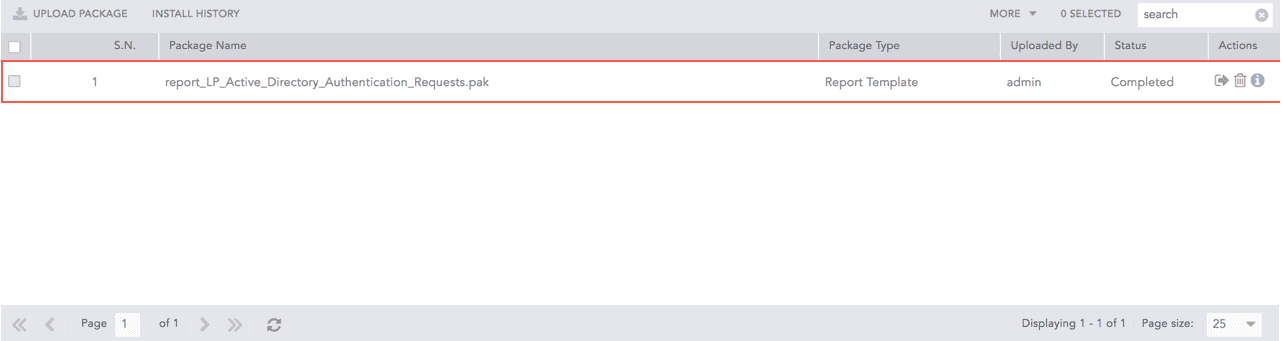
Uploaded Analytics Package
Go to Settings >> LogPoint Configuration >> Analytics Packages.
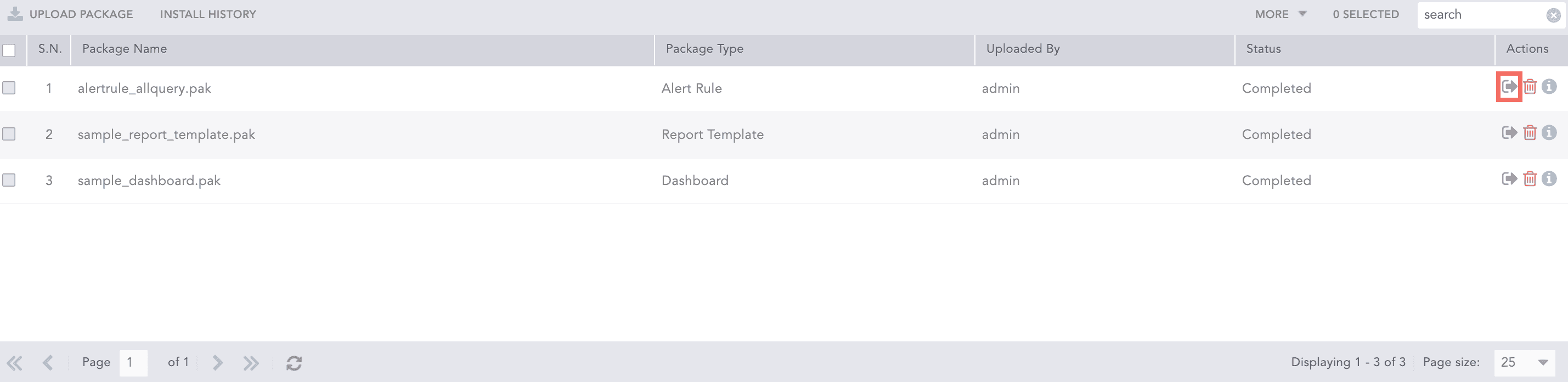
Install Single Analytics Package
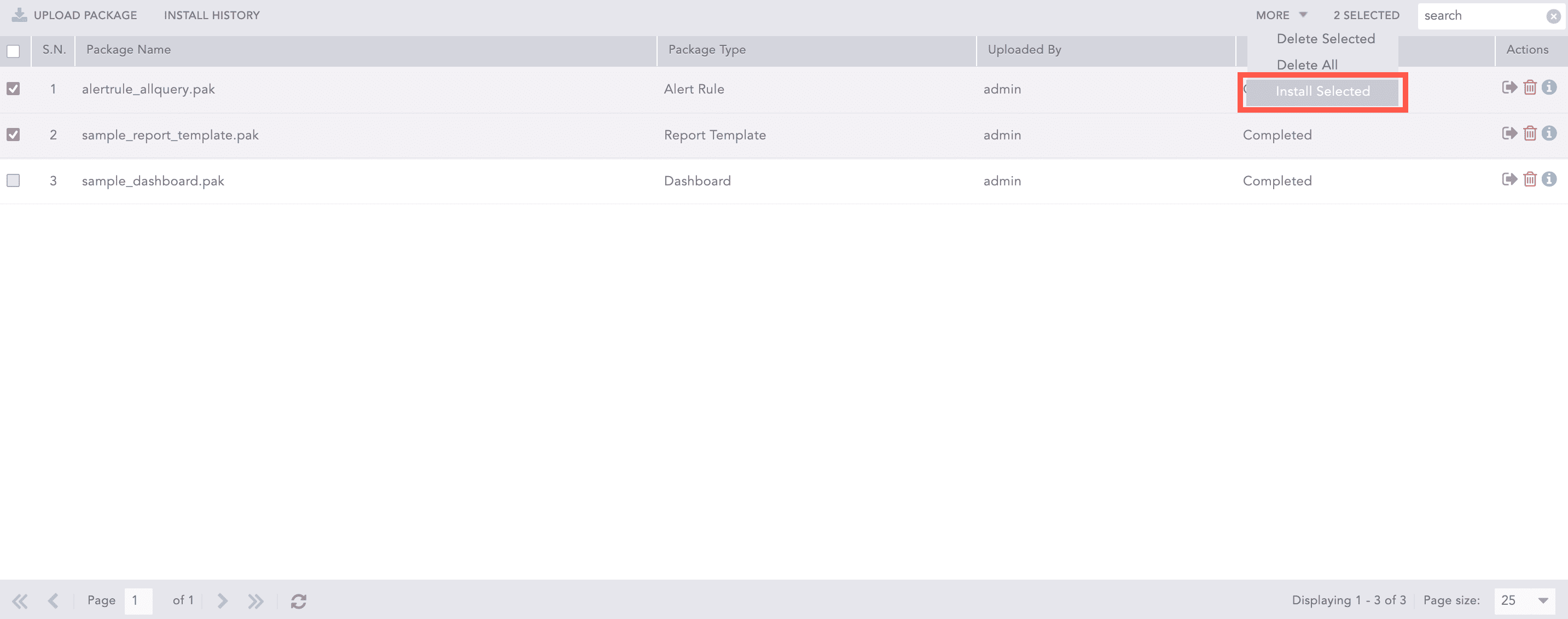
Install Multiple Analytics Package
Click the Install ( ) icon from the Actions column to install one package or select multiple analytics package and select Install Selected from the More drop-down.
Enable Update Existing to update the existing alert rules, dashboards and report templates analytics in the selected machine. While updating the analytics packages, the following configuration remains the same:
Selected repos
Status of analytics share/unshare, activate/deactivate and lock/unlock actions
Assigned to user and manageable by user in alert rules
Email address configured to alert notifications and generated reports
The Update Existing option is only available for Fabric-enabled LogPoint v6.9.0 and later.
While updating the analytics, LPSM creates new data privacy requests for the existing alert rules and report templates requests, regardless of their previous pending, granted or denied status.
In LogPoint v6.11.0 and above, you cannot update the analytics package if:
the existing alert rules and dashboards are shared with other users.
the existing alert rules and dashboards were shared by other users.
Select the users from the Logpoint connected to a pool.
You can select multiple users for Fabric-enabled LogPoint v7.1.0 and later, and single user for Fabric-enabled LogPoint instances prior to v7.1.0.
Important
If you are installing a .pak file that includes a report template with the Africa/Casablanca or Europe/Warsaw timezones, the installation fails because the package is not compatible with Logpoint versions prior to 7.2.0.
Click Install.
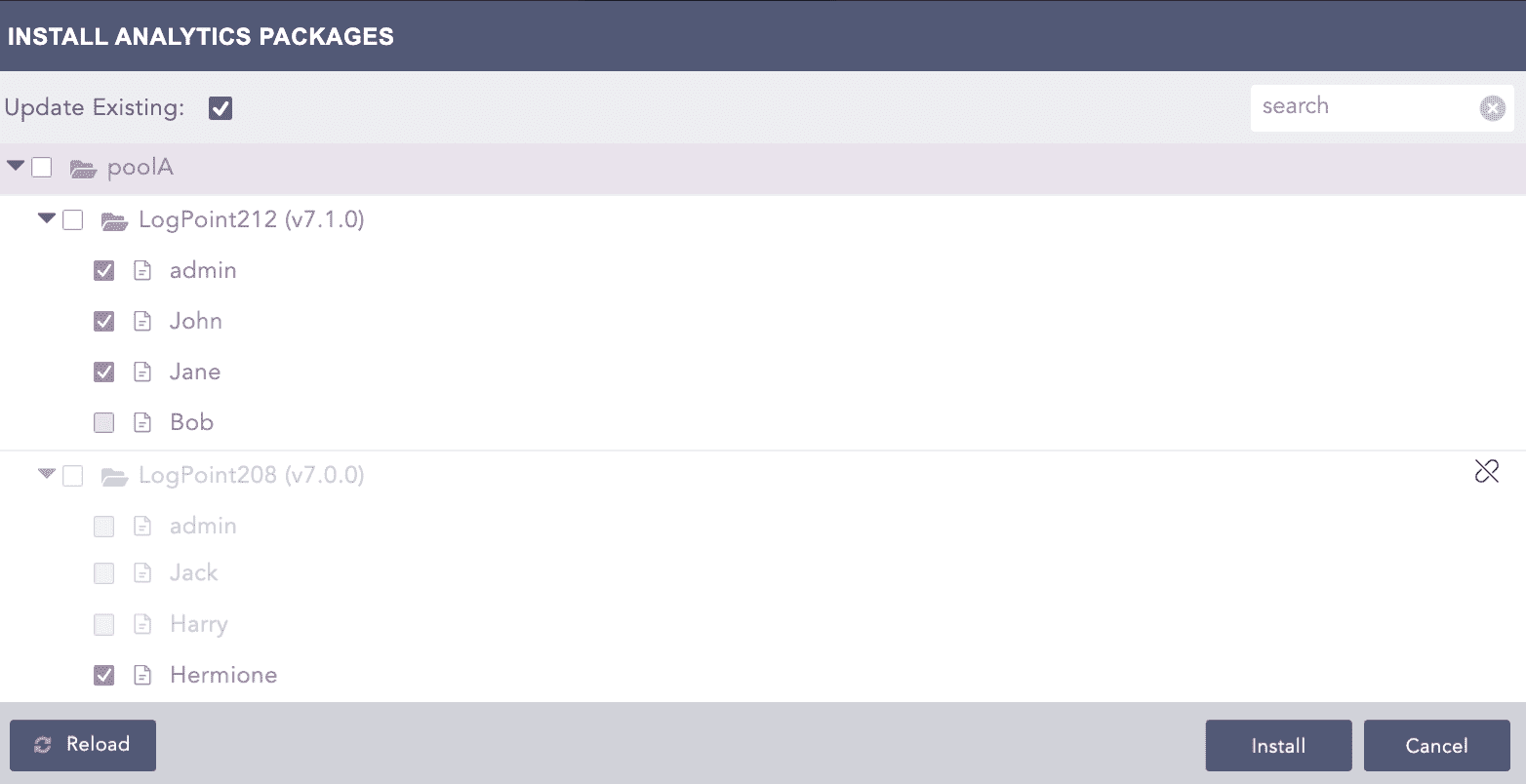
Install Analytics Package
Click INSTALL HISTORY to check the installation status of the analytics package.
Click the Details ( ) icon from the Actions column to get additional information about the installed package.
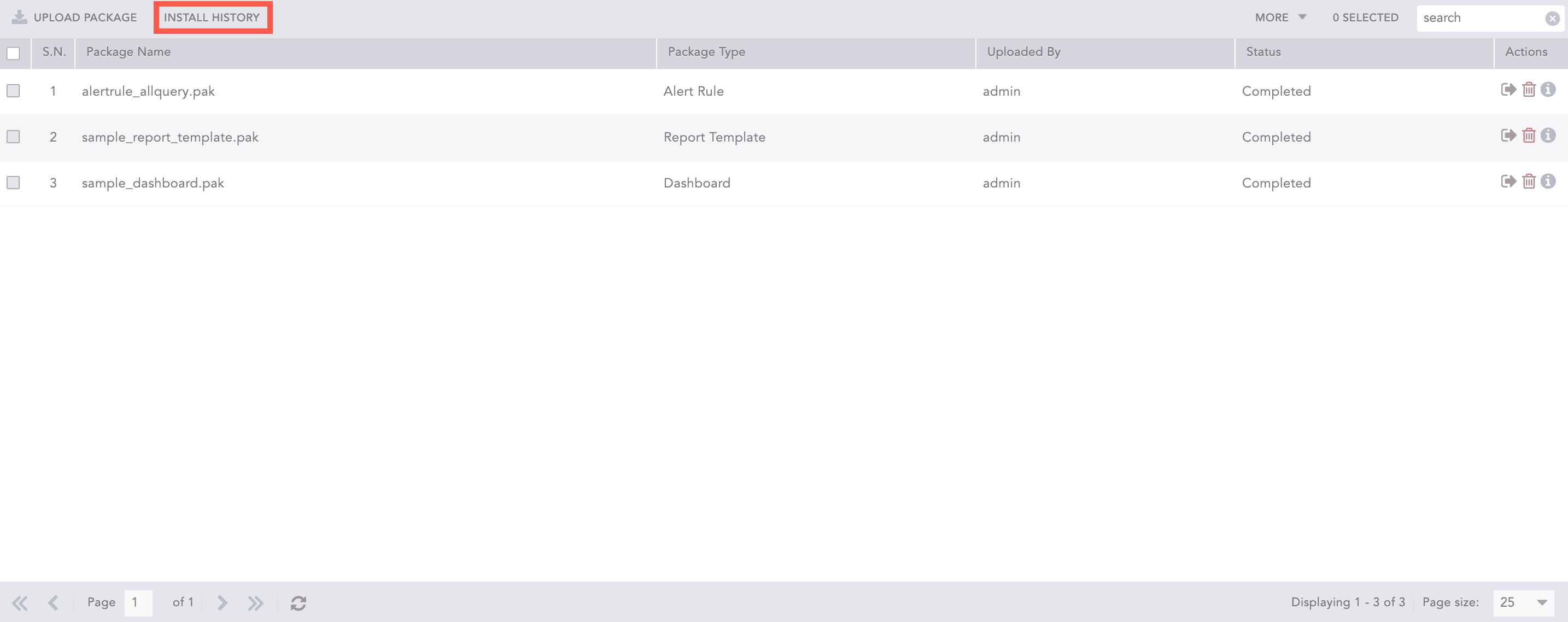
Install History
The Installation History page lists the installed packages and their status.
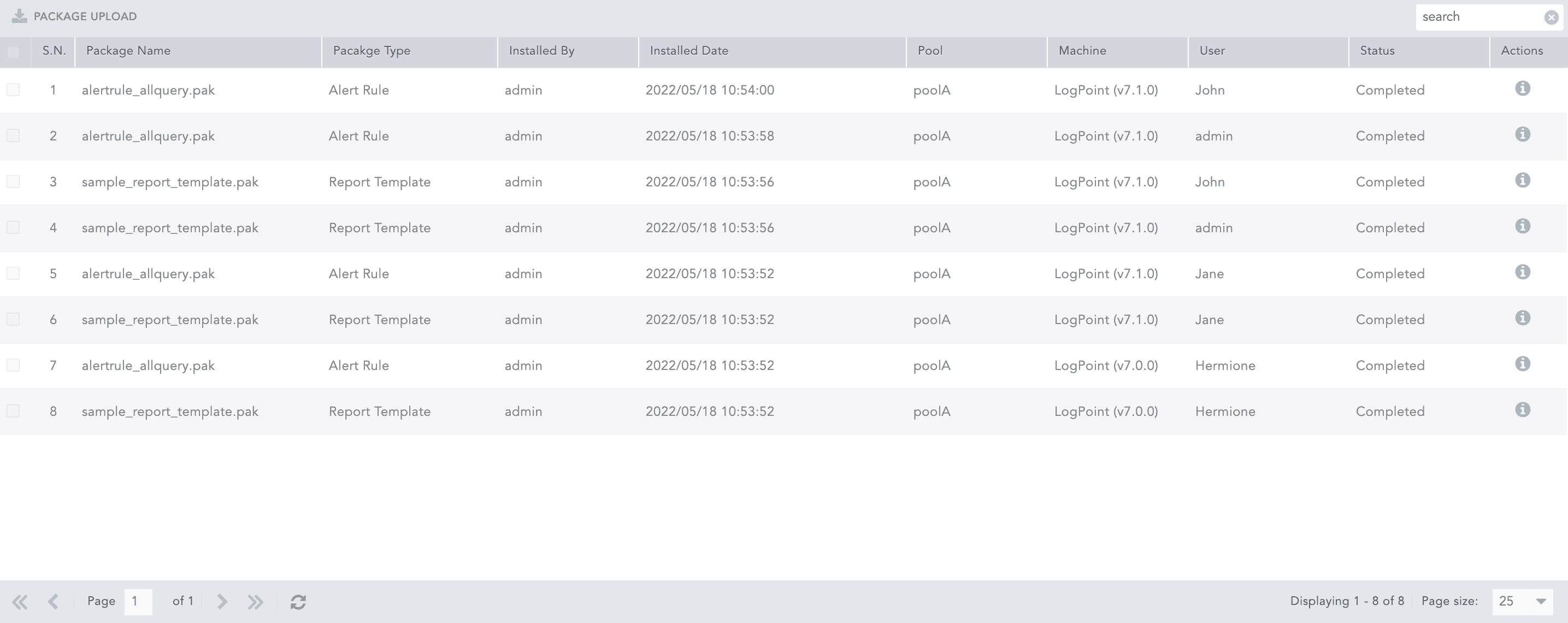
Install History Page
Go to Settings >> LogPoint Configuration >> Analytics Packages.
Click the Delete () icon from the Actions column.
To delete multiple analytics packages, select the packages. Click the More drop-down and select Delete Selected.
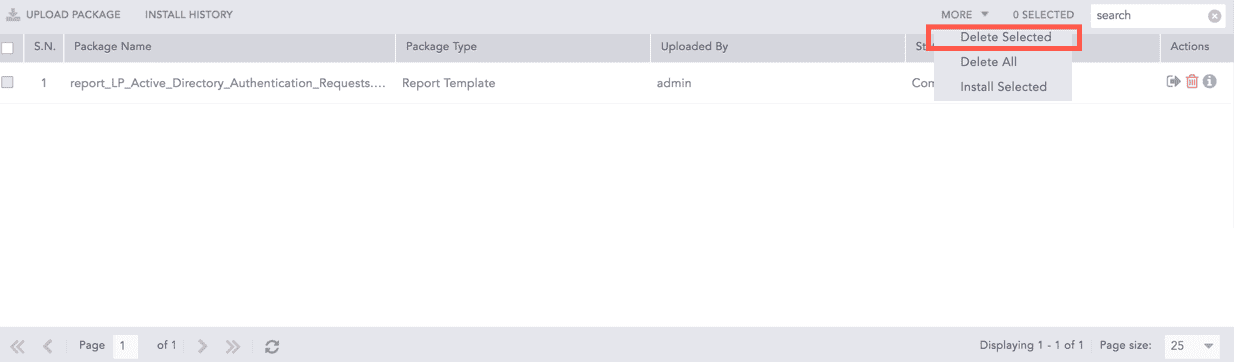
Delete Selected
To delete all the packages, click the More drop-down and select Delete All.
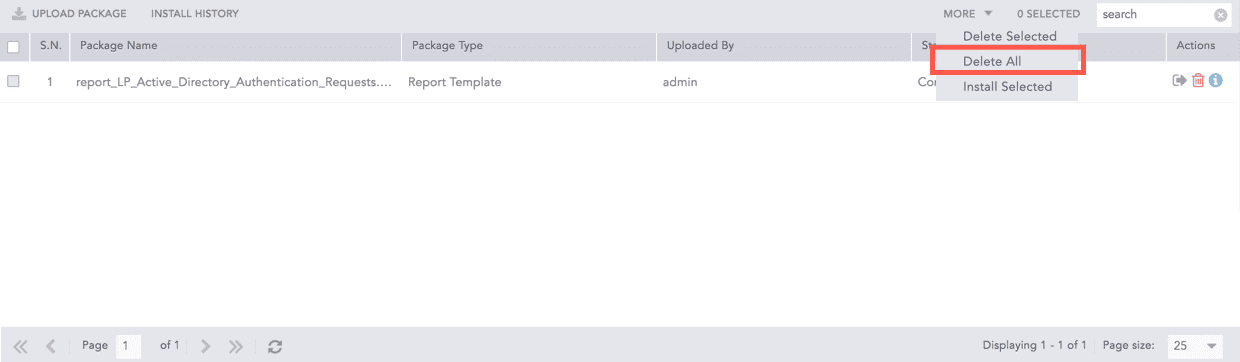
Delete All
Click Yes.