Click the User drop-down on the top-right corner of the interface and select My Preferences.
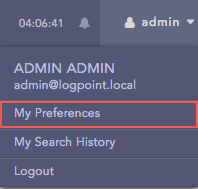
My Preferences Option
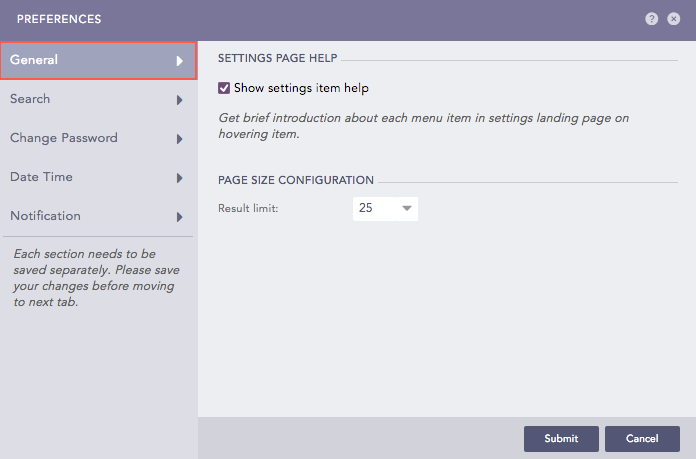
General
Select Show settings item help to display help on various items on the Settings page. After enabling the option, when you hover the mouse on any one of the items, you can see the details of the settings item on the right side of the screen.
Select the Result limit from the drop-down to customize the display size of pages in the Settings page.
Click Submit.
Search
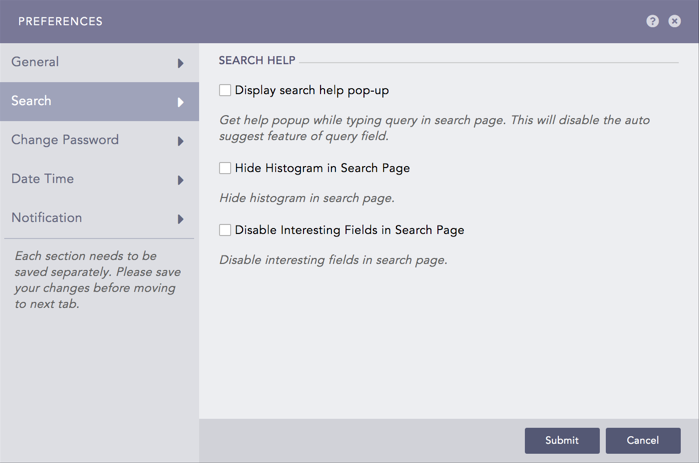
Enable the Display search help pop-up option to display the drop-down search assistance while writing a query.
Enable the Hide Histogram in Search Page option as per your requirement.
Select the Disable Interesting Fields in Search Page option to hide the Interesting Fields window from the Search page.
Click Submit.
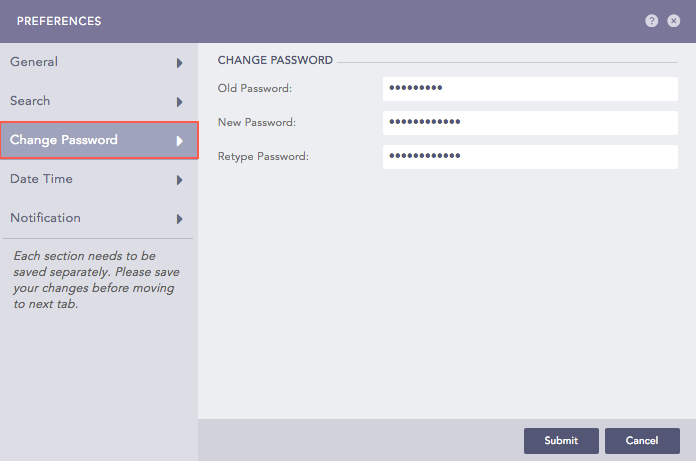
Change Password
Enter Old Password, New Password, and Retype Password.
Note
The Change Password tab is only visible to the users authenticated with LPSM authentication.
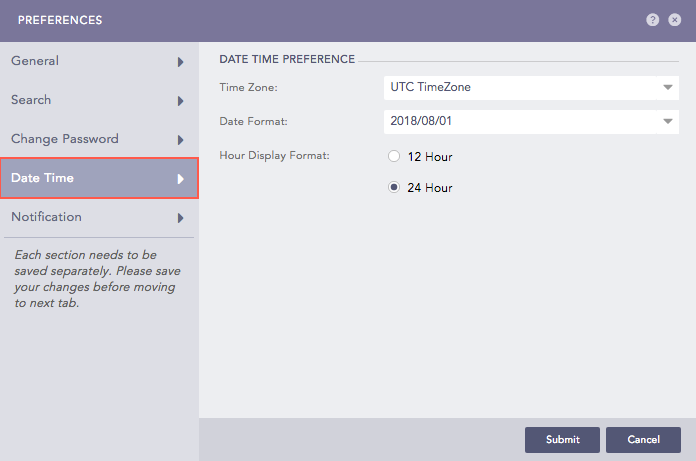
Date Time
Select Time Zone, Date Format, and Hour Display Format. By configuring the date and time from the Date Time Preference section, you can have the same date and time displayed in all parts of the application.
Note
The logs are collected in Coordinated Universal Time (UTC) irrespective of the Time Zone selected by the user.