
Go to Settings >> Configuration >> Normalization Policies.
Click Add.
Enter a Policy Name.
Select Compiled Normalizers for McAfee EPO.
Click Submit.

Adding a Normalization Policy
Go to Settings >> Configuration >> Devices.
Click Add.

Creating McAfee EPO as a device
Enter a device Name.
Enter the IP address(es) of the McAfee EPO server.
Select the Device Groups.
Select an appropriate Log Collection Policy for the logs.
Select a collector or a forwarder from the Distributed Collector.
Note
It is optional to select the Device Groups, the Log Collection Policy, and the Distributed Collector.
Select a Time Zone.
Note
The timezone of the device must be the same as its log source.
Configure the Risk Values for Confidentiality, Integrity, and Availability used to calculate the risk levels of the alerts generated from the device.
Click Submit.
Click Syslog Collector on the Available Collectors Fetchers.
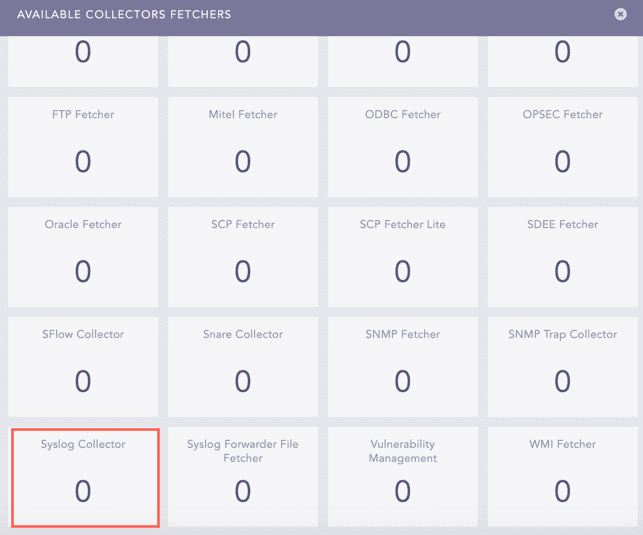
Available Collectors Fetchers Panel
Select the Syslog Parser.
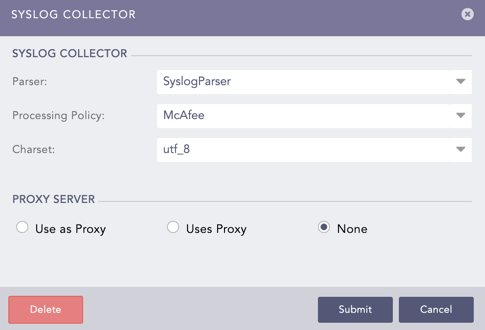
Configuring Syslog Collector
Select the Processing Policy which contains the previously added normalization policy.
Select the Charset.
In PROXY SERVER, select None.
Click Submit.
Go to Settings >> Configuration >> Devices.
Click the Add Collectors/Fetchers icon under the Actions column of the previously added device.
Click ODBC Fetcher.
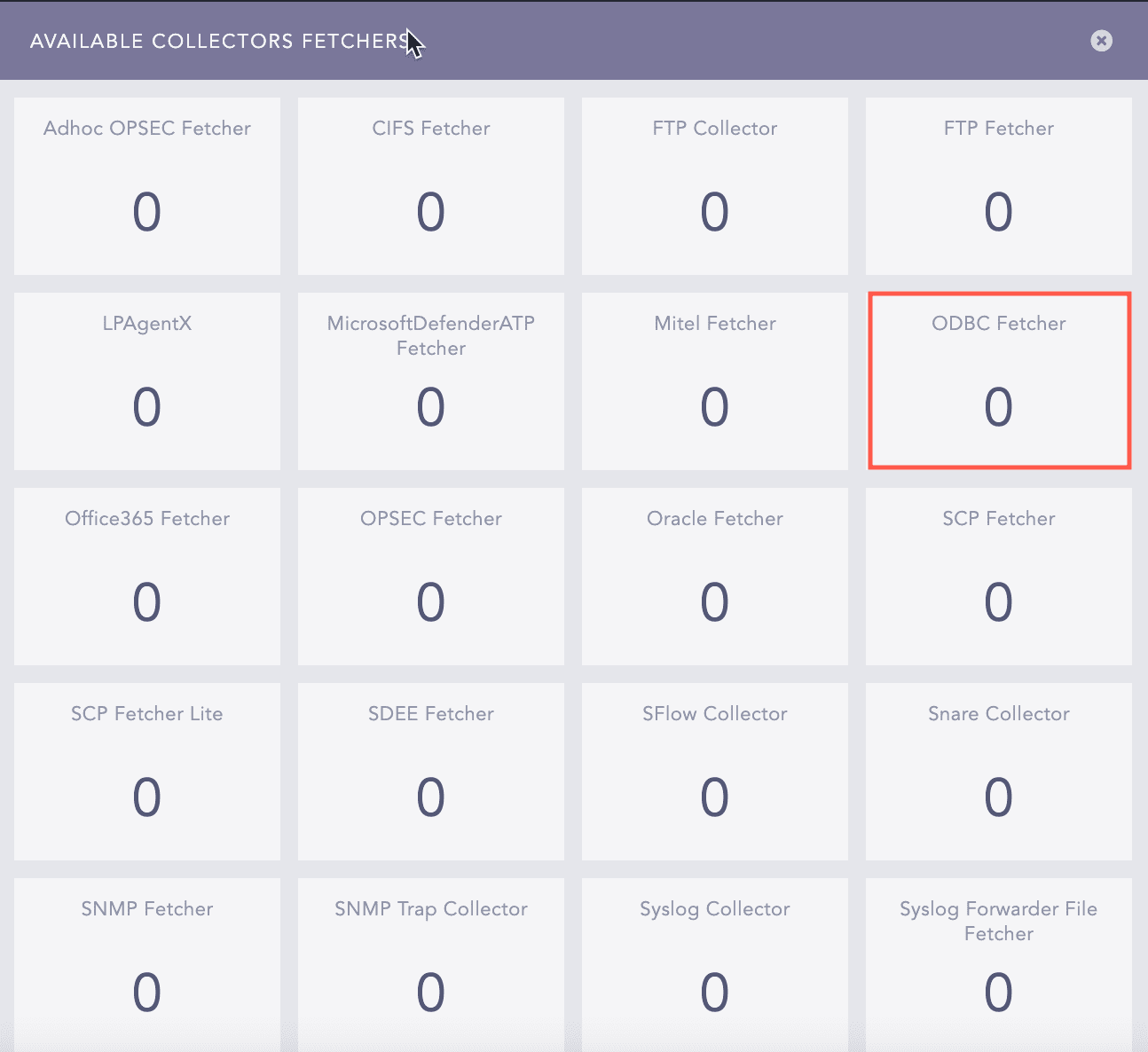
Available Collectors Fetcher
Click Add.

Adding ODBC Fetcher
In MODE, select General.
In Template, select McAfee Configuration v5.1.
In Driver, select MSSQL2.
In Port, enter 1433.
In Database, enter the McAfee database’s name.
Enter the McAfee Username and Password.
Enter the Fetch Interval.
LogPoint adds the Query to fetch data from the table(s) when you select McAfee Configuration v5.1. The query is simple or based on joins.
Enter the Incremental Key. It is a unique key used as a pointer to read data from the table. The default value is AutoID.
Enter the Incremental Key Table. It is a table where the incremental key belongs. The default value is EPOEvents.
Enter the New Line Separator. It is used only if newline characters are embedded in the log entries otherwise discarded.
Select the Processing Policy.
Select the Charset. The default value is utf_8.
Click Submit.

Adding a new configuration for ODBC Fetcher