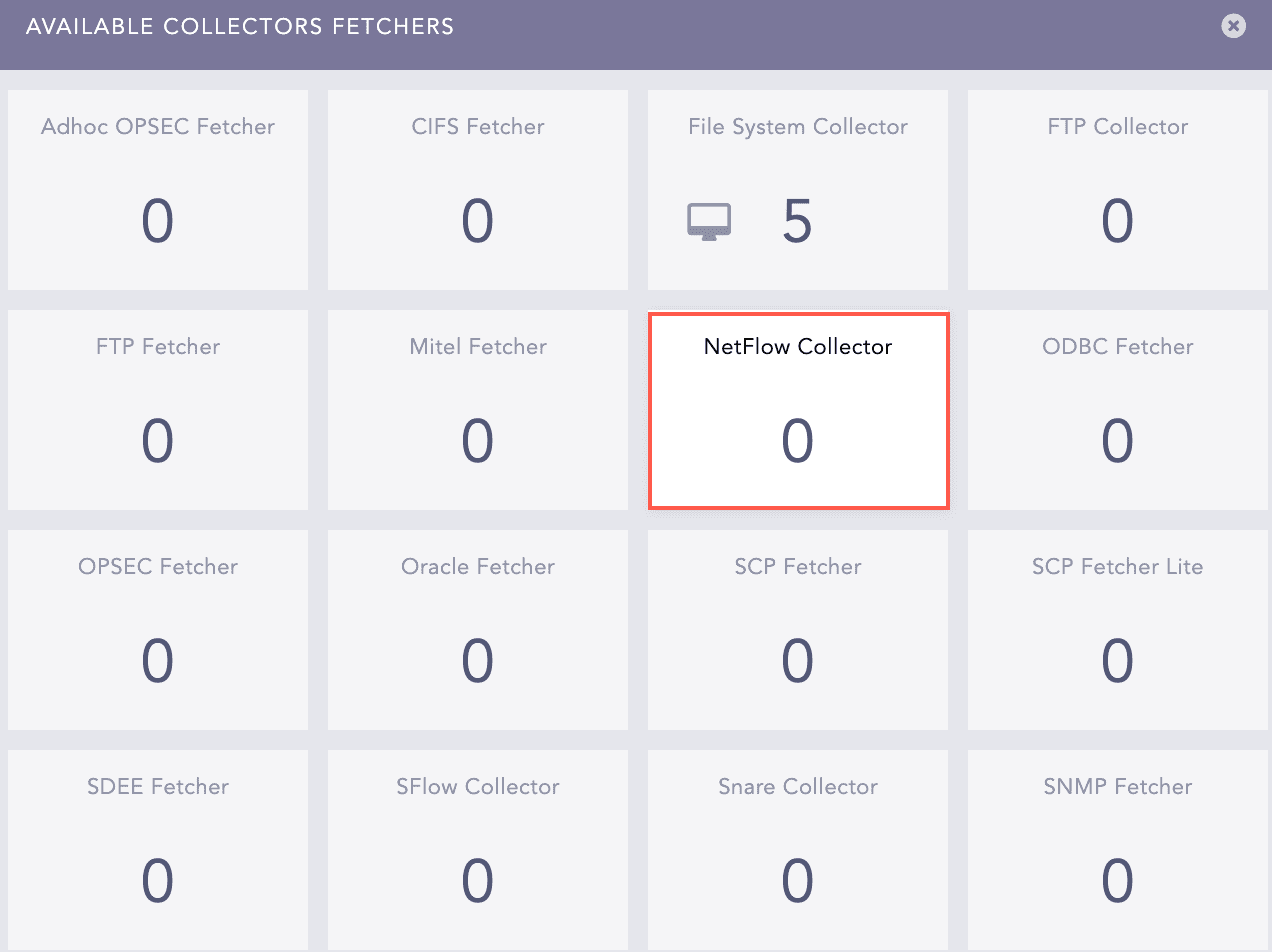
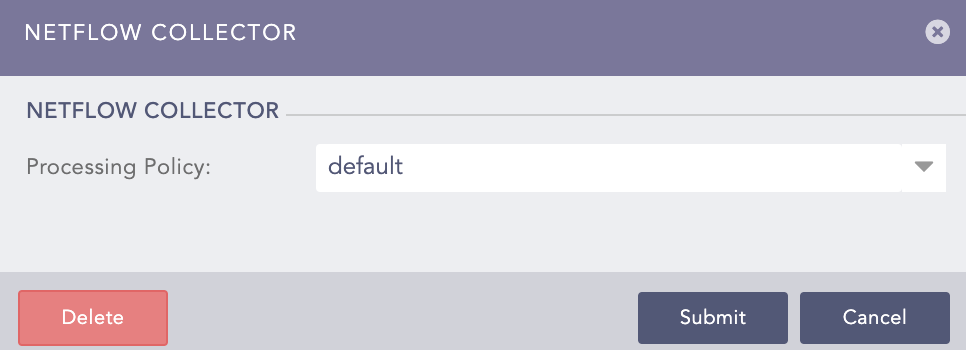
Go to the Flowalyzer application on your Windows machine.
Enter 9001 in the UDP Port field.
Enter LogPoint machine IP in the IP Address field.
Click Apply.
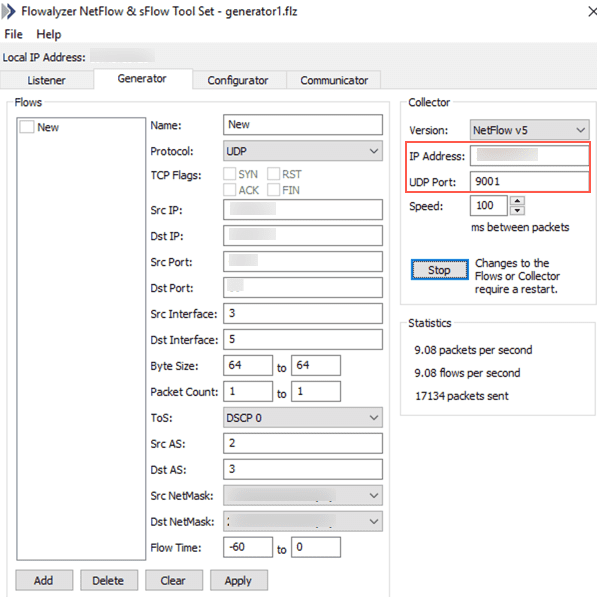
Flowalyzer Panel
Go to Settings >> Configuration >> Devices.
Click Add.
Enter a device Name.
Enter the IP address(es) of the Windows server.
Enter the Device Groups.
Select an appropriate Log Collection Policy for the logs.
Select a collector or a forwarder from the Distributed Collector.
Note
It is optional to select the Device Groups, the Log Collection Policy, and the Distributed Collector.
Select a Time Zone.
Note
The timezone of the device must be the same as that of its log source.
Configure the Risk Values for Confidentiality, Integrity, and Availability. These values are used to calculate the risk levels of the alerts generated from the device.
Click Save.
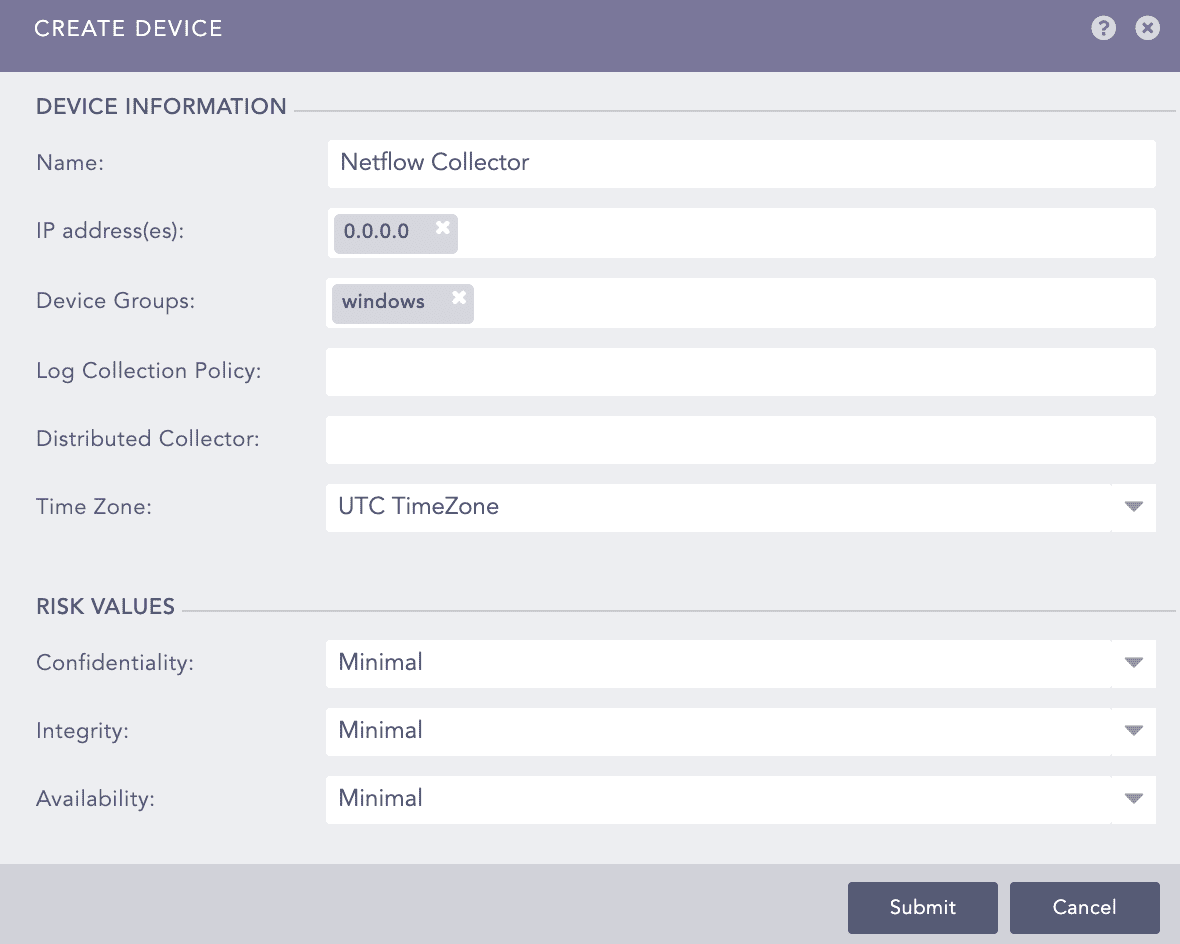
Create Device Panel