
Go to Settings >> Configuration >> Enrichment Sources.
Click Add.
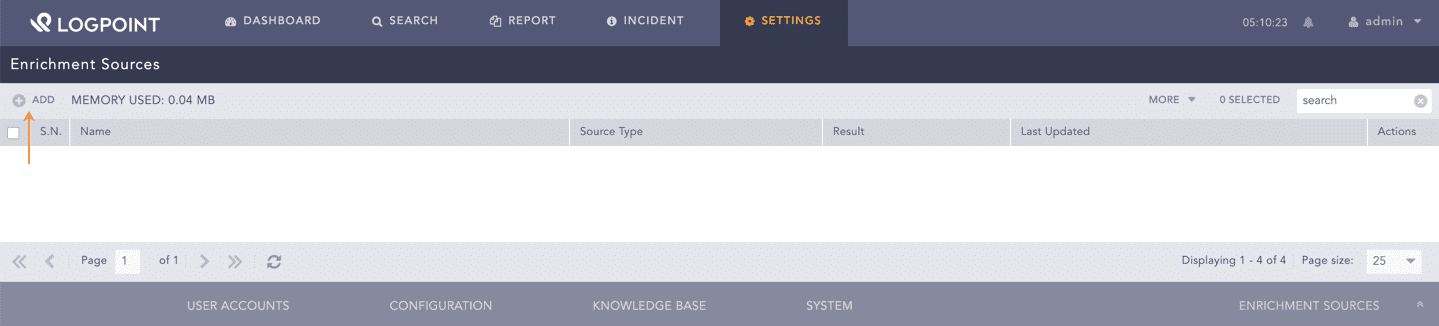
Adding an Enrichment Source
Select the Oracle tab.
Enter a Name.
Select the Charset.
Enter the Server IP and the Port number of the Oracle server.
Enter the Username and Password to access the Oracle server.
Enter the Oracle SID (System ID).
Enter a SQL Query to fetch the data.
In Enrichment Options :
10.1 Select an Age Limit, which is the retention period of data.
10.2 Select an Update Interval, which is the interval at which data is read.
10.3 Select a Type:
10.3.1 Select Update to update the existing fetched data that is stored as a table in Logpoint.
10.3.1.1 Enter Increment Key, which is the primary key to access new records from the Oracle database.
10.3.1.2 Enter Increment Key Table, which contains the value of the previously entered Increment Key.
10.3.1.3 Enter a New Line Separator.
10.3.2 Select Replace to replace the existing fetched data that is stored as a table in Logpoint.
The Source Fields displays the field headers of the Oracle table along with the sample data.
Select the Type of sample data from the drop-down menu.
Click Save.
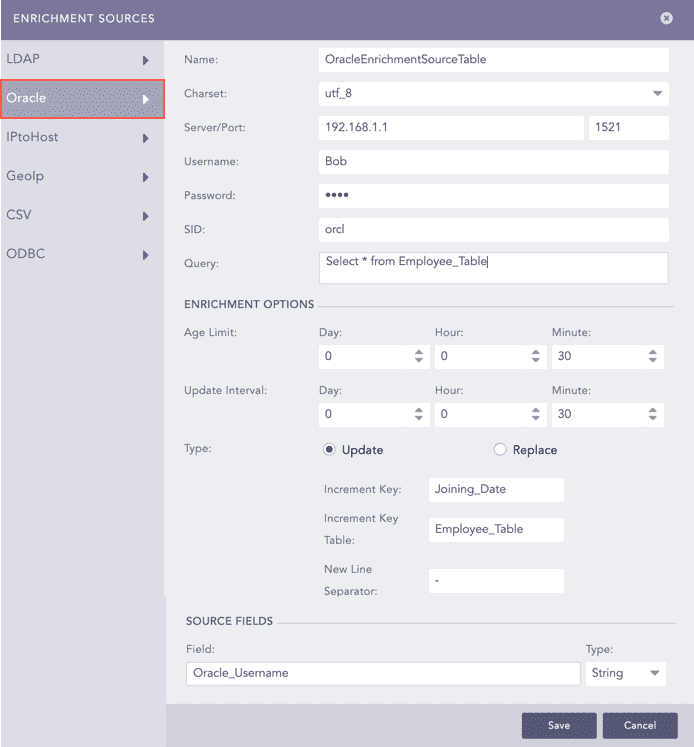
Adding Oracle as an Enrichment Source
Go to Settings >> Configuration >> Enrichment Policies.
Click Add.
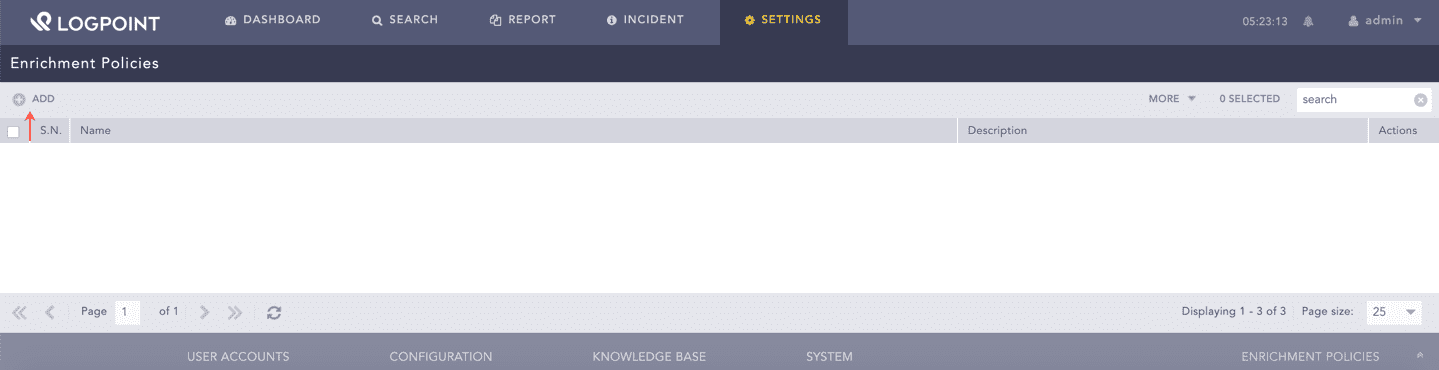
Adding an Enrichment Policy
Enter a Policy Name and Description.
In Specification :
4.1 Select Key Presents to enter the name of a key. The policy checks if the specified key is present in the log.
4.2 Select Value Matches to enter the name of a key and a value. The policy checks if the specified key is present in the log, and if the value of the key matches the specified value.
4.3 Click plus ( ) to add a new criterion and minus (
 ) to remove a criterion.
In Enrichment Rule, select an Enrichment Source from the drop-down menu.
5.1 Select a Source and the type of Operation.
5.2 Select a Category.
5.2.1 If you select the Simple category, enter an event key suitable for the source.
5.2.2 If you select the Type Based category,
5.2.2.1 Select an Event Key Type.
5.2.2.2 Enable the Enable prefixing to prefix the results with the event key. In this case, Logpoint presents the results in alphabetical order of the event key.
5.2.2.3 Click the plus (
Note
You cannot add more than five enrichment rules in an enrichment specification.
Click Submit.
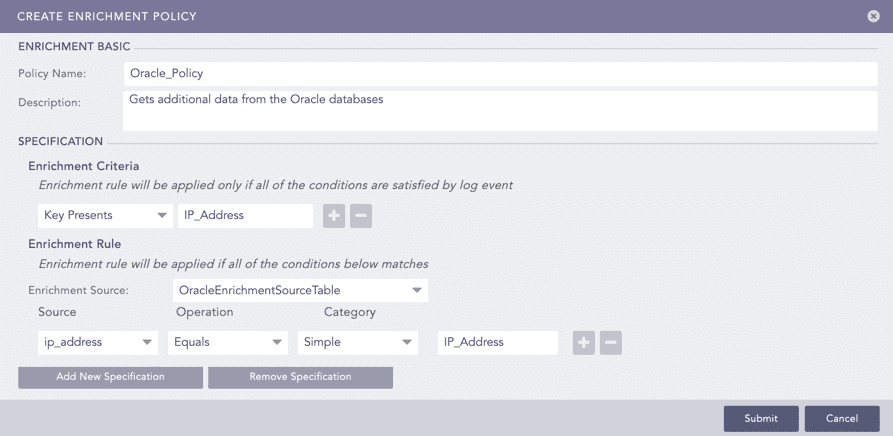
Adding an Enrichment Policy