
Click Playbooks in the navigation bar.
Search for the playbook by filtering the list using the Category or entering the Playbook Name.
Click the Run Playbook icon.
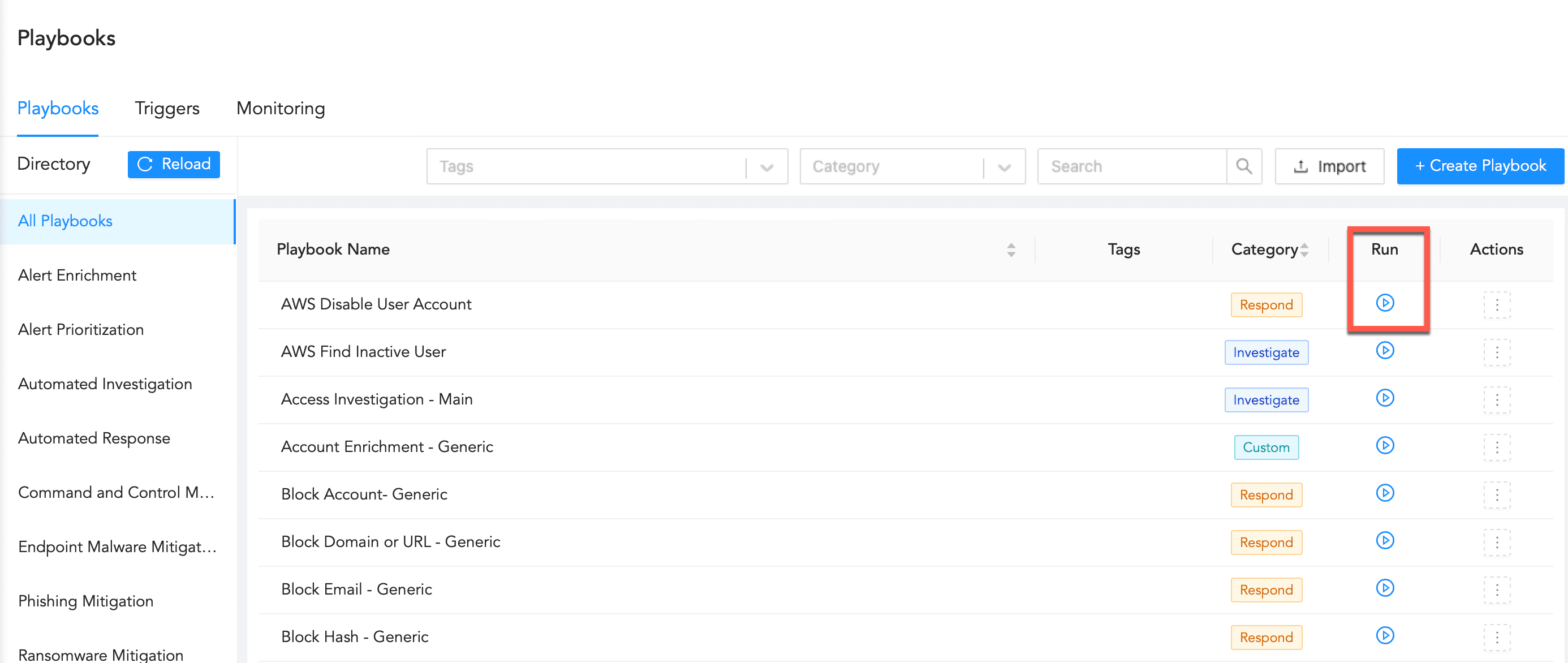
Run Playbook Icon
Enter the Playbook Parameters.
Click Run Playbook.
You can clone a playbook to modify it with minor changes and save configuration time.
Click Playbooks in the navigation bar.
Search the playbook by filtering the list using the Category or entering the Playbook Name.
Click or hover over the ( ) icon from Actions.
Click Clone.
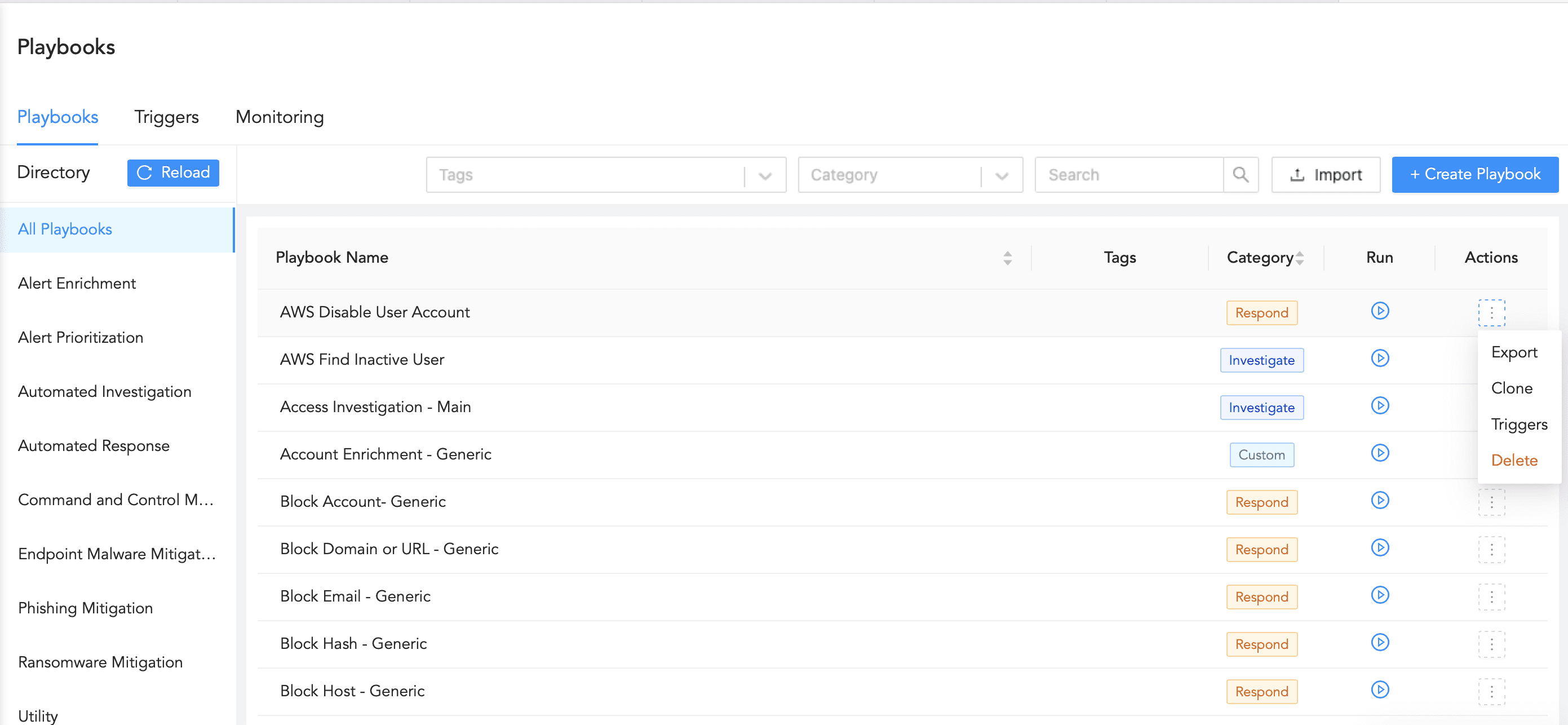
Selecting Clone from the Actions column
Enter a Cloned Playbook Name.
Click Save. A copy of the playbook appears in the Playbooks page.
You can export a playbook from one machine and import it into other machines to save configuration time. Playbooks can be exported to previous SOAR versions but not the latest SOAR features, like encoding and decoding HTML and adding or exporting a playbook description.
Click Playbooks in the navigation bar.
Search the playbook by filtering the list using the Category or entering the Playbook Name.
Click or hover over the () icon from Actions.
Click Export.
The exported .zip file contains the playbook details along with the playbook description.

Opening Exported .zip File
You can import a playbook from one machine into another to save configuration time. Playbooks built in the latest SOAR version can be imported to older SOAR versions, but not the latest SOAR features, like new action blocks, encoding and decoding HTML and adding or exporting a playbook description.
Click Playbooks in the navigation bar.
Click Import.
Browse to the downloaded .zip file.
Click Import.
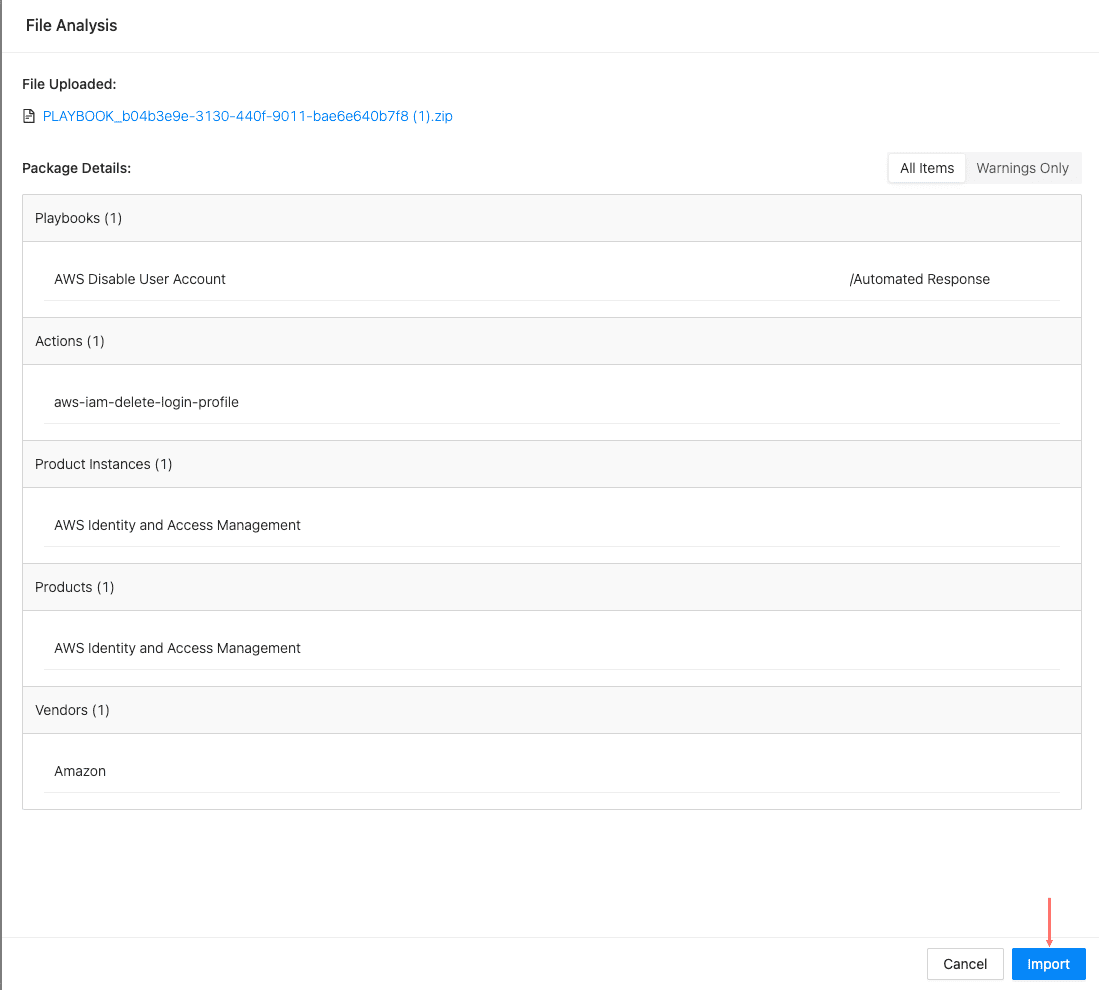
Importing a Playbook
Click Close.
Click Playbooks in the navigation bar.
Search the playbook by filtering the list using the Category or entering the Playbook Name.
Click or hover over the () icon from Actions and click Delete.
Click Delete.
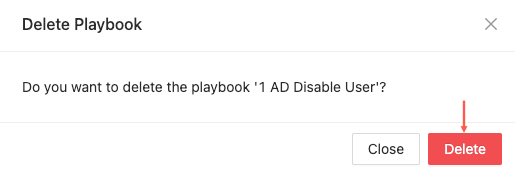
Deleting a Playbook
Click Playbooks in the navigation bar.
Search the playbook by filtering the list using the Category or entering the Playbook Name.
Click the playbook.
Make the changes.
Click Save.