
Logpoint v7.7.0 or later
Download the .pak file from the Help Center.
Go to Settings >> System Settings from the navigation bar and click Applications.
Click Import.
Browse to the downloaded .pak file.
Click Upload.
After installing Radius Authentication, you can find it in Logpoint login page. To verify:
Go to Logpoint login page.
Click Other Authentication Options.
Click Radius Authentication.
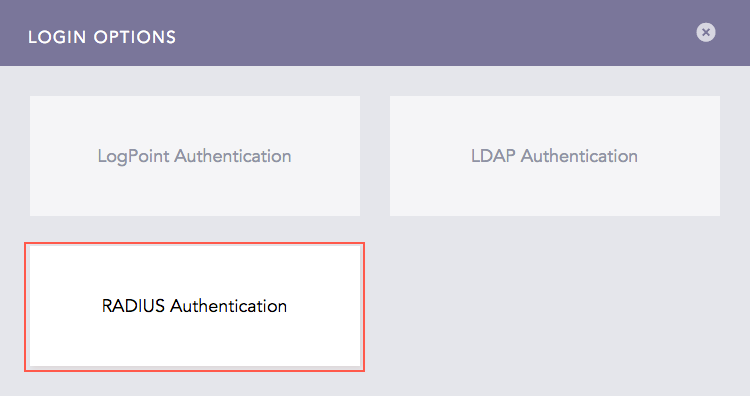
RADIUS Authentication Login Option
You must remove the Radius Authentication configuration to delete it.
Go to Settings >> System Settings from the navigation bar and click Plugins.
Find Radius Authentication and click Manage.
Click the Delete ( ) icon from Actions and click Yes.
To uninstall Radius Authentication:
Go to Settings >> System Settings from the navigation bar and click Applications.
Click the Uninstall () icon from Actions and click Uninstall.