
Go to Settings >> Configuration >> Recorded Future.
Select Settings.
Select the Enable Source option to activate the Recorded Future threat intelligence source.
Enter the API Key provided by Recorded Future.
Select the required Entities. The application fetches and stores data of the selected entities only.
Select the Enable Proxy option to connect to Recorded Future via a proxy server.
In the Proxy Configuration section:
7.1 Enter the IP address and the Port number of the proxy server.
7.2 Select the HTTP or HTTPS protocol as required.
Click Submit.
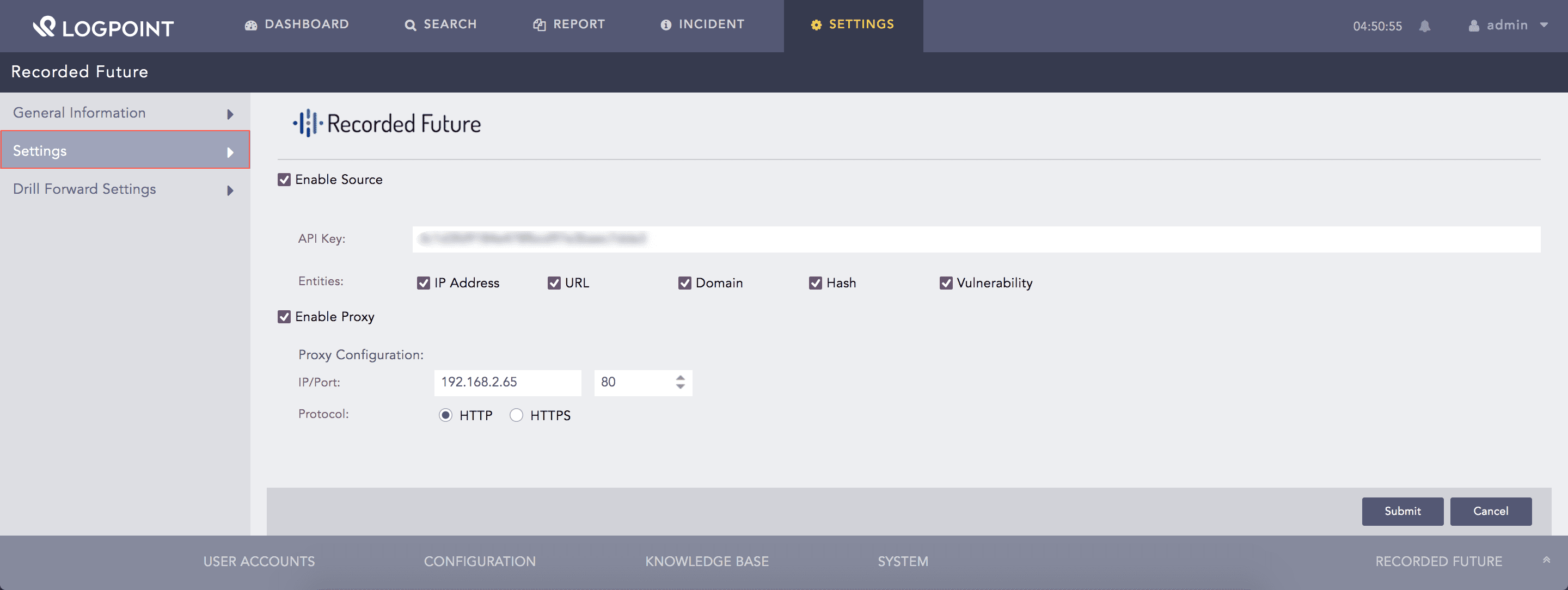
Configuring Recorded Future
Note
The data fetched from Recorded Future is stored in the Threat Intelligence database. Therefore, you must use the Threat Intelligence enrichment source while creating an enrichment policy for the RecordedFuture application.
The RecordedFuture application enriches the incoming logs with the threat information fetched from Recorded Future. You can find the enriched logs using the Search tab in LogPoint and can further drill forward on the enriched fields to access the Intelligence Card. To use the drill forward feature, you must enable the drill forward option and map the LogPoint fields with the Recorded Future entity type. You can only drill forward from the mapped fields.
The application maps the following fields by default:
LogPoint Taxonomy Field |
Recorded Future Entity Type |
|---|---|
source_address |
IP Address |
destination_address |
IP Address |
ip_address |
IP Address |
device_ip |
IP Address |
host_address |
IP Address |
hash |
Hash |
hash_sha256 |
Hash |
hash_sha1 |
Hash |
domain |
Domain |
url |
URL |
threat |
Vulnerability |
Follow these steps to use the drill forward feature:
Go to Settings >> Configuration >> Recorded Future.
Select Drill Forward Settings.
Select the Enable Drill Forward option.
Select the Type of entity from the drop-down menu.
Enter the LogPoint Taxonomy Field to map it with the Recorded Future entity type.
Click Add.
Click Submit.
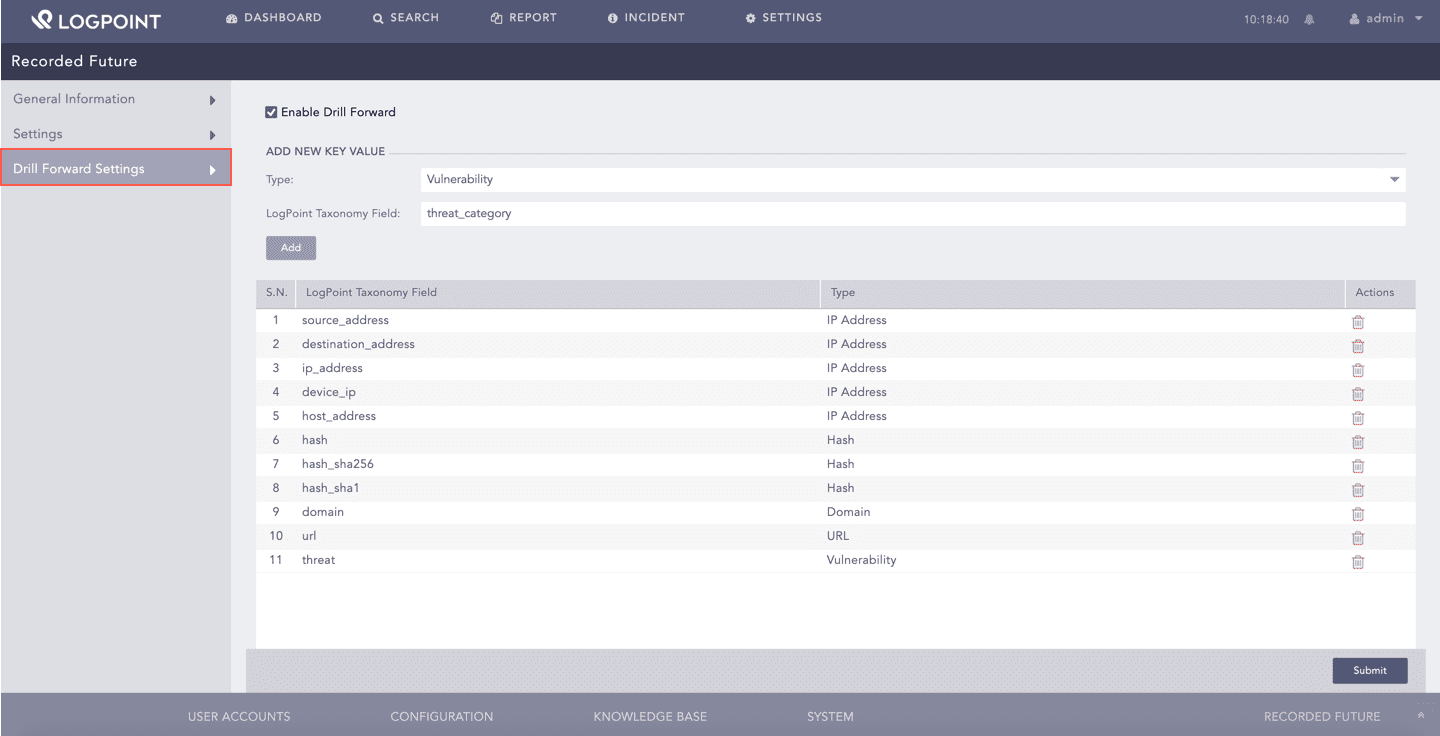
Enabling Drill Forward