
Snapshot is useful when you want to secure the state of a system so that you can return to the same state at any instant. It captures the entire state of a system at the time you take the snapshot. It preserves LogPoint data just as it was when you took the snapshot.
Director Console allows you to take two types of snapshots:
System only
System and log
The System only snapshot takes a snapshot of all the configuration of the selected LogPoint and stores their image. When you revert the snapshot, you only revert the configurations.
The System and Log snapshot are also known as Full Backup. It takes a snapshot of both the configurations and the logs and stores them. When you revert a snapshot, you revert both the configurations and the logs.
It includes:
The state of all the connected LogPoints.
The contents of all the connected LogPoints.
The system settings of all the connected LogPoints.
Go to Configure >> Settings >> Operations >> Create Snapshot.
Select the LogPoint instances where you want to create the snapshot.
Note
You can create a snapshot of multiple LogPoint instances at once, but you can only revert snapshot in a single LogPoint at a time.
The system reboots while creating a snapshot and all the services stops. You may lose the incoming logs during this period.
Click Next.
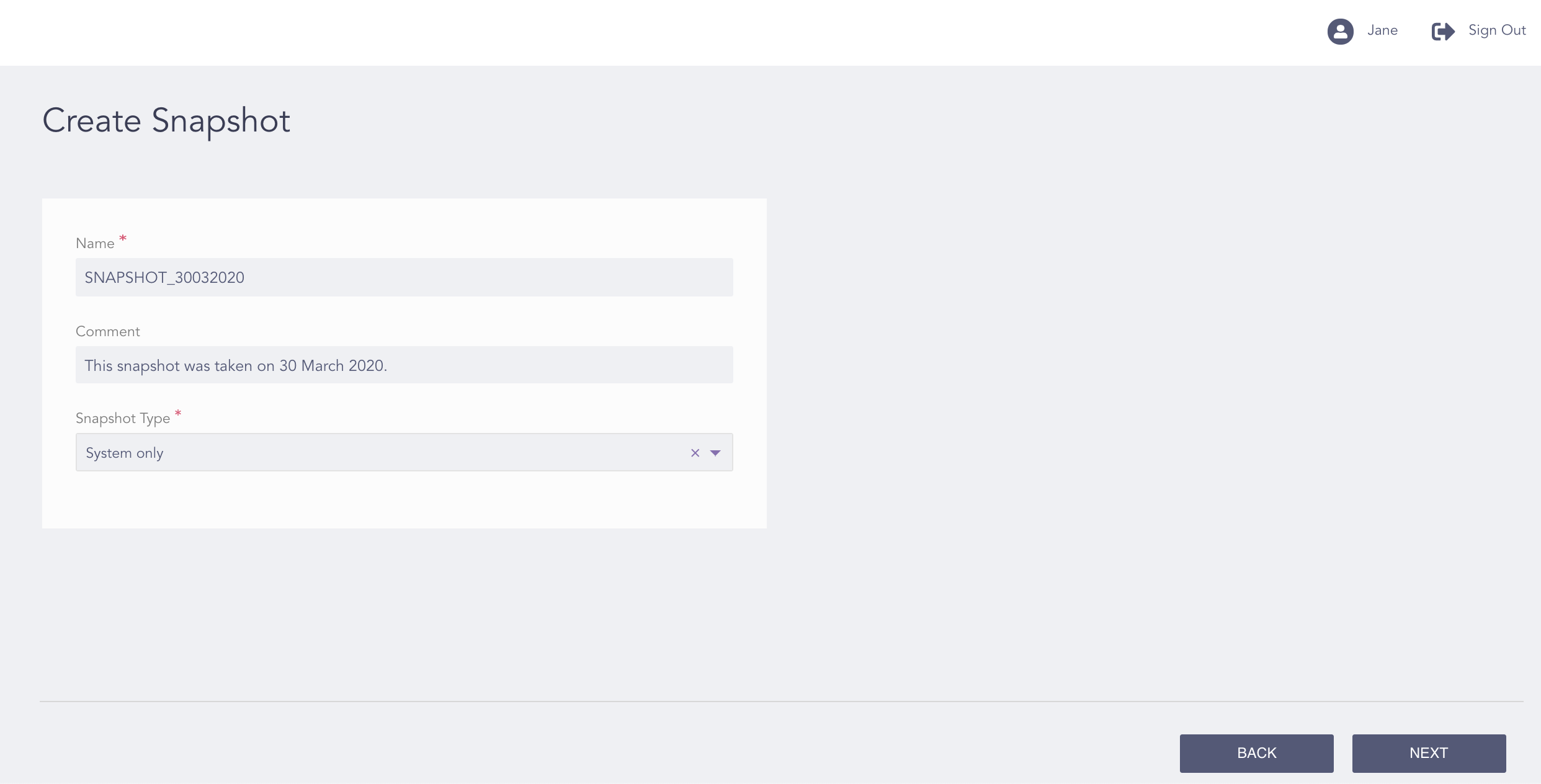
Create Snapshot Page
Enter a Name and a Comment for the snapshot.
Warning
The snapshot name must not contain a blank space. For example, “Full Snapshot” is invalid.
The Name field supports alphanumeric values and the underscore character (_) only.
Select System only or System and Log as the Snapshot Type.
Click Next.
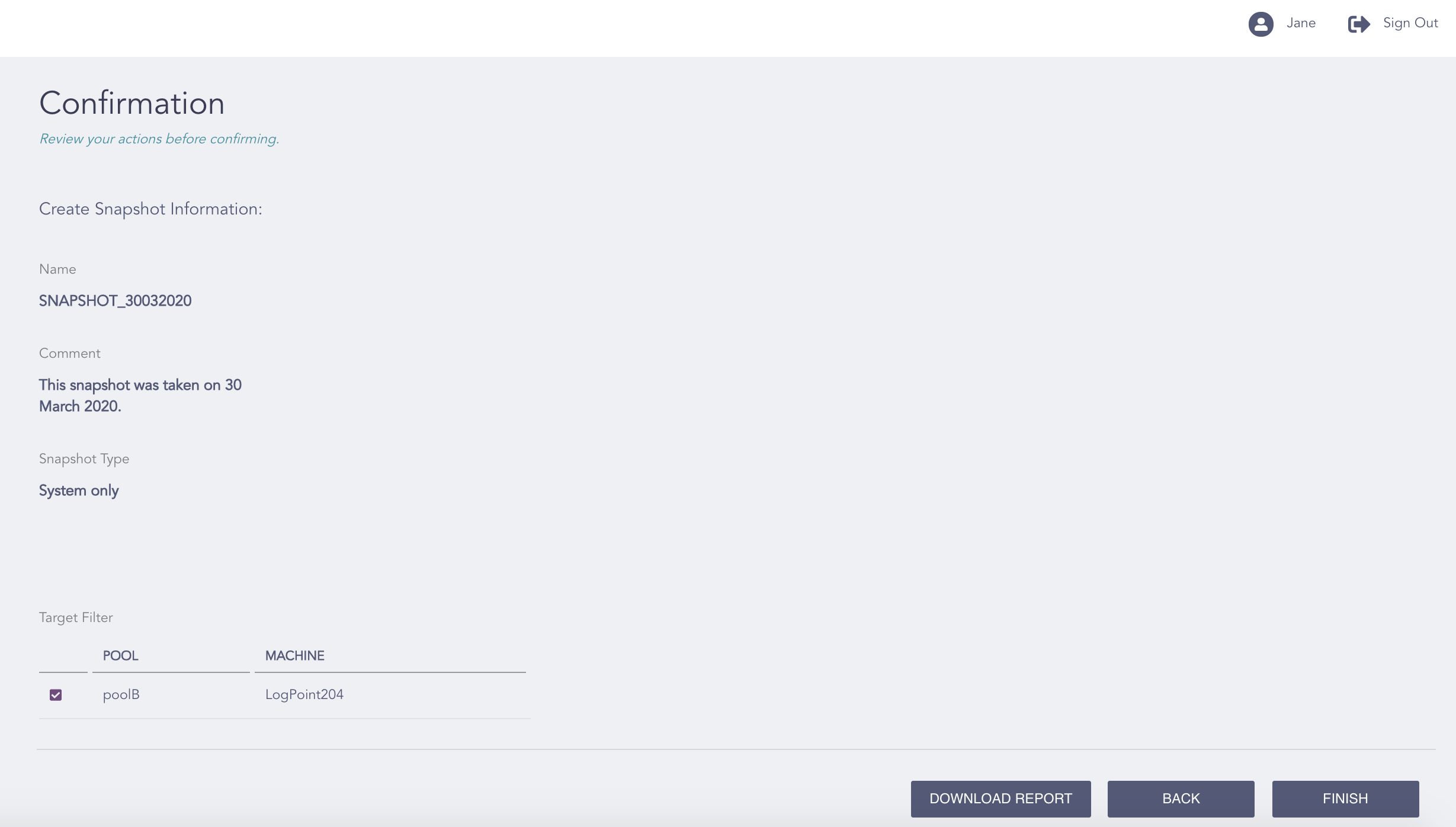
Confirming the Changes
Review your changes. You can go Back to make any changes if necessary.
Note
Click Download Report to save the summary of the task in PDF.
Click Finish.
Click OK.