
User Groups allow you to group users and control what they have access to as a group. You can configure a user group’s permissions and assign a query to it. The permissions are applied to all the associated users. To learn more about user groups, go to User Groups.
Go to Configure >> User Management >> User Groups.
Select the Logpoint instance where you want to create the user group. You cannot create user groups in multiple Logpoint instances at the same time.
Click Next.
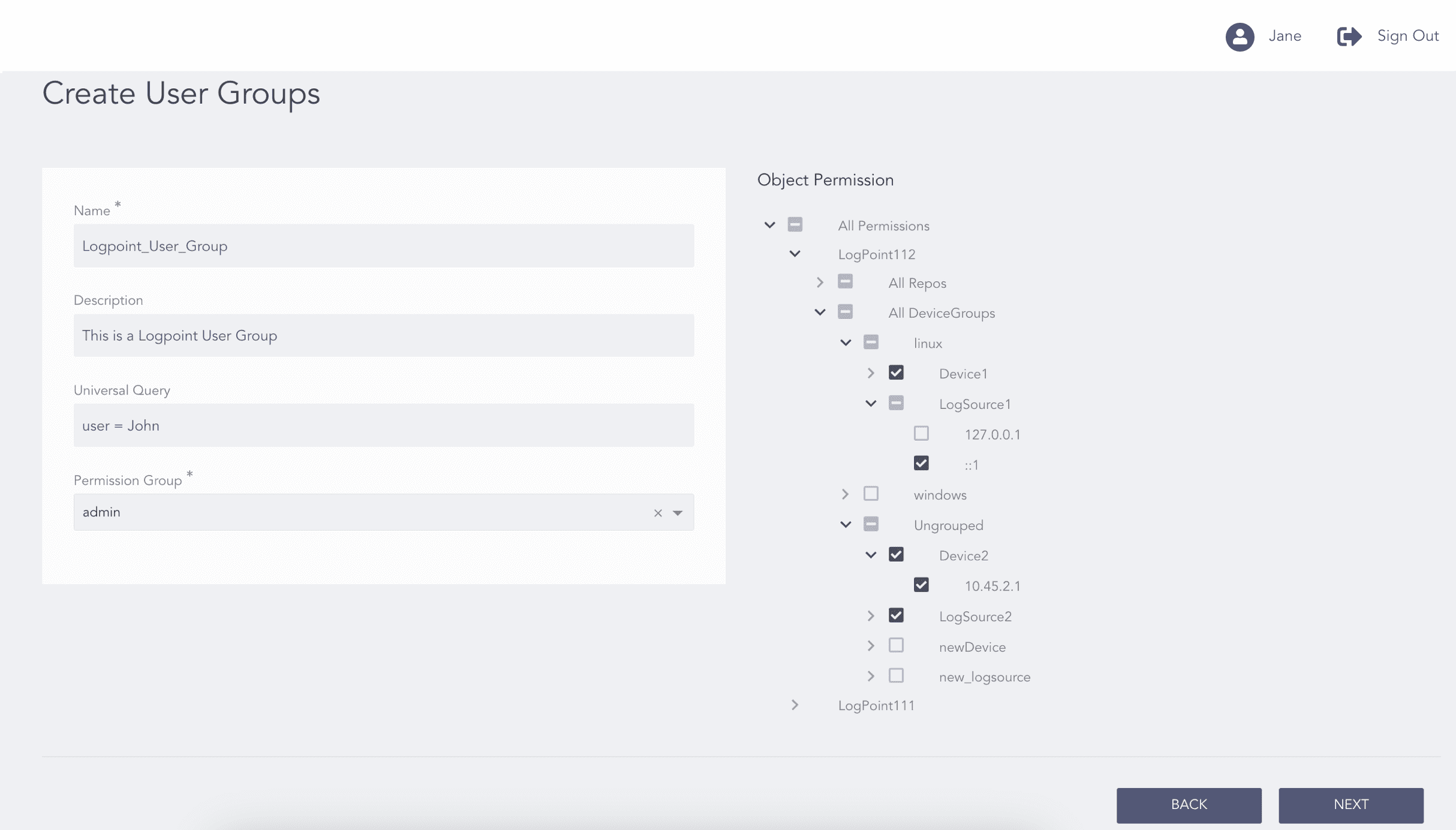
Creating a Logpoint User Group
Enter a Name and a Description.
Enter a Universal Query. Logpoint appends the universal query so the results are relevant to members of the user group. This helps narrow down the search results specific to the user group.
For example, if you enter col_type = syslog as a user group’s universal query and search the term login, the search query is equivalent to col_type = syslog and login for the users in this group. The system searches for login in the result set of col_type = syslog.
Select a Permission Group.
Under Object Permission, select the repos, device groups, devices, log sources and IP addresses from which the user group’s users can search the logs.
Select All Permissions to allow the user group to access all the repos, device groups, devices, log sources and IP addresses of devices and logsources configured in Logpoint. If you select All Permissions, all repos, device groups, devices and log source permissions are granted to any new members of a user group added later.
Click the All Permissions drop-down to select the Logpoint instances. Here, you can select All Repos to allow the user group to access all the repos of the Logpoint or select All Device Groups to allow the user group to access all device groups, devices, log sources and IP addresses of all the devices and log sources.
Click the All Repos drop-down to select specific repos.
Click the All Device Groups drop-down to select specific device groups, devices, log sources and IP addresses.
The permissions can be All Selected, Some Selected, and None Selected. Select All Selected to grant all permissions to a user group. To grant permission to only some objects to a user group, select the relevant entities individually in Object Permission. To not grant permission at all, in Object Permission deselect or clear any objects selected.
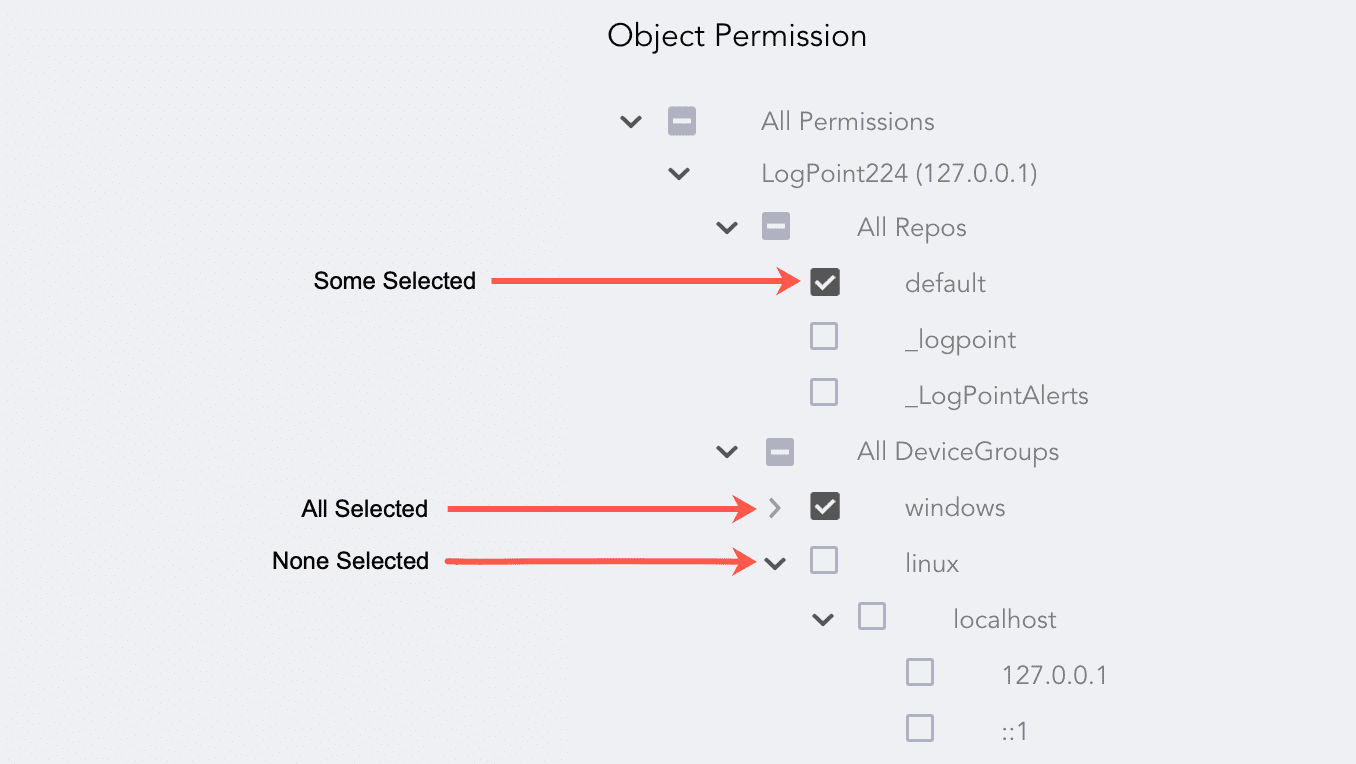
Selecting Permissions
Note
When you select All Selected for All Permissions, the object permissions persist for a Logpoint added to the Director later.
Click Next.
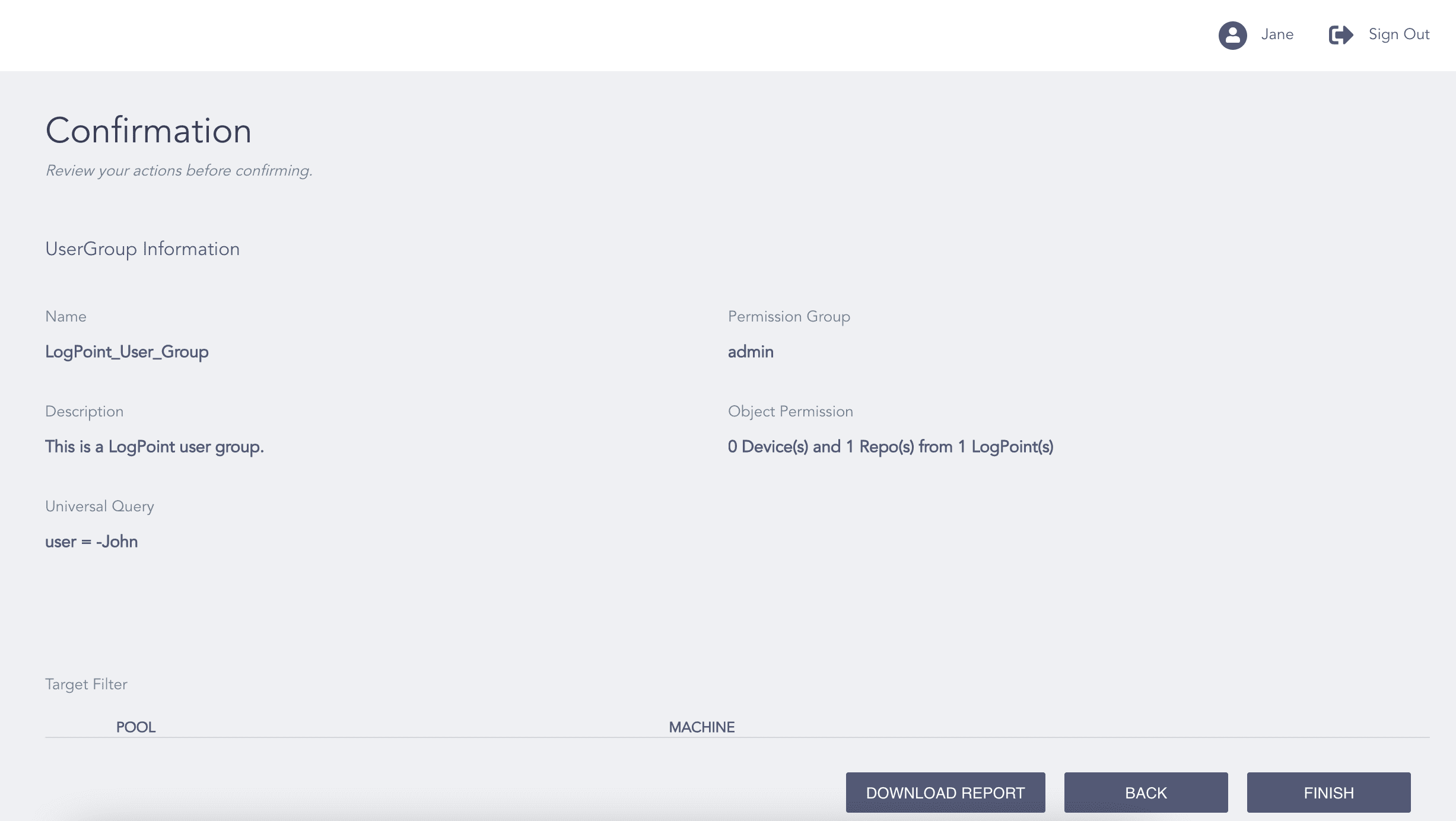
Confirming the Changes
Review your changes. You can go Back and make any changes if necessary.
Note
Click Download Report to save a summary in PDF format.
Click Finish and click Ok.
Note
Refresh the Logpoint User Groups API from Operations >> Refresh List APIs when you:
Add or delete distributed Logpoints.
Create, edit, or delete repos, device groups, devices, log sources and IP addresses.
Create or edit user groups.