
The lockout policy lets you control user login and password security attributes. LogPoint locks your account for a specific lockout duration if you make multiple failed login attempts.
Go to Configure >> Settings >> System >> Lockout Policy Settings.
Select the LogPoint instances where you want to configure the lockout policy settings.
Click Next.

Configuring the Lockout Policy Settings
Enter a Lockout Threshold to determine the number of failed login attempts allowed before causing a user to be locked out of a Fabric-enabled LogPoint. You can set a threshold value from 0 to 999, where 0 means a user account is never locked.
Enter a Lockout Duration to determine the number of minutes that an account remains locked out of a Fabric-enabled LogPoint. You can set a lockout duration value from 1 to 99999.
Click Reset to reset the values to default.
Click Next.
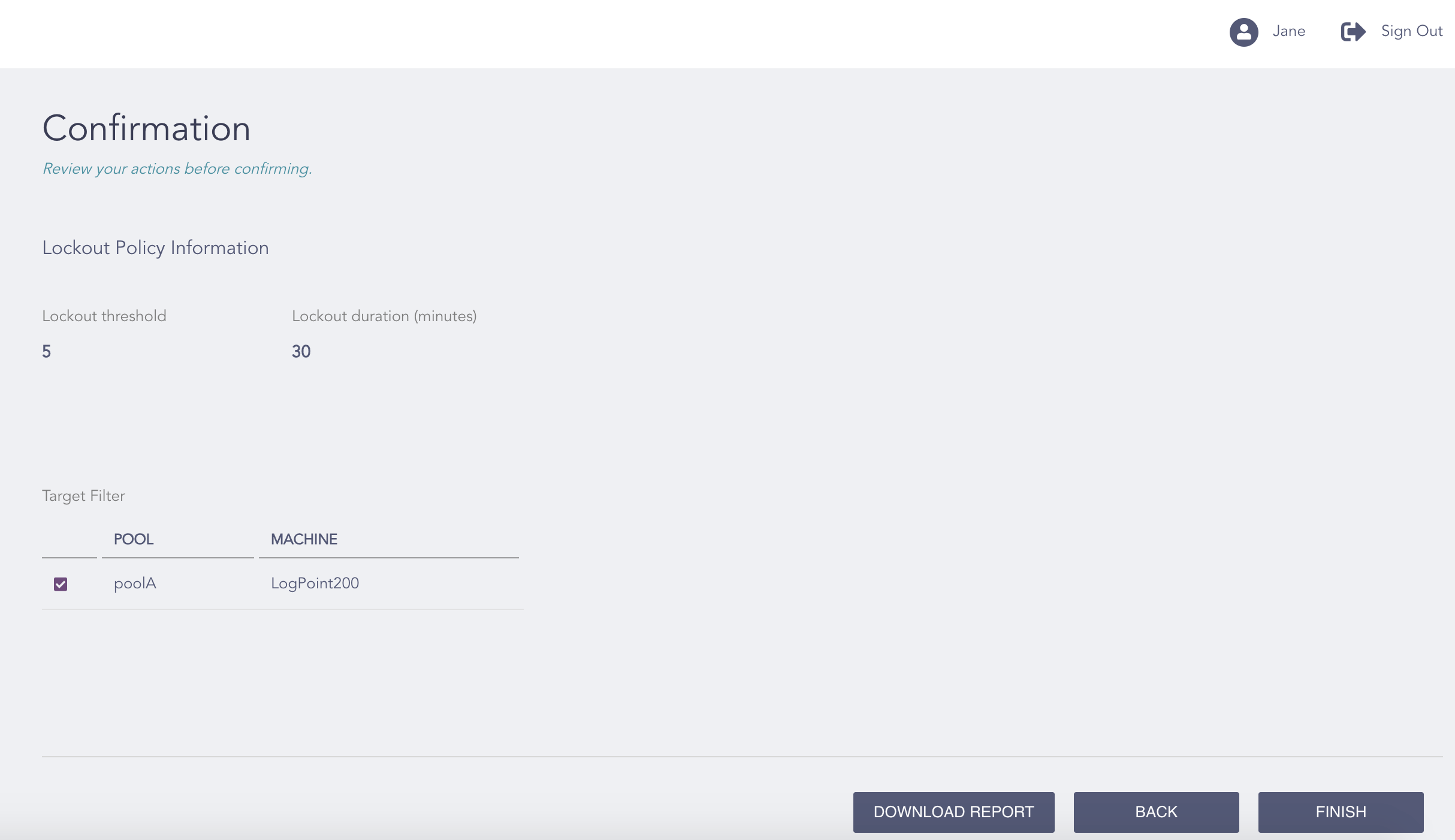
Confirming the Changes
Review your changes. You can go Back to make any changes if necessary.
Note
Click Download Report to save the summary of the tasks in PDF.
Click Finish.
Click OK.