
An enrichment policy is a set of enrichment specifications. Each log from the device or collector/fetcher configured for an enrichment policy goes through each of the specifications. Refer to the Enrichment Policies section in LogPoint to learn more about enrichment policies.
Go to Configure >> Entities >> Enrichment Policies.
Select the LogPoint instances where you want to configure the enrichment policy.
Click Next.
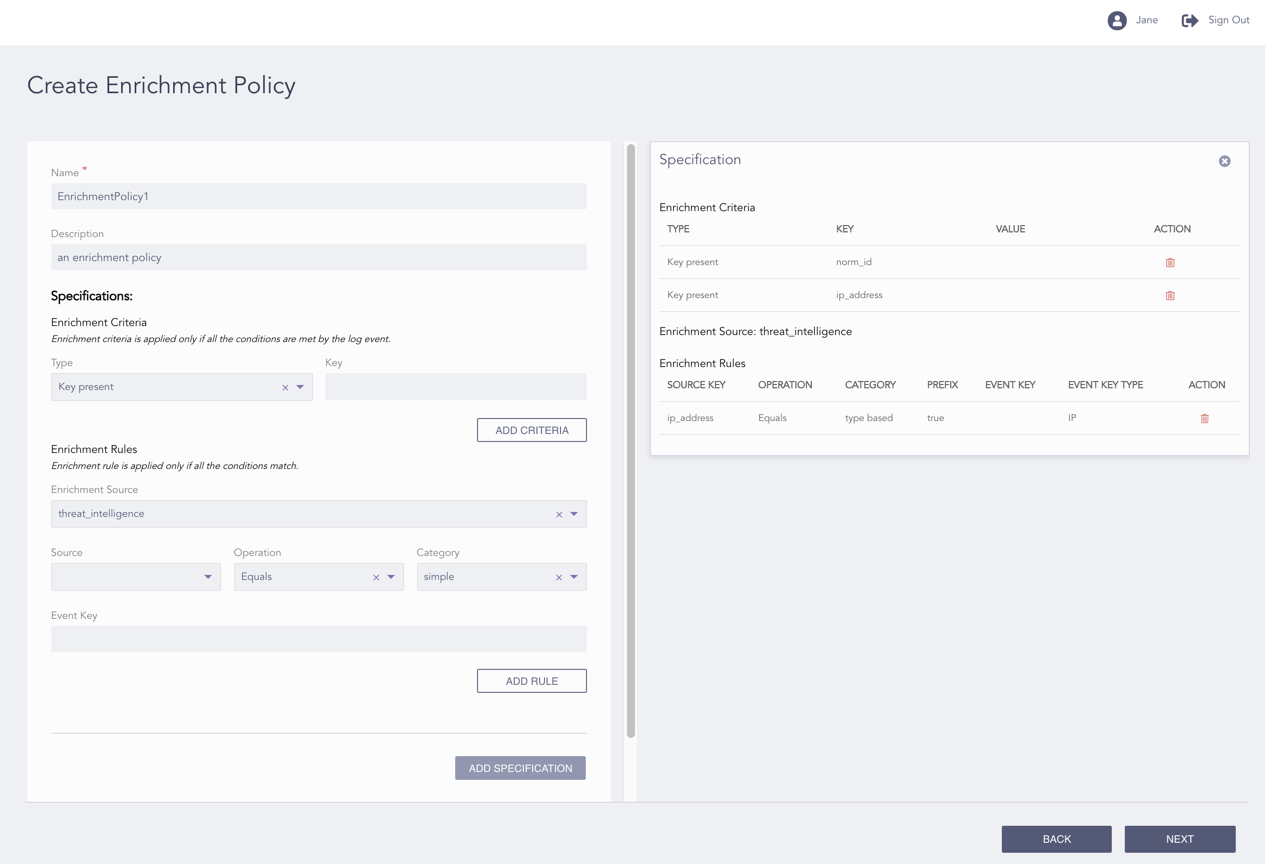
Configuring the Enrichment Policy
Enter a Name and a Description.
Select a Type. An enrichment criteria can be Key Present or Value Matches type.
For the Key Present type, enter the Key.
For the Value Matches type, enter the Key and the Value associated with the key.
Under Enrichment Rules:
6.1. Select an Enrichment Source. Other values needed for the Enrichment Rule depend on the selected Enrichment Source.
6.2. Select a Source.
6.3. Select an Operation. The default value of Operation is Equals.
6.4. Select a Category. A category can be Simple or Type Based.
6.4.1. If you select Simple, enter the Event Key for the source.
6.4.2. If you select Type Based, select an Event Key Type. For the type based enrichment category, all the fields of the selected type are eligible to be enriched.
6.5. Select Enable Prefixing to prefix the results with the event key. LogPoint presents the results in the alphabetical order of the event key.
Click Add Specification.
Note
A specification can have multiple enrichment criteria and enrichment rules.
To add a new enrichment criteria, enter the required values and click Add Criteria. The new criteria is listed under Enrichment Criteria on the right side of the page.
To add a new enrichment rule, enter the required values and click Add Rule. The new rule is listed under Enrichment Rule on the right side of the page.
You can delete the added criteria and rules. Click the Delete icon from the Actions column of the criteria or the rule to remove them from the specification.
Click Next.
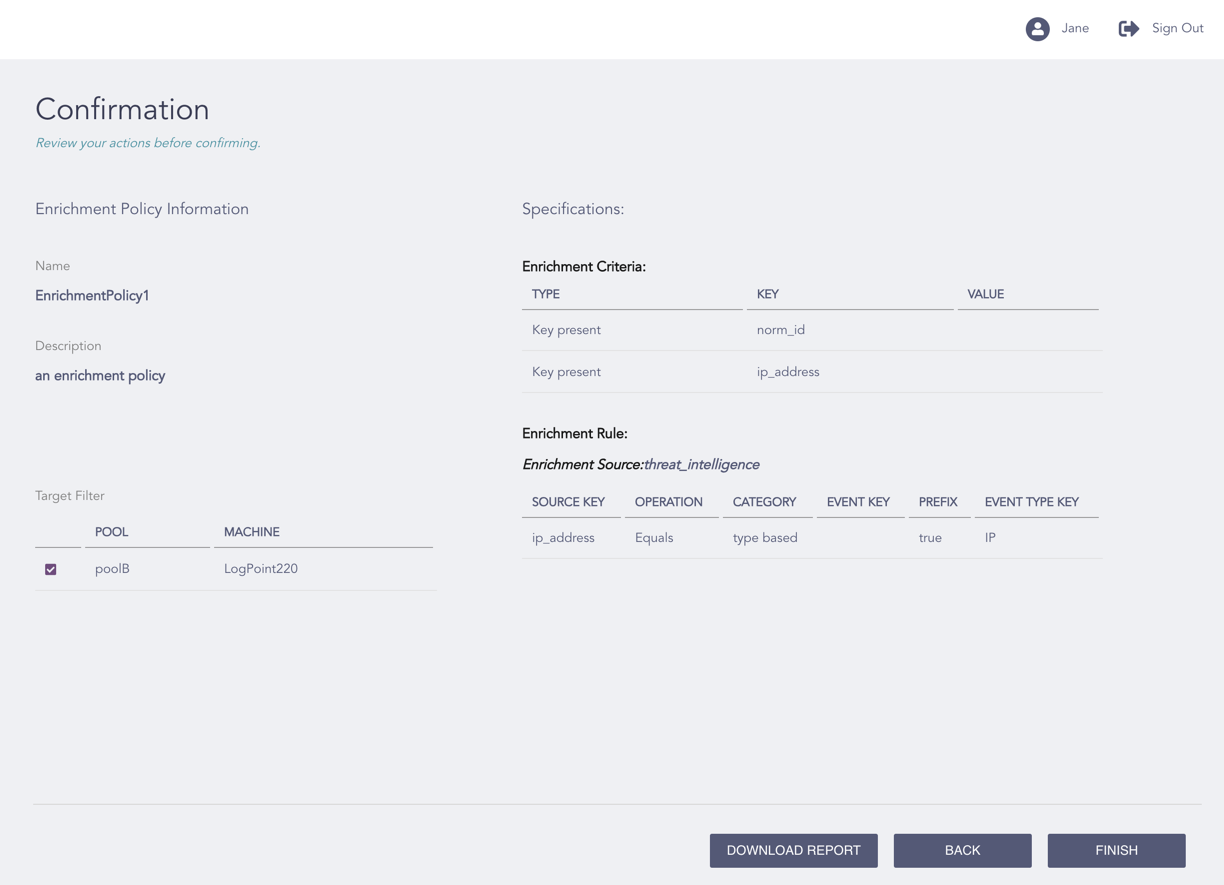
Confirming the Changes
Review your changes. You can go Back to make any changes if necessary.
Note
Click Download Report to save the summary of the task in PDF.
Click Finish.
Click OK.