
Permission Groups allow you to control the access levels of users. You can group multiple permissions into a permission group and assign it to user groups. For more details, go to Permission Groups.
Go to Configure >> User Management >> Permission Groups.
Select the LogPoint instances where you want to create the permission groups. You can select multiple LogPoint instances of different pools.
Click Next.
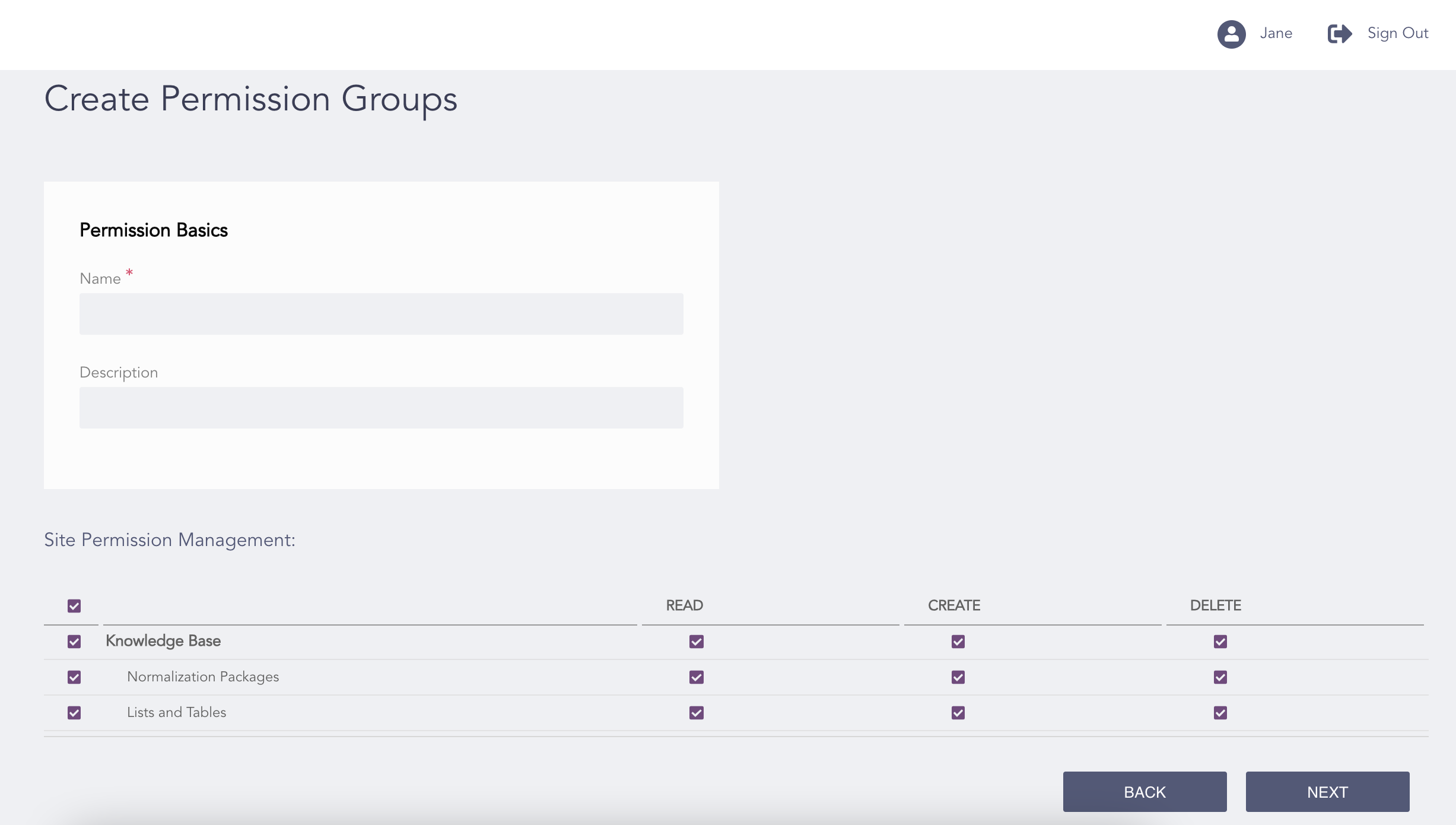
Creating Permission Groups
Enter a Name and a Description.
Under Site Permission Management, select the permission items listed under Knowledge Base, Configuration, SOAR Playbooks, SOAR Settings and SOAR Cases and their permissions: Read, Create, and Delete.
Note
If you select Delete, then Read and Create are enabled by default.
If you select Create, then Read is enabled by default.
To configure SOAR specific permissions, enable SOAR for LogPoint from Configure >> Settings >> System >> General Settings. In case of multiple instances, SOAR must be enabled in all of the selected instances.
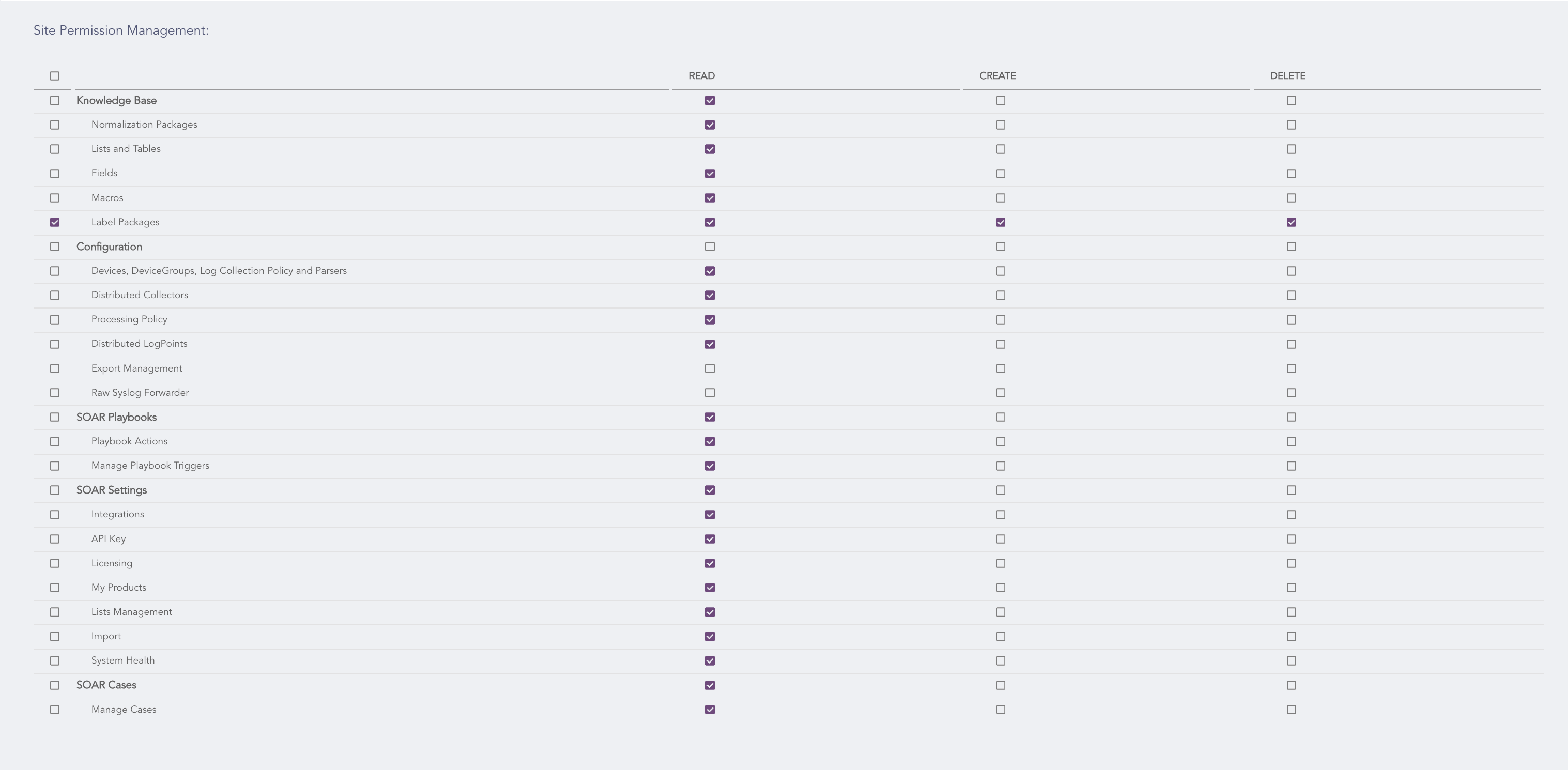
Selecting the Permissions
Click Next.
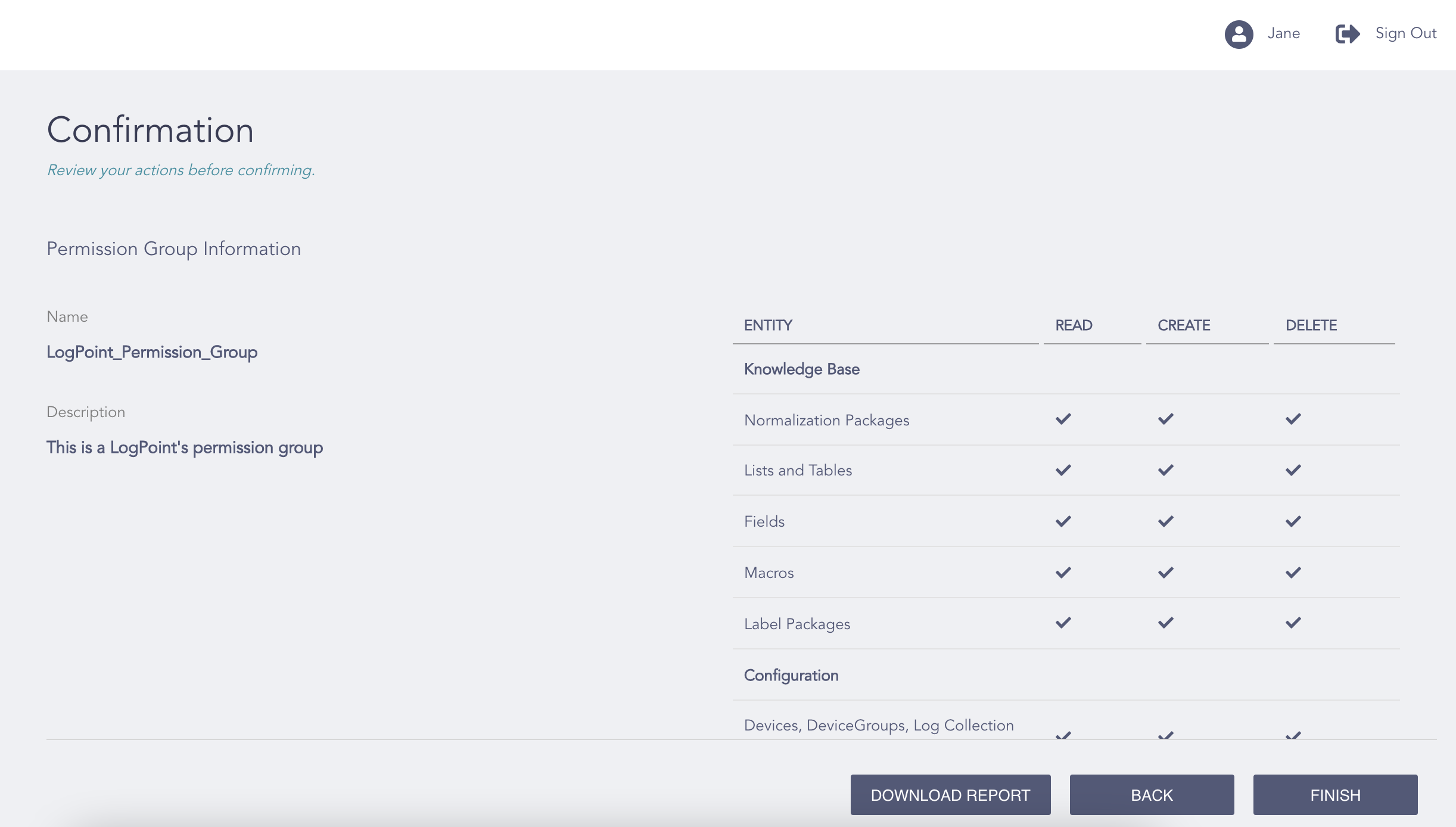
Confirming the Changes
Review your changes. You can go Back and make any changes if necessary.
Note
Click Download Report to save a summary of the selected permissions in PDF.
Click Finish and click Ok.