
Click Search from the left navigation bar.
Select an Entity.
Enter the Search Keyword.
Click Search.
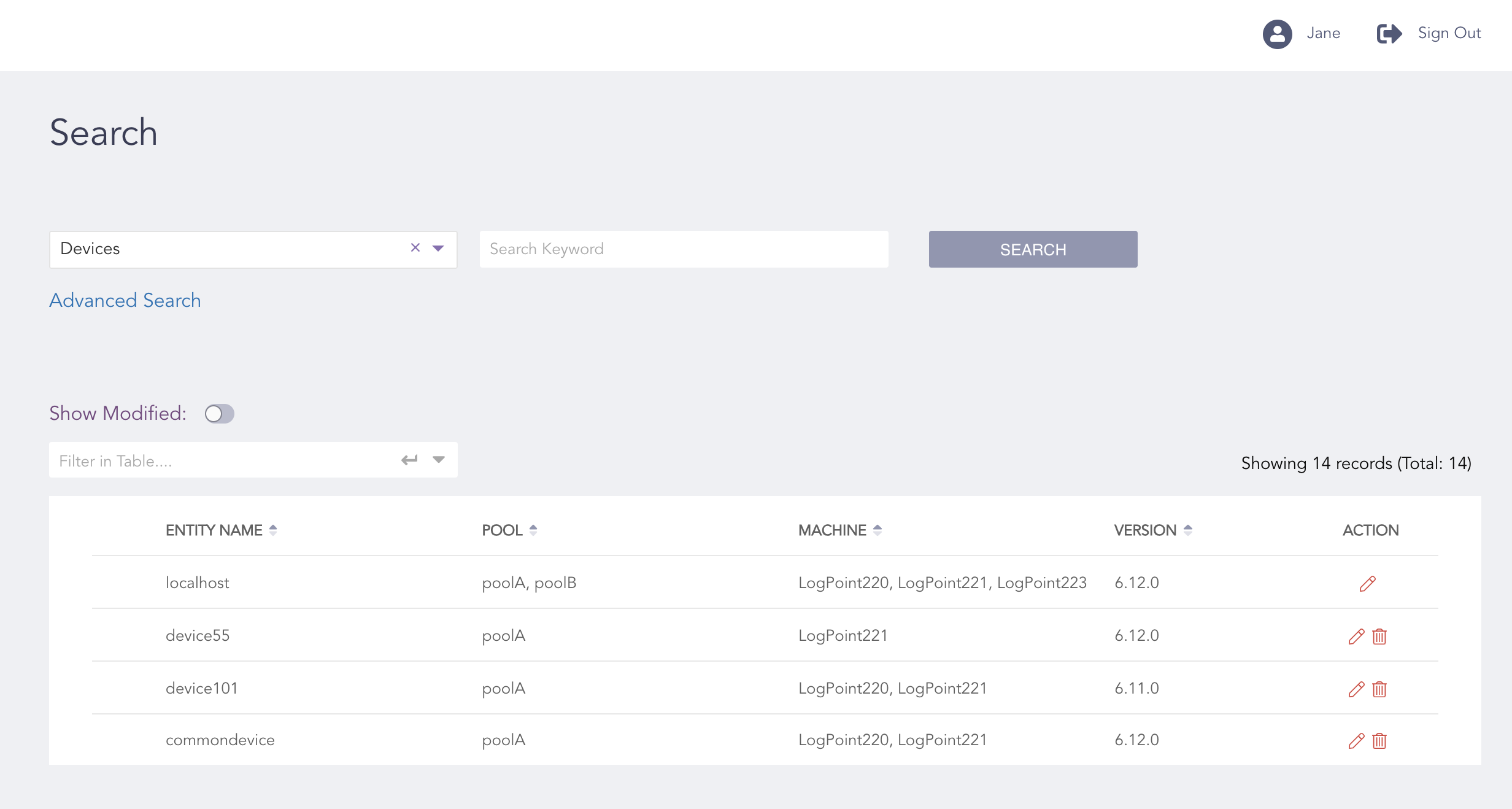
Search Result
Click the Delete ( ) icon from the Action column of the search result to delete an entity.
Click the Edit ( ) icon from the Action column of the search result to edit an entity.
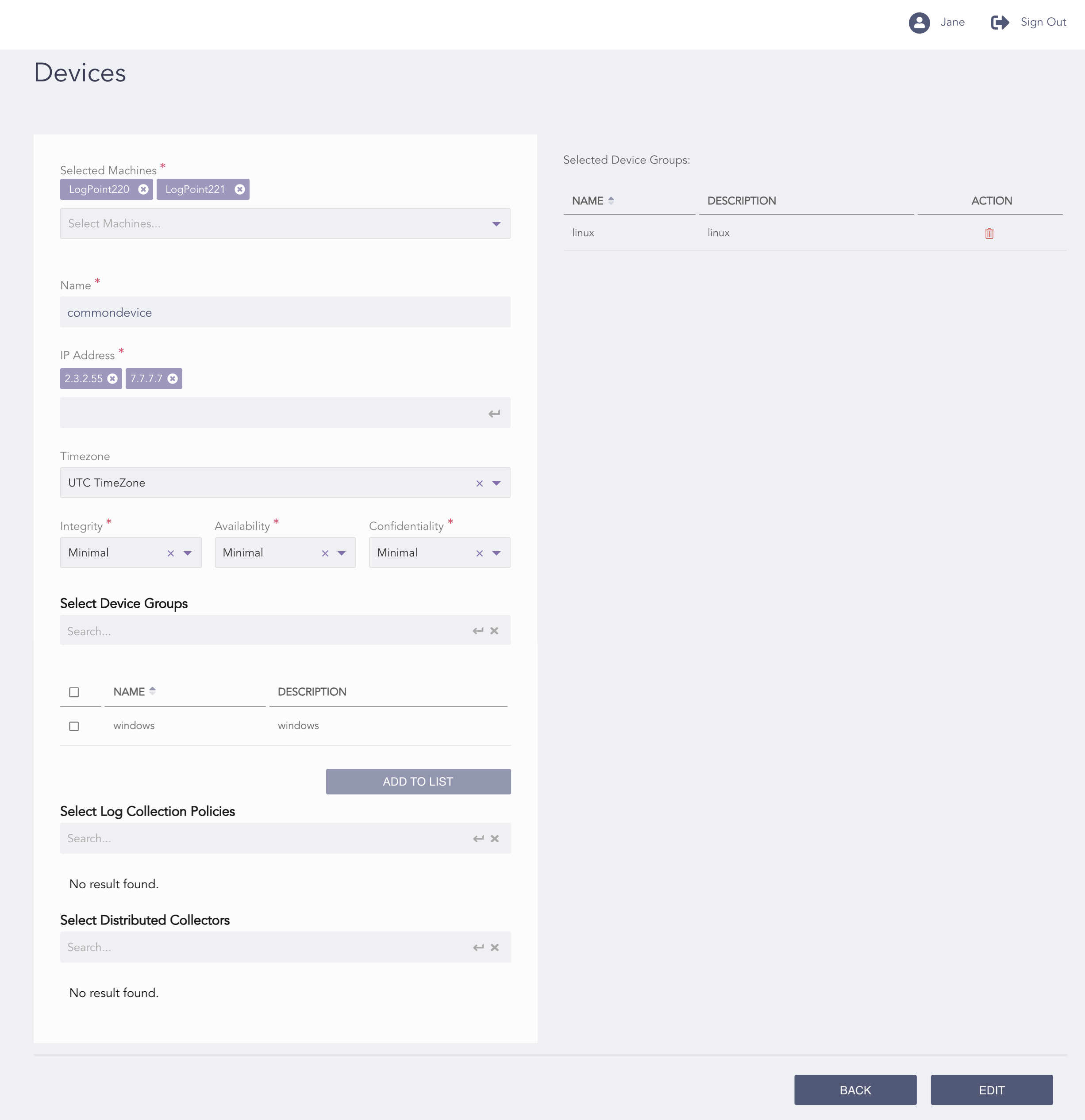
Editing an Entity
Make all the necessary changes and click Edit.
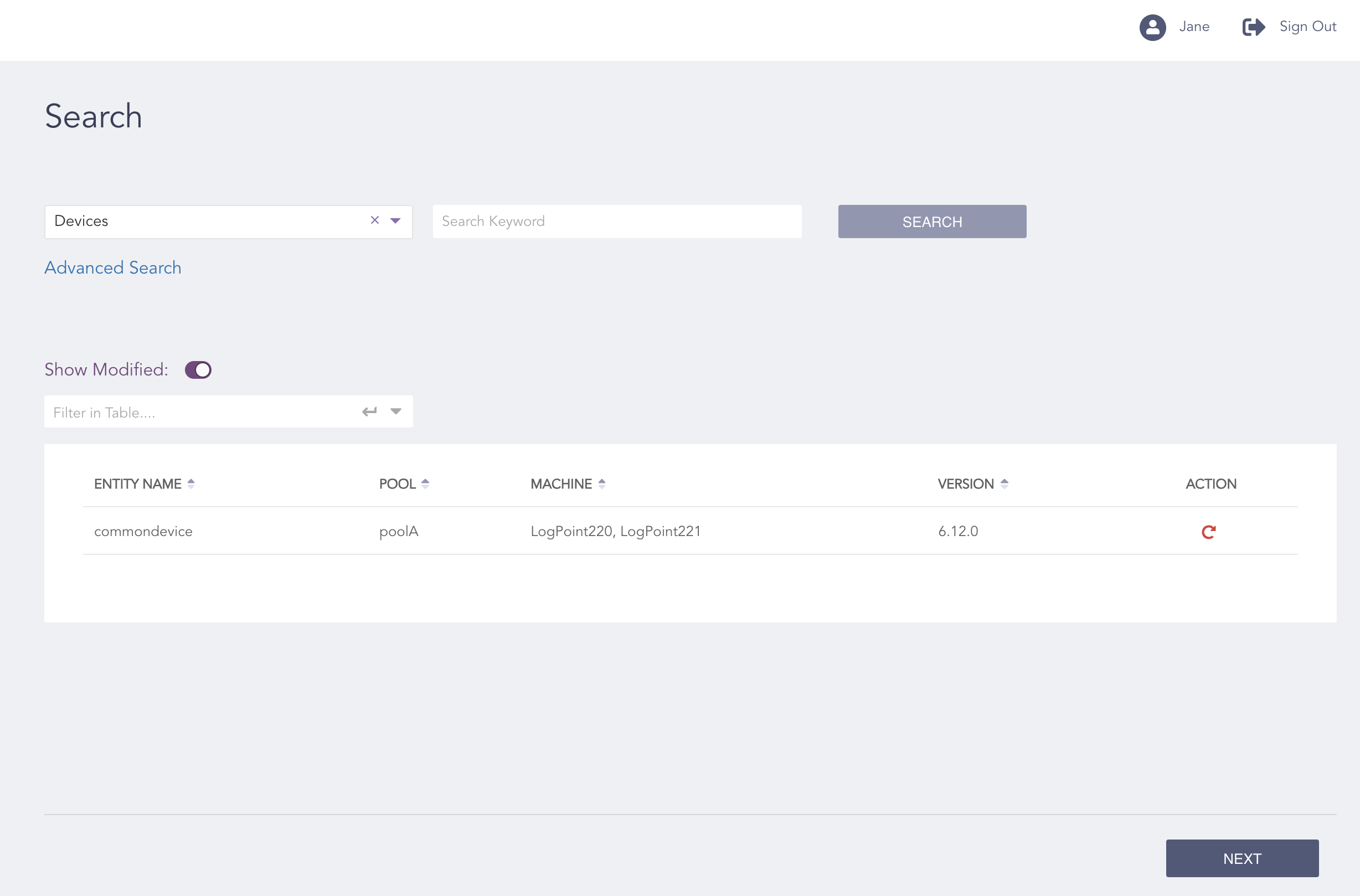
Show Modified
Note
You can add or remove LogPoint machines with identical entities from the Selected Machines section from the Edit page if you need to update only specific LogPoint machines.
Toggle the Show Modified ( ) icon to see the list of modified entities.
Note
You can edit or delete multiple items from the search result before clicking Next.
Click Next.
Review your changes. You can go Back to make any changes if necessary.
Note
You can select Download Report to save the configuration file in PDF.
Click Finish.
Click OK.