
A Macro lets you save any search query in a single name and re-use it in the system. You can use macros with other search queries in the Search, Dashboards, Reports, Alert Rules, Label Packages, Search Packages and Search Templates. You can also add as many macros as needed or update the same macro several times. This lets you use a macro in different settings but update in one place.
Go to Settings >> Knowledge Base from the navigation bar and click Macros.
Click Add to open the Macros panel.
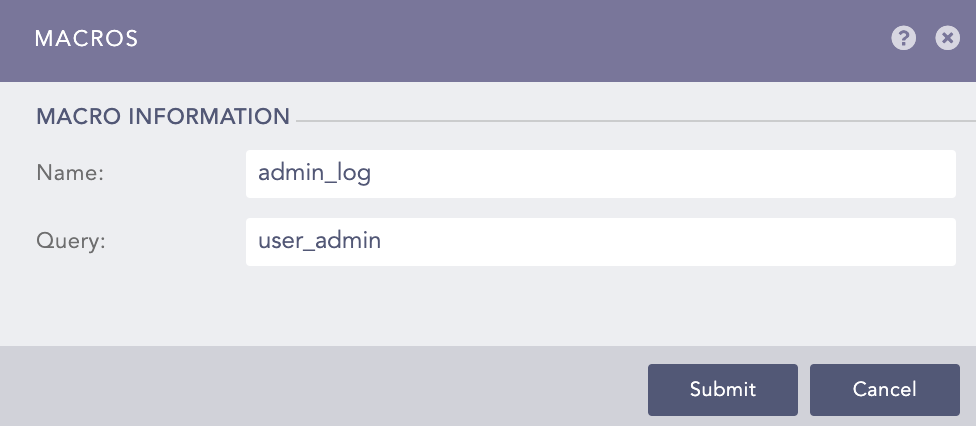
Adding a Macro
Provide a Name for the macro. The field supports alpha-numeric and underscore (_) characters.
In the Query field, provide a complete and valid query.
Note
An invalid query results in error. Click the error sign right next to the query bar for details.
Click Submit.
In the Search tab of LogPoint, you can search for various types of logs using macros. When you use macros, put a backtick character (`) before and after the macro name. You can use multiple macros in a single search. You can view the search query defined in the macro from the Macros page under Settings >> Knowledge Base from the navigation bar.
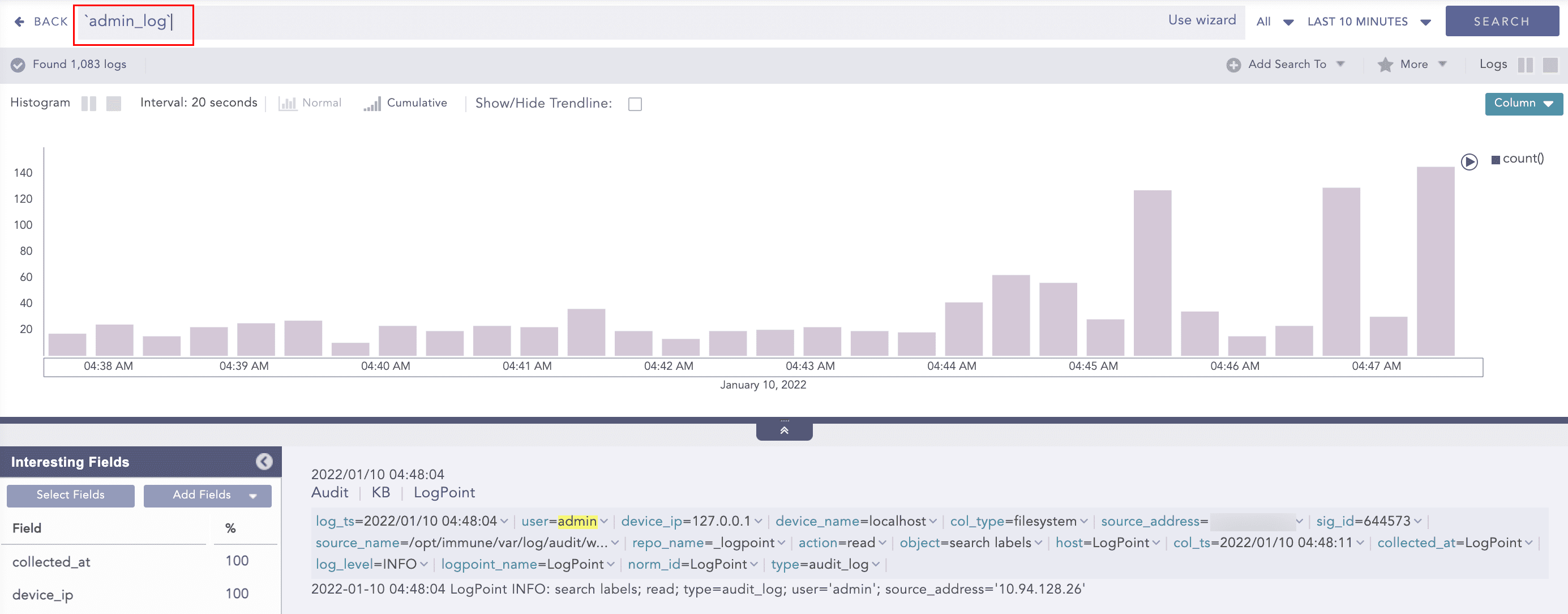
Searching with Macros
Moreover, you can add the macros to the Dashboard, Alert Rule, Labelling Rule, Incident and Public URL by clicking the Add Search To option. Refer to the Add Search To section for more details.
Go to Settings >> Knowledge Base from the navigation bar and click Macros.
Click the macro you want to update, and the Macros panel opens up.
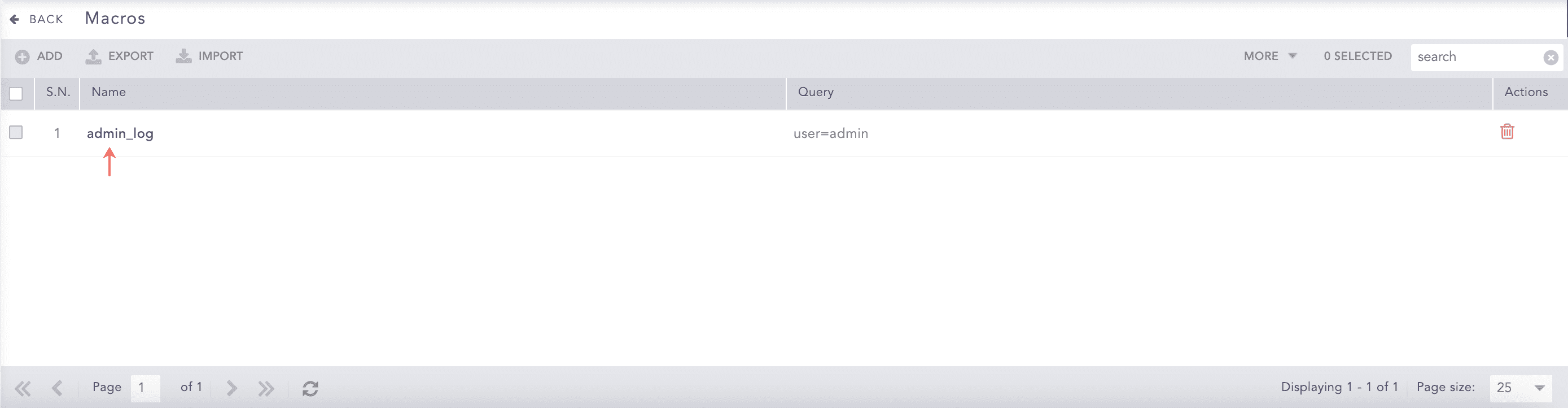
Updating Macros
Update the Name or Query.
Click Submit.
Note
When you update a macro, it is auto-updated in all the settings that use the macro.
Go to Settings >> Knowledge Base from the navigation bar and click Macros.
Click the Delete icon under the Actions column to open the Confirmation panel.
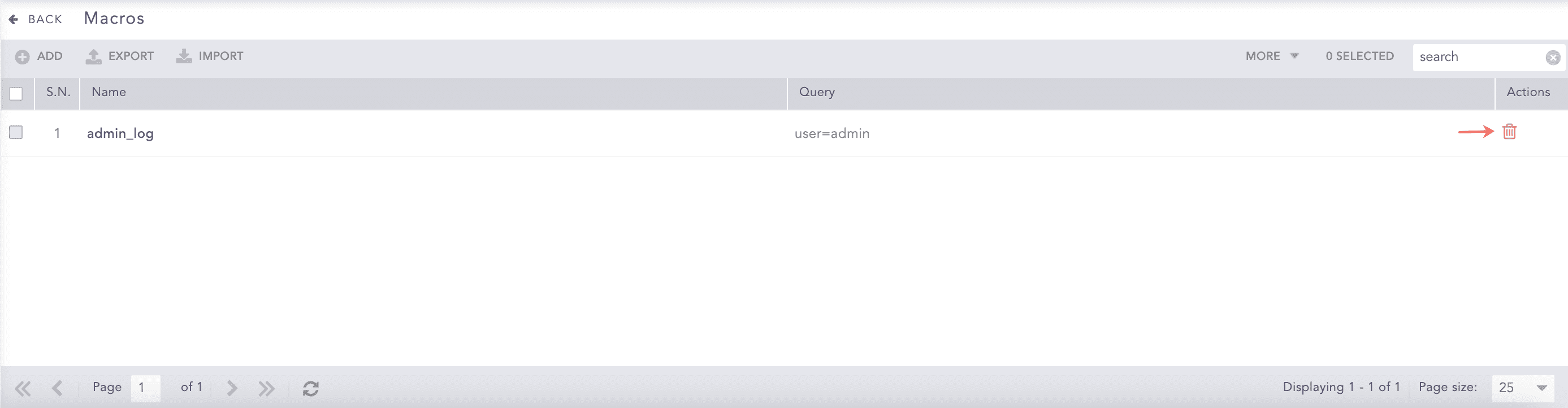
Deleting Macros
Click Yes.
Note
Before deleting a macro, make sure to remove it from all the Setting items.
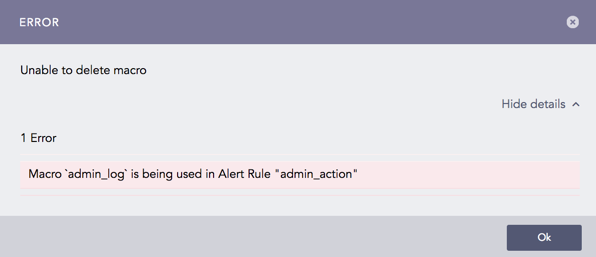
Unable to delete macros
Go to Settings >> Knowledge Base from the navigation bar and click Macros.
Click Import to open the Import panel.
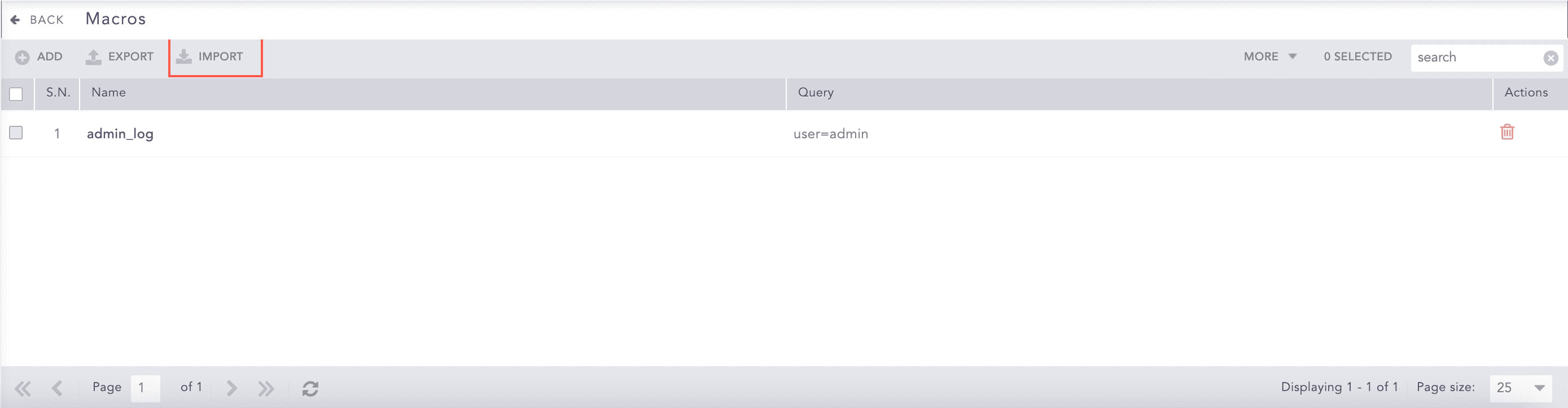
Importing macros
Browse the file to import.
Click Submit.
Go to Settings >> Knowledge Base from the navigation bar and click Macros.
Select the macros to export.
Click Export.
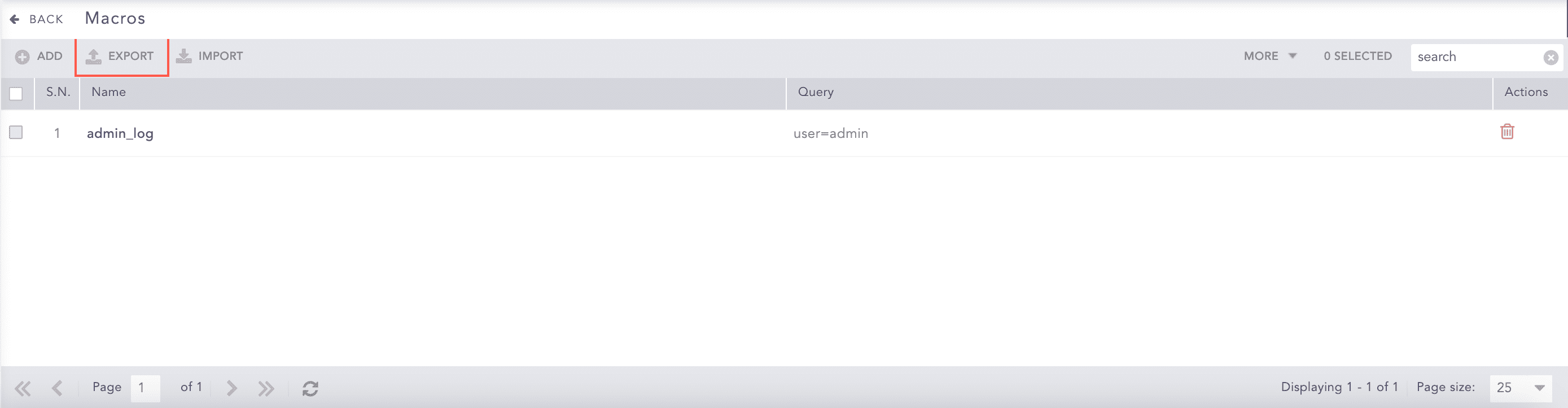
Exporting macros
Example 1: Simple search in macros
Create a macro named ip_search with the following query:
device_ip=10.94.1.18 sig_id=500001
In the search query bar, type `ip_search` and click Search.
The above example searches for all the log messages with the device_ip as 10.94.1.18 and sig_id as 500001.
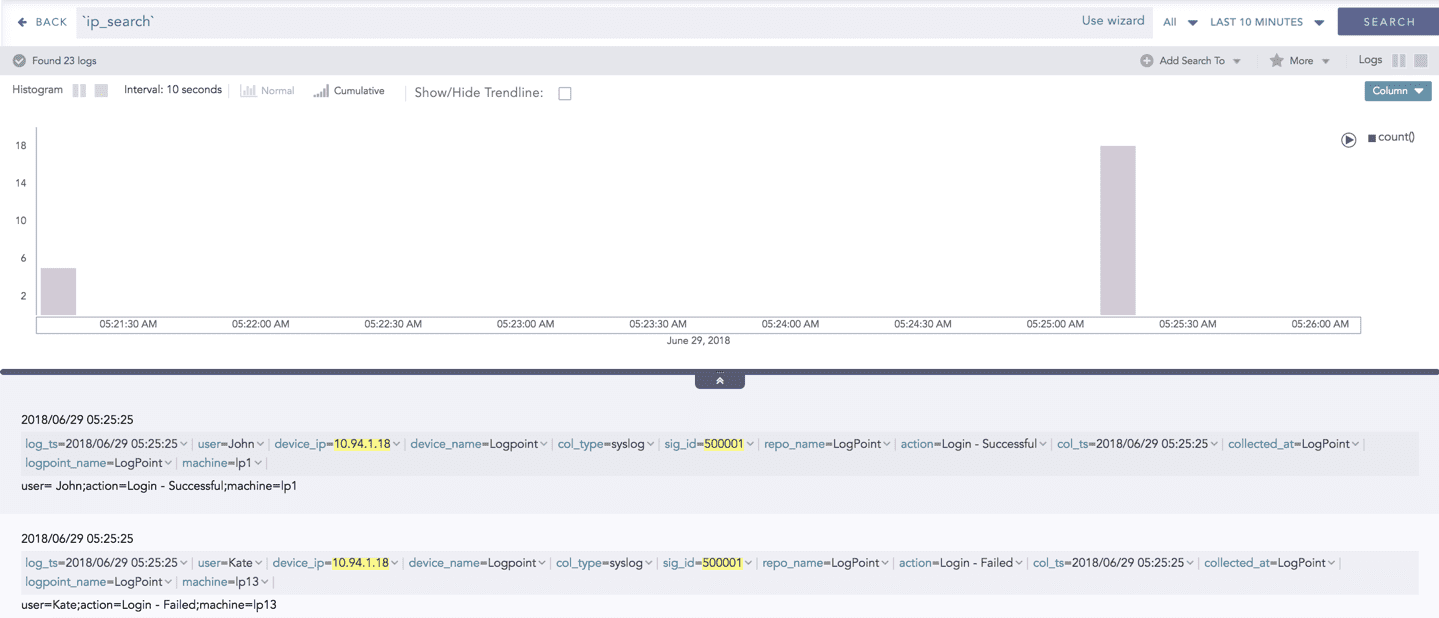
Macros Example
Example 2: Aggregation function in macros
Create a macro named users with the following query:
device_ip=10.94.1.18 | chart count() by user
In the search query bar, type `users` and click Search.
The above example searches for all the log messages with the device_ip as 10.94.1.18, group them by user, and displays the count of the log messages for each user.
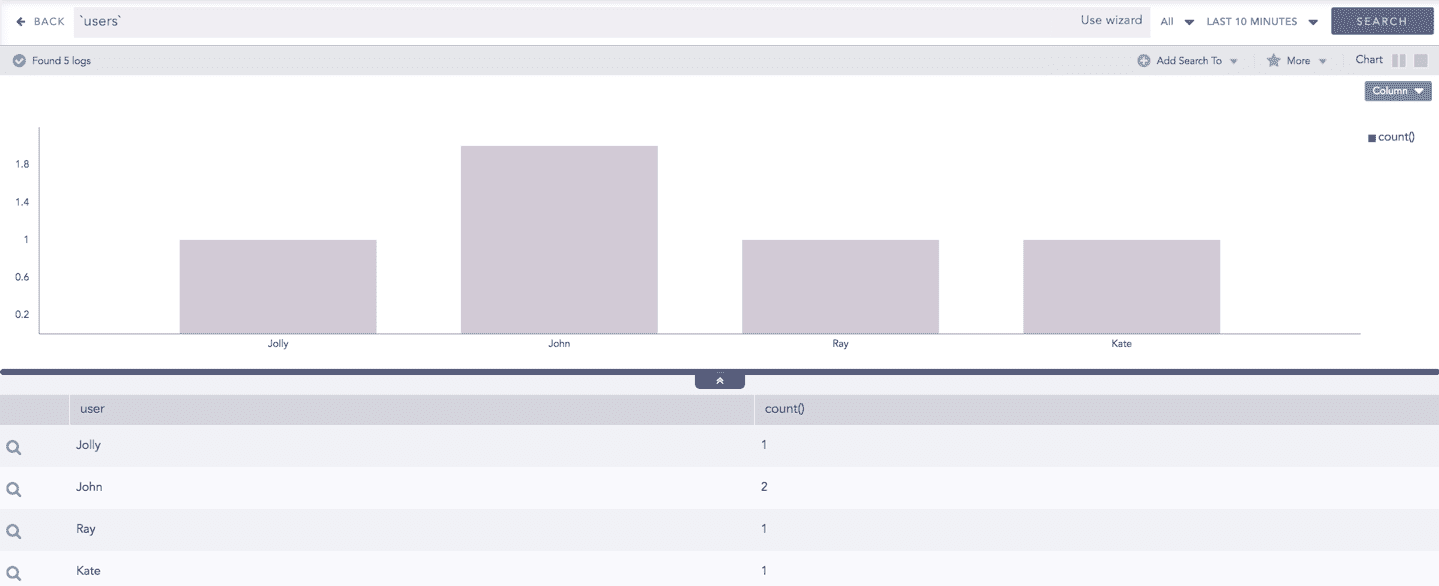
Macros Example
Example 3: Evaluation process command and Aggregation function in macros
Create a macro named eval_revenue with the following query:
| process eval("Revenue=unit_sold*Selling_price") | fields unit_sold, Selling_price, Revenue
In the search query bar, type `eval_addition` and click Search.
The above example calculates the value of Revenue by multiplying the values of unit_sold and Selling_price, and shows the corresponding values of all the three fields in a tabular form.

Macros Example
Example 4: Multiple macros in a single search
In the search query bar, type user=Jolly
`ip_search``eval_revenue`and click Search.The above example first searches for the logs with the user as Jolly. It then searches for the logs with device_ip as 10.94.1.18 and sig_id as 500001 (as defined in the ip_search macro). From these logs, it then calculates the revenue and shows the result in a tabular form (as defined in the eval_revenue macro).

Macros Example
Note
While importing the Setting items that use macros, make sure the macros are present in the system.