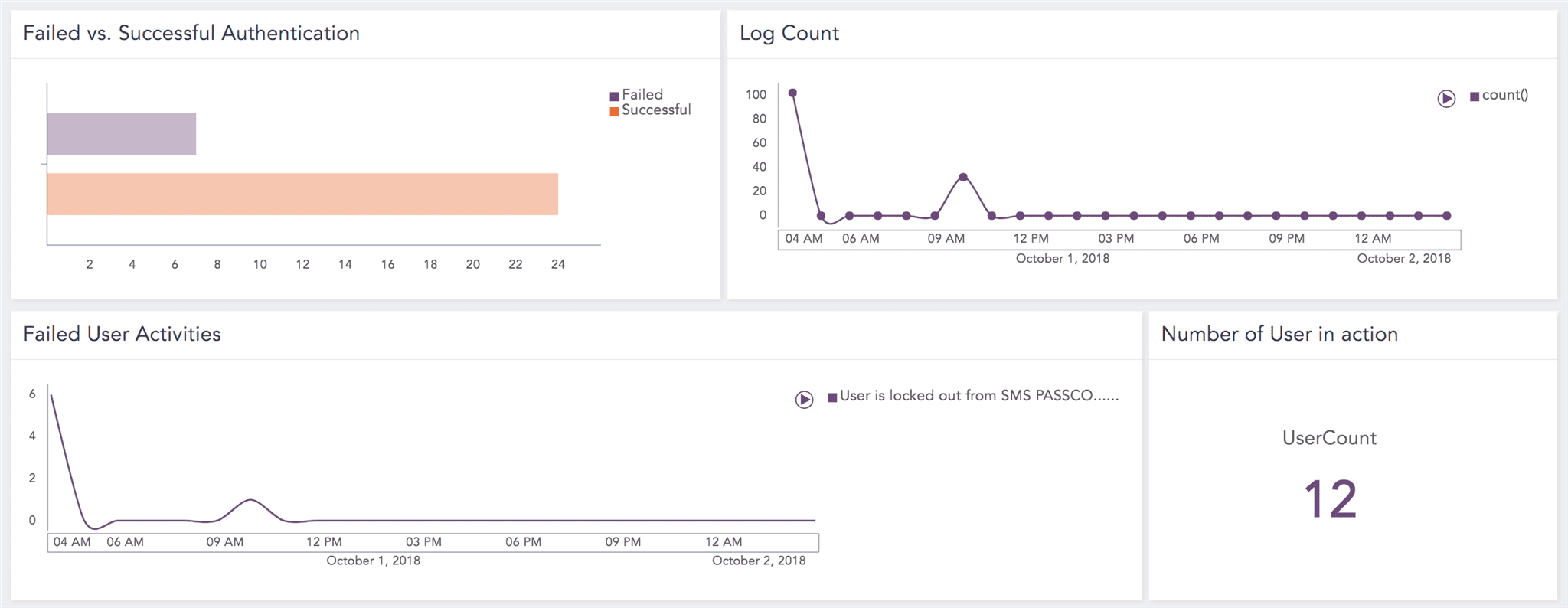
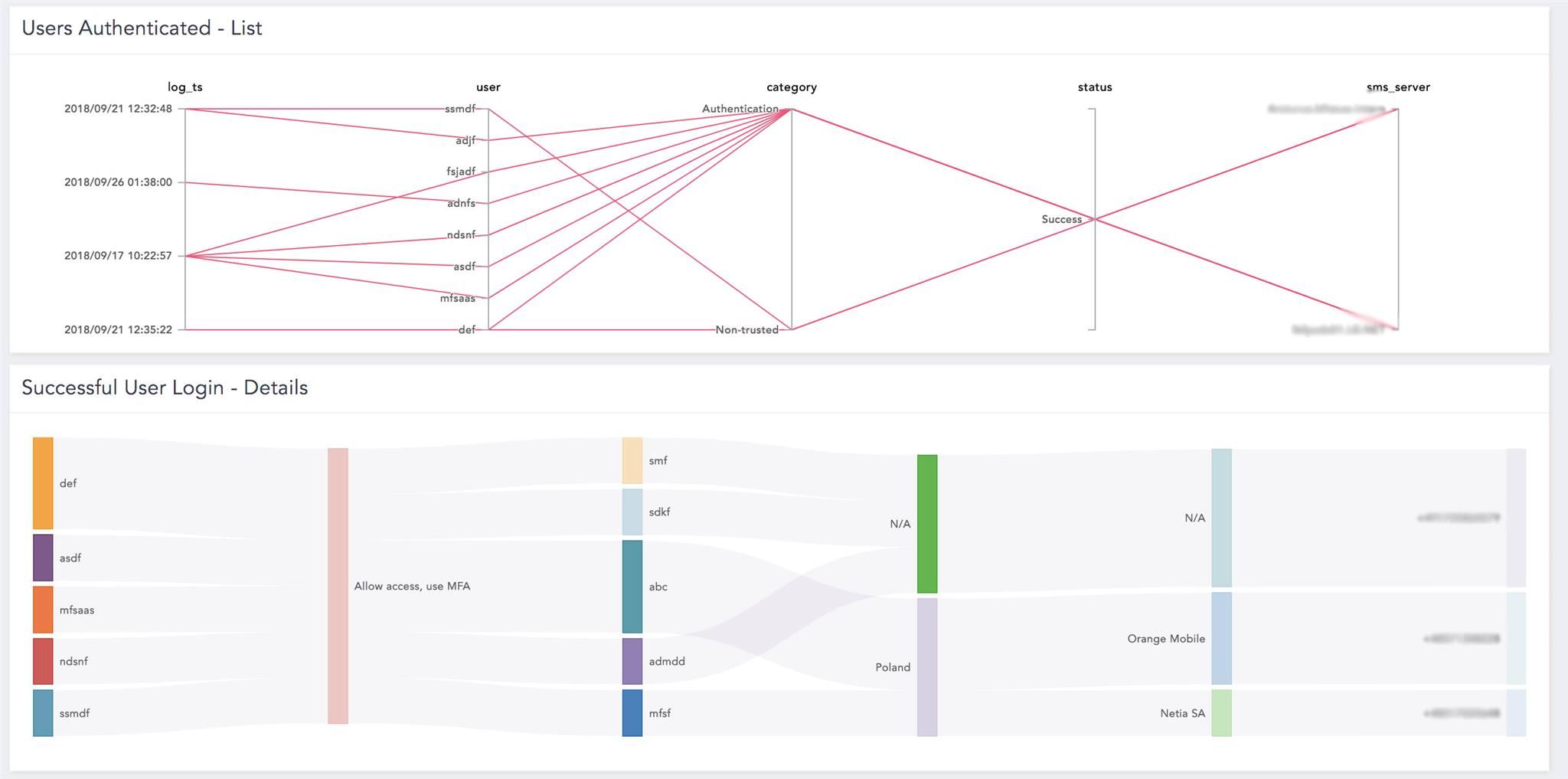
This dashboard consists of the following widgets:
Widget |
Description |
|---|---|
Failed vs. Successful Authentication |
The data on failed authentication with event ID 204 or event ID 6060 and successful authentication with event ID 104 or event ID 6050 for the administrator to compare and monitor the user authentication types to help secure networks. |
Log Count |
The number of log events that occur hourly. |
Failed User Activities |
The hourly data on failed user activities to authenticate when logging in to an application using a passcode. It allows administrators to identify abuse to help reduce the risk of inappropriate actions leading to malware infections or data breaches. |
Top 10 Failure Reasons |
The top ten authentication failure reasons include SMS Passcode mobile not loading, phone number did not pass security checks or phone cannot receive an SMS code. |
Top 10 User in Failed Authentication |
The data allows administrators to check repeated failed attempts indicating someone trying to break into an account or someone forgot their password or mistyped it. |
Top 10 Failed User Authentication Details |
Entails failed user authentication by username, failed passwords, number of repeated attempts and location of failed attempts based on user, category, status, reason and sms server. |
Top 10 User in Successful Authentication |
The users with valid log in credentials and two-factor authentication. |
Top 10 Users Authentication Details |
Entails valid log in credentials and correct verification code is used based on user, category, status and sms server. |
Failed User Authentication - List |
Provides all user and their reason(s) for failed user authentication based on log timestamp, user, category, status, reason and sms server. |
Users Authenticated - List |
Provides all users successfully authenticated using correct SMS code based on log timestamp, user, category, status and sms server. |
Successful User Login - Details |
Entails users with valid credentials and correct SMS code authenticated and logged in successfully based on user, access, domain, country, organization and dispatch target. |
Top 10 Countries |
The location of users when they attempted to log in and authenticate themselves. |
Number of User in action |
The count of users in an interaction with end users interface in an attempt to successfully authentication themselves via providing correct inputs. |
Go to Settings >> Knowledge Base from the navigation bar and click Dashboard.
Select VENDOR DASHBOARD from the drop-down.
Click the Use icon from Actions.
Click Choose Repos.
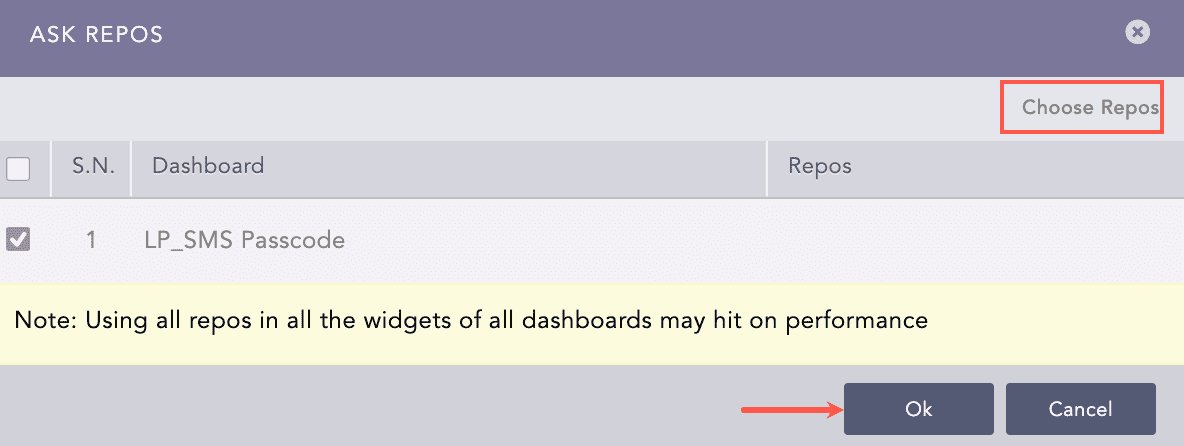
Selecting Repos
Select the repo configured to store the SMS Passcode logs and click Done.
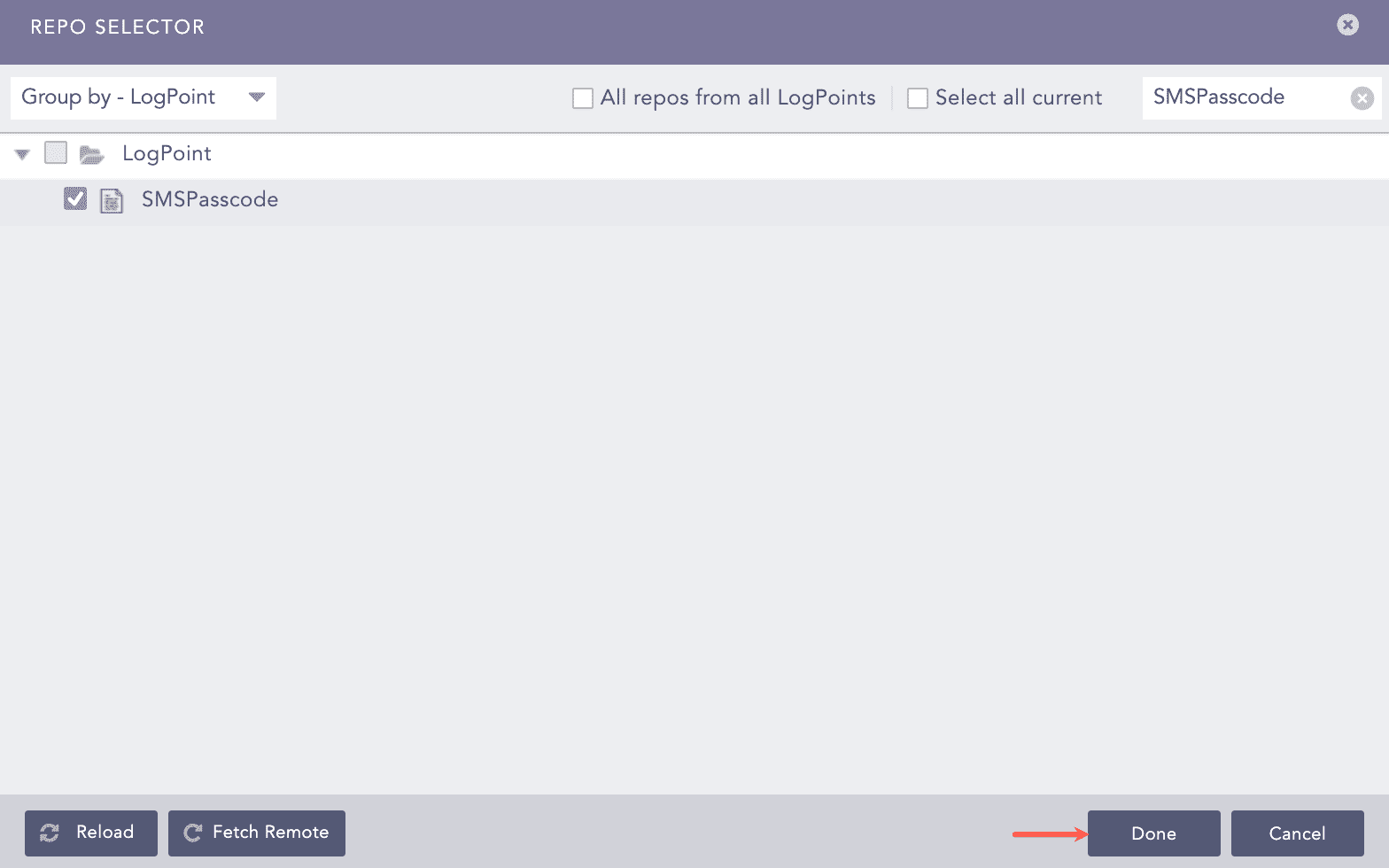
Repo Confirmation
Select the dashboard in the Ask Repos panel and click Ok.
You can find the SMS Passcode dashboards under Dashboards.
The report template is LP_SMS Passcode. It provides statistical information on users who succeeded/failed to authenticate in the SMS Passcode database, authentication location and failure reasons, and SMS Passcode actions or user actions performed on the SMS Passcode database. The data is presented in different formats, such as graphs and lists.
Go to Reports >> Report Templates.
Select VENDOR REPORT TEMPLATES from the drop-down.
Click Use Vendor Report from Actions.
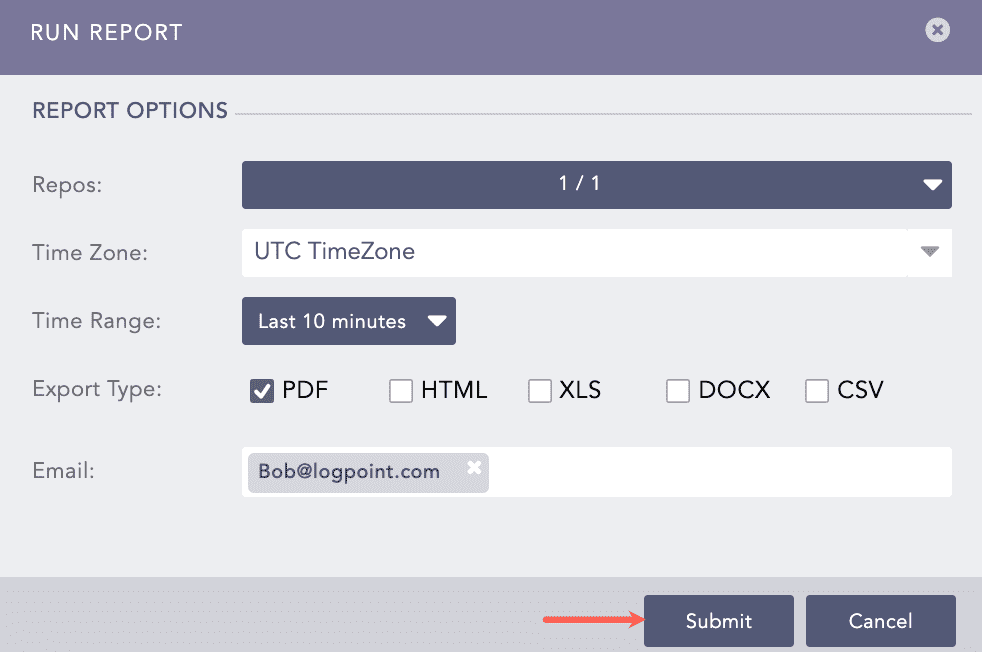
Click Run this Report from Actions.
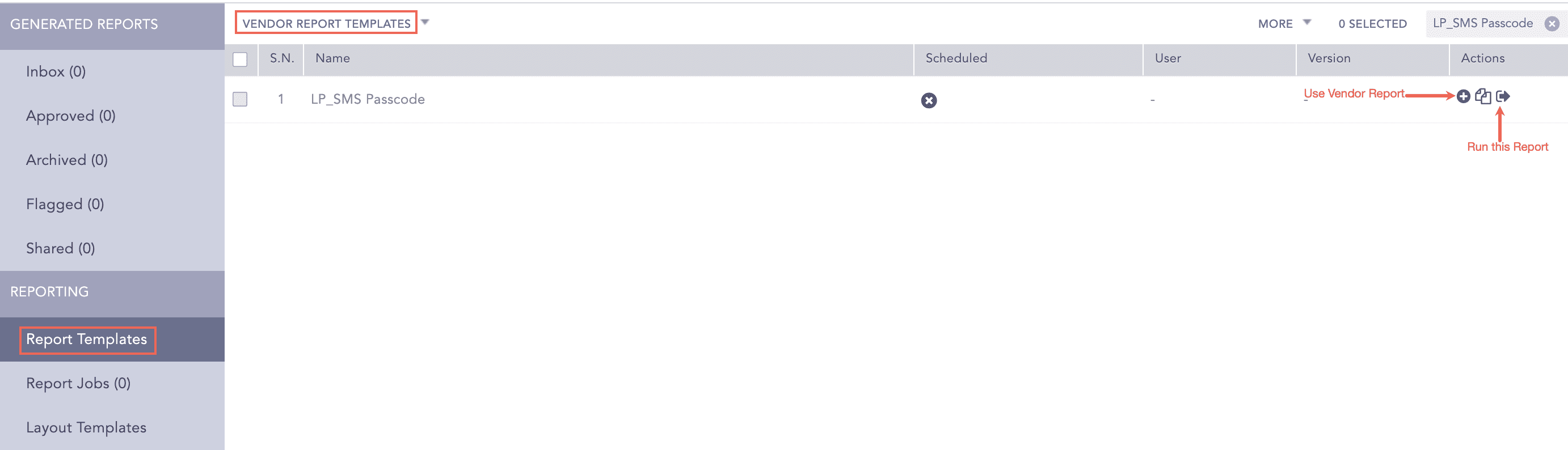
Using SMS Passcode Report Template
Select Repos, Time Zone, Time Range, Export Type and enter the Email address.
Click Submit.
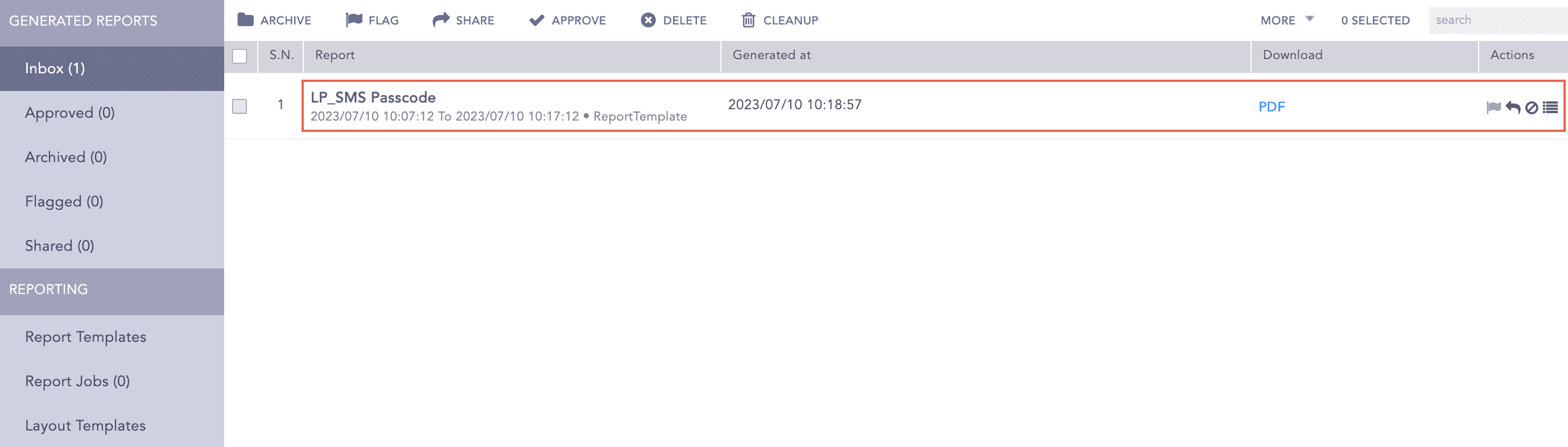
You can view the reports being generated under Report Jobs and download them. Click PDF under Download to get .pdf formatted reports.
You can analyze the data using a report’s graphs, time trends, lists and text. Report data summarizes incidents during a specific period, such as the past 24 hours or the past five minutes. While generating a report, you can customize the calendar period according to your needs. For more information on how to schedule reports, go to Scheduling.