
You can import configuration from other devices into Logpoint SOAR.
Go to Settings >> SOAR Settings from the navigation bar and click Import/Backup.
Click Upload New File to upload the file.
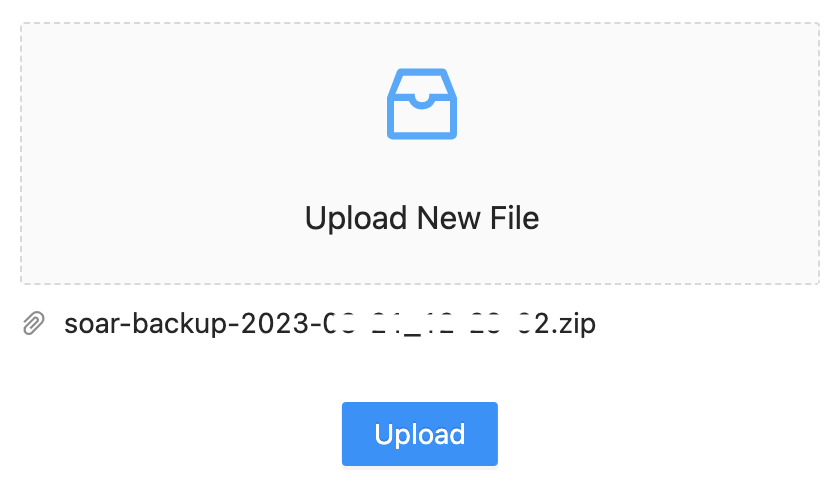
Import Page
Click Upload.
You can backup and restore SOAR, how it is configured, and its data. After backup, you can restore SOAR on the same system or a different one. Backup helps you protect your system from any errors during a software upgrade or due to hardware failure.
After creating the backup file, you can import it to SOAR using Import.
Go to Settings >> SOAR Settings from the navigation bar and click Import / Backup.
Click Playbooks & Integrations Backup to download the file.
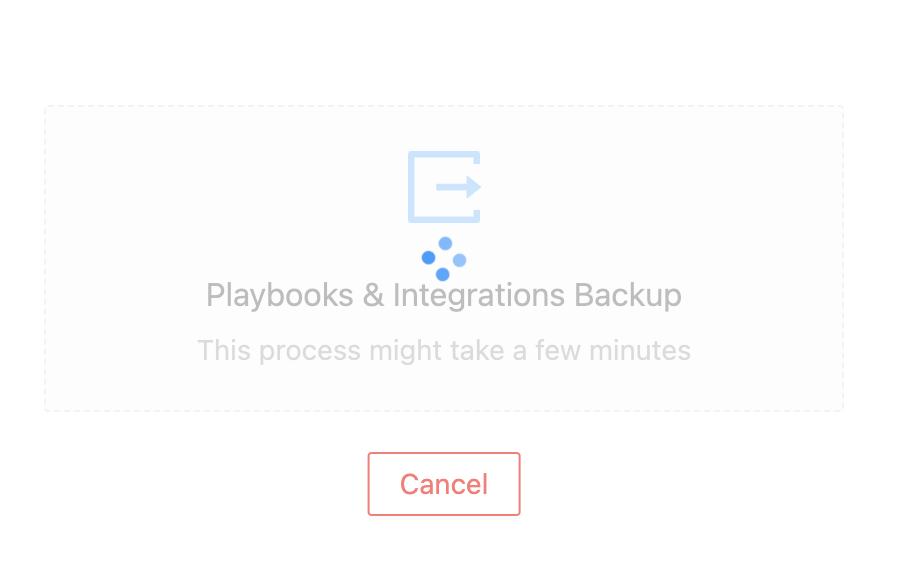
Backup Page
Note
Backup takes a few minutes. Do not navigate away until backup is generated or backup will stop.
A .zip file is created. Go to your downloads folder to access it.