
You can customize playbook functionality using the Script Action block.
Go to Settings >> SOAR Settings from the navigation bar and click Scripts to view, add, edit, and delete SOAR_based scripts. Currently, you can only use Python scripts.

Python Scripts Page
Go to Settings >> SOAR Settings from the navigation bar and click Scripts.
Click Add New Script.
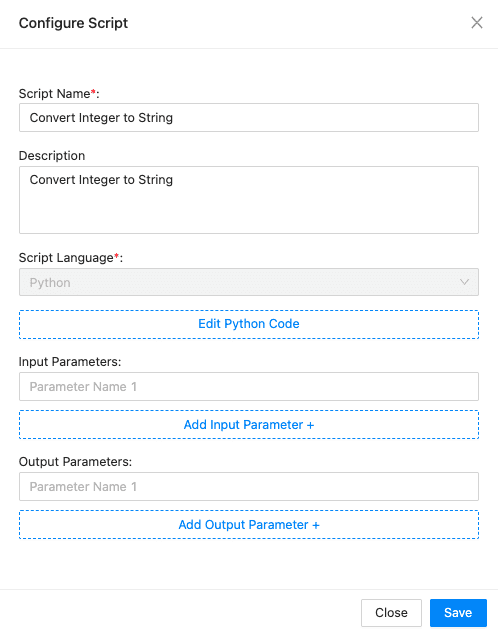
Adding a Script
Enter the Script Name and Description.
The Script Language is selected by default as Python.
Click Edit Python Script, edit the script, and click Save.
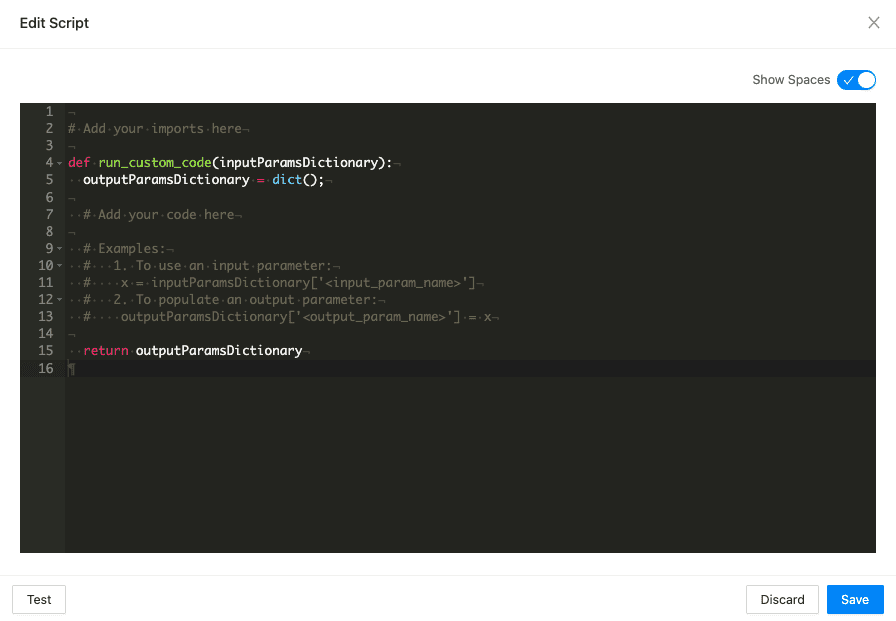
Editing the Script
You can test the output of the script by clicking Test.
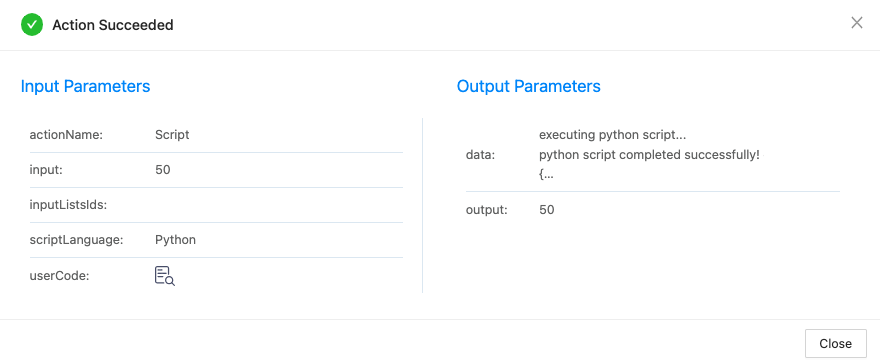
Testing the script
Enter the Input Parameters and Output Parameters. You can add multiple input and output parameters.
Click Save.
Go to Settings >> SOAR Settings from the navigation bar and click Scripts.
Click the ( ) icon and click Configure.
Edit the information.
Click Save.
Go to Settings >> SOAR Settings from the navigation bar and click Scripts.
Click the () icon and click Clone.
Enter the name for the cloned script.
Click Save.
Go to Settings >> SOAR Settings from the navigation bar and click Scripts.
Click the () icon and click Export.
Go to Settings >> SOAR Settings from the navigation bar and click Scripts.
Click the () icon and click Delete.
Click Delete to confirm.