
Go to Settings >> Configuration from the navigation bar and click Repos.
Click Add.
Enter a Repo Name.
Select a Repo Path to store incoming logs.
Set a Retention Day to keep logs in a repository before they are automatically deleted.
Note
You can add and remove multiple Repo Path and Retention Day.
Select a Remote LogPoint and set a Available for (day).
Click Submit.
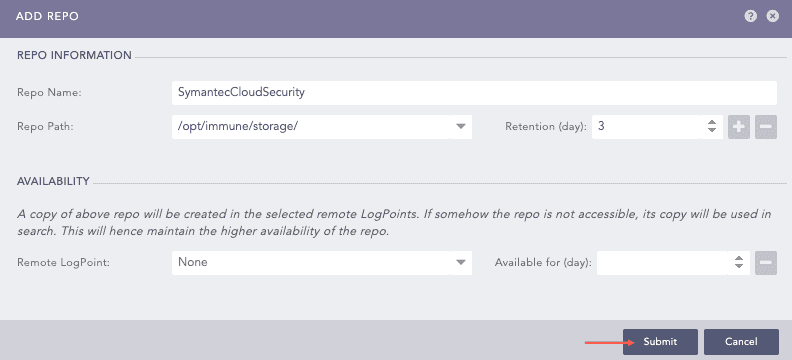
Adding a Repo
Go to Settings >> Configuration from the navigation bar and click Normalization Policies.
Click Add.
Enter a Policy Name.
Select SymantecCloudSecurityCompiledNormalizer.
Click Submit.
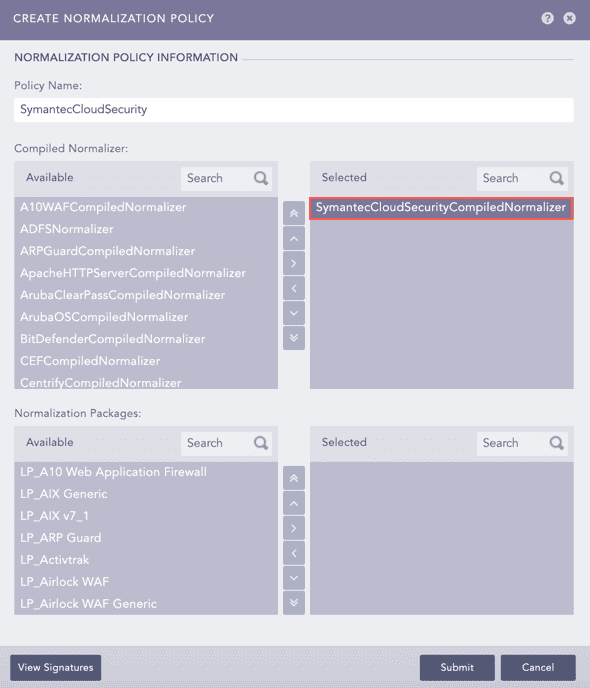
Adding a Normalization Policy
Go to Settings >> Configuration from the navigation bar and click Processing Policies.
Click Add.
Enter a Policy Name.
Select the previously created Normalization Policy.
Select the Enrichment Policy.
Select the Routing Policy.
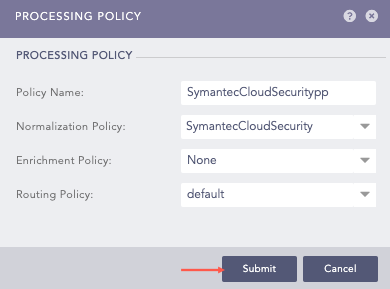
Adding a Processing Policy
Go to Settings >> Configuration from the navigation bar and click Devices.
Click Add collectors/fetchers ( ) from Actions of the localhost device.
Click SymantecCloud Fetcher.
Click Add.
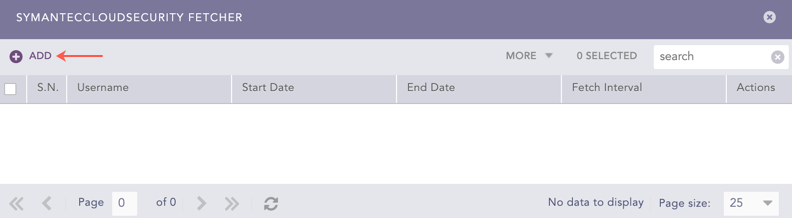
SymantecCloudSecurity Fetcher
Enter your API credentials of Symantec Web Security Service in Username and Password.
Select the Fetch Interval in minutes.
Select the Start Date. Symantec Cloud Security fetches logs from the specified date.
Select the End Date. Symantec Cloud Security fetches logs until the specified date.
Select the previously created Processing Policy.
Select the Charset.
Select Enable Proxy to use a proxy server.
In Proxy Configuration:
12.1 Enter the IP address and the Port number of the proxy server.
12.2 Select HTTP or HTTPS protocol as required.
Click Submit.
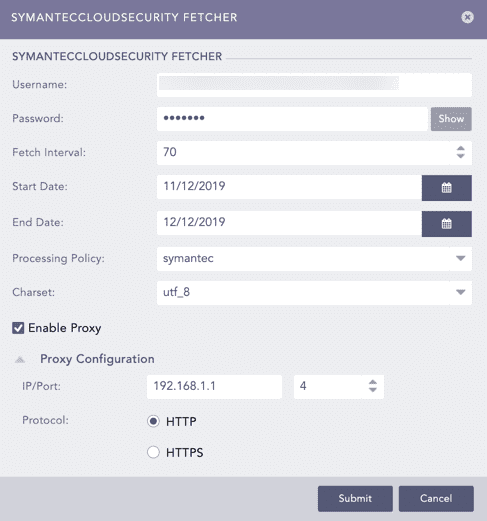
Adding a New Configuration for SymantecCloud Fetcher