
Use Sync to export and import configurations between any two Logpoints, to ensure configurations are the same.
You can sync the following settings using Sync:
Device Groups
Normalization Packages
Normalization Policies
Processing Policies
Enrichment Policies
Labeling Rules (Search Labels)
Devices
Repos
Log Collection Policies
Before importing configurations, install CSV Enrichment Source and configure the enrichment source with the same CSV source file in the same way as the Logpoint used to sync. You should also install ODBC Enrichment Source, LDAP Enrichment Source, and Threat Intelligence Enrichment Source, and should have the exact configuration in each source.
Go to Settings >> System Settings from the navigation bar and click Sync.
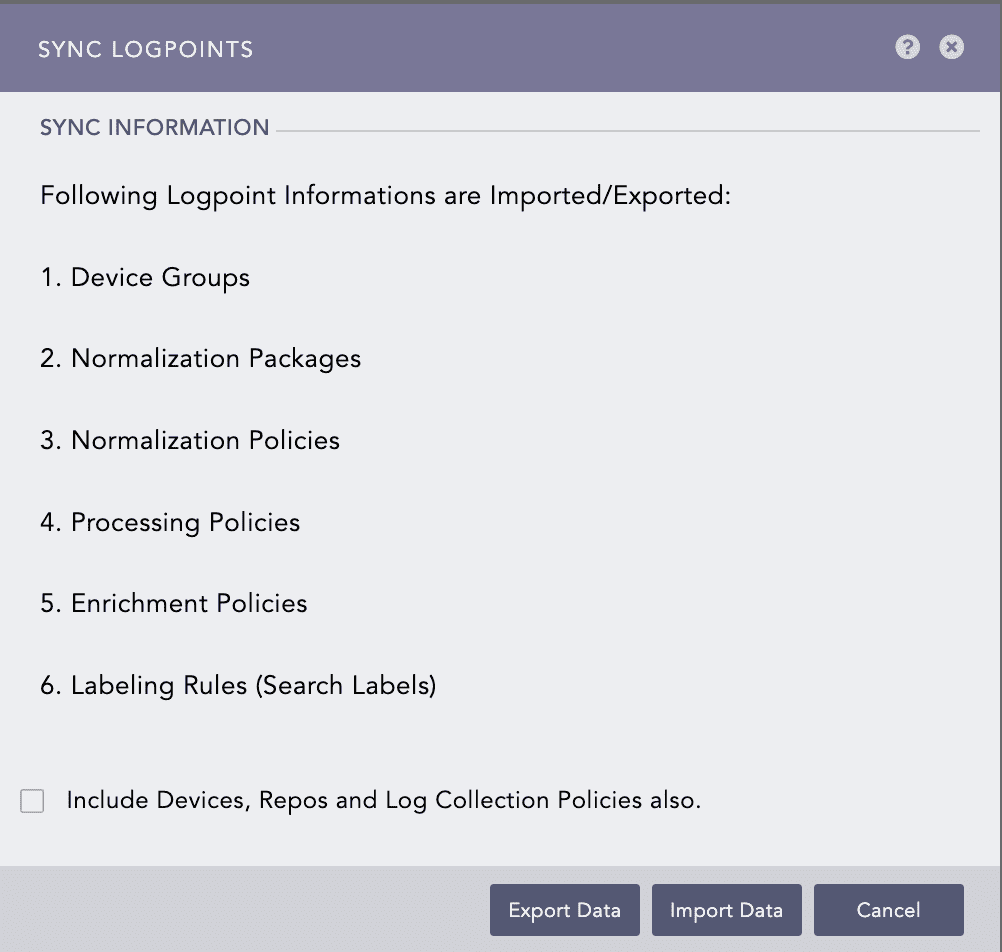
Sync Logpoints
Select the Include Devices, Repos, and Log Collection Policies also to include their configurations.
Click Export Data to export configurations. All the selected configurations are downloaded to your Logpoint in a .json file. In addition, the .json file contains all configurations for:
User Accounts, except the Incident User Groups.
Configuration, except the Distributed Collectors, Raw Syslog Forwarder, /Distributed Logpoints, and Export Management.
Knowledge Base.
Login to the Logpoint where you want the same configuration. Go to Settings >> System Settings from the navigation bar and click Sync.
Select the Include Devices, Repos, and Log Collection Policies also.
Click Import Data to import configurations.
Click Import Data.
Browse for the JSON file and click Upload.
After successfully importing the data, all the settings saved in the uploaded file are replicated in your Logpoint. While using the Import Data, you can manually remove any data configurations from the JSON file if you need to. Do not remove important data.