
Prerequisite
Logpoint v7.5.0 or later
Director Fabric v1.10.0 or later
Director Console v1.10.0 or later
To install Threat Intelligence in Director Console:
Log in to Director Console.
Click Assets in the navigation bar.
Select Plugins from the Assets Type dropdown.
Click the upload area to browse, or drag and drop the Threat Intelligence .pak file.
Click UPLOAD.
Once uploaded, the Assets page adds the .pak file to the list of the available packages in the Fabric Server.
Select Threat Intelligence .pak from the list of available packages.
Click INSTALL.
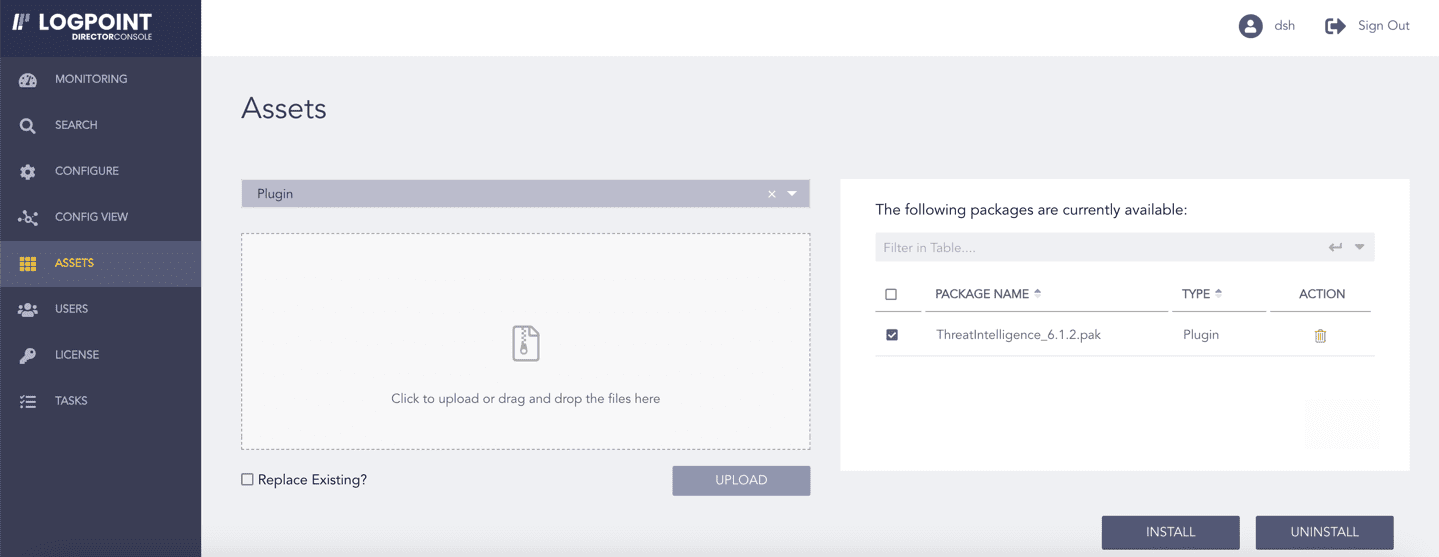
Selecting a Package
Select a Logpoint to install Threat Intelligence. You can select multiple Logpoints of different pools.
Click NEXT.
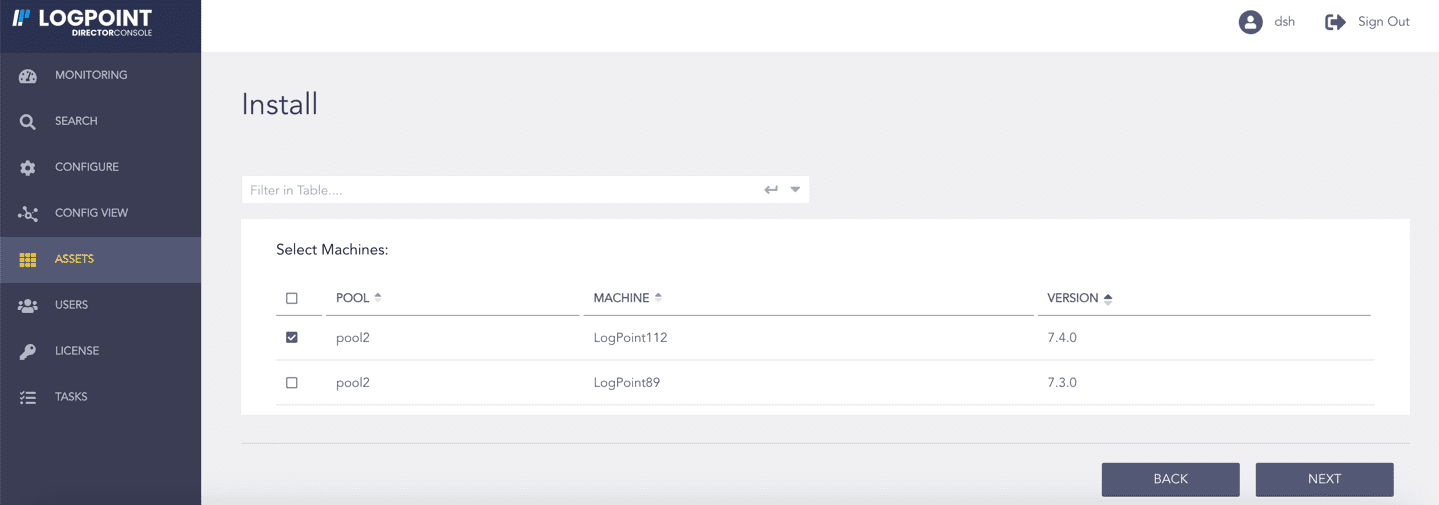
Selecting Logpoint
Review your changes. You can go BACK to make any changes if necessary.
Click INSTALL and click OK to confirm.
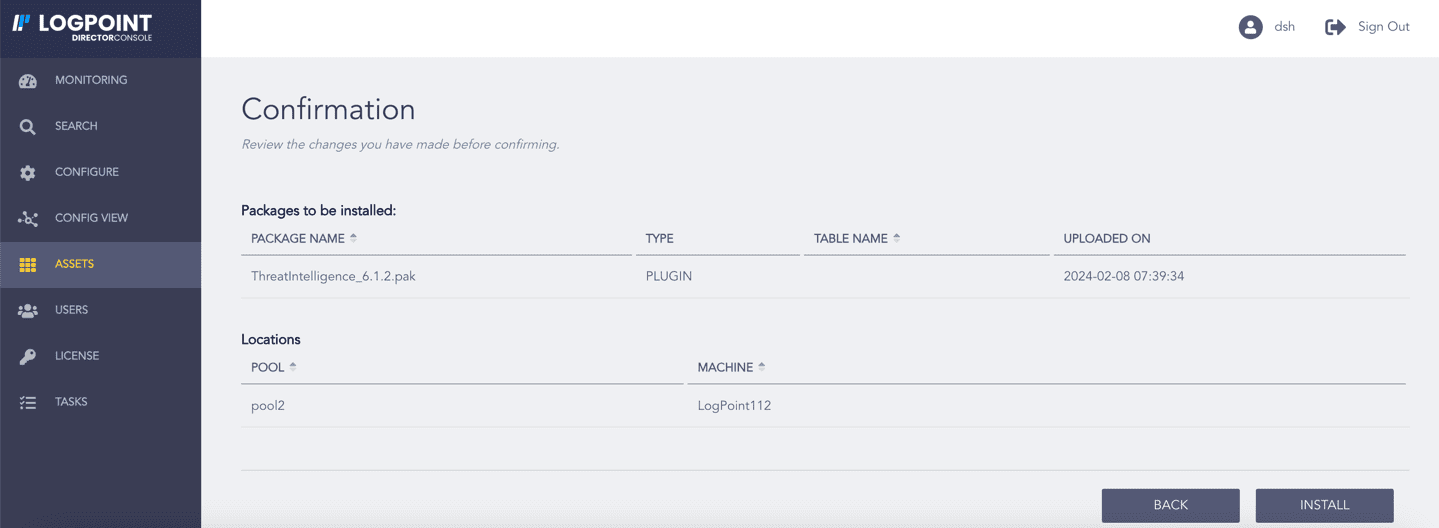
Confirming the Changes
You must first remove Threat Intelligence source configuration to uninstall it.
To remove the configurations:
Click Configure in the navigation bar.
Under Settings, click Plugins.
Select ThreatIntelligence from the Select Plugin Type drop-down.
Select a Logpoint where the threat sources are configured. You can select multiple Logpoints of different pools.
Select the configured source from the Select Plugin Sub-type drop-down.
Deselect Enable Source of the activated Threat Intelligence source.
Click NEXT
Review your changes. You can go BACK to make any changes if necessary.
Click FINISH.
Click OK.
To uninstall Threat Intelligence:
Click Assets in the navigation bar.
Click UNINSTALL.
Select the Logpoint where Threat Intelligence is installed. You can select multiple Logpoints of different pools.
Select ThreatIntelligence from the list of available packages.
Click NEXT.
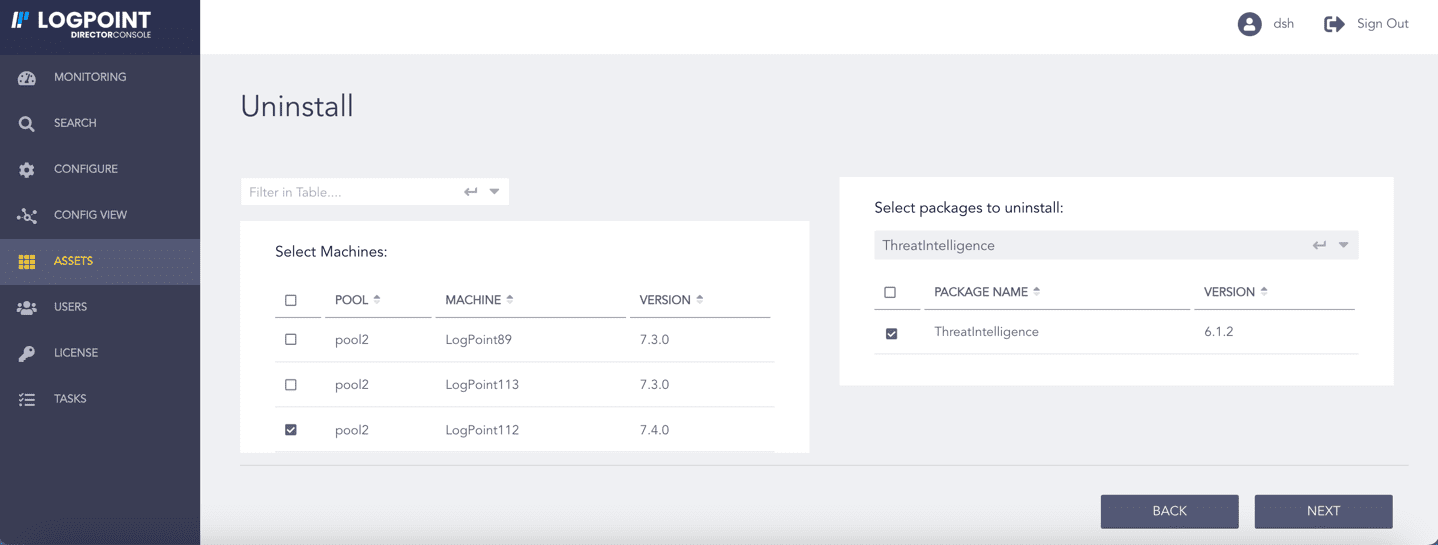
Selecting Threat Intelligence
Review your changes. You can go BACK to make any changes if necessary.
Click UNINSTALL and click OK to confirm.
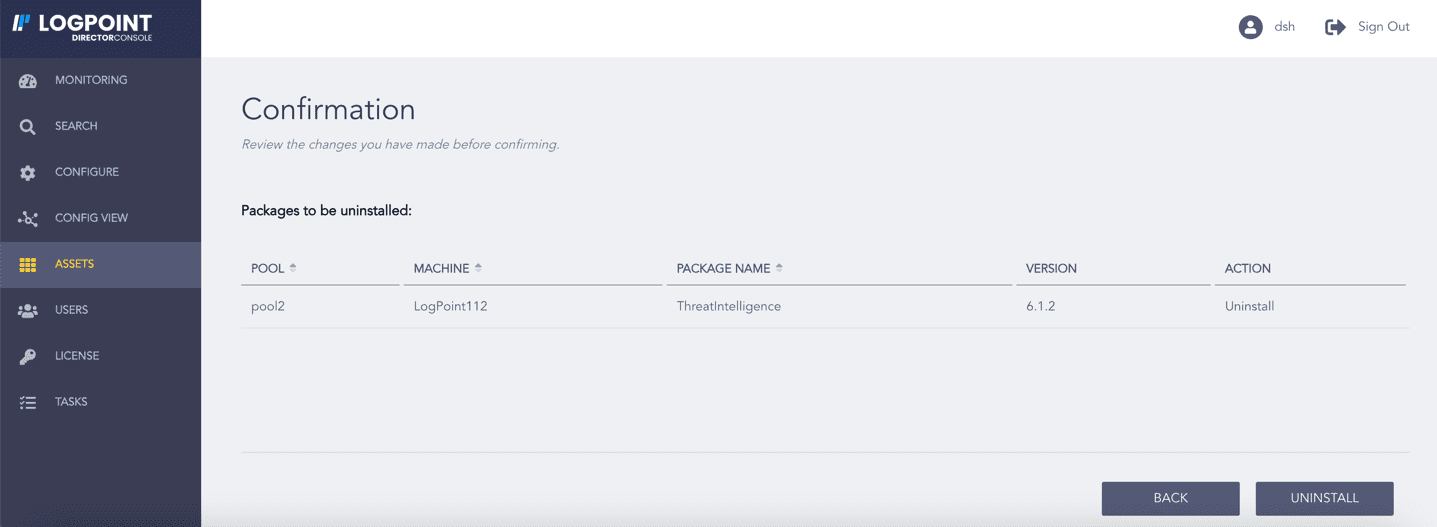
Confirming the Changes