
Alert Name |
Trigger Condition |
MITRE ATT&CK Categories |
MITRE ATT&CK Techniques |
|---|---|---|---|
Threat Intel Connections with Suspicious Domains |
A connection is established with a suspicious domain. |
Command and Control |
Protection Against Malicious and Mobile Code, Network Connection Control |
Threat Intel Internal Machine Connecting to Multiple IOCs |
A user tries to establish a connection to suspicious unique destinations. |
Command and Control, Lateral Movement |
Security of Network Services |
Threat Intel Excessive Denied Connections Attempt from IOC |
Multiple denied connections are received from suspicious sources. |
Impact Command and Control |
Security of Network Services |
Threat Intel Allowed Connections from Suspicious Sources |
A connection is established from suspicious sources. |
Command and Control |
Security of Network Services |
Threat Intel IOC Connecting to Multiple Internal Machines |
An inbound connection is established from suspicious sources to multiple destinations. |
Defense Evasion, Command and Control, Lateral Movement |
Security of Network Services |
Go to Settings >> Knowledge Base from the navigation bar and click Alert Rules.
Select Vendor Rules from the drop-down.
Click the Add ( ) icon from Actions.
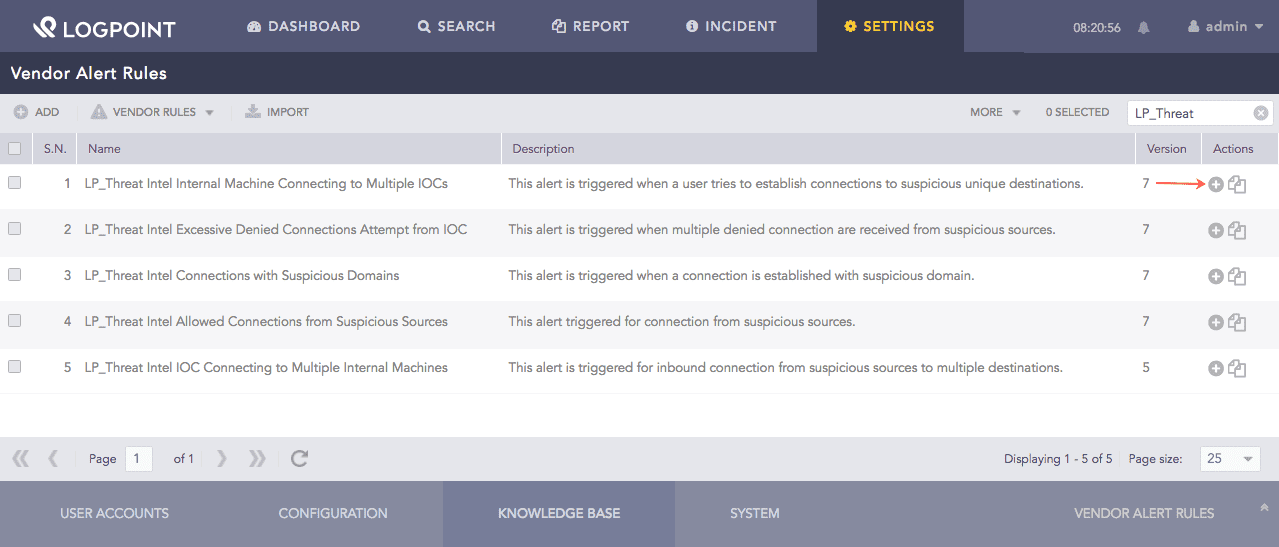
Using Threat Intelligence Alert Rules
After adding the alert rules, Threat Intelligence redirects you to the Used Alert Rules page.
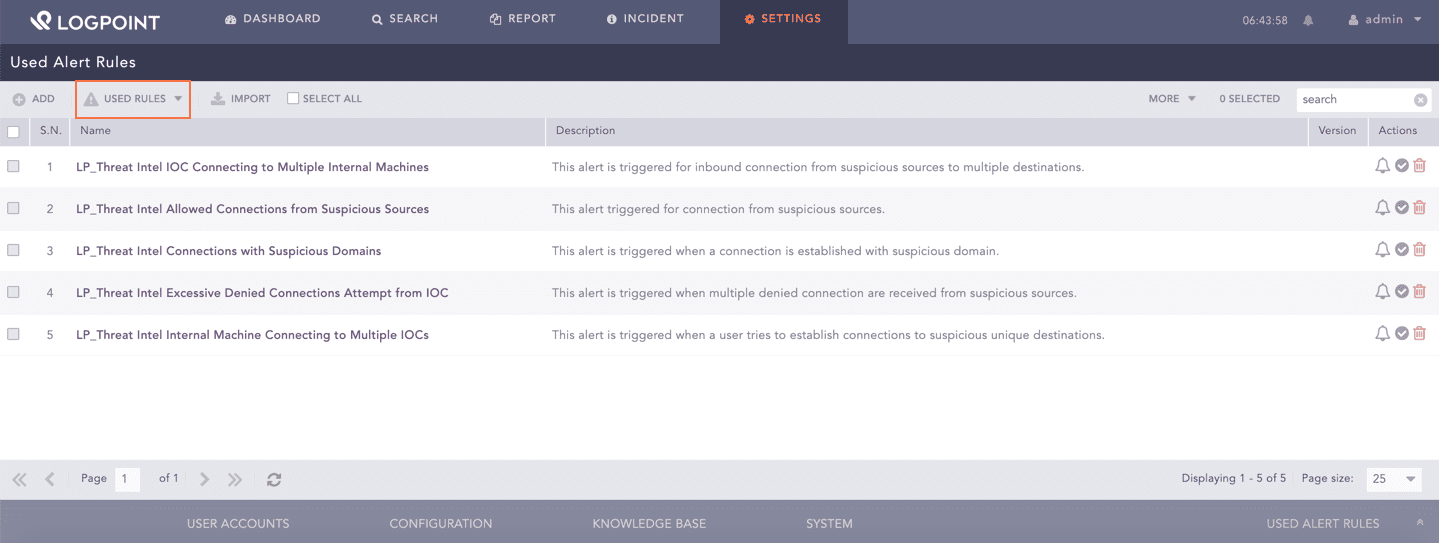
Used Alert Rules Page
Once the used alert rules are triggered, Threat Intelligence generates the corresponding incidents in the Incidents page.

Threat Intelligence Incident
This dashboard consists of the following widgets:
Widget Name |
Description |
|---|---|
Top 10 Inbound Attacks by Country |
The top 10 countries associated with malicious IPs that are attacking the internal network |
Top 10 Outbound Attacks by Country |
The top 10 countries associated with malicious IPs where the internal networks are communicating. |
Top 10 Categories by Domain |
The top 10 visited domains or URLs listed as malicious in the threat intelligence database and their categories. |
Score Timetrend |
An average threat score and the time malicious activities occurred. |
Top 10 Observed IOC Categories |
The top 10 IOC categories of IP addresses involved in malicious activities. |
Internal Addresses Associated with IOC |
The number of distinctive internal addresses associated with malicious IOC. |
Users Associated with IOC |
The number of distinctive users involved in malicious activities. |
Distribution of Observed IOC |
An overview of active threat intelligence sources. |
Internal Addresses Communicating with TI Matches |
The internal addresses associated with malicious IOC and their number of communications. |
Number of Internal Destinations |
The timestamp and number of distinctive internal addresses involved in malicious activities. |
Go to Settings >> Knowledge Base from the navigation bar and click Dashboards.
Select Vendor Dashboard from the drop-down.
Click the Add () icon from Actions.
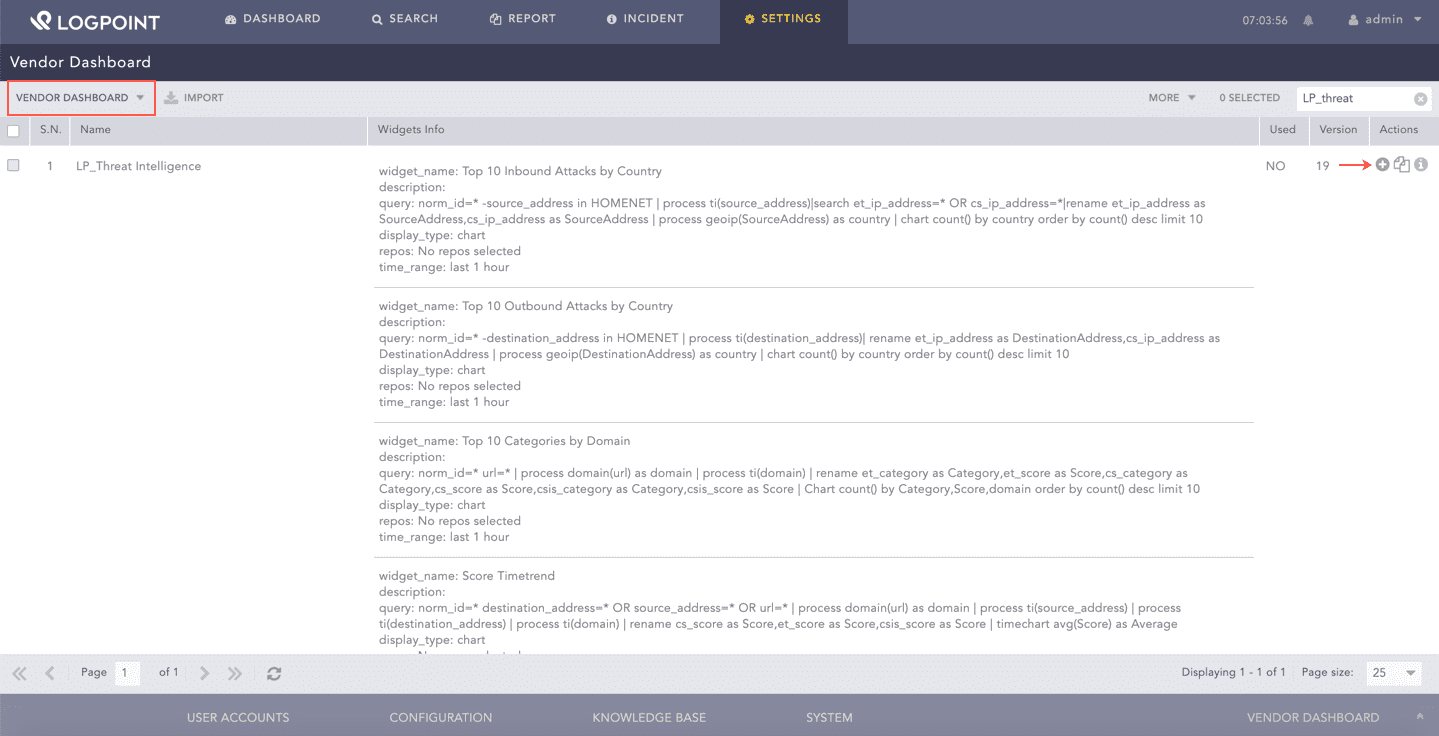
Adding the Threat Intelligence Dashboard
Click Choose Repos.
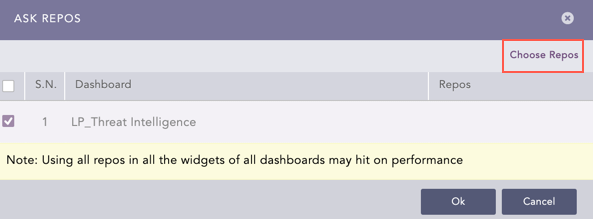
Ask Repos
Select the repos that store logs to which you have applied the threat_intelligence enrichment source and click Done.
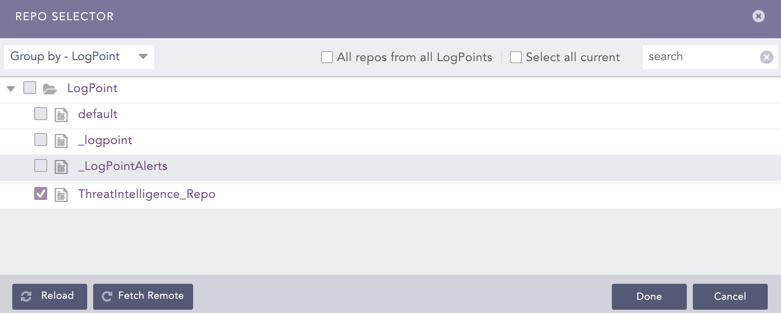
Repo Selector
Select the dashboard in Ask Repos and click Ok.
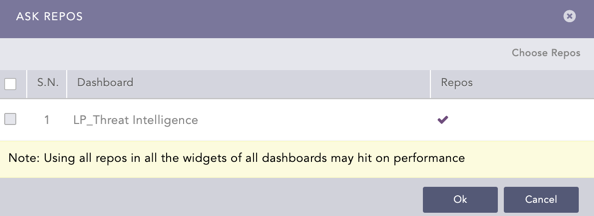
Confirmation for Repo
You can find the selected dashboard under Dashboards.
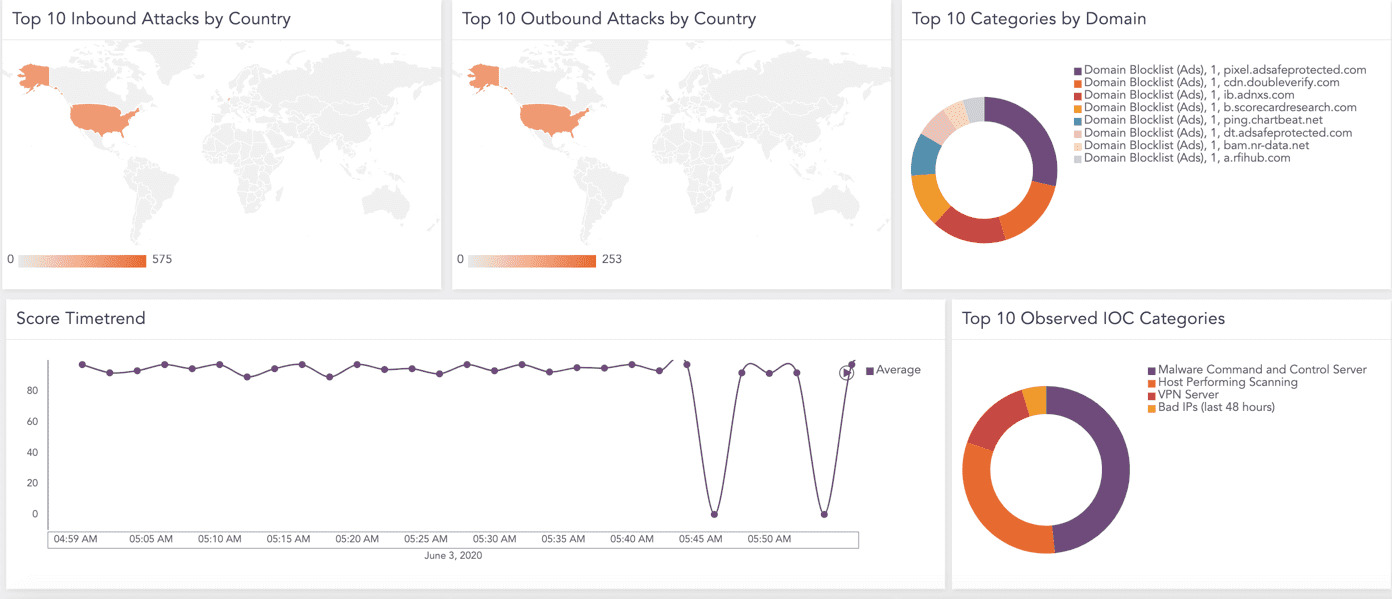
Threat Intelligence Dashboard
The dashboard and alert rules of Threat Intelligence uses the HOMENET list provided by Logpoint. You can import the list into Logpoint from the Default Lists.