
Go to Settings >> Configuration >> Normalization Policies.
Click Add.
Enter a Policy Name.
Select the Compiled Normalizers and Normalization Packages for Trend Micro.
Click Submit.
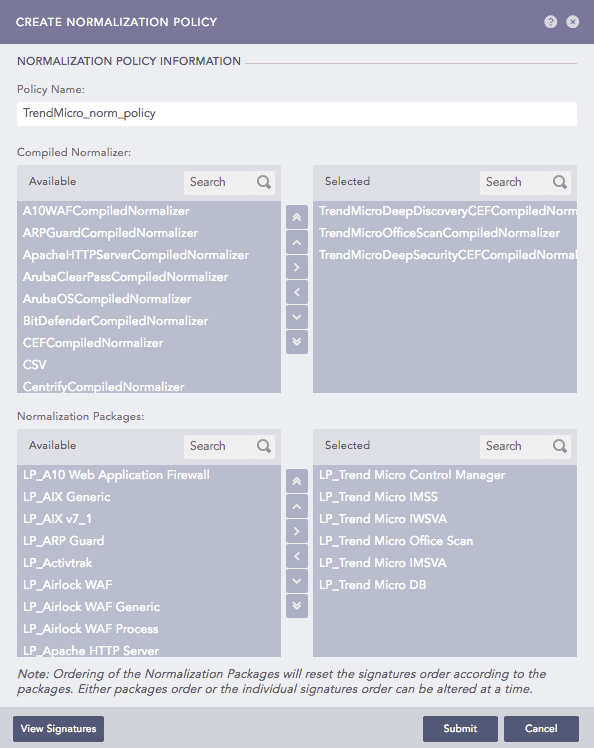
Adding a Normalization Policy
Go to Settings >> Configuration >> Devices.
Click Add.
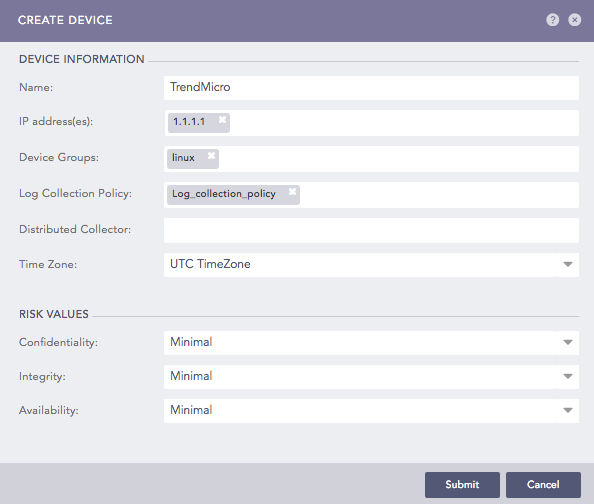
Create Device Panel
Enter a device Name.
Enter the IP address(es) of Trend Micro.
Select the Device Groups.
Select an appropriate Log Collection Policy for the logs.
Select a collector/forwarder from the Distributed Collector.
Note
It is optional to select any Device Groups, Log Collection Policy, and Distributed Collector.
Select a Time Zone.
Note
The timezone of the device should be the same as that of its log source.
Configure the Risk Values for Confidentiality, Integrity, and Availability. These values are used to calculate the risk levels of the alerts generated from the device.
Click Submit.
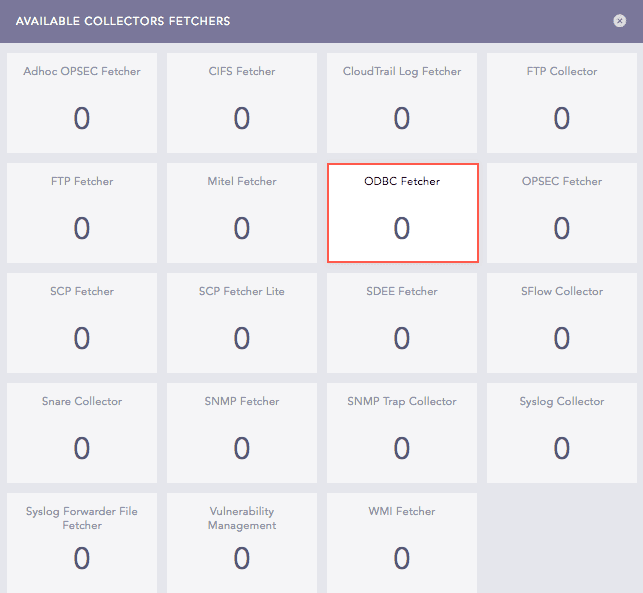
Available Collectors Fetchers Panel
Click ODBC Fetcher to open the ODBC Fetcher panel.
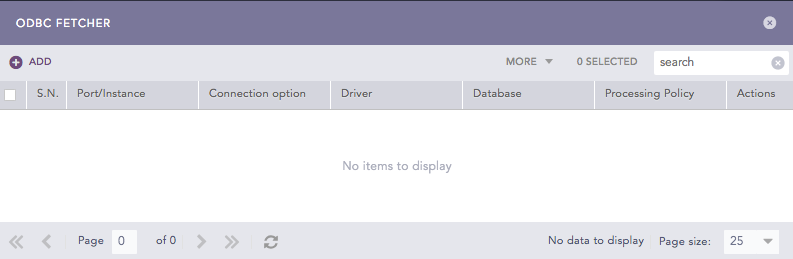
ODBC Fetcher Panel
Click Add.
Select a Mode. The ODBC Fetcher has two modes of configuration, General and Advanced. The Advanced Mode allows you to define the incremental key value. However, in the General mode, the application sets the incremental key value to 0.
Note
If you are using the General mode for Trend Micro DB v11, you can choose the Trend Micro Office Scan v11.0 template that fills the required values for the Driver, Database, Query, Incremental Key, Incremental Key Table, and New Line Separator parameters. If you select None as a template, you have to provide all the details manually.
Select MSSQL as the Driver.
Select the Port option and enter 1433 as the port for the driver.
Enter db_ControlManager as the Database.
Enter the Username and Password of the above database.
Enter the Fetch Interval.
Enter the following Query to retrieve the logs:
For Trend Micro DB v11:
SELECT * FROM v_Virus_HostDetail
For Trend Micro DB v12:
SELECT * FROM tb_AVVirusLog
Enter the unique identifier for each log as the Incremental Key.
Note
If you are using the Advanced mode, provide the initial Incremental Key Value. It is 0 by default.
If you are using the General mode, you cannot set the value of the Incremental Key Value. The application sets the value to 0 automatically.
Enter the following Incremental Key Table:
For Trend Micro DB v11:
v_Virus_HostDetail
For Trend Micro DB v12: tb_AVVirusLogNote
If you are using the Advanced Mode, you do not have to provide the Incremental Key Table.
Enter a New Line Separator to replace the newline characters in the ODBC data. For example, if you provide the New Line Separator as “_”, the application displays the ODBC data as “data1_data2_data3”.
Select a Processing Policy which uses the previously created Normalization Policy for the logs.
Enter the Charset.
Click Test to validate the configuration.
Click Submit.
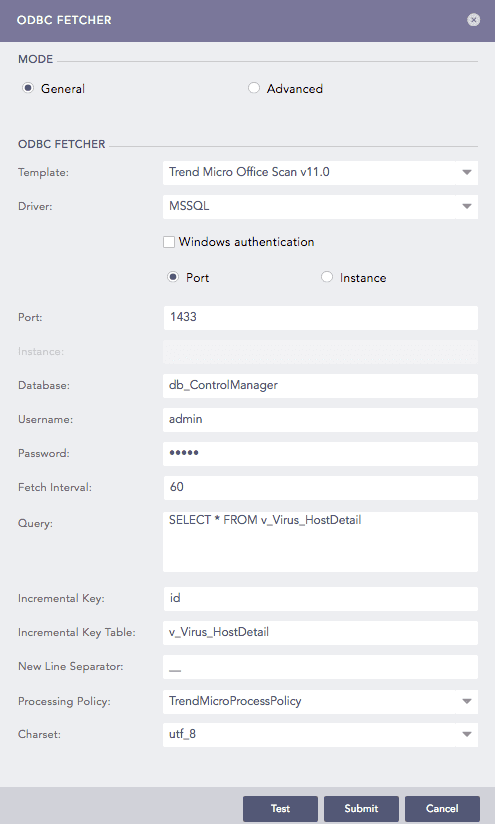
Configuration for Trend Micro DB v11
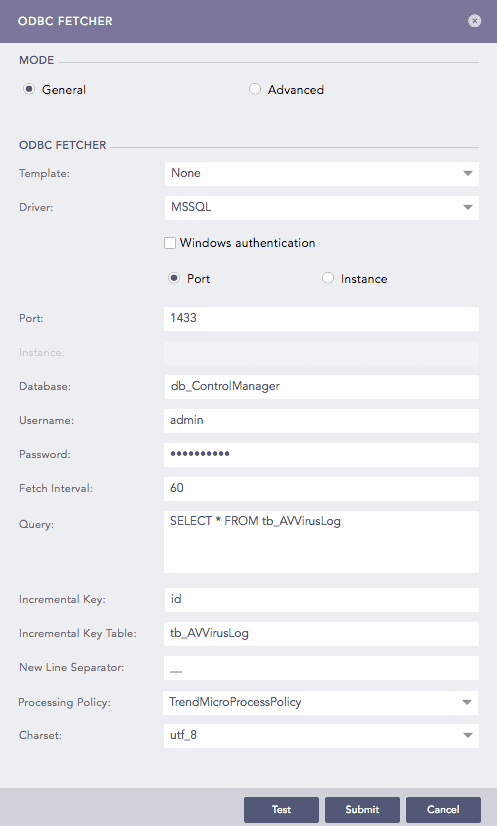
Configuration for Trend Micro DB v12