
Compatibility Check lets you verify if the input data and the default configuration for input are valid before sending the data to UEBA for analysis. You can validate your data before enabling UEBA in LogPoint or before selecting repos in the UEBA Board. However, you can also validate your data after configuring UEBA as per the requirement. LogPoint checks the following conditions during the validation:
Validates if all the mandatory fields for each data source are present in the event logs
Validates if each field value matches the format specified by LogPoint
Validates if the default configuration for input provided by the UEBA PreConfiguration Plugin is not modified
You can view a report for the invalid data and configuration that do not match any of the above conditions.
Note
Go to Data Sources For UEBA for the list of mandatory fields and field value format.
In a Distributed LogPoint environment, make sure you have selected the default repo in the Search Head before running a compatibility check. To select the default repo, go to Settings >> Configuration >> UEBA Board >> Compatibility Check and select the default repo from the Select Repos dropdown.
Go to Settings >> Configuration from the navigation bar and click UEBA Board.
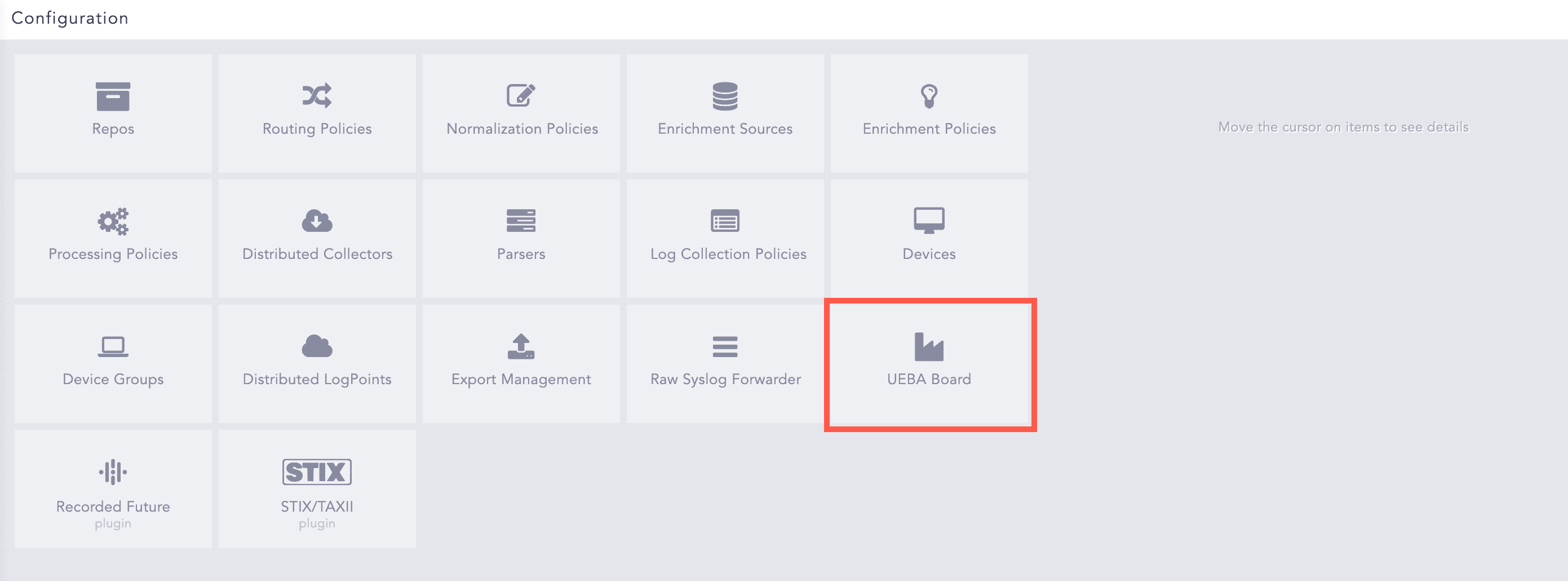
UEBA Board
Select the Compatibility Check tab.
In the Select Repos section, select the repos containing the logs you want to validate from the drop-down.
Click Extra Options to select data sources for validation.
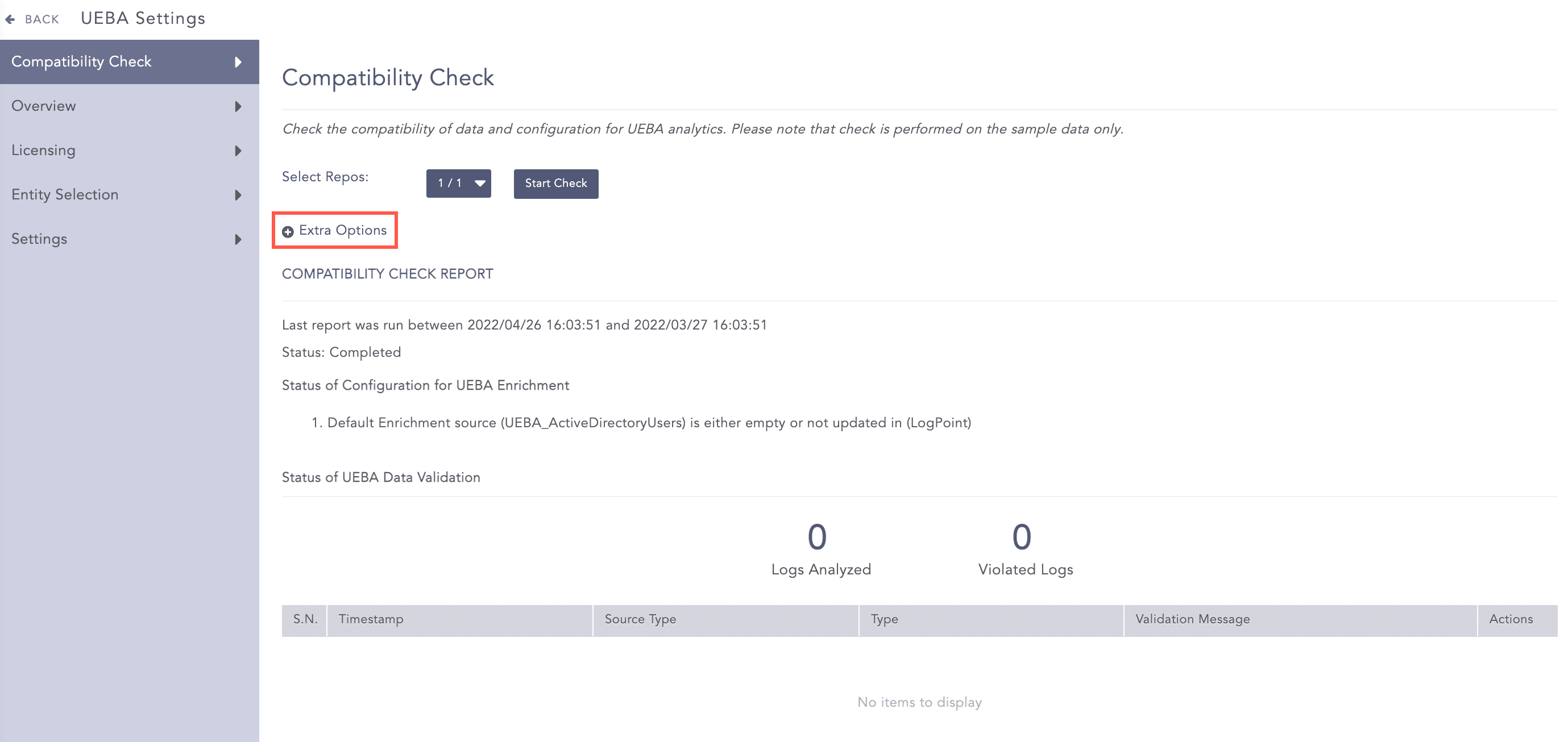
UEBA Compatibility Check
Enter a Time Range in Days. LogPoint checks the compatibility of the collected logs within the given period. You can provide a range of up to 30 days.
Select the Data source: Active Directory, Proxy, Email, VPN, Authentication, Resource Access and SAP Security Audit .
Click Start Check.
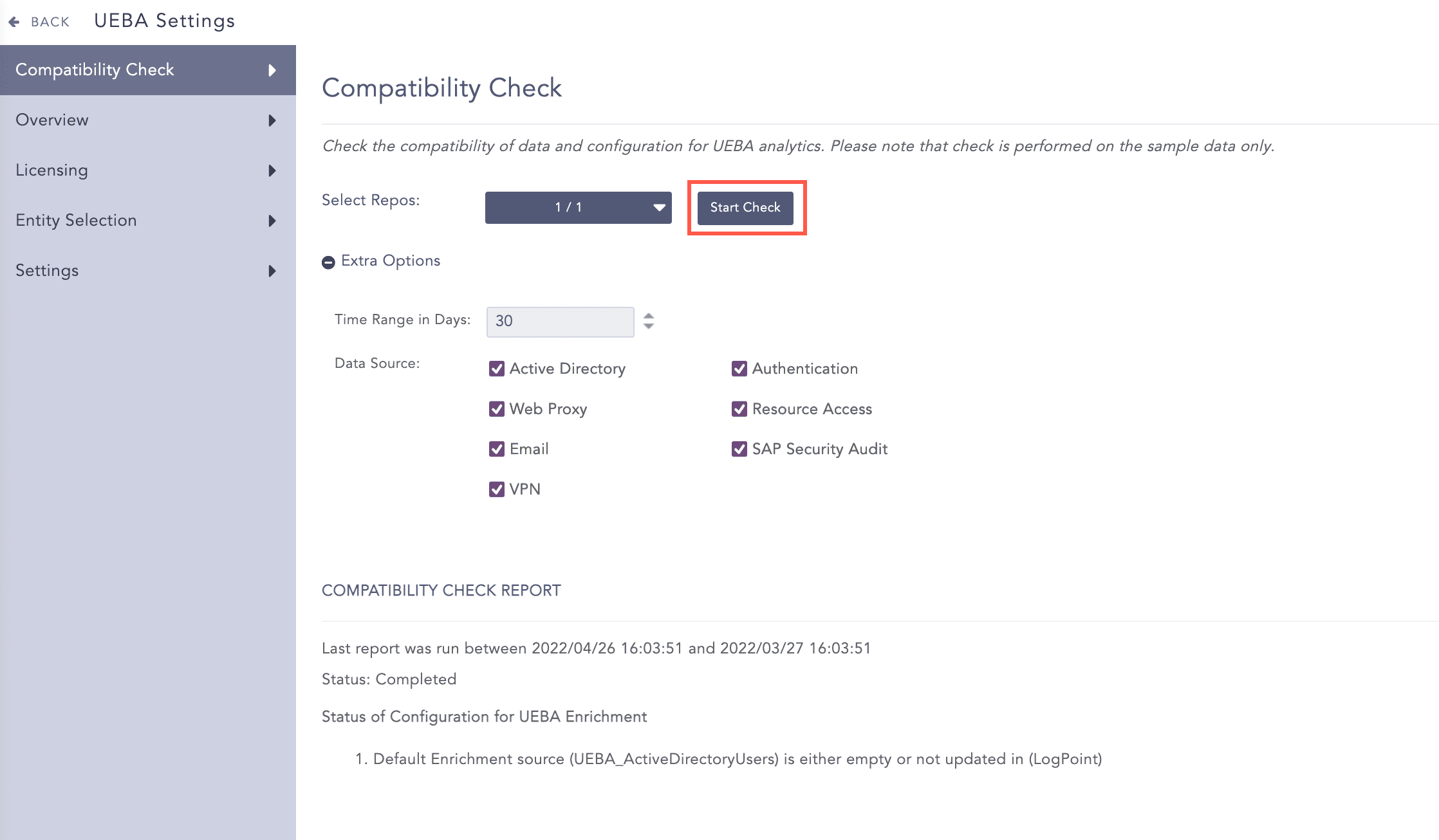
UEBA Compatibility Check
Once you click Start Check, LogPoint starts checking the configuration for input and provides a warning if the default configuration provided by the UEBA PreConfiguration Plugin has been changed or if the default enrichment source is not updated.
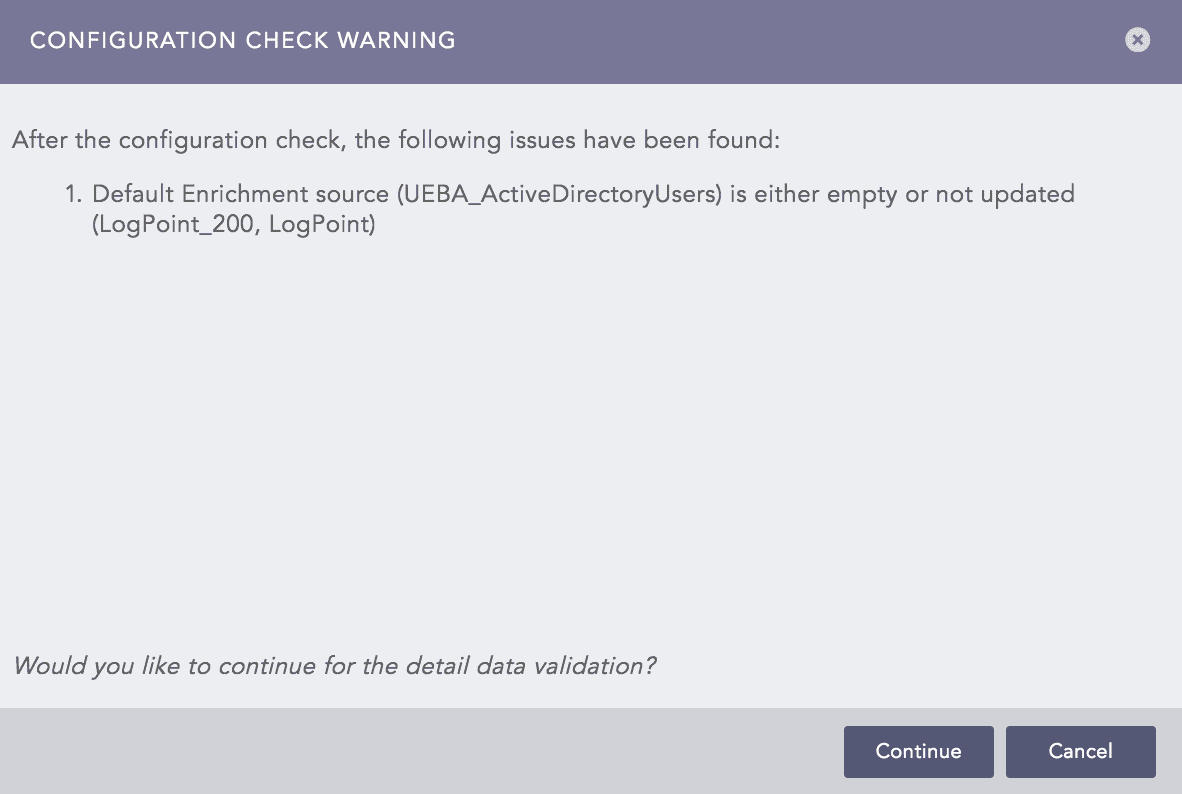
Configuration Check Warning
Click Continue if you want to start the data validation despite the warning.
Click Cancel if you do not want to proceed further.
LogPoint starts validating data from the date you click Start Check up to the specified time range.
If you start the validation without selecting a time range, LogPoint starts validating the last 30 days of data from the selected repos. However, if LogPoint finds a large number of invalid data in the system, it stops before reaching the last 30 days and provides a report of the violations.
LogPoint validates only the sample logs from the selected repos.
LogPoint provides a detailed report of the invalid data and configuration detected while running the validation. The report contains the following information:
Time range of the analyzed logs
Status of validation; whether it is in progress or completed
Details regarding the configuration check
Total number of logs analyzed for the validation
Total number of invalid logs detected
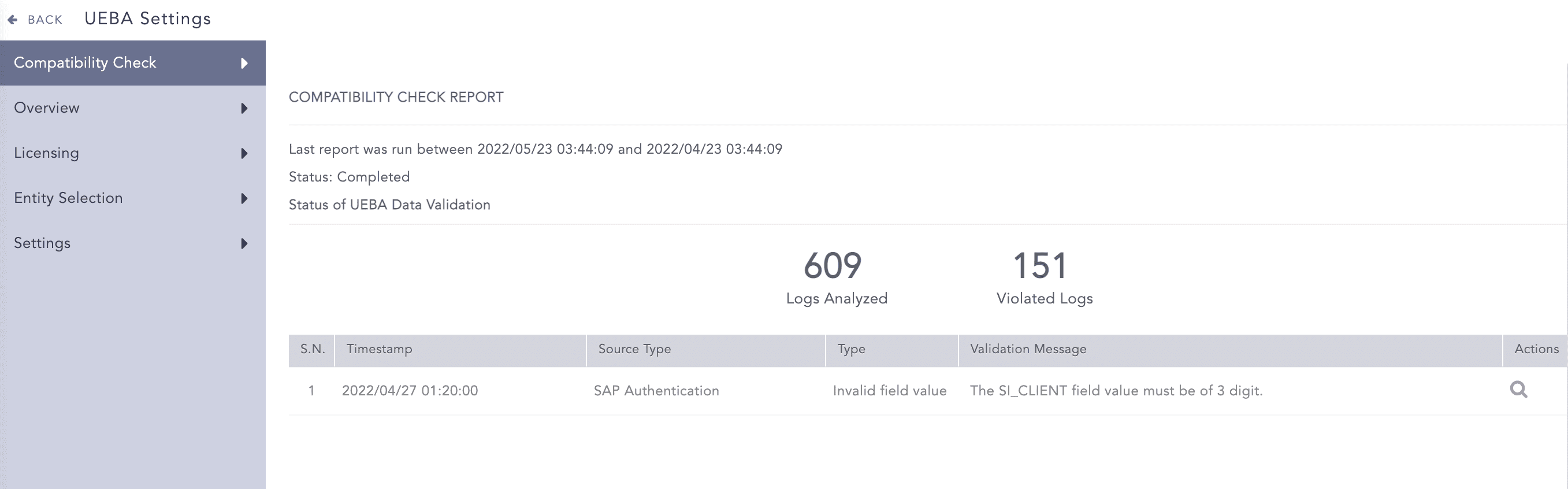
Compatibility Check Report
LogPoint also provides the following details regarding the detected violations:
S.N |
Field |
Description |
1 |
Timestamp |
Shows the date and time of the violation. |
2 |
Source Type |
Shows the data source of the violation: Active Directory, web proxy, email, VPN, authentication, resource access or SAP security audit. |
3 |
Type |
Shows the violation type: whether the mandatory fields are missing or the field value is invalid. |
4 |
Validation Message |
Provides detail of the violation. |
5 |
Actions |
Allows you to search for the violation at a specific timestamp by clicking the Search Log icon. |
The report only shows the details of the latest unique violations.
LogPoint validates the 30 days of historical data along with the real-time logs before sending them to UEBA for analysis. Similar to the previous compatibility check, LogPoint checks the mandatory fields as well as the field value. Any log that does not satisfy the validation conditions is not sent for analysis. LogPoint starts the validation as soon as you enable the history service or select repos from the UEBA Board Settings page.
LogPoint provides a report of the invalid historical and real-time data under the Validation Summary section of the Overview page.
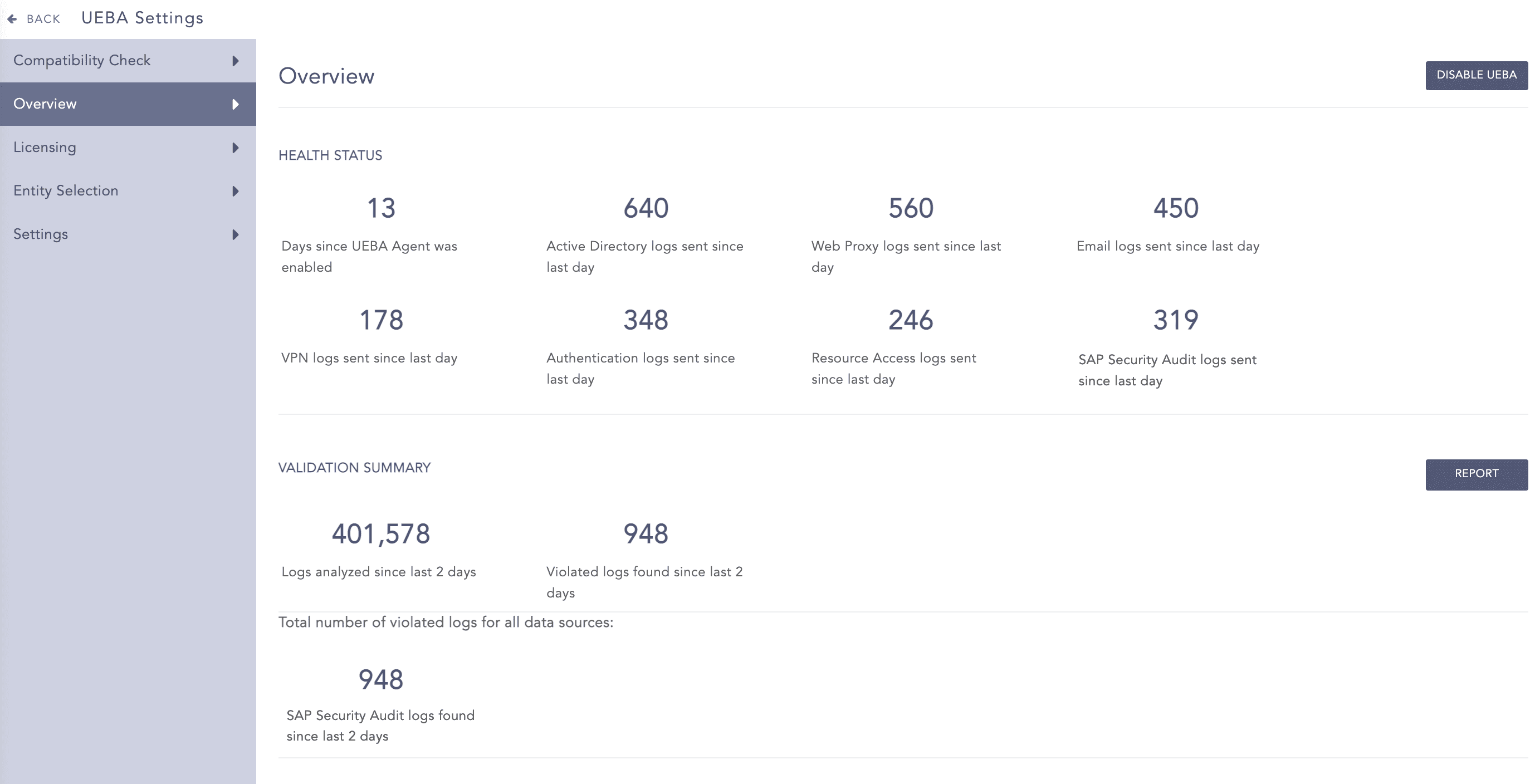
Validation Report Section