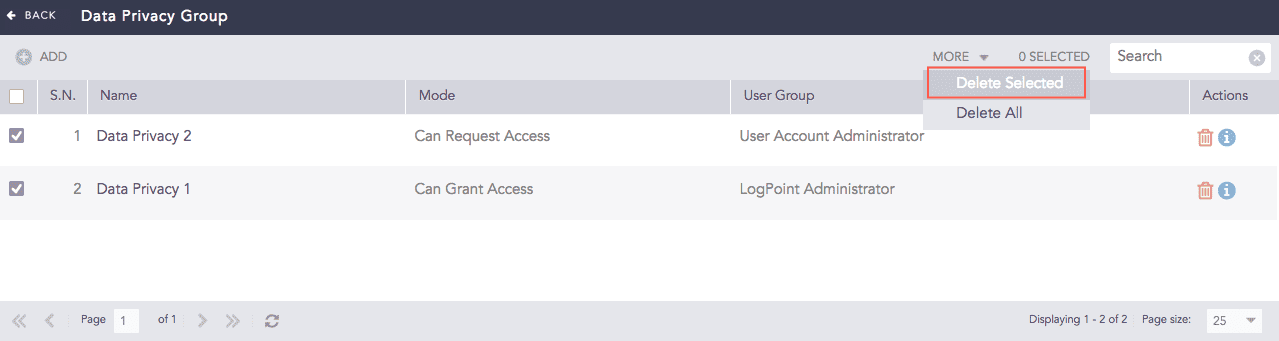
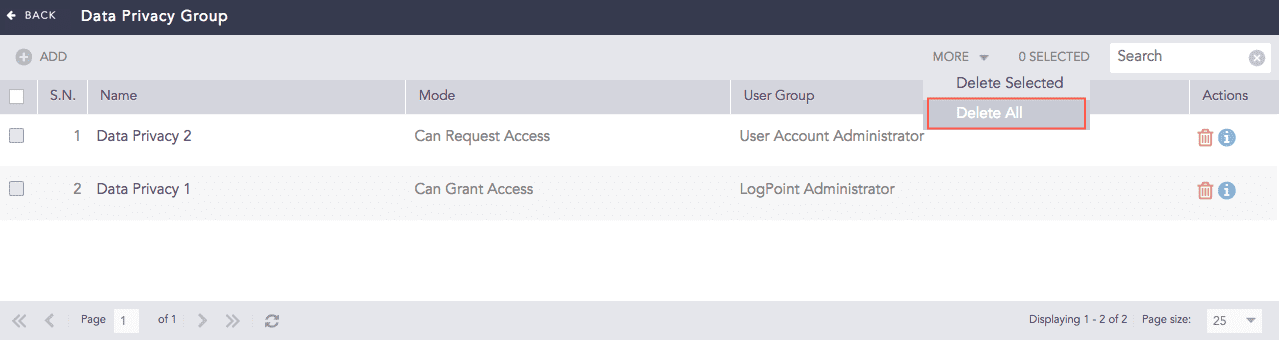
Data Privacy Groups are the user groups with permissions related to Data Privacy Module. You can create data privacy groups and configure their permissions.
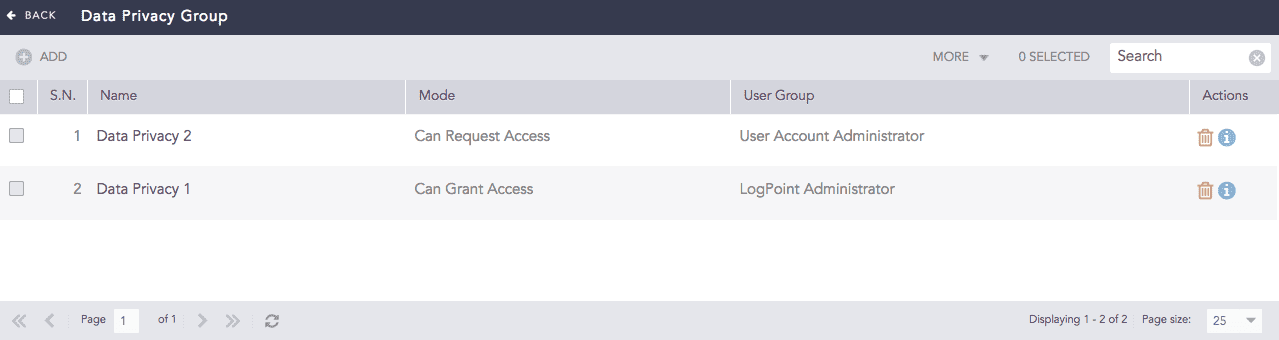
Data Privacy Groups
Note
You can see Data Privacy Groups in the Settings >> User Accounts section only if you have enabled the Data Privacy Module from Settings >> System >> System Settings >> Data Privacy Module. Refer to Configuring Data Privacy Module for further details.
Click the Details icon from the Actions column to view the details of a data privacy group.
The data privacy groups can be mapped to either Can Grant Access mode or Can Request Access mode.
If you are in the Can Request Access mode, you can request to view the data of the Data Privacy Module fields in the decrypted form. You can either request to view all the encrypted fields’ data or only specific values. LogPoint forwards your requests to the users who can grant access to the encrypted data.
If you are in the Can Grant Access mode, you can grant permission to view the data of the Data Privacy Module fields in the decrypted form.
Note
The Can Grant Access users cannot request to view the decrypted data by default. You need to add them to the Can Request Access user group to allow them to access decrypted data.
The Can Grant Access users cannot grant access to themselves. No user can view the decrypted data without the consent of another user.
Only LogPoint administrators and user account administrators can add a data privacy user group.
Go to Settings >> User Accounts from the navigation bar and click Data Privacy Groups.
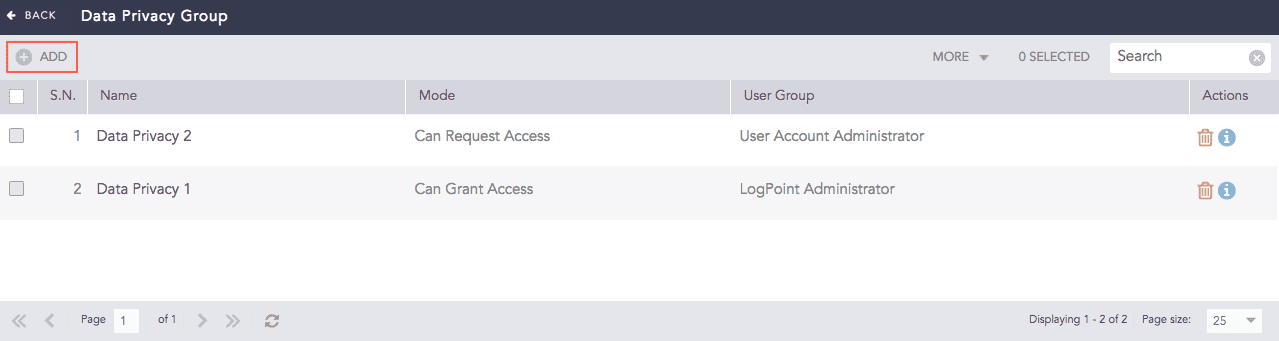
Data Privacy Groups
Click Add.
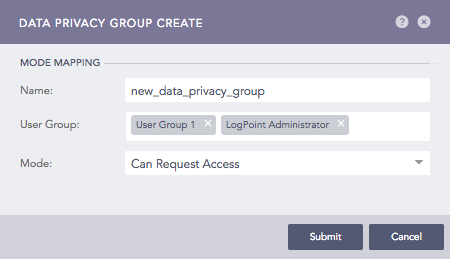
Adding a Data Privacy User Group
Enter a Name.
Select a User Group.
Select a Mode.
Click Submit.
Note
Click the ? icon in the top-right corner to get help on the inputs.
The users not mapped to any of the data privacy user groups can neither request nor grant access to view the decrypted data.
Go to Settings >> User Accounts from the navigation bar and click Data Privacy Groups.
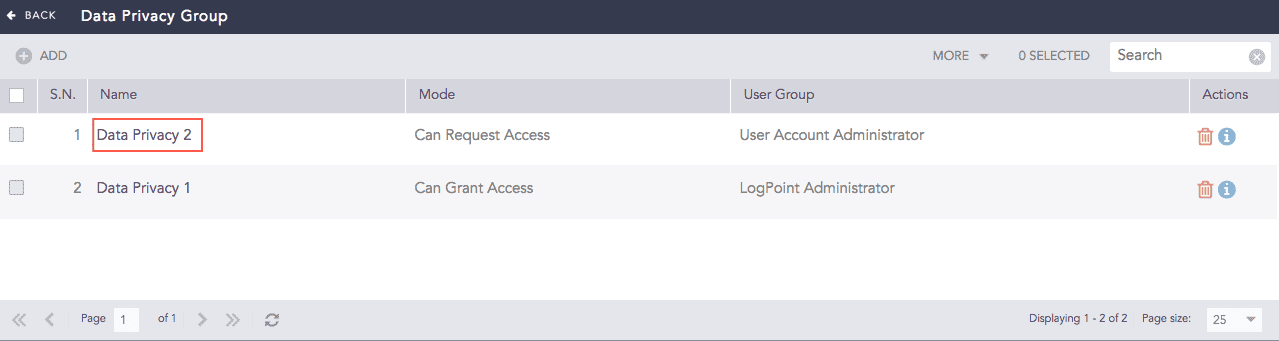
Editing a Data Privacy User Group
Click the user group you want to edit.
Update the information.
Click Submit.
Go to Settings >> User Accounts from the navigation bar and click Data Privacy Groups.
Click the Delete icon from the Actions column.
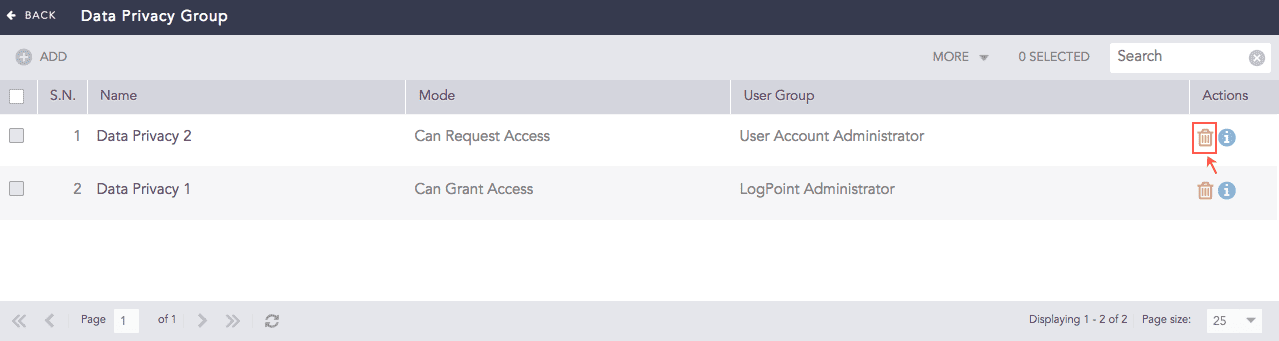
Deleting a Data Privacy User Group
Click Yes to confirm.
Note
The Can Request Access users can see the Data Privacy Module Activated icon at the top of the LogPoint user interface after a user grants their requests.

Data Privacy Module Icon