
Go to Settings >> Configuration from the navigation bar and click Normalization Policies.
At the top left, click Add.
Enter a Policy Name.
In Compiled Normalizer, select BarracudaCompiledNormalizer.
In Normalization Packages, select the required normalization package(s).
Click Submit.
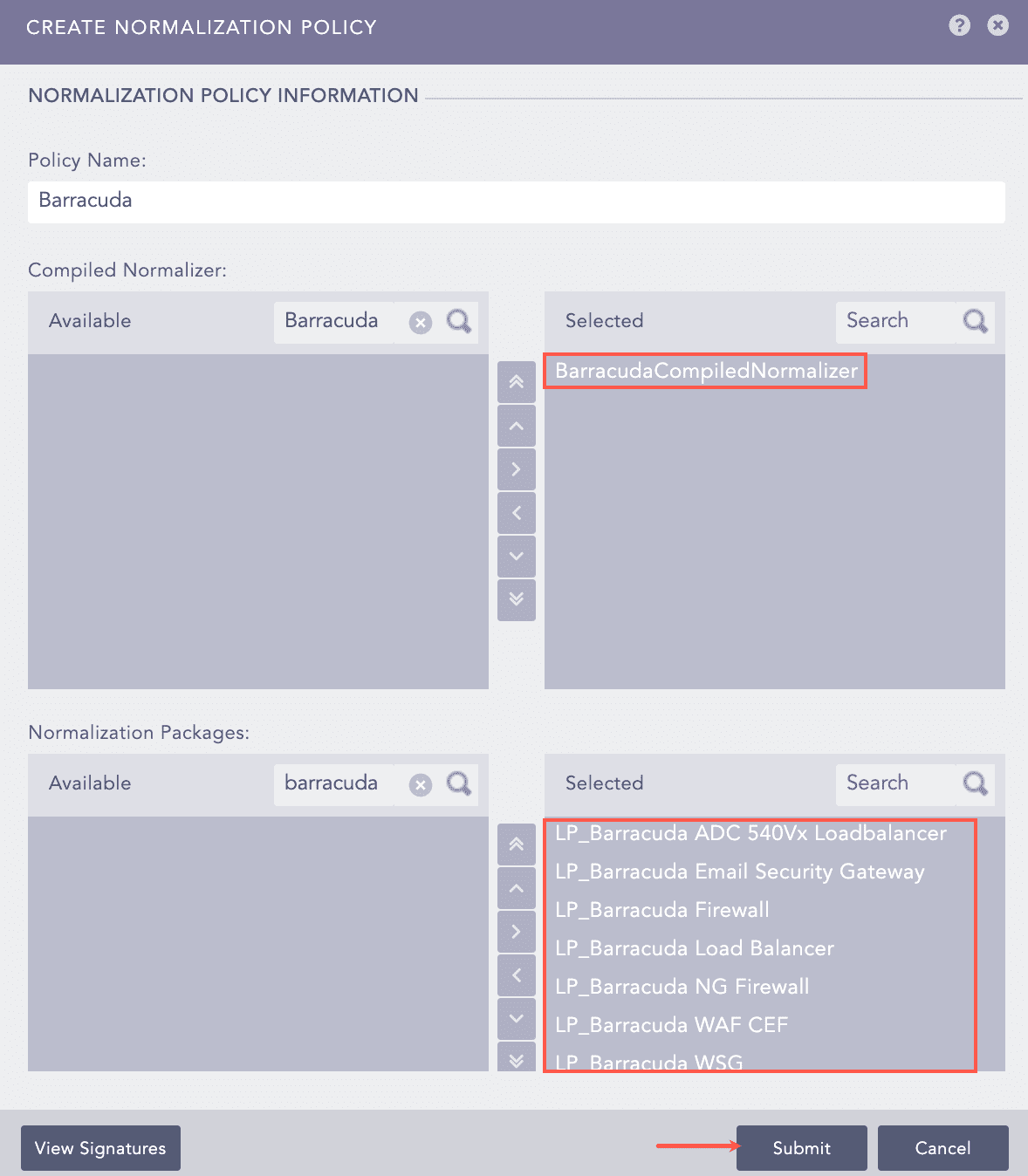
Adding a Normalization Policy
Go to Settings >> Configuration from the navigation bar and click Devices.
At the top left, click Add.
Enter a device Name.
Enter the IP address(es) of the Barracuda server.
Select the Device Groups.
Select an appropriate Log Collection Policy for the logs.
Select a collector or a forwarder from the Distributed Collector drop-down.
Note
It is optional to select the Device Groups, the Log Collection Policy and the Distributed Collector.
Select a Time Zone. The timezone of the device must be same as its log source.
Configure the Risk Values for Confidentiality, Integrity and Availability used to calculate the risk levels of the alerts generated from the device.
Click Submit.
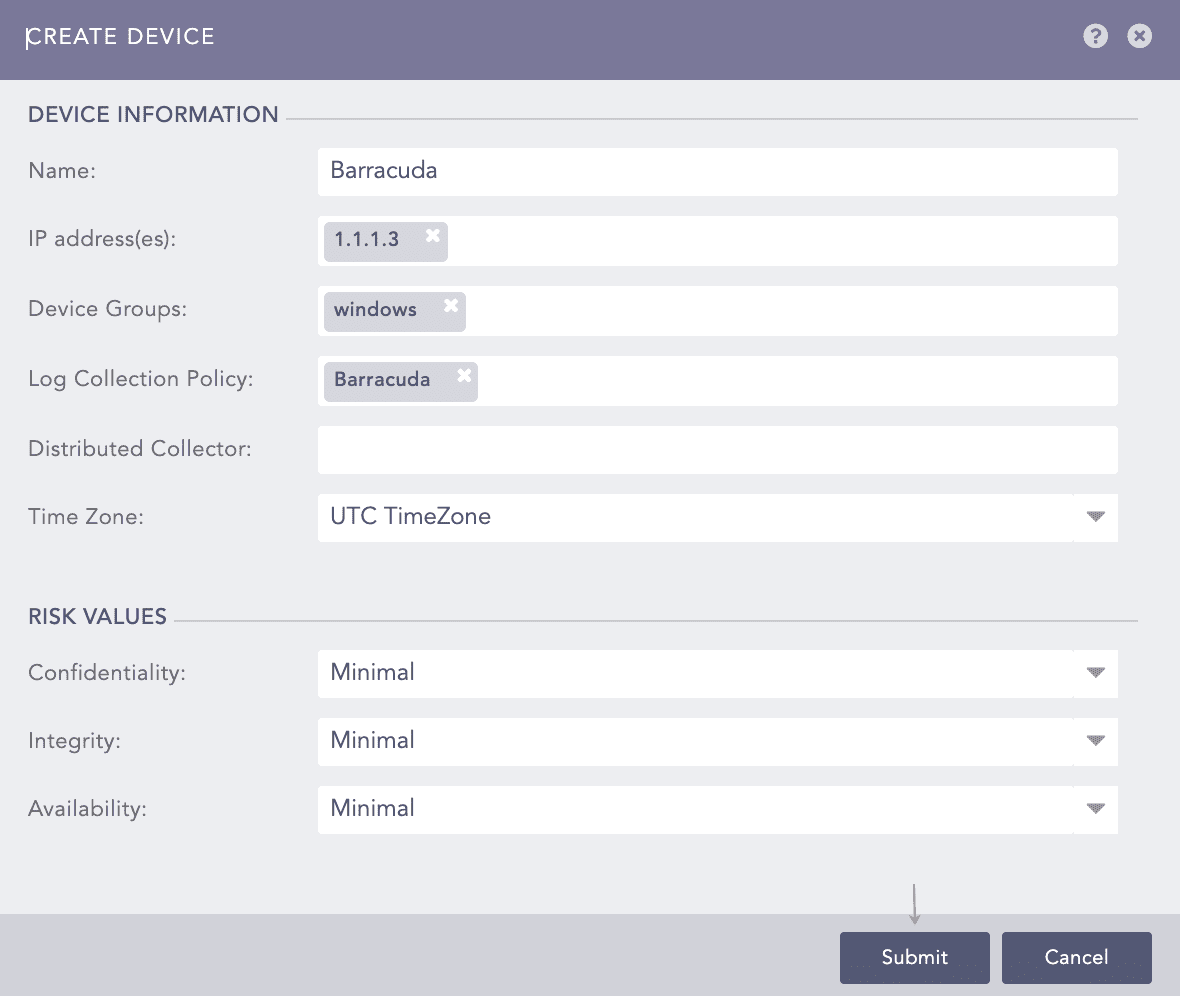
Adding Barracuda as a Device
Go to Settings >> Configuration from the navigation bar and click Devices.
Search for the previously added device.
Click the Add icon from Actions.
Click Syslog Collector on AVAILABLE COLLECTORS FETCHERS.
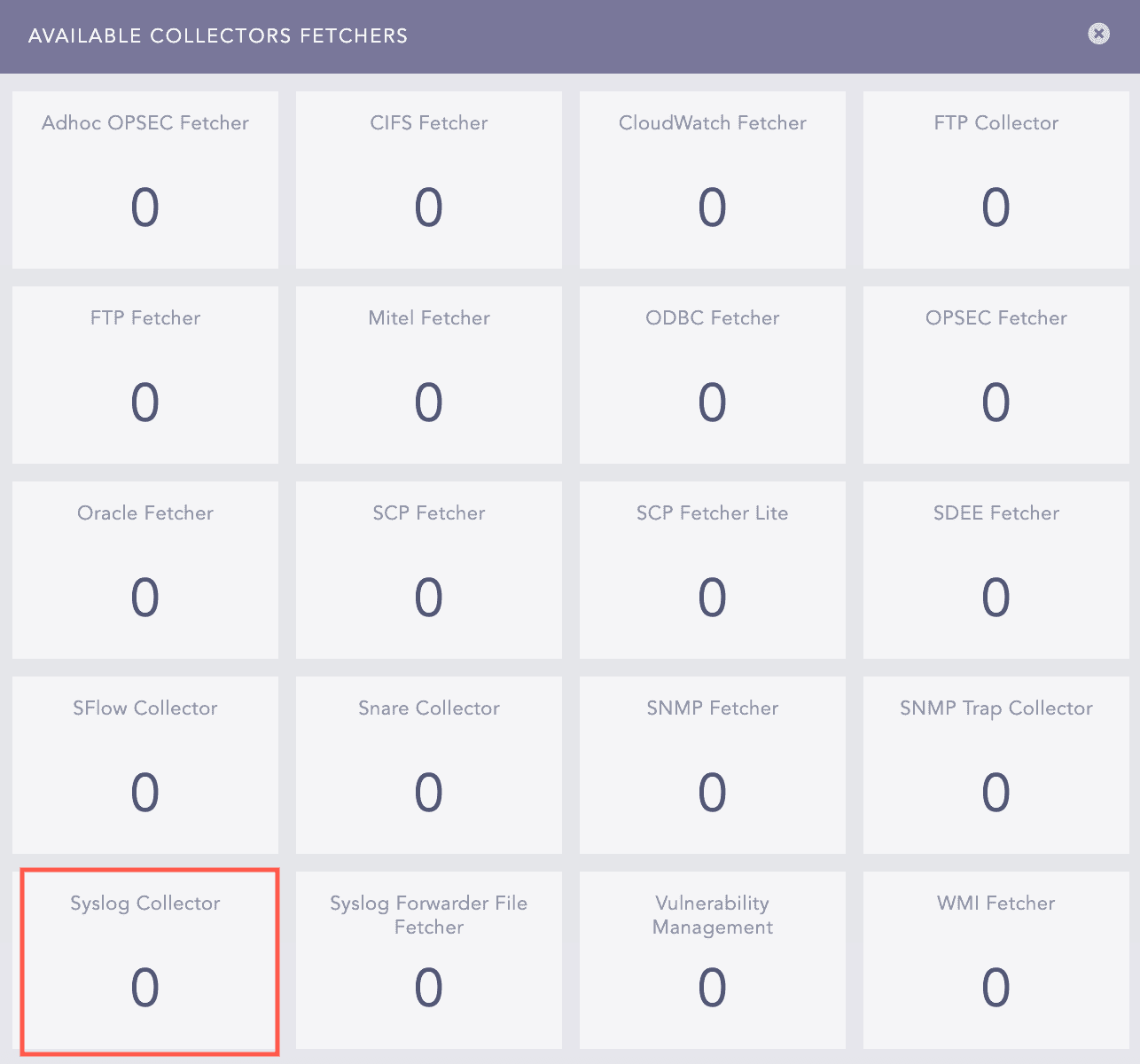
Available Collectors Fetchers Panel
Select Syslog Parser as Parser.
Select a Processing Policy that uses the previously created normalization policy.
Select the Charset.
In Proxy Server, select None
Click Submit.
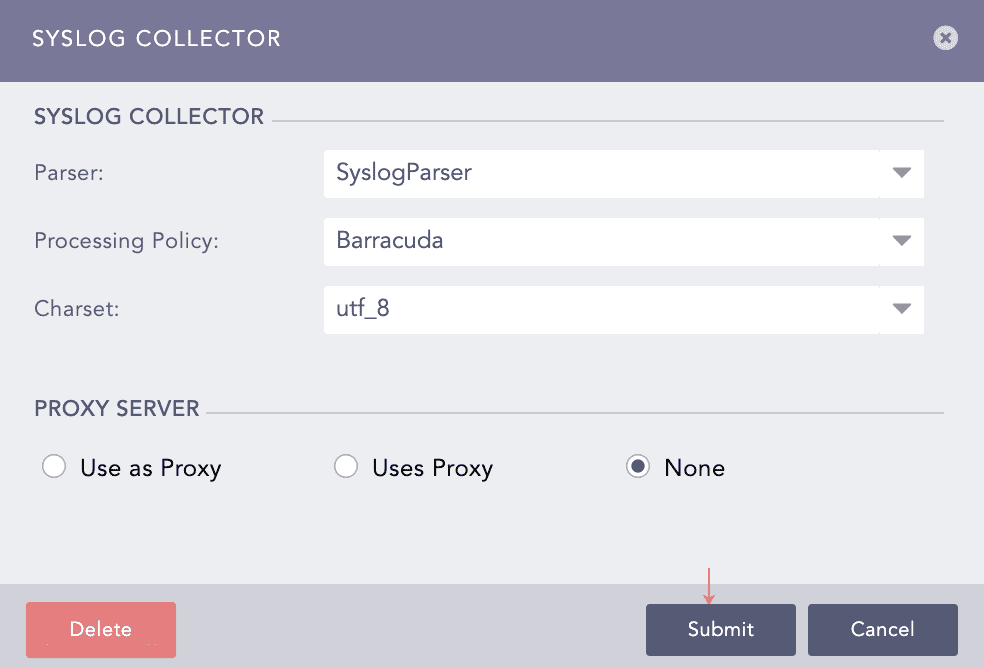
Configuring Syslog Collector