
To configure Cloud Connector, go to Settings >> Configuration from the navigation bar and click Cloud Connector.
You need to upload a valid Cloud Connector license to establish a connection between Cloud Connector and Logpoint SaaS.
To upload a valid Cloud Connector license:
Go to Settings >> Configuration from the navigation bar and click Cloud Connector.
Click Cloud Connection Details.
Click UPLOAD LICENSE.
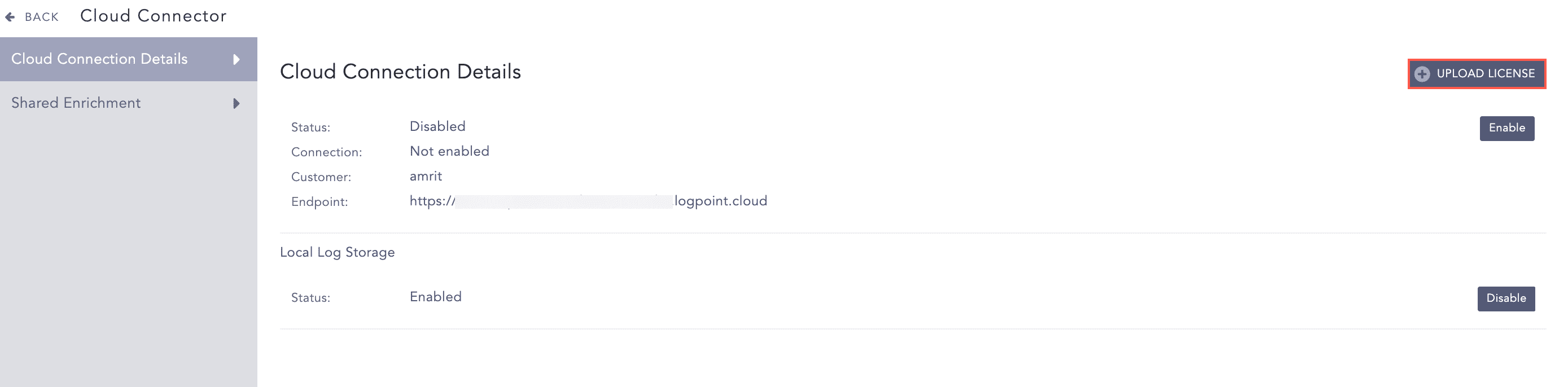
Uploading License
Browse to the location of your license key and click Open.
Accept the terms and conditions of the END USER LICENSE AGREEMENT (EULA).
Click Submit.
Click Enable.
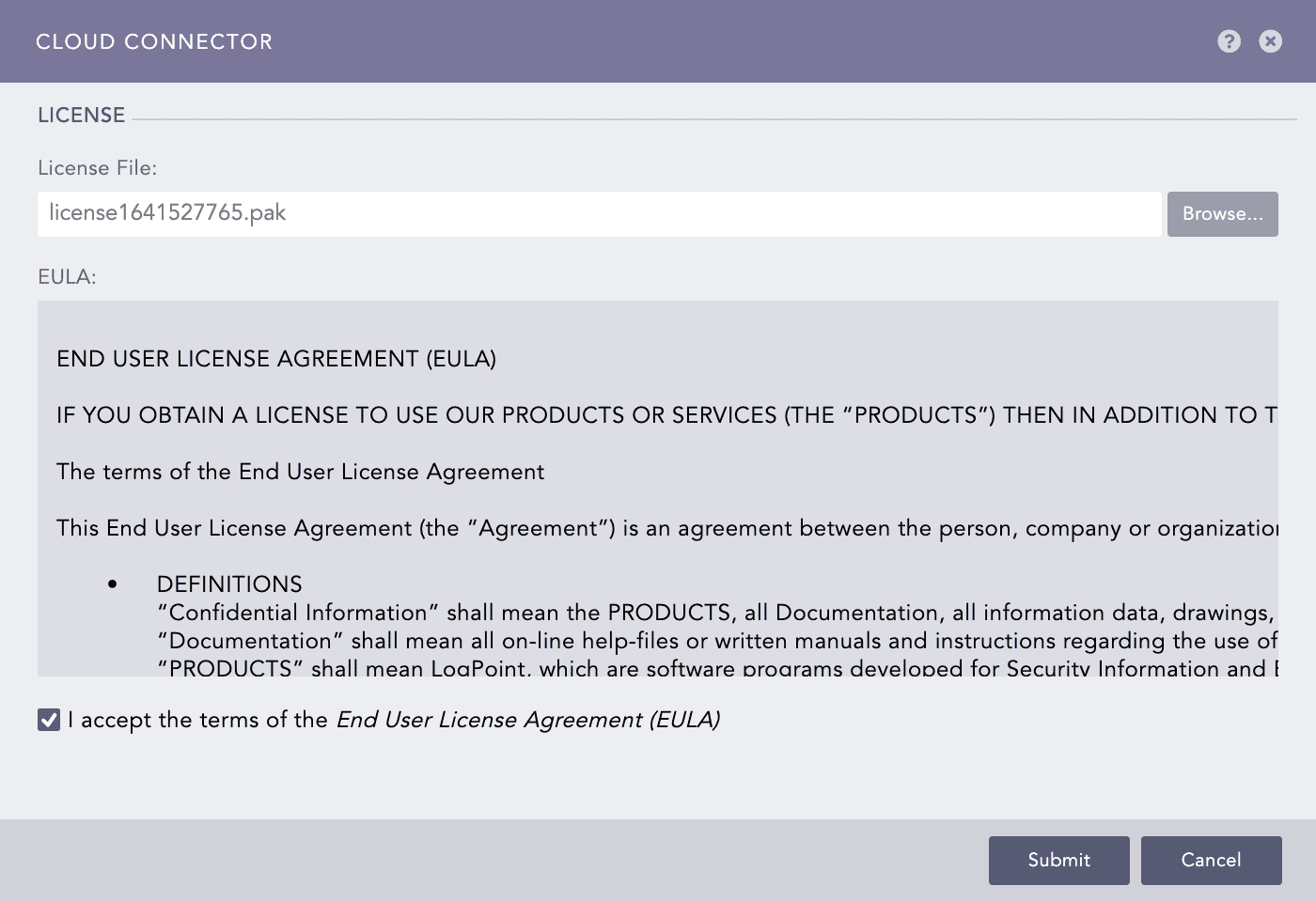
Uploading License
Note
You can follow the same steps if you want to replace an existing license with a new one.
Status: It indicates if Cloud Connector can connect with Logpoint Saas or not.
Enabled: Logpoint Cloud Connector can connect with Logpoint SaaS’s data ingestion endpoint to forward logs.
Disabled: A connection between Logpoint Cloud Connector and Logpoint SaaS’s data ingestion endpoint isn’t possible. No logs can be forwarded.
Default connection between Logpoint SaaS’s and Cloud Connector is Disabled. To change the status, use the Enable or Disable buttons. A confirmation pop-up will validate the change.
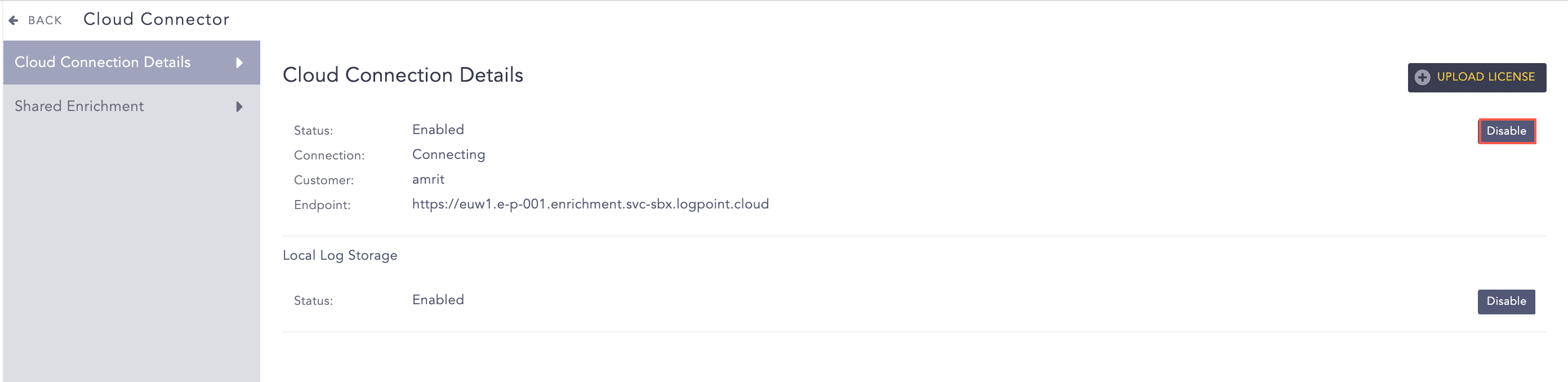
Cloud Connection Details
Connection: It displays the connection status between Cloud Connector and the Logpoint SaaS.
Not Enabled: Won’t forward logs.
Connecting: Establishing a connection with Logpoint SaaS’s data ingestion endpoint.
Connected: Is successfully connected to Logpoint SaaS’s data ingestion endpoint.
- Not Connected: Network errors are preventing a connection to the Logpoint SaaS’s data ingestion endpoint. The Network error could be:
Cannot reach the server <server name>: The Logpoint SaaS’s data ingestion endpoint server is not reachable.
Invalid Certificate: The request could not be authenticated.
Service Unavailable: The server failed to fulfill a request.
Internal Error: Issues with internal network sockets or issues with error codes other than 2xx, 4xx, and 5xx.
<Exception Name>: Issues other than those listed above.
Customer: Name of the customer associated with the license.
Endpoint: Data ingestion URL of the Logpoint SaaS.
Status: It indicates if the logs are stored on the on-premise disk or not.
Enabled: Logs are actively stored in the on-premise disk storage.
Disabled: Logs are not stored in the on-premise disk storage.
Default log storage status for on-premise Logpoint is Enabled. To change the status, use the Enable or Disable buttons. A confirmation pop-up will validate the change.
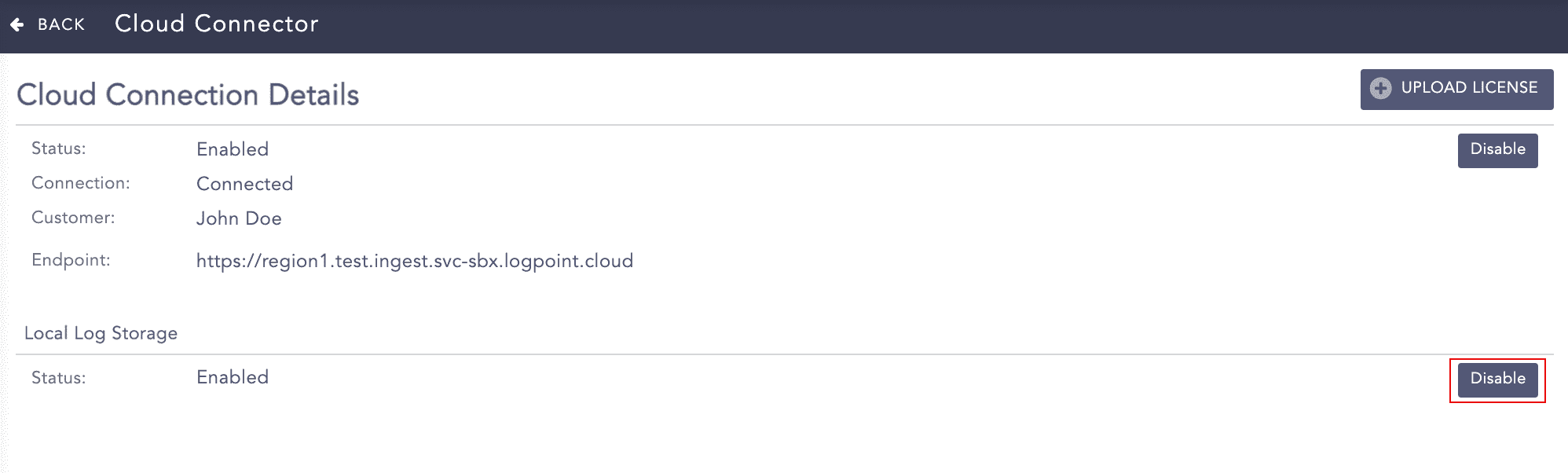
Local Log Storage
Note
Disable local log storage in the configuration of Cloud Connector for a freshly installed Cloud Connector Appliance. This is important to make sure that Cloud Connector Appliance does not run out of disk space.
To successfully forward logs, the Repo configuration must be the same for the Logpoint SaaS and the on-premise Logpoint. For more details, go to Repos.