Logpoint Director enables you to configure the Fabric Network, Fabric Storage, and the Fabric Authenticator settings in LPSM. You must configure the settings sequentially to set up LPSM in the Logpoint Director setup.
Warning
The Logpoint Director setup does not work if Fabric Network, Fabric Storage, and Fabric Authenticator is not configured.
Fabric Network allows LPSM and Logpoint to operate in the Director setup in an isolated and secure environment. To enable the Fabric Connect option for a regular Logpoint, the Fabric Network must be established in the LPSM.
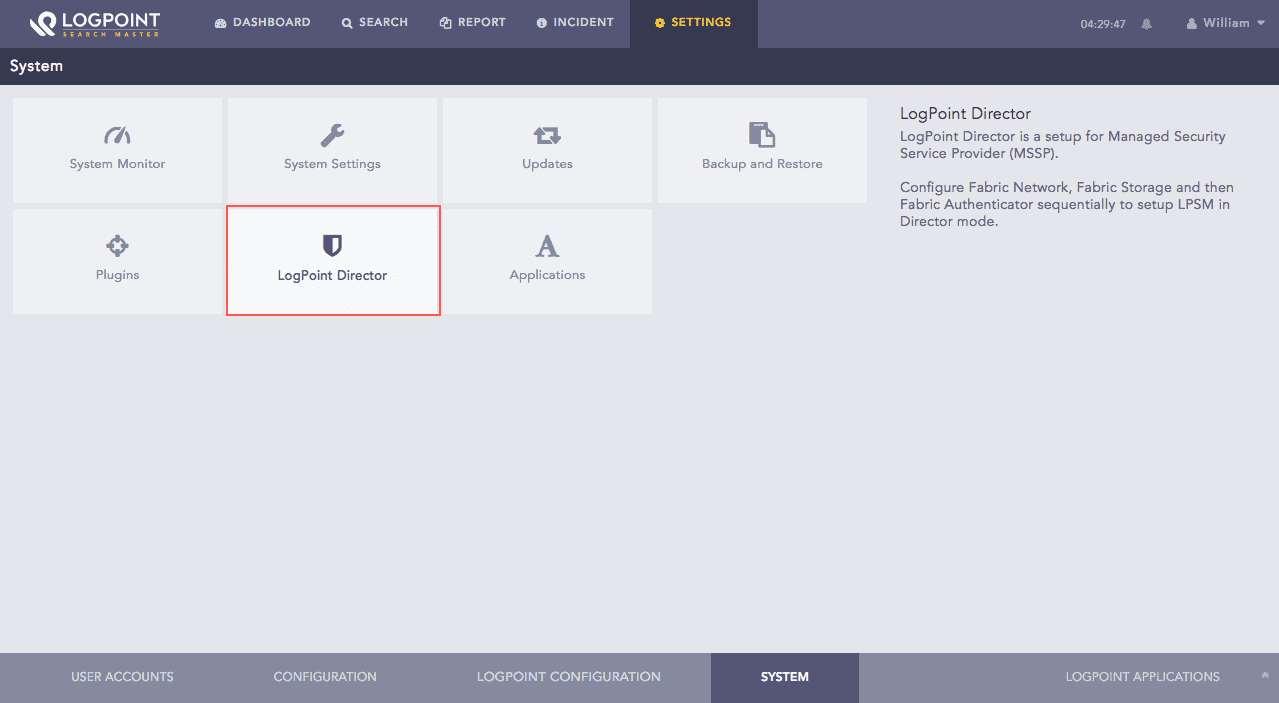
Go to Settings >> System from the navigation bar and click Logpoint Director.
Logpoint Director Settings
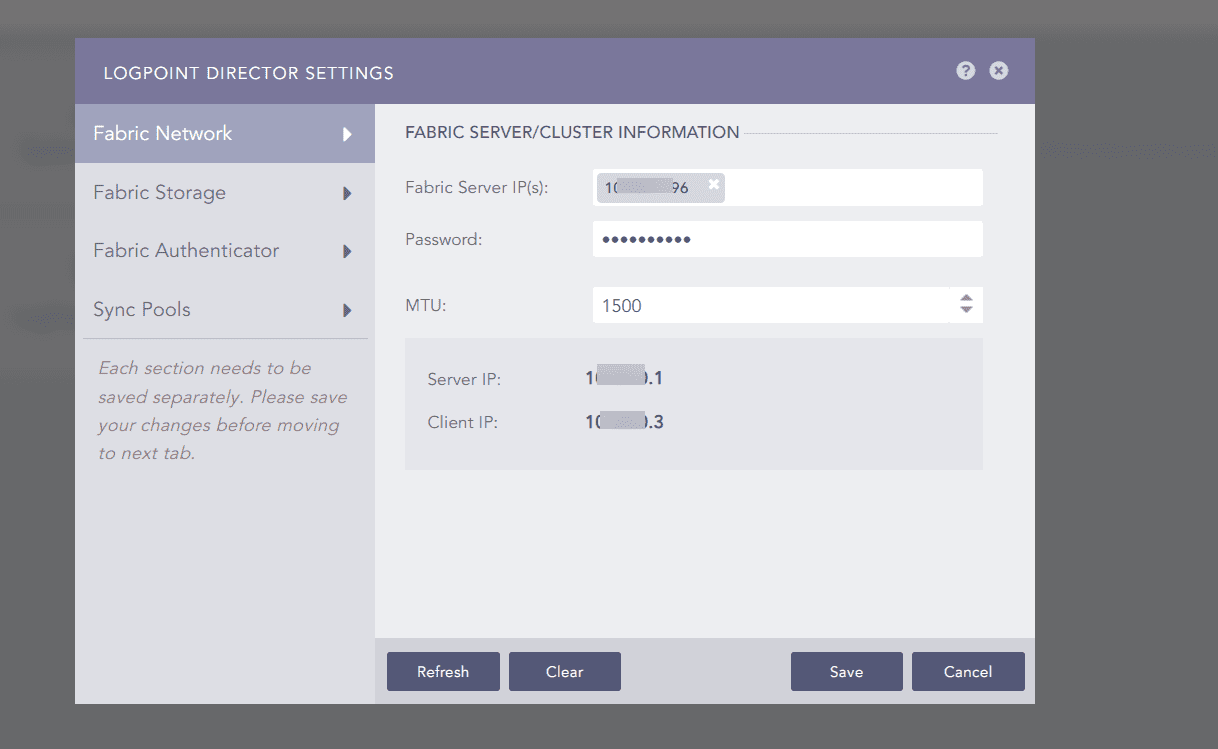
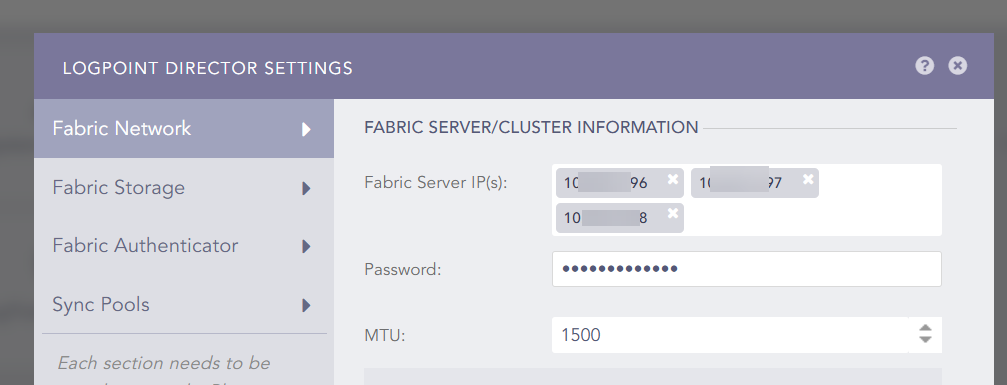
Enter the Fabric Server IP(s) in the Fabric Network tab.
The Standalone Fabric Server consists of a single Fabric Server IP address. You can access the Fabric Network using the Fabric Server IP address.
The Cluster Fabric Server consists of 3, 5, or 7 Fabric Server IP addresses. You can access the Fabric Network using any one or all of the Fabric Server IP addresses.
For the correct Director setup, at least two Fabric Servers must be up and running in the Cluster mode for three servers. Similarly, in the Cluster mode for five servers, at least three Fabric Servers must be up and running.
To make the Fabric Network publicly accessible, you must configure the public IP addresses from the Fabric Server. For details, see Configuring Public IP for the Fabric Server.
Change the vpn client password and fill it in the Password field.
Enter the Maximum Transmissions Unit MTU in bytes. All the packets transferred from the LPSM to other components of the Director setup are chunked into the size of the specified MTU.
The default value of the MTU is 1500.
You can enter any MTU value between 1250 and 65535 as your network requirements.
To maintain a consistent flow of the packets inside the network, you must set the same MTU throughout all Director components.
Click Save. The system begins to fetch the tunnel IP(s) from the specified Fabric Server(s). Once the Fabric Network is established, the system successfully fetches the Server IP(s) and the Client IP.
Fetched Server and Client IP for Standalone Fabric Server Mode
Fetched Client and Server IP for Cluster Fabric Server Mode
Here, the server IP 10.xxxx.1 is the Active Fabric Network Server as the client-server IP 10.xxx.0.2 is obtained from it. The remaining server IPs 10.xxxx.1 and 10.xxx.1 are Standby Fabric Network Servers in the cluster.
If the Fabric Network fails to establish,
5.1 Click Refresh to re-poll the configuration status of Fabric Server.
5.2 Click Clear to stop and delete all the services running on the currently configured Fabric Network and click Yes.
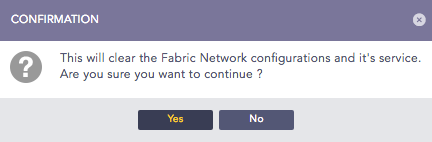
Confirmation Dialog Box
After configuring the Fabric Network separately in both the regular Logpoint and the LPSM, a secure communication pathway is established among the Logpoints, the Fabric Server(s), and the LPSM.
Fabric Storage is a placeholder for granting authentication and allowing the LPSM to access the Distributed File Systems. Fabric Storage has to be configured before configuring other sections.
Warning
The Logpoint Director setup does not work if the Fabric Storage is not configured after the configuration step of Fabric Network.
To check if the Fabric Storage has been configured:
Go to Settings >> System from the navigation bar and click Logpoint Director.
Select Fabric Storage. If it shows Configuring status, wait until the Status field is displayed.
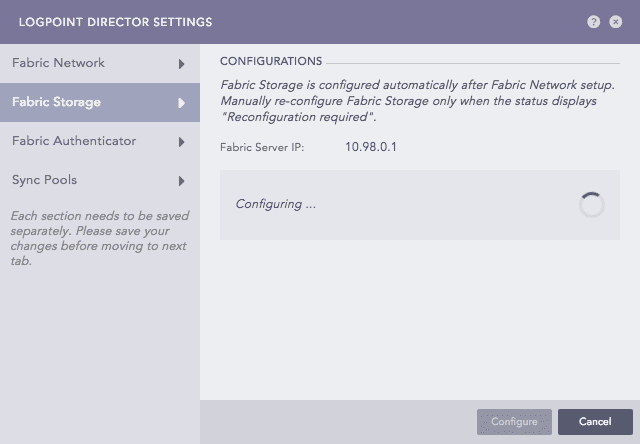
Configuring Fabric Storage
If the Fabric Storage is correctly configured, the Configured status is displayed.
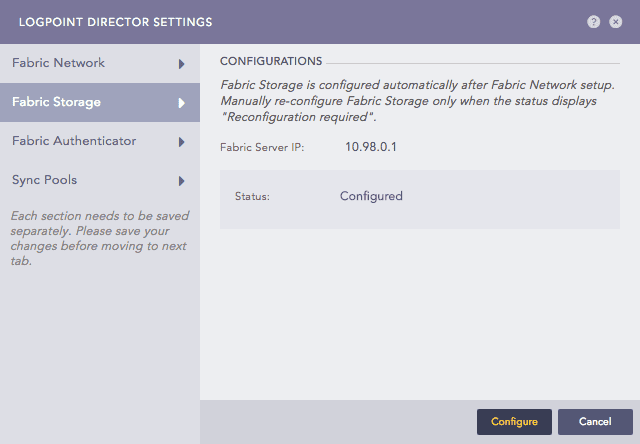
Fabric Storage Configured
Displayed above is the Fabric Server IP, which is the active Fabric Proxy. Fabric Proxy is a co-ordinated service used for data and configuration management in the Logpoint Director setup. It allows the distributed processes of the Director setup to coordinate with each other using a standard file system.
If the configuration for Fabric Storage is not successful, the Reconfiguration required status is displayed.
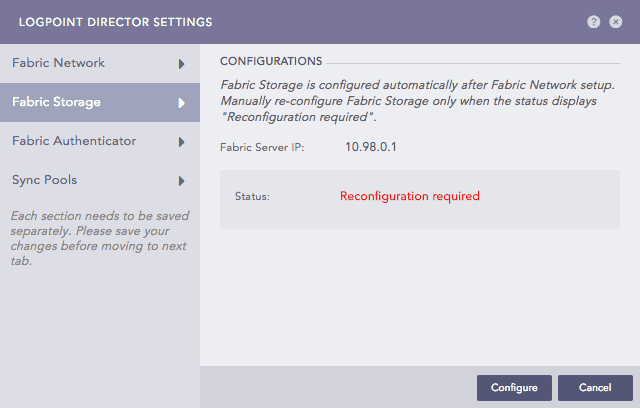
Reconfiguration required for Fabric Storage
Click Configure. The action configures the LPSM to the Fabric Cluster or the Fabric Server.
Warning
The Logpoint Director setup does not work if Fabric Storage is not configured.
The Fabric Authenticator needs to be authenticated to access the Distributed File Systems located in the Fabric Storage. It ensures that only the authenticated and authorized users are allowed to access the files hosted on the Fabric Storage.
The Fabric Authenticator is similar to a login page where the uploaded files and patches retained in the Fabric Storage can be accessed. The default credentials are:
user: hdfs/admin
password: Welcome@123
The default password can be changed using the change-fabric-authpwd command available to cmdr-admin users. The command is exposed only in the API Server. The same default or changed credential should be provided here.
To configure Fabric Authenticator:
Go to Settings >> System from the navigation bar and click Logpoint Director.
Select Fabric Authenticator.
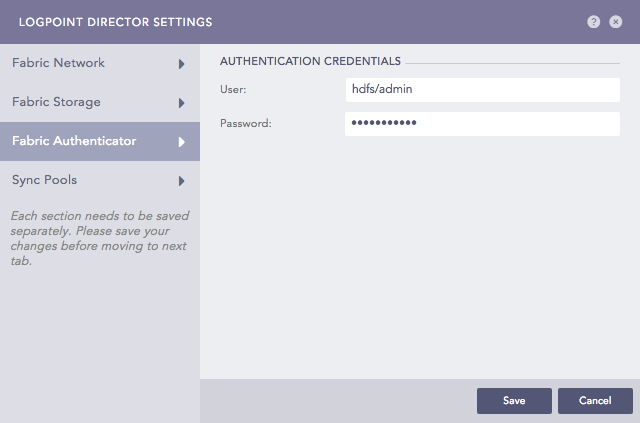
Fabric Authenticator
Click Save.
After setting up the Fabric Network, Fabric Storage, and Fabric Authenticator sequentially, you can create the Logpoint Pools. The LPSM users can then subscribe to the Logpoints for Dashboard, Report, and Incident and carry out the search operation in the Fabric-enabled Logpoint instances.
LPSM stores all the updated pool information and credentials. The pool information comprises of the pool (UUID), the credentials of Fabric Authenticator, Fabric Proxy nodes, and Fabric Storage folders.
Sync Pool restores the pool information when the connection between the Fabric server and LPSM is disrupted. You must sync pools in the following cases:
When the LPSM crashes or is down. Refer to the Sync from Fabric Proxy section for more details.
When the Fabric Server crashes or is down. Refer to the Sync to Fabric Proxy section for more details.
Note
If a Fabric-enabled Logpoint crashes, you need a configuration backup to restore the data. For details, refer to the Backup and Restore guide.
LPSM displays a notification in the Notification Center to sync Logpoint Pools whenever required. Go to Settings >> System >> Logpoint Director and click Sync Pools to restore the pool information.
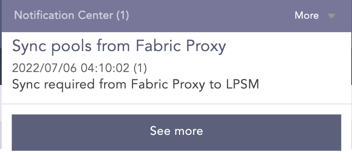
Sync Pools
Note
You must manually clear out the notification message after restoring the pool information.
If LPSM is unavailable, is down, or crashes, the latest pool information can be recovered by importing the updated data from Fabric Proxy. The following occurs while syncing data from Fabric Proxy:
Recovery of LPSM is dependent on the state of the Fabric Server.
The new LPSM server is installed.
The sync only restores the pool information.
To restore data from Fabric Proxy:
Go to Settings >> System from the navigation bar and click Logpoint Director.
Select Sync Pools.
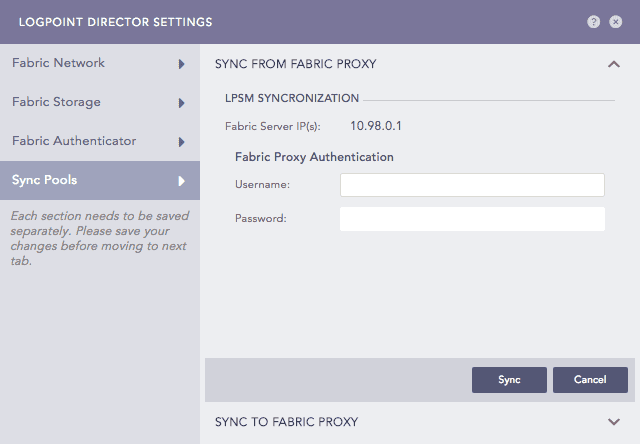
Sync Pools
Select the Sync from Fabric Proxy section. The LPSM Synchronization displays the IP(s) of the connected Standalone or Cluster Fabric Servers.
Enter the Username and the Password of the Fabric Proxy Authentication.
user: zkacl
password: Welcome@123
The default password can be changed using the command
change-fabric-proxyaclavailable to cmdr-admin users. The command is exposed only in the API Server.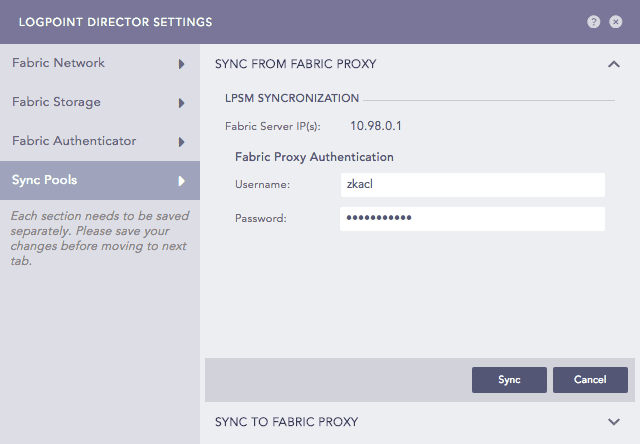
Fabric Proxy Authentication
If the Fabric Proxy crashes or if there is a loss of data (pool information) in the Fabric Proxy, the Sync to Fabric Proxy option can be used to sync the pool information present in LPSM to Fabric Proxy.
Note
Sync to Fabric Proxy only restores the pool information from the LPSM.
To restore the information of the Fabric-enabled Logpoints, each Fabric-enabled Logpoint must be synced with the Fabric Server individually. Refer to the Sync from Fabric-enabled Logpoint section for details.
To restore data to Fabric Proxy:
Go to Settings >> System from the navigation bar and click Logpoint Director.
Select Sync Pools.
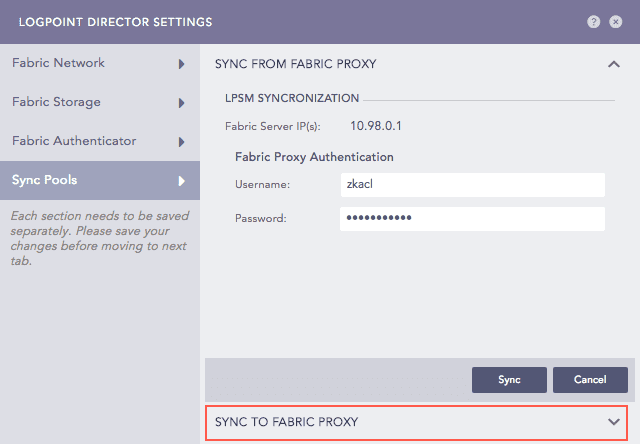
Sync to Fabric Proxy
Select Sync to Fabric Proxy. The Fabric Proxy Synchronization displays the IP(s) of the connected Standalone or Cluster Fabric Servers.
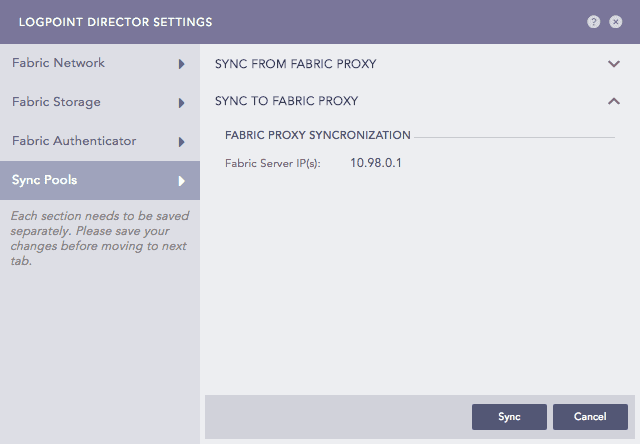
Sync to Fabric Proxy
Click Sync.
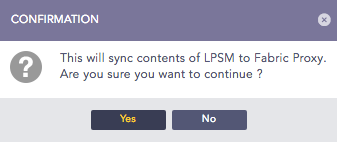
Sync LPSM to Fabric Proxy Dialog Box
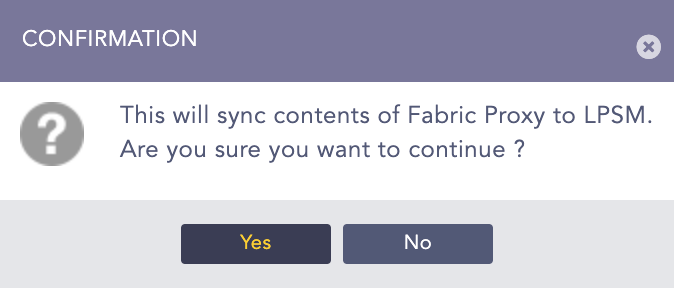
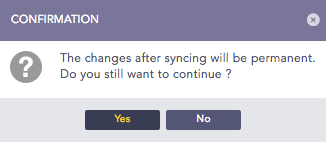
Click Yes. Another confirmation dialog box appears, warning that the syncing is permanent. Proceed with caution.
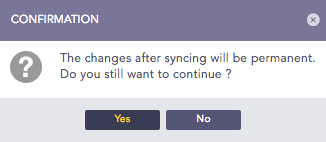
Confirmation Dialog Box
Click Yes.
Once Fabric Connect is enabled in a regular Logpoint, it is referred to as Fabric-enabled Logpoint. Also, certain features and functionalities are disabled from the user interface. Those functionalities, however, are accessible via API Exposed Applications. Refer to the API Exposed Applications section for details about the applications exposed to the API.