AgentX Analytics

AgentX Dashboards

LP_AgentX - Agents Overview

This dashboard consists of the following widgets.

Widget Name

Description

OS Distribution

Various operating systems, including but not limited to Linux distributions such as Ubuntu, Debian, CentOS and Fedora, Unix-based systems like FreeBSD, OpenBSD and Solaris, and Windows operating systems such as Windows Server and Windows 10, implemented in AgentX to extend the functionality of SNMP (Simple Network Management Protocol) agents. It helps administrators choose the operating system distribution depending on factors such as compatibility with existing infrastructure, the familiarity of system administrators with the operating system and specific network environment requirements.

Active Agents

Count of active agents or SNMP subagents that ran alongside the main SNMP agent and handled specific management tasks delegated to them. It helps administrators analyze the distributed architecture of main SNMP and active agents for more scalable and modular management of network devices.

AgentX Manager

The total number of Managers who act as intermediaries between the management system and the SNMP agents and the total number of its associated agents.

Most Active Ports

The ports that experienced the highest activity level, typically in network traffic. It helps administrators monitor network performance, identify potential bottlenecks and troubleshoot network issues.

Top Processes

The top used processes that consumed the most system resources, such as CPU, memory, or network bandwidth. Monitoring them can provide insights into the device’s overall health and performance.

Top Connections

The top network connections to SNMP agents or subagents from remote addresses based on device IP, remote port, remote address and query counter. It helps administrators analyze active connections, such as source and destination IP addresses, ports, protocol types, connection status and traffic statistics.

OSQuery- Drives

Drive information of SNMP agents or subagents based on host, description, drive, free space and total space. It helps administrators manage inventory, monitor drive health and usage statistics and optimize performance.

OSQuery - System Uptime

The duration in hh:mm:ss format during which SNMP agents or subagents continuously operated a computer system. It helps administrators with system stability, maintenance and performance analysis details.

Security Patch History

Security patches applied to agents by a user to fix security vulnerabilities or weaknesses within a computer system. It helps administrators understand the state of the system’s security posture and determine whether the system is vulnerable to known exploits.

Memory usage (MB) of scheduled queries

Amount of memory consumed in MB by the scheduled queries module or component within the SNMP agent or subagent. It helps administrators track resource utilization and ensure the system has sufficient memory to handle scheduled queries effectively without impacting overall system performance.

CPU time usage of scheduled queries

CPU time consumed by the top ten scheduled queries module or component within the SNMP agent or subagent. Monitoring the CPU time usage ensures that the SNMP agent or subagent does not consume excessive CPU resources, which could impact the system’s overall performance.

LP_AgentX - Endpoints Compliance - PCI DSS

This dashboard consists of the following Payment Card Industry Data Security Standard (PCI DSS) widgets.

Widget Name

Description

PCI DSS - High Severity Triggers

Triggered alert rules with a higher severity level at the top based on rule trigger ID, rule description, PCI DSS and rule group.

Top 24h - Groups

Triggered rule groups of alert rules that support PCI DSS compliance.

Top 24h - PCI DSS Requirements

PCI DSS requirement or sub-requirements number of triggered alert rules based on the most critical compliance violations related to PCI DSS requirements observed within the past 24 hours.

Top 24h - Rule Level (Severity)

Severity level of triggered alert rules which support PCI DSS compliance.

Top 24h - Rule Description

Descriptions of triggered alert rules which support PCI DSS compliance.

Requirements by Agents

All the agents triggering alert rules with PCI DSS support.

Recent Triggers

All the recently PCI DSS supported alerts triggered on different agents based on the event timestamp, agent, PCI DSS, rule description and severity.

LP_AgentX - Endpoints NIST Compliance

This dashboard consists of the following widgets.

Widget Name

Description

Top 24h -Rule Description

Description of NIST compliance-supported alert rules triggered within the past 24 hours. It provides detailed information about what the rule entails, why it is essential, how it should be implemented and any specific considerations or recommendations.

Top 24 hr - Groups

Triggered alert rules group that support NIST compliance. Administrators can leverage rule groups to facilitate visibility, tracking and reporting compliance status and progress within different areas or domains of cybersecurity compliance.

Top 24h - NIST 800_53 Controls

NIST 800_53 Controls list when corresponding alert rules are triggered on agents. It helps administrators better manage and prioritize their compliance efforts, ensure comprehensive coverage of NIST cybersecurity standards and enhance the security posture of their information systems.

24h - Highest Rule Level (Severity)

Rule level of triggered NIST 800_53 compliance alert rules, listed in descending severity order.

NIST 800_53 - High Severity Triggers

Triggered alert rules overview with Critical rules at the top based on rule trigger ID, rule description, rule group, NIST 800_53 and severity. Triggered alert rules support NIST 800_53 compliance.

NIST 800_53 Controls by Agents

All the agents with NIST 800_53 support.

Recent Triggers

All the recently triggered alerts with NIST 800_53 support triggered on different agents based on the event received timestamp, agent, NIST 800_53, rule description and rule level.

LP_AgentX - File Integrity Management

This dashboard consists of the following File Integrity Management (FIM) widgets.

Widget Name

Description

Triggers by action over time

Occurrences of each action performed on FIM event source that triggered an alert. It allows administrators to define specific actions or responses to be triggered when certain changes occur within a specified timeframe.

Triggers Summary

FIM-generated alert overview on different agents based on log timestamp, agent, path, label and change attribute.

Top 10 Attacks by Agent

The top ten security attacks or incidents related to FIM on different agents or endpoints within a network. It helps administrators respond quickly and effectively to security incidents, mitigate risks and enhance security posture.

Top 10 Files added

The top ten files added with details such as the agent name, file path and hash. It helps administrators ensure file integrity to prevent data breaches and maintain compliance with regulatory requirements.

Top 10 Files Modified

The top ten files modified with details such as the file path, agent name, hash info and modification time upon file modification in an agent. Modification can be due to software updates, configuration changes and user activity.

Top 10 Files Deleted

The top ten files deleted with details such as the agent name, file path and hash of file occurred on agents upon file deletion. The files can be deleted due to user error, storage management and data retention policies.

Frequently Changed Attributes

Properties of files that undergo frequent changes. These attributes or properties can include metadata associated with files, such as file permissions, timestamps (creation time and modification time), file size, ownership and checksums.

Top 10 Rules Triggered

The top ten predefined rules or policies triggered in response to detected file integrity events or anomalies. These rules are configured to specify actions to be taken when certain conditions or criteria are met.

Top 10 Registry Modified

The top ten changes made to the Windows Registry on a system based on the agent name, path old hash and new hash value. It helps administrators detect and respond to various security threats, including malware infections, unauthorized system changes, privilege escalation attempts and configuration drift.

Top 10 Registry Added

The top ten new registries added based on the agent name, registry path and hash.

Top 10 Registry Deleted

The top ten registries deleted based on the agent name, registry path and hash. Sudden or unauthorized deletions of registry keys or values can indicate malware infections, unauthorized system changes, or other security threats that must be investigated and remediated promptly.

TI Hash Matches

The hash value of a file or object observed within a system matched a hash value listed in a Threat Intelligence (TI) database. It indicates that the file or object is associated with a known threat, malware variant, or suspicious activity.

LP_AgentX - Rule Triggers Overview

This dashboard consists of the following widgets.

Widget Name

Description

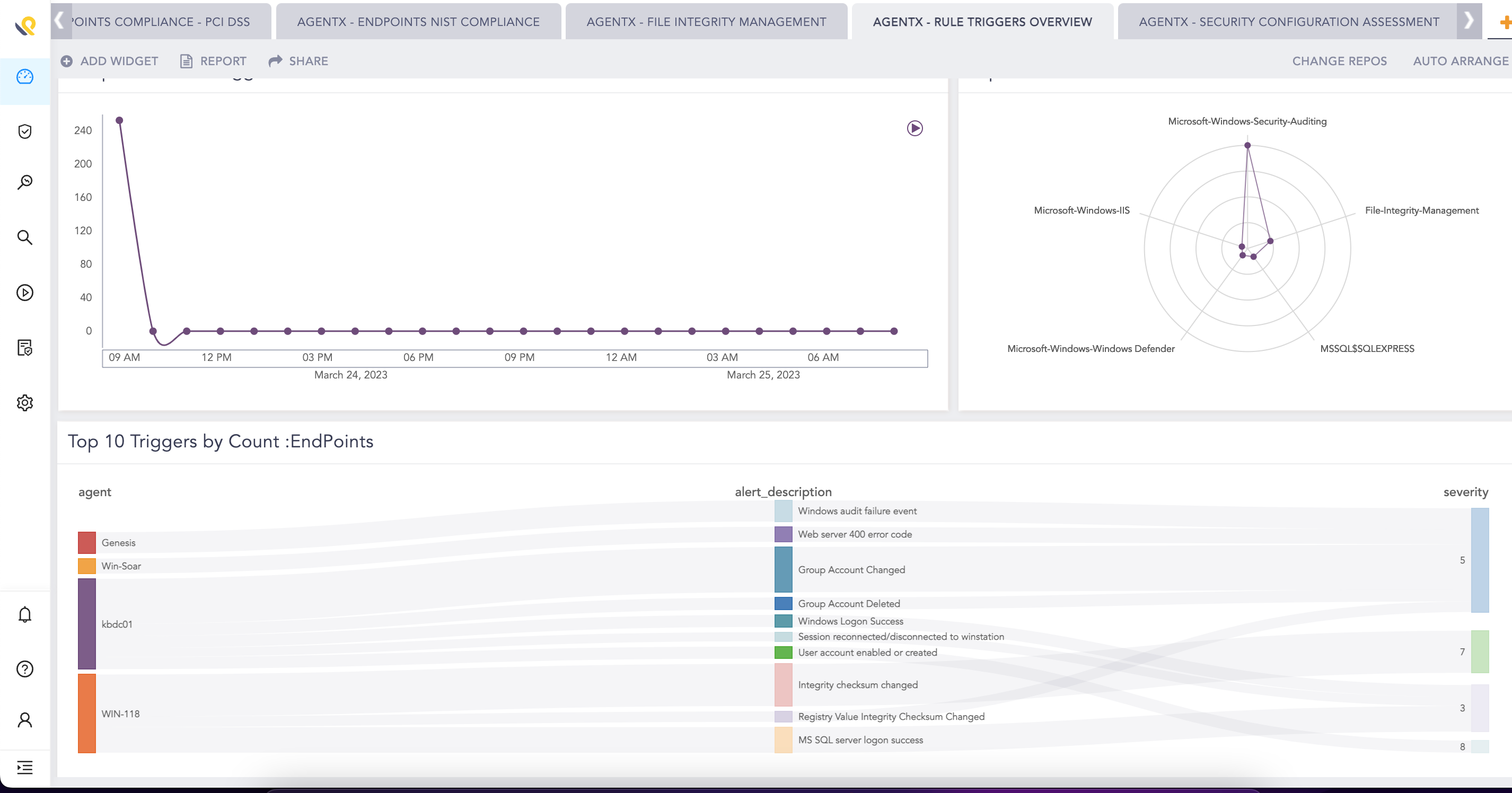
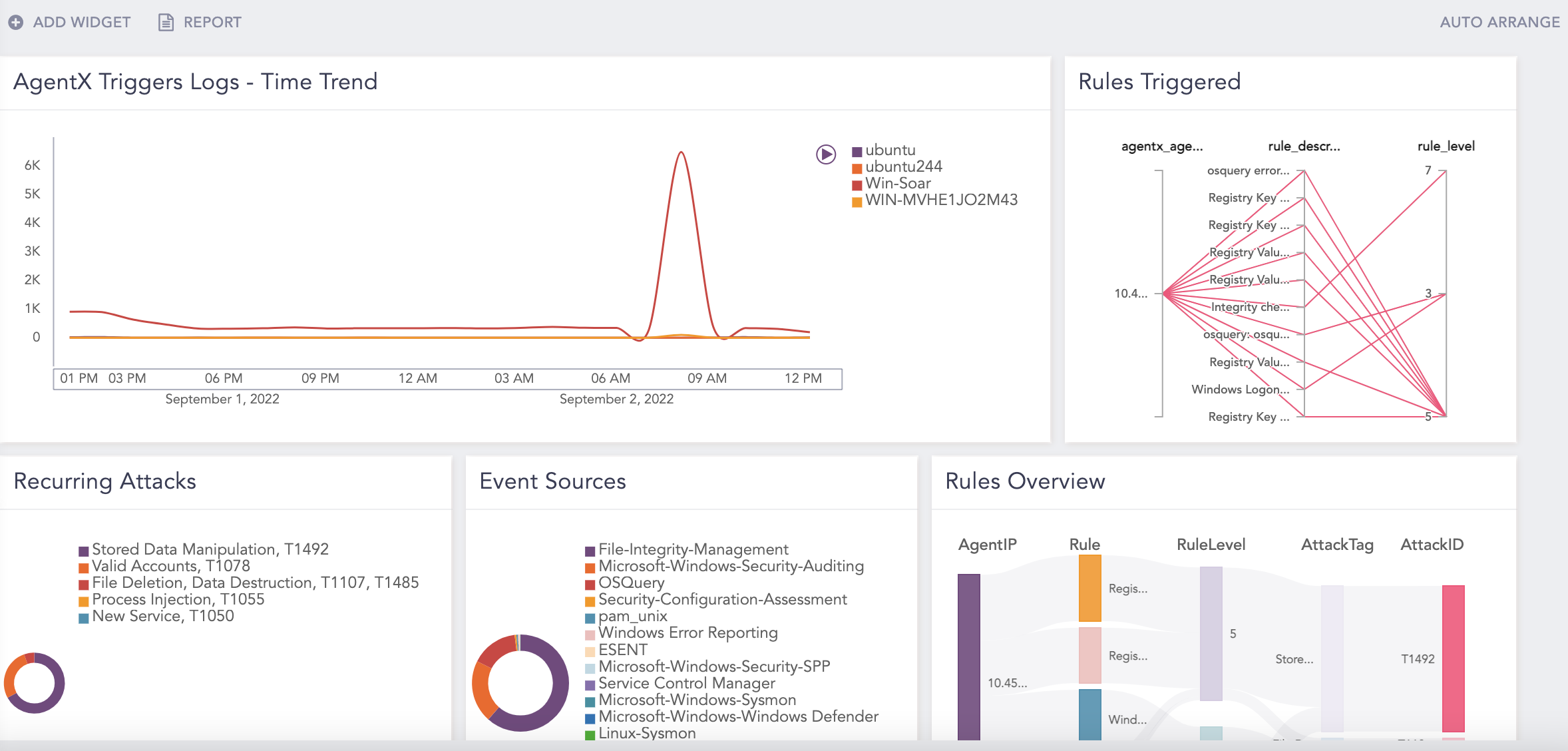
Endpoints Alerts Triggered - Time Trend

Incidents pattern in time chart view when triggered from endpoints. It helps administrators identify trends, spikes, or patterns in endpoint alert activity to identify emerging threats and prioritize incident response efforts.

Top 10 active triggering Endpoints

The top ten endpoints in decreasing order that actively triggered alerts based on predefined rules or conditions set up in the AgentX File Integrity Management (FIM) system. It helps administrators identify potential security threats, assess the scope and impact of security incidents and prioritize incident response efforts.

Top 10 Triggers by Count :EndPoints

The top ten alerts triggered hourly in the different endpoints based on agent, alert description and severity. It provides insights into which endpoints are most actively involved in triggering security alerts or events, indicating potential security threats, anomalies, or suspicious activities.

Mitre Attack Vector: Endpoints

Security incidents or events based on the MITRE ATT&CK framework’s attack vectors, focusing on endpoint-related attack vectors. It helps administrators understand the tactics and techniques employed by adversaries, understand the threat landscape and prioritize security controls and defenses.

Top 10 Possible Inbound Attack Sources

The top ten event sources that triggered rules designed to detect or prevent attacks on AgentX.

Top 10 Event Sources

The top ten event sources that generated the most security alerts, helps identify potential areas of concern or focus for further investigation and remediation.

Top 10 Recurring Attack

The top ten attacks that occurred repeatedly or with regular frequency, helps understand the threat landscape, assessing the effectiveness of security controls and prioritizing incident response efforts.

Top 10 Log Location

The top ten directories or paths where log files generated by the AgentX or related components were stored. Log files are essential for recording events, activities and errors and are useful for troubleshooting, monitoring and auditing purposes.

High Severity Triggers: EndPoints

The top ten alert rules triggered on endpoint with severity greater than 6 to highlight critical security incidents that may require immediate attention or investigation.

LP_AgentX - Security Configuration Assessment

This dashboard consists of the following widgets.

Widget Name

Description

Host Scan Summary

The results obtained from scanning or assessing the security configuration of hosts based on the latest scan completed, broken down by agent, scan type and time interval.

CIS Benchmark for Windows

The compliance status of Windows systems against the Center for Internet Security (CIS) Benchmark for Windows audit policy by presenting the count of compliance check results, such as pass, fail, or warning.

Failed Benchmarks

The failed benchmark on different agent and their underlying operating system.

Scan Summary

Summary obtained from the security configuration scans performed based on start timestamp, end timestamp, policy, pass count, fail count, invalid count, policy file, scan score and total count.

Benchmark Summary

The summarized benchmark information performed on agents based on agent, trigger ID, rationale, remediation, description, check result, check rule, condition, severity, PCI DSS, CIS Critical Security Controls, CIS and Trust Service Criteria.

Adding AgentX Dashboards

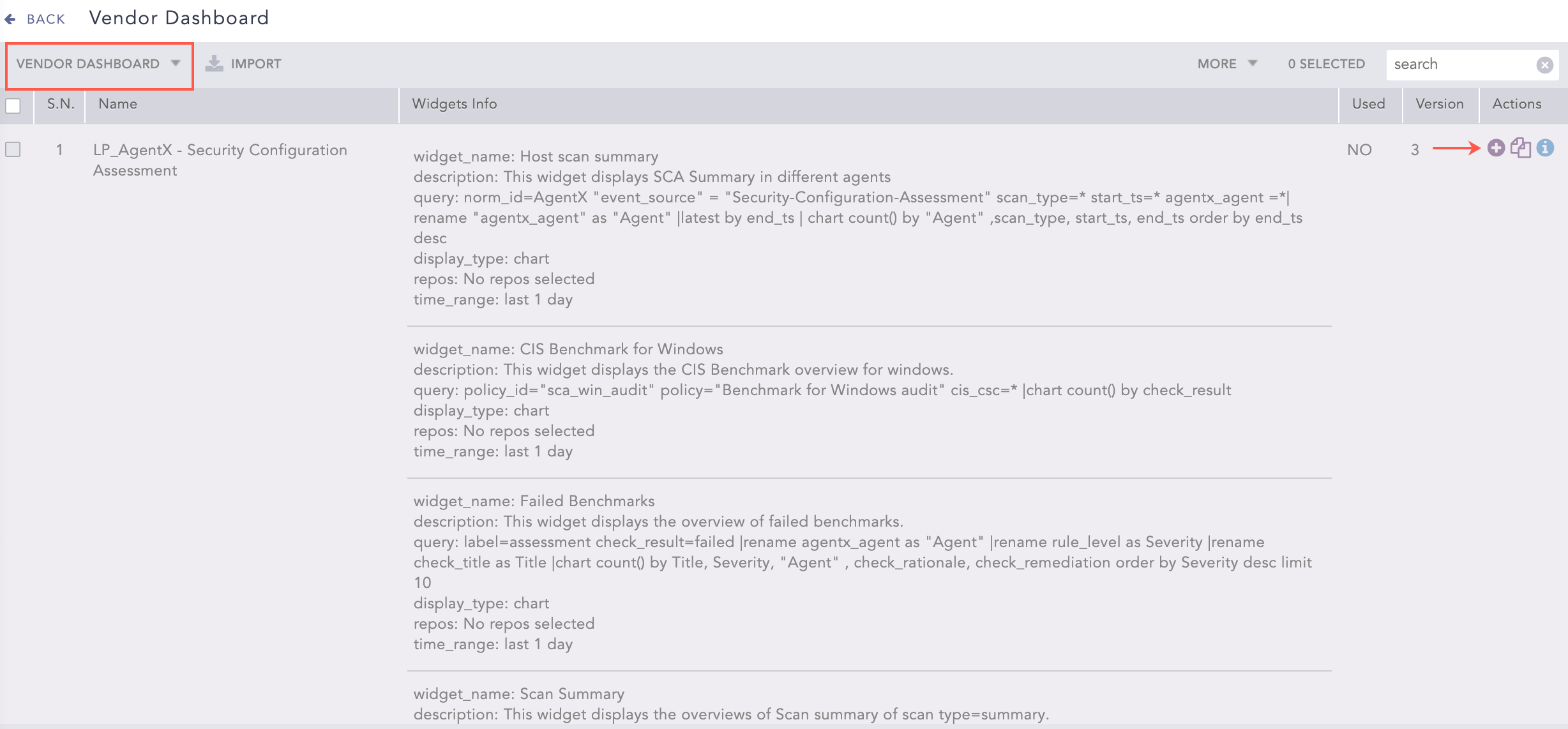
  1. Go to Settings >> Knowledge Base from the navigation bar and click Dashboards.

  2. Select Vendor Dashboard from the drop-down.

  3. Click the Use (add) icon from Actions.

_images/agent_dasboards_add.png

Adding the AgentX Dashboard

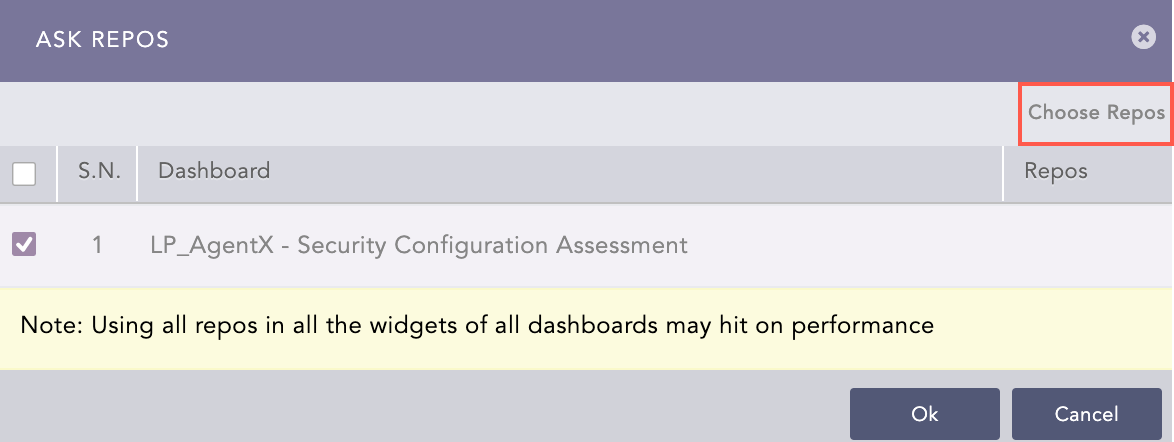
  1. Click Choose Repos.

_images/agent_dasboards_choose_repos.png

Selecting Repos

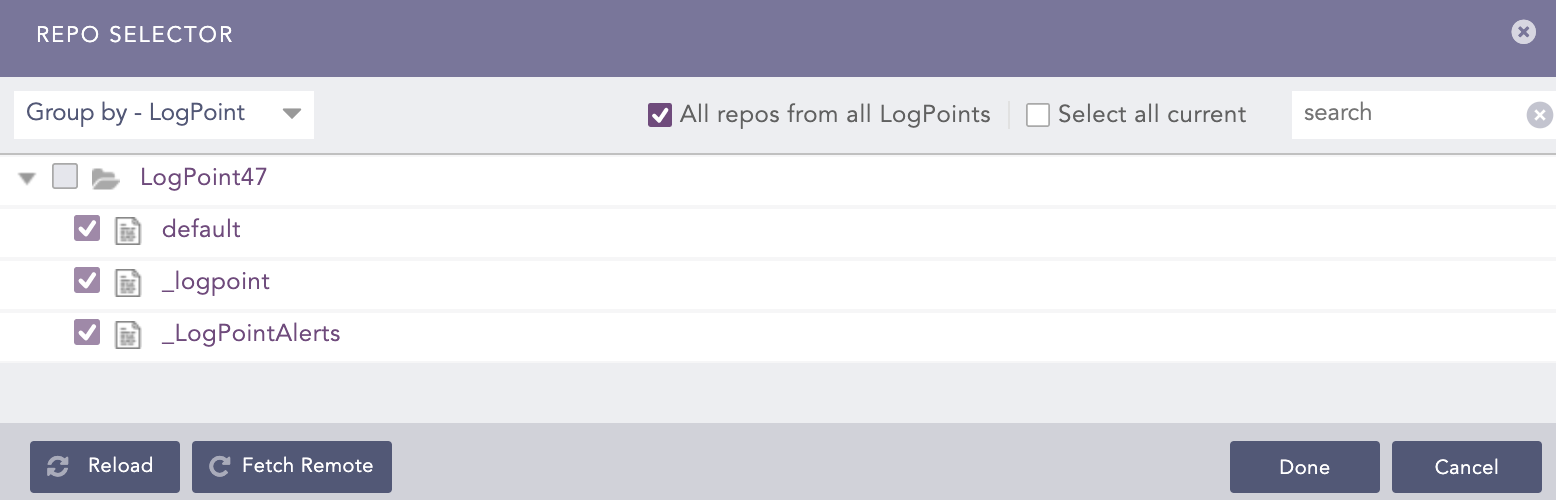
  1. Select the repo configured to store the AgentX logs and click Done.

_images/agent_dasboards_repo_selector.png

Selecting Repos

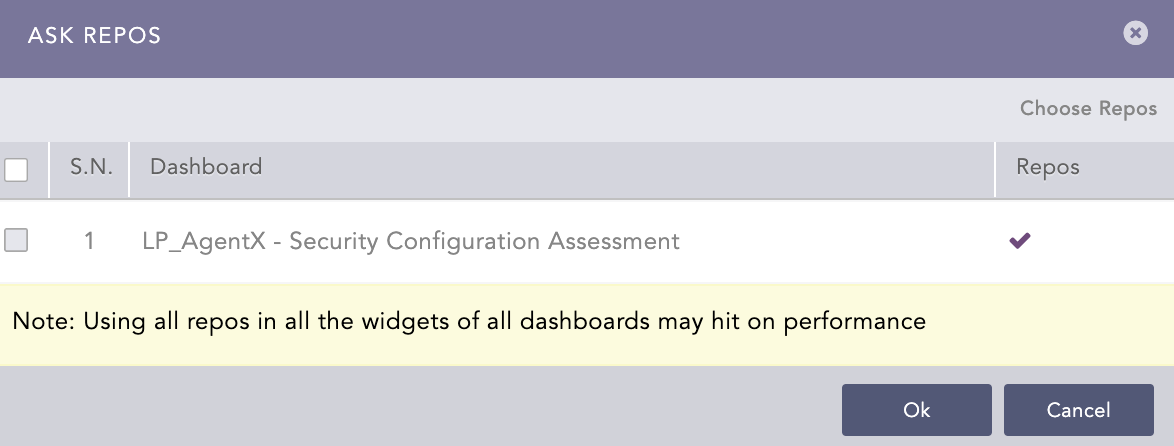
  1. Select the dashboard in Ask Repos and click Ok.

_images/agent_dasboards_choose_repos_ok.png

Confirmation for Repo

Dashboards now includes those you selected.

_images/dashboard1.png

AgentX Dashboard

AgentX Search Templates

Viewing the AgentX Search Templates

  1. Go to Search Templates from the navigation bar.

  2. Select VENDOR SEARCH TEMPLATES from the drop-down.

  3. Click the clone icon from Actions.

_images/agent_searchtemplates_view3.png

Cloning LP_AgentX Search Template

Logpoint forwards you to MY SEARCH TEMPLATE.

  1. Click LP_AgentX.

_images/agent_searchtemplates_view.png

Selecting LP_AgentX Search Template

Logpoint forwards you to Search Template View to access the dashboards of the search template.

_images/agentsearchtemplate.png

LP_AgentX Search Template

AgentX Playbooks

AgentX consists of playbooks for automated investigation, orchestration and incident response across agents. You can download the Playbooks .zip file from the Help Center and import it on SOAR for incident response and workflows.

Active Response Playbooks of AgentX

1. Logpoint AgentX Ip-Block

This playbook blocks or unblocks specific IP address in agent or host.

Use Case

Automated Response

Dependencies

Supported On

Windows

Sub Playbook

  • Wait-until-Seconds

Integrations

  • AgentX-get-access-token

  • AgentX-get-info-from-hostname

  • AgentX-Block-IP

Playbook Process
  1. Check if hostname, add or delete, IP address to block or unblock exists. Else, exit with proper case.

  2. Get access token.

  3. Get information such as os-information and agent-id from provided agent hostname.

  4. Block or Unblock IP on specified host.

  5. Wait for 30 sec.

  6. Query for failure or successful ip block or unblock while creating corresponding case-item.

Playbook Parameters

Input Parameters:

Name

Description

Type

Host Name

Hostname of the agent

String

IP address to block or unblock

IP address to block or unblock

Ipv4

Add or Delete

Add or delete the rule to block that specific address. Expected values: Add or Delete

String

Output Parameters:

Name

Description

Type

Status

Status whether the intended action (block or unblock) was successful or not. Expected values: Failure or Successful

String

2. Logpoint AgentX Process Dump

The Logpoint AgentX Process Dump playbook dumps all the running processes on the agent.

Use Case

Automated Investigation

Dependencies

Supported On

  • Windows

  • Linux

Sub Playbooks

  • Wait-until-Seconds

  • Logpoint AgentX Process Dump

Integrations

  • AgentX-get-access-token

  • AgentX-get-info-from-hostname

  • AgentX-process-dump

Playbook Process
  1. Get access token.

  2. Get information such as os-information and agent-id from provided agent hostname.

  3. Run process-dump action on endpoint.

  4. Wait for 30 sec.

  5. Query for failure or successful execution on the intended action on endpoint and create case item with relevant information.

Playbook Parameters

Input Parameters:

Name

Description

Type

Host Name

Hostname of the agent

String

Output Parameters:

Name

Description

Type

Process_tree

Process tree of all running processes on agent

String

3. Logpoint AgentX Isolate-Unisolate Host

The Logpoint AgentX Isolate-Unisolate playbook isolates/unisolate specific agent/host.

Use Case

Automated Response

Dependencies

Supported On

Linux

Sub Playbook

  • Wait-until-Seconds

Integrations

  • AgentX-get-access-token

  • AgentX-get-info-from-hostname

  • AgentX-Isolate-Unisolate-Host

  • AgentX-Isolate-Unisolate-Host-Linux

Playbook Process
  1. Get access token.

  2. Get information such as os-information and agent-id from provided agent hostname.

  3. Run isolate-unisolate action on endpoint.

  4. Wait for 30 sec.

  5. Query for failure or successful of host isolation or unisolation while also creating corresponding case-item.

Playbook Parameters

Input Parameters:

Name

Description

Type

Management IP

Management Ip which can access the endpoint even after isolation

String

Command Type

Command Type – isolate/unisolate

String

Endpoint Name

Endpoint name

String

Output Parameters:

Name

Description

Type

Status

Status whether the intended action (isolate/unisolate) was successful or not. Possible value: ‘Failure’ or ‘Successful’

String

Action

Action (isolate/unisolate)

String

4. Logpoint AgentX Remove Item

The Logpoint AgentX Remove Item playbook removes specified files from the agent.

Use Case

Automated Response

Dependencies

Supported On

Linux

Sub Playbook

  • Wait-until-Seconds

Integrations

  • AgentX-get-access-token

  • AgentX-get-info-from-hostname

  • AgentX-Remove-item

Playbook Process
  1. Get access token.

  2. Get information such as os-information and agent-id from provided agent hostname.

  3. Run Remove-item action on endpoint.

  4. Wait for 30 sec.

  5. Query for failure or successful on the intended action (remove file) on endpoint and create case item with relevant information.

Playbook Parameters

Input Parameters:

Name

Description

Type

Item Path

Path of file to be deleted

String

Hostname

Host name

String

Output Parameters:

Name

Description

Type

Status

Status of execution of intended action on the endpoint. Expected value failure/successful

String

5. Logpoint AgentX Terminate Process

The LogPoint AgentX Terminate Process playbook terminates specified processes in the agent.

Use Case

Automated Response

Dependencies

Supported On

  • Windows

  • Linux

Sub Playbook

  • Wait-until-Seconds

Integrations

  • AgentX-get-access-token

  • AgentX-get-info-from-hostname

  • AgentX-terminate-process

Playbook Process
  1. Check value of either process_id or process_name is not null.

  2. Get access token.

  3. Get information such as os-information and agent-id from provided agent hostname.

  4. Run Remove-item action on endpoint.

  5. Wait for 30 sec.

  6. Query for failure or successful execution on the intended action (termination of process) on endpoint and create case item with relevant information.

Playbook Parameters

Input Parameters:

Name

Description

Type

Process ID

Process Id of the process you want to kill

String

Process Name

Name of the process you want to kill. For eg, Notepad.exe

String

Hostname

Host name

String

Note: You need to fill either process_id or process_name. If both process_id and process_name are passed, process_id gets precedence.

Output Parameters:

Name

Description

Type

Status

Status of execution of intended action on the endpoint. Expected value failure/successful

String

6. Logpoint AgentX Retrieve File Hash

The Logpoint AgentX Retrieve File hash playbook get hash of the specified file on the given agent.

Use Case

Automated Investigation

Dependencies

Supported On

  • Windows

  • Linux

Sub Playbooks

  • Wait-until-Seconds

Integrations

  • AgentX-get-access-token

  • AgentX-get-info-from-hostname

  • AgentX-Get-File-Hash

Playbook Process

1.Check if the absolute_file_path and hostname don’t have empty or null values. 2. Get access token. 3. Get information such as os-information and agent-id from provided agent hostname. 4. Run get file hash action on endpoint. 5. Wait for 30 sec. 6. Query for failure or successful execution on the intended action on endpoint and create case item with relevant information.

Playbook Parameters

Input Parameters:

Name

Description

Type

Absolute File Path

Targeted file which you need to get hash of

String

hash_type

Hash Type. Expected values “SHA1, SHA256 or MD5”

String

Hostname

Host name

String

Output Parameters:

Name

Description

Type

hash

MD5 hash

String

hash_type

Type of file hash that was requested

String

hash_sha1

SHA1 hash

String

hash_sha256

SHA256 hash

String

absolute_file_path

File path

String

hostname

hostname

String

Note: hash, hash_sha1 and hash_256 fields are populated according to their hash_type.

7. Logpoint AgentX Delete Scheduled Task

The Logpoint AgentX Delete Scheduled Task playbook deletes any scheduled task in the endpoint.

Use Case

Automated Remediation

Dependencies

Supported On

Windows

Sub Playbook

  • Wait-until-Seconds

Integrations

  • AgentX-get-access-token

  • AgentX-get-info-from-hostname

  • AgentX-Delete-Scheduled-Task

Playbook Process
  1. Check if the task_name and hostname don’t have empty or null values.

  2. Get access token.

  3. Get information such as os-information and agent-id from provided agent hostname.

  4. Run delete scheduled task action on endpoint.

  5. Wait for 30 sec.

  6. Query for failure or successful execution on the intended action on endpoint and create case item with relevant information.

Playbook Parameters

Input Parameters:

Name

Description

Type

task_name

Name of scheduled task that needs to be deleted

String

Hostname

Host name of agent

String

8. Logpoint AgentX Disable Scheduled Task

The Logpoint AgentX Disable Scheduled Task playbook only disable running scheduled task in the endpoint.

Use Case

Automated Remediation

Dependencies

Supported On

Windows

Sub Playbook

  • Wait-until-Seconds

Integrations

  • AgentX-get-access-token

  • AgentX-get-info-from-hostname

  • AgentX-Disable-Scheduled-Task

Playbook Process
  1. Check if the task_name and hostname doesn’t have empty or null value.

  2. Get access token.

  3. Get information such as os-information and agent-id from provided agent hostname.

  4. Run disable scheduled task action on endpoint.

  5. Wait for 30 sec.

  6. Query for failure or successful execution on the intended action on endpoint and create case item with relevant information.

Playbook Parameters

Input Parameters:

Name

Description

Type

task_name

Name of scheduled task that needs to be deleted

String

Hostname

Host name of agent

String

9. Logpoint AgentX Disable StartUp Service

The Logpoint AgentX Disable Scheduled Task playbook disable startup service in the endpoint.

Use Case

Automated Remediation

Dependencies

Supported On

  • Windows

  • Linux

Sub Playbook

  • Wait-until-Seconds

Integrations

  • AgentX-get-access-token

  • AgentX-get-info-from-hostname

  • AgentX-Disable-Startup-Task

Playbook Process
  1. Check if the service_name and hostname don’t have empty or null values.

  2. Get access token.

  3. Get information such as os-information and agent-id from provided agent hostname.

  4. Run disable scheduled task action on endpoint.

  5. Wait for 30 sec.

  6. Query for failure or successful execution on the intended action on endpoint and create case item with relevant information.

Playbook Parameters

Input Parameters:

Name

Description

Type

service_name

Name of startup service needs to be disabled

String

Hostname

Host name of agent

String

10. Logpoint AgentX Restart Service

The Logpoint AgentX Disable Scheduled Task playbook restart service in the endpoint.

Use Case

General

Dependencies

Supported On

  • Windows

  • Linux

Sub Playbook

  • Wait-until-Seconds

Integrations

  • AgentX-get-access-token

  • AgentX-get-info-from-hostname

  • AgentX-Restart-Service

Playbook Process
  1. Check if the service_name and hostname don’t have empty or null values.

  2. Get access token.

  3. Get information such as os-information and agent-id from provided agent hostname.

  4. Run disable scheduled task action on endpoint.

  5. Wait for 30 sec.

  6. Query for failure or successful execution on the intended action on endpoint and create case item with relevant information.

Playbook Parameters

Input Parameters:

Name

Description

Type

service_name

Name of startup service needs to be restarted

String

Hostname

Host name of agent

String

11. Logpoint AgentX Extract File Header Bytes

The Logpoint AgentX Extract File Header Bytes extracts header of any file in the agent.

Use Case

General

Dependencies

Supported On

  • Windows

Sub Playbook

  • Wait-until-Seconds

Integrations

  • AgentX-get-access-token

  • AgentX-get-info-from-hostname

  • AgentX-Detect File Type

Playbook Process
  1. Get access token.

  2. Get information such as os-information and agent-id from provided agent hostname.

  3. Run detect file type action on endpoint.

  4. Wait for 30 sec.

  5. Query for failure or successful execution on the intended action on endpoint and create case item with relevant information.

Playbook Parameters

Input Parameters:

Name

Description

Type

file_path

File path

String

Endpoint Name

Host name of agent

String

Output Parameters:

Name

Description

Type

header_bytes

Header bytes of the file

String

Osquery Playbooks AgentX

1. Osquery Investigation Initiation by Logpoint Incident

Playbook Initiated by Logpoint incident. It Fetch Host and Process ID from Logpoint incident data and perform corresponding investigation. It can be bind with any alert that has process-id and hostname.

Use Case

Automated Investigation

Dependencies

Sub Playbooks

  • Osquery Investigate Process – Main Incident Generic

  • Osquery Investigate Host – Main Incident

Playbook Process
  1. Triggered by Logpoint incident.

  2. Run the incident query to fetch information process_id, target_process_id and host in last five minutes.

  3. For each unique set of process_id, target_process_id and host, playbook ‘Osquery Investigate Process – Main Incident Generic’ is invoked.

  4. Parallelly ‘Osquery Investigate Host – Main Incident’ playbook is invoked to investigate the host.

  5. As the investigation proceeds, relevant case-item are generated with investigation details.

Playbook Parameters

Playbook Trigger Type

Logpoint SIEM Incident

Input Parameters:

Name

Description

Type

start_time

Start time of alert

String

end_time

End time of alert

String

query

Query used in the alert

String

rows_count

Rows count

int

2. Osquery Investigate Process - Main Incident Generic

Generic Playbook that is executed for process related investigation through osquery on the agent.

Use Case

Automated Investigation

Dependencies

Integrations

  • AgentX-get-access-token

  • AgentX-get-info-from-hostname

  • File Reputation (Virustotal)

Sub Playbooks

  • Osquery Get Process Suspicious DLL Loads – Main

  • Osquery Check Process Execution State – Main Generic

  • Osquery Get Process Hash – Main Generic

  • Osquery Get Process Socket – Main Generic

  • Osquery Get Process Listening Status – Main Generic

Playbook Process
  1. Check if target_pid has value. If yes, assign its value to pid. Return pid. Reason:- (#WinServer (target_process_id) == WindowsSysmon (process_id)).

  2. Check if pid has value.

  3. If pid is not null, call abovementioned playbooks.

  4. Osquery Get Process Suspicious DLL Loads – Main only gets executed if the given host OS is Windows.

  5. The Osquery Get Process Hash – Main Generic generate hash of the process which is then check against virustotal for reputation.

  6. After all playbooks investigation gets successfully executed, the final case severity is generated along with relevant case item. If the severity was found to be greater than 49, the case status is changed to malicious.

Playbook Parameters

Input Parameters:

Name

Description

Type

pid

Process id (sysmon)

Int

target_pid

Target process id (Win-Server)

Int

hostname

Hostname of agent

String

3. Osquery Check Process Execution State – Main

Identify the process is running or not on endpoint(agent) using process id.

Use Case

Automated Investigation

Dependencies

Integrations

  • AgentX-get-access-token

  • AgentX-get-info-from-hostname

  • AgentX-live-os-query

Sub Playbooks

  • Wait Until Seconds

  • Osquery Check Process Execution State Active Format – Sub: Format the result in case item that process is active

  • Osquery Check Process Execution State Not Active Format – Sub: Format the result in case item that no such process exist

Playbook Process
  1. Check if hostname exists or not.

  2. Get access token.

  3. Get info such as os-information and agent-id from provided agent hostname.

  4. Run live query on endpoint to check process Execution State through AgentX.

  5. Wait some seconds and query the result. The relevant case item is generated based on the results.

Playbook Parameters

Input Parameters:

Name

Description

Type

pid

Process id to check

Int

hostname

Hostname of agent

String

4. Osquery Get Process Suspicious DLL Loads

Get the process information that run the command line and load dll on agent(endpoint).

Use Case

Automated Investigation

Dependencies

Integrations

  • AgentX-get-access-token

  • AgentX-get-info-from-hostname

  • AgentX-live-os-query

Sub Playbooks

  • Wait Until Seconds

  • Osquery Check Process Execution State Active Format – Sub: Format the result in case item that process is active

Playbook Process
  1. Check if hostname exist or not.

  2. Get access token.

  3. Get info such as os-information and agent-id from provided agent hostname.

  4. Run live query (OS query command) on endpoint to check process suspicious dll loads through agentx.

  5. Wait some seconds and query the result. The relevant case item is generated based on the results.

Playbook Parameters

Input Parameters:

Name

Description

Type

pid

Process id to check

Int

hostname

Hostname of agent

String

5. Osquery Get Process Socket - Main Generic

Generic playbook identifies the process with connection information on agent(endpoint).

Use Case

Automated Investigation

Dependencies

Integrations

  • AgentX-get-access-token

  • AgentX-get-info-from-hostname

  • AgentX-live-os-query

Sub Playbooks

  • Wait Until Seconds

  • Osquery Get Process Socket Format - Sub: Build the case items for respective main playbook.

Playbook Process
  1. Check if hostname exist or not.

  2. Get access token.

  3. Get info such as os-information and agent-id from provided agent hostname.

  4. Run live query (OS query command) on endpoint to check process socket of provided pid.

  5. Wait some seconds and query the result. The relevant case item is generated based on the results.

Playbook Parameters

Input Parameters:

Name

Description

Type

pid

Process id to check

Int

hostname

Hostname of agent

String

6. Osquery Get Process Listening Status - Main Generic

Identifies the process is listening using process ID on Window/Linux agent(endpoint).

Use Case

Automated Investigation

Dependencies

Integrations

  • AgentX-get-access-token

  • AgentX-get-info-from-hostname

  • AgentX-live-os-query

Sub Playbooks

  • Wait Until Seconds

  • Osquery Get Process Listening Status - Sub: Build the case items for respective main playbook

Playbook Process
  1. Check if hostname exist or not.

  2. Get access token.

  3. Get info such as os-information and agent-id from provided agent hostname.

  4. Run live query (OS query command) on endpoint to check process listening status of provided pid.

  5. Wait some seconds and query the result. The relevant case item is generated based on the results.

Playbook Parameters

Input Parameters:

Name

Description

Type

pid

Process id to check

Int

hostname

Hostname of agent

String

7. Osquery Get Process Hash – Main Generic

Generic Playbook to get the process hash value using the process ID on agent(endpoint).

Use Case

Automated Investigation

Dependencies

Integrations

  • AgentX-get-access-token

  • AgentX-get-info-from-hostname

  • AgentX-live-os-query

Sub Playbooks

  • Wait Until Seconds

  • Osquery Get Process Hash Format - Sub: Build the case items for respective main playbook.

Playbook Process
  1. Check if hostname exist or not.

  2. Get access token.

  3. Get info such as os-information and agent-id from provided agent hostname.

  4. Run live query (OS query command) on endpoint to check process hash of provided pid.

  5. Wait some seconds and query the result. The relevant case item is generated based on the results.

Playbook Parameters

Input Parameters:

Name

Description

Type

pid

Process id to check

Int

hostname

Hostname of agent

String

Output Parameters:

Name

Description

Type

md5

Md5 hash

String

sha1

SHA1 hash

String

Sha256

Hostname of agent

String

8. Osquery Investigate Host – Main Incident

Generic Playbook that is executed for host related investigation through osquery on the agent.

Use Case

Automated Investigation

Dependencies

Sub Playbooks

  • Osquery Get Host OS Version – Main Generic

  • Osquery Get Host Uptime – Main Generic

  • Osquery Get Host Security Patch Installations – Main

  • Osquery Get Host Startup Items - Main

  • Osquery Get Host FW and AV status - Main

  • Osquery Get Logged in Users– Main Generic

Playbook Process
  1. Extact the hostname from fqdn.

  2. Call all the sub-playbooks parallelly.

  3. As the investigation progress, relevant case-items are created.

Playbook Parameters

Input Parameters:

Name

Description

Type

fqdn

Hostname of agent

String

9. Osquery Get Host OS Version – Main Generic

Identify the agent(endpoint) operating system version from window/linux.

Use Case

Automated Investigation

Dependencies

Integrations

  • AgentX-get-access-token

  • AgentX-get-info-from-hostname

  • AgentX-live-os-query

Sub Playbooks

  • Wait Until Seconds

  • Osquery Get OS Version Format - Sub: Build the case items for respective main playbook.

Playbook Process
  1. Check if hostname exist or not.

  2. Get access token.

  3. Get info such as os-information and agent-id from provided agent hostname.

  4. Run live query (OS query command) on endpoint to check OS version of the endpoint.

  5. Wait some seconds and query the result. The relevant case item is generated based on the results.

Playbook Parameters

Input Parameters:

Name

Description

Type

hostname

Hostname of agent

String

10. Osquery Get Host Uptime – Main Generic

Generic Playbook Identify the agent(endpoint) operating system version from window/linux agent.

Use Case

Automated Investigation

Dependencies

Integrations

  • AgentX-get-access-token

  • AgentX-get-info-from-hostname

  • AgentX-live-os-query

Sub Playbooks

  • Wait Until Seconds

  • Osquery Get OS Host Uptime Format - Sub: Build the case items for respective main playbook.

Playbook Process
  1. Check if hostname exist or not.

  2. Get access token.

  3. Get info such as os-information and agent-id from provided agent hostname.

  4. Run live query (OS query command) on endpoint to check host uptime.

  5. Wait some seconds and query the result. The relevant case item is generated based on the results.

Playbook Parameters

Input Parameters:

Name

Description

Type

hostname

Hostname of agent

String

11. Osquery Get Host Security Patch Installations – Main

Gets the security patch installation information (patch type, hotfix_id and install time) from the agent(endpoint).

Use Case

Automated Investigation

Dependencies

Supported On

Windows

Integrations

  • AgentX-get-access-token

  • AgentX-get-info-from-hostname

  • AgentX-live-os-query

Sub Playbooks

  • Wait Until Seconds

  • Osquery Get Host Security Patch Installations Format - Sub: Build the case items for respective main playbook.

Playbook Process
  1. Check if hostname exists or not.

  2. Get access token.

  3. Get information such as os-information and agent-id from provided agent hostname.

  4. Run live query (OS query command) on endpoint to get host security patch installations information.

  5. Wait some seconds and query the result. The relevant case item is generated based on the results.

Playbook Parameters

Input Parameters:

Name

Description

Type

hostname

Hostname of agent

String

12. Osquery Get Host Startup Items – Main

Provides the information of startup items on agent(endpoint).

Use Case

Automated Investigation

Dependencies

Integrations

  • AgentX-get-access-token

  • AgentX-get-info-from-hostname

  • AgentX-live-os-query

Sub Playbooks

  • Wait Until Seconds

  • Osquery Get Host Startup Items Format - Sub: Build the case items for respective main playbook.

Playbook Process
  1. Check if hostname exist or not.

  2. Get access token.

  3. Get info such as os-information and agent-id from provided agent hostname.

  4. Run live query (OS query command) on endpoint to get information of startup items on agent.

  5. Wait some seconds and query the result. The relevant case item is generated based on the results.

Playbook Parameters

Input Parameters:

Name

Description

Type

hostname

Hostname of agent

String

13. Osquery Get Host FW and AV status – Main

Identifies the firewall and antivirus status of agent(endpoint).

Use Case

Automated Investigation

Dependencies

Supported On

Windows

Integrations

  • AgentX-get-access-token

  • AgentX-get-info-from-hostname

  • AgentX-live-os-query

Sub Playbooks

  • Wait Until Seconds

  • Osquery Get Host FW and AV status Format - Sub: Build the case items for respective main playbook.

Playbook Process
  1. Check if hostname exists or not.

  2. Get access token.

  3. Get info such as os-information and agent-id from provided agent hostname.

  4. Run live query (OS query command) on endpoint to get the firewall and antivirus status of agent(endpoint).

  5. Wait some seconds and query the result. The relevant case item is generated based on the results.

Playbook Parameters

Input Parameters:

Name

Description

Type

hostname

Hostname of agent

String

14. Osquery Get Logged in Users– Main Generic

Generic Playbook identifies the user login information from the agent(endpoint).

Use Case

Automated Investigation

Dependencies

Supported On

Windows

Integrations

  • AgentX-get-access-token

  • AgentX-get-info-from-hostname

  • AgentX-live-os-query

Sub Playbooks

  • Wait Until Seconds

  • Osquery Get Logged in Users Format - Sub: Build the case items for respective main playbook.

Playbook Process
  1. Check if hostname exist or not.

  2. Get access token.

  3. Get info such as os-information and agent-id from provided agent hostname.

  4. Run live query (OS query command) on endpoint to get the user login information from the agent.

  5. Wait some seconds and query the result. The relevant case item is generated based on the results.

Playbook Parameters

Input Parameters:

Name

Description

Type

hostname

Hostname of agent

String

15. Osquery Get File Authenticode State – Main

Identify the Authenticode details of the file.

Use Case

Automated Investigation

Dependencies

Supported On

Windows

Integrations

  • AgentX-get-access-token

  • AgentX-get-info-from-hostname

  • AgentX-live-os-query

Sub Playbooks

  • Wait Until Seconds

  • Osquery Get File Authenticode State Format - Sub: Build the case items for respective main playbook

Playbook Process
  1. Check if hostname exist or not.

  2. Get access token.

  3. Get info such as os-information and agent-id from provided agent hostname.

  4. Run live query (OS query command) on endpoint to get the user login information from the agent.

  5. Wait some seconds and query the result. The relevant case item is generated based on the results.

Playbook Parameters

Input Parameters:

Name

Description

Type

hostname

Hostname of agent

String

file_path

File path

String

Importing AgentX Playbooks in Logpoint

You can find AgentX playbooks bundled together in the AgentX-1.0.0 .zip file. The zip file can be accessed from the Download section in Release Notes.

To import playbooks in Logpoint:

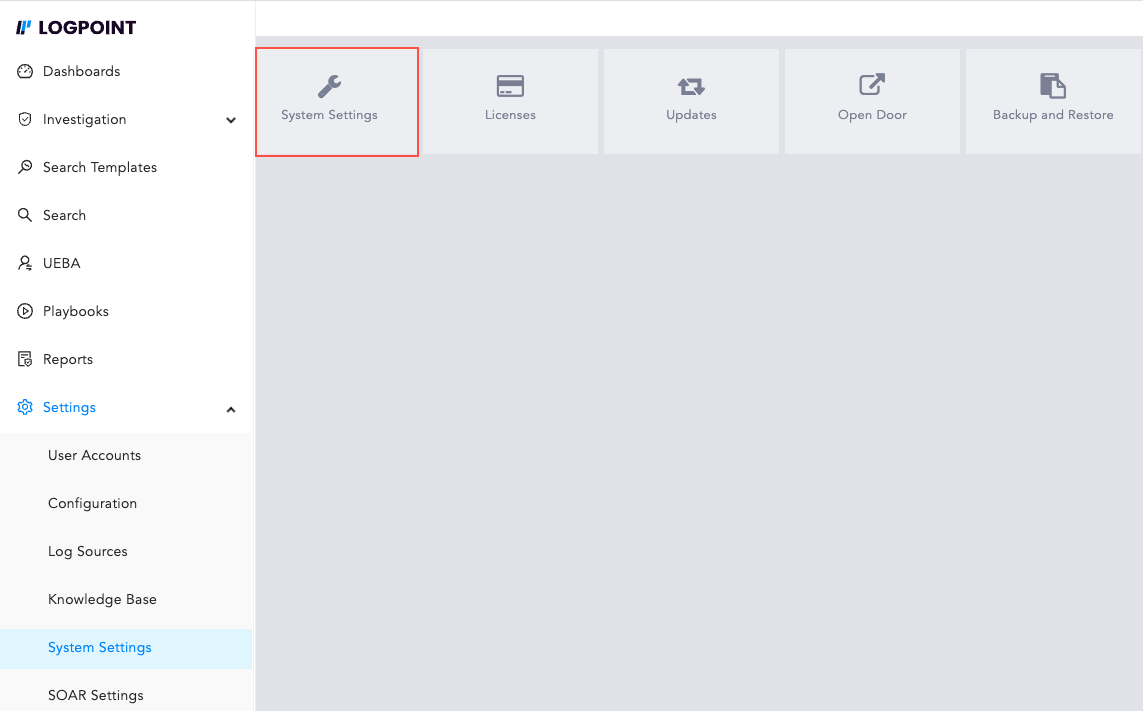
  1. Go to Settings >> System Settings from the navigation bar and click System Settings.

_images/systemsettings.png
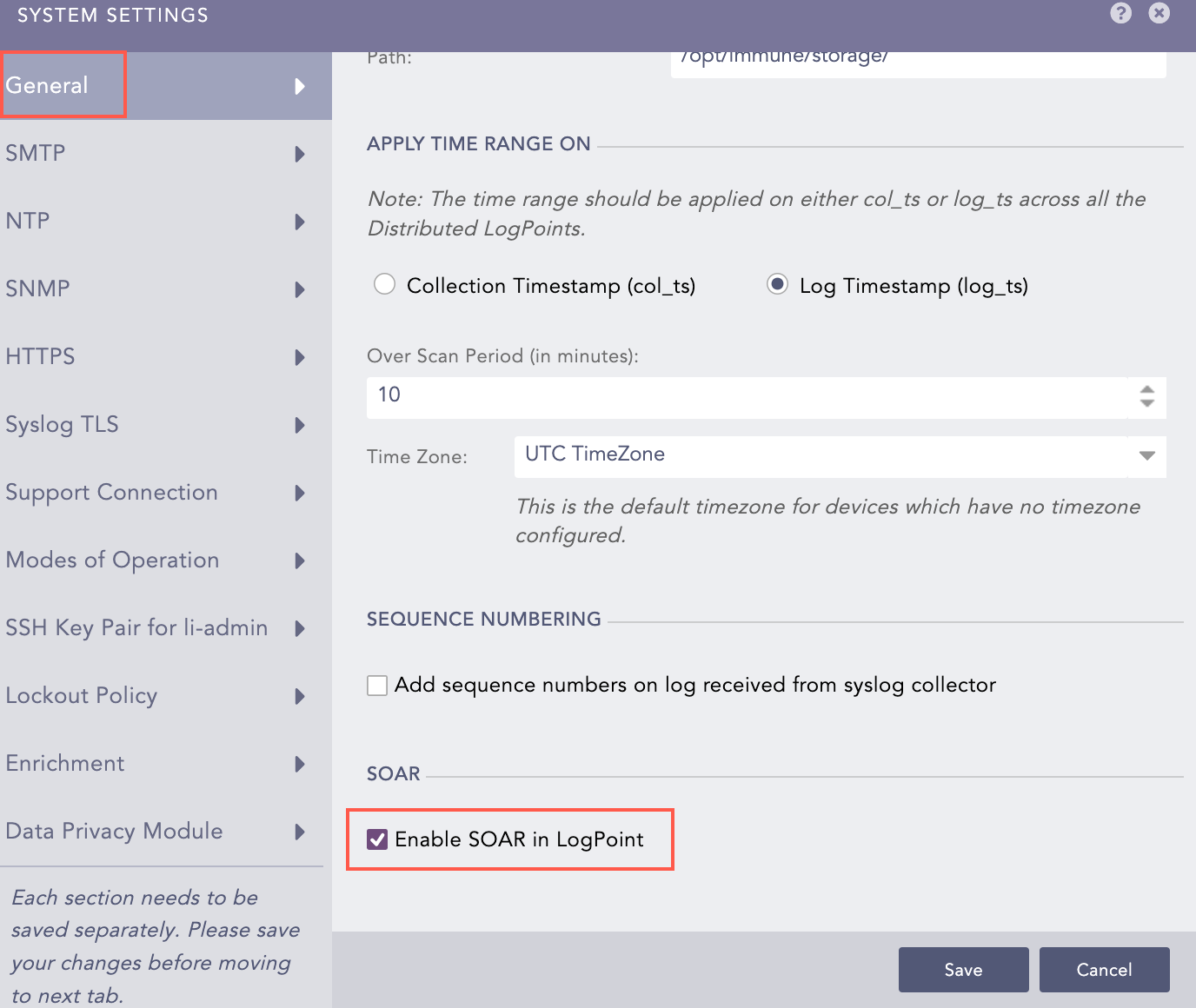
  1. Click General and select Enable SOAR in Logpoint.

  2. Click Save.

_images/agent_enablesoar.png

Enabling SOAR in Logpoint

  1. Click SOAR Settings in the navigation bar and click System Export/Import.

  2. Click Import.

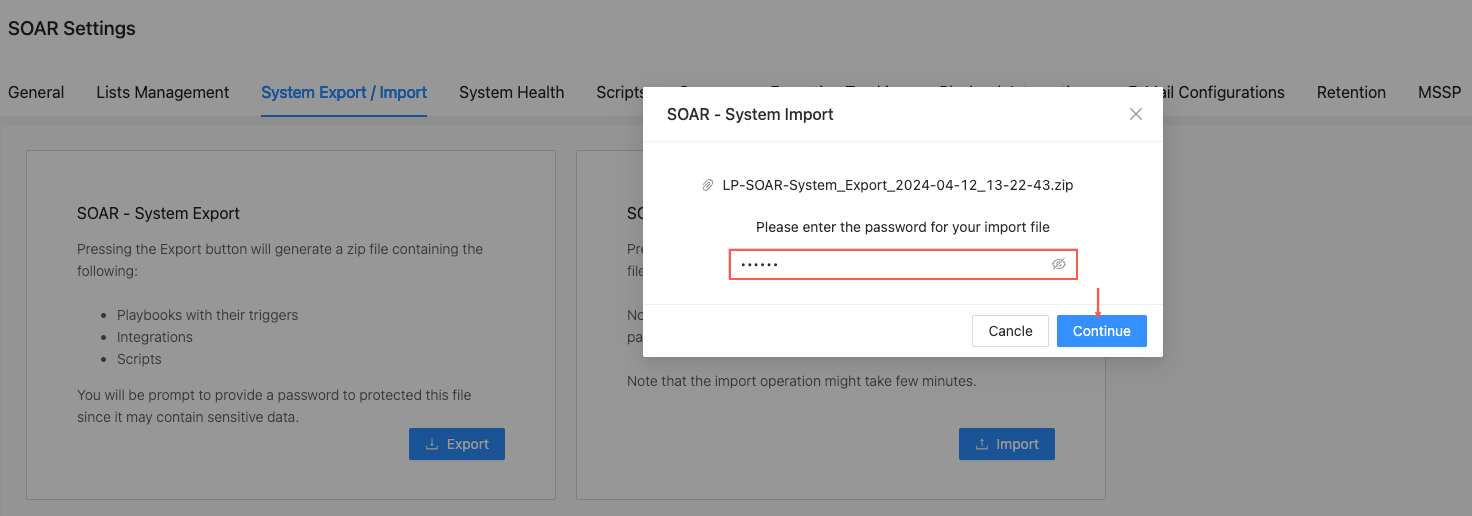
  3. Click Upload File to browse the downloaded .zip file of playbooks. For password secured .zip file, you need to enter the password to import it.

  4. Click Continue.

_images/PASS.png

Importing Playbooks in Logpoint

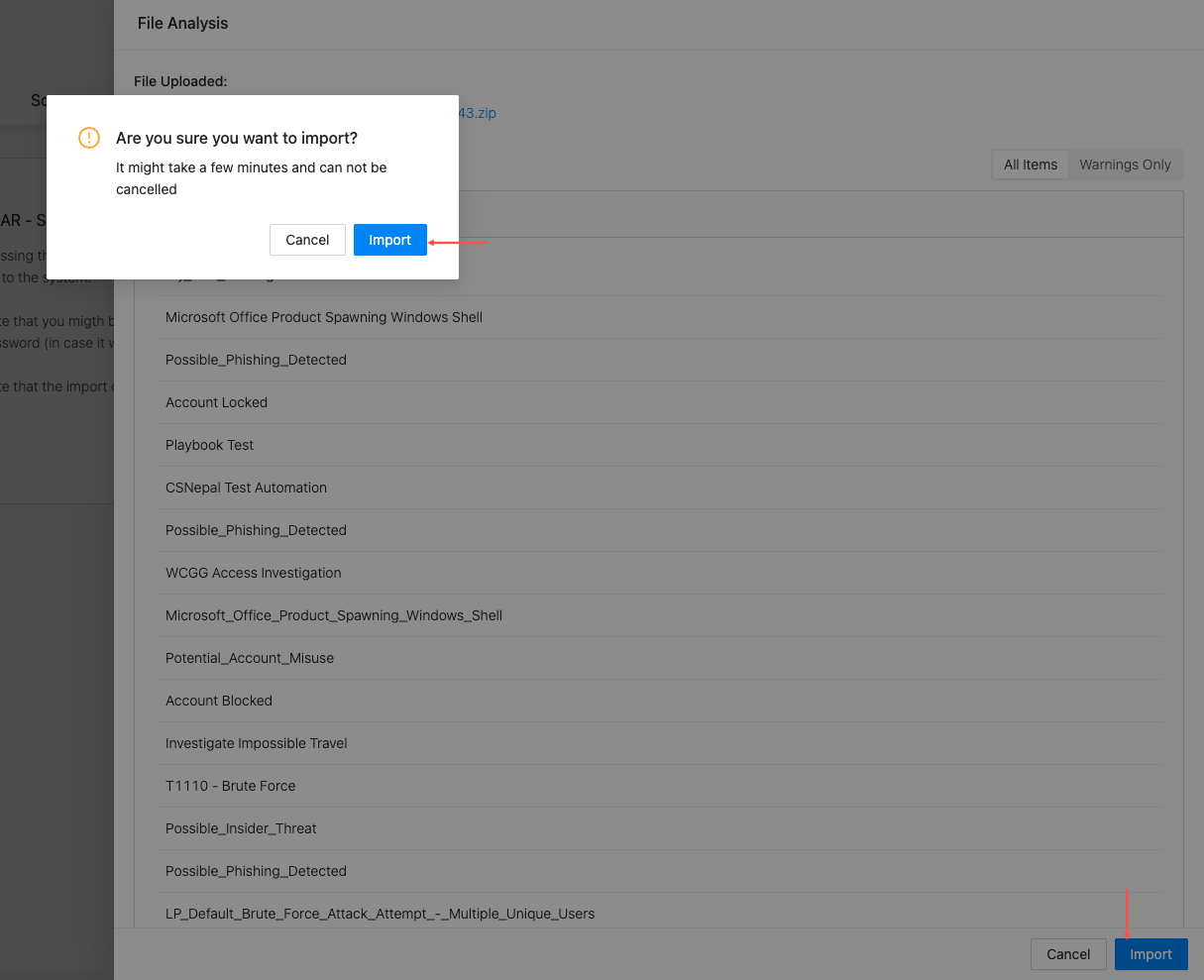
The package details of .zip file is analyzed to import it.

  1. Click Import.

  2. Click Import. It will take awhile to import the file.

_images/import.png
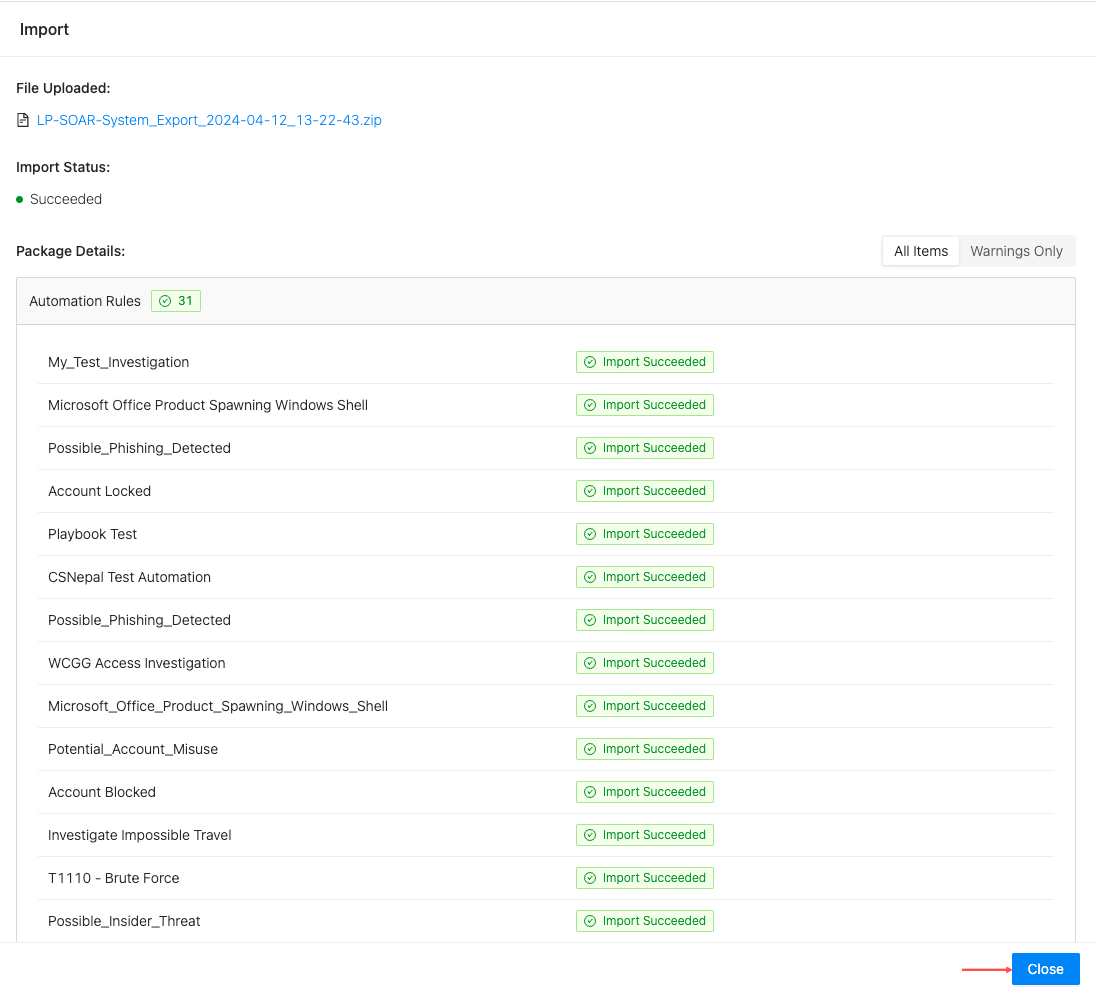
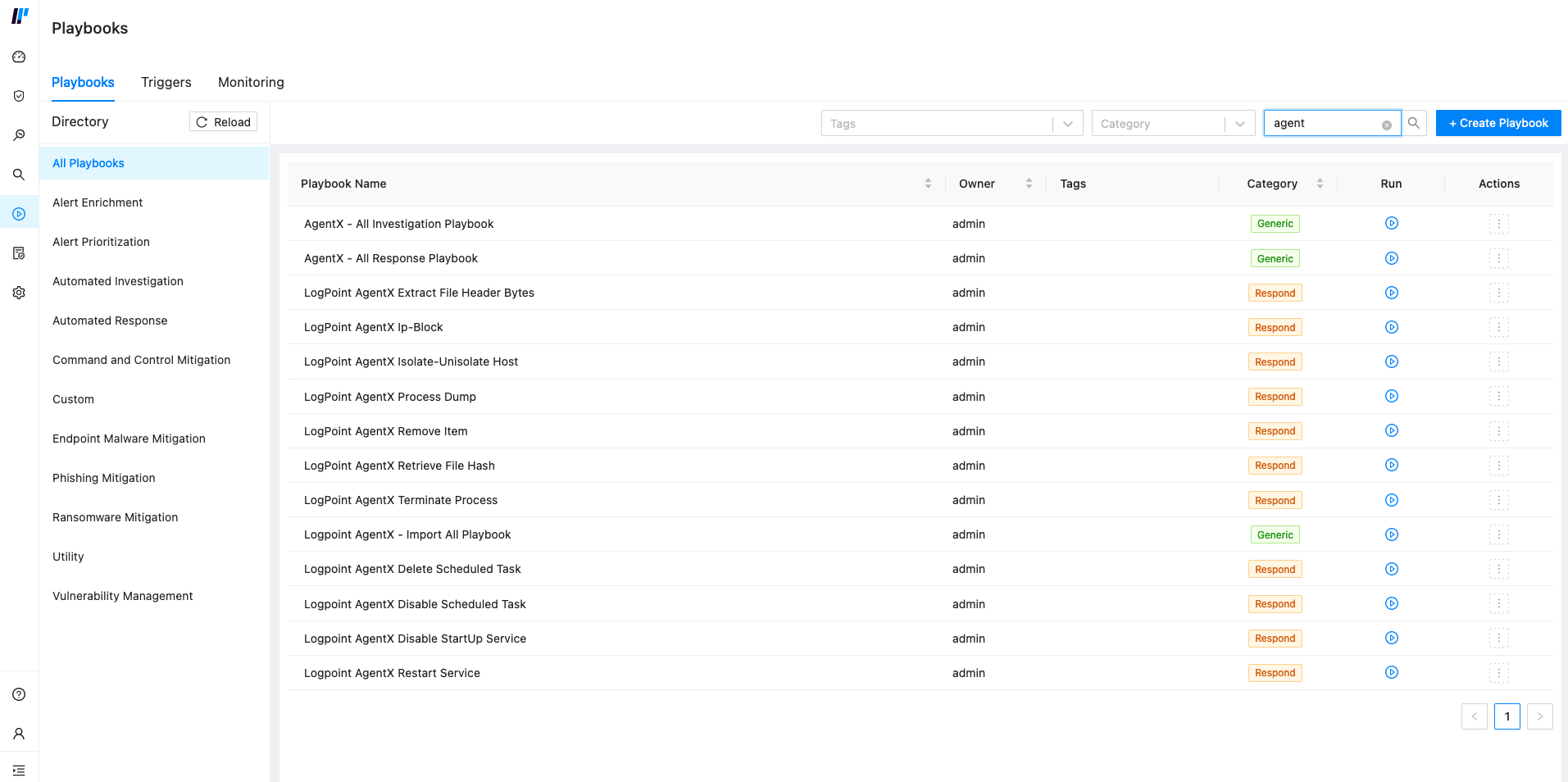
  1. Click Close. You can verify your installation by going to Playbooks in the navigation bar and searching the imported playbook by name.

_images/uploaded.png

Accessing Logpoint AgentX Playbooks

You can access playbooks by searching Logpoint AgentX or AgentX in Playbooks.

_images/playbooknew.png

Accessing Logpoint AgentX Playbooks

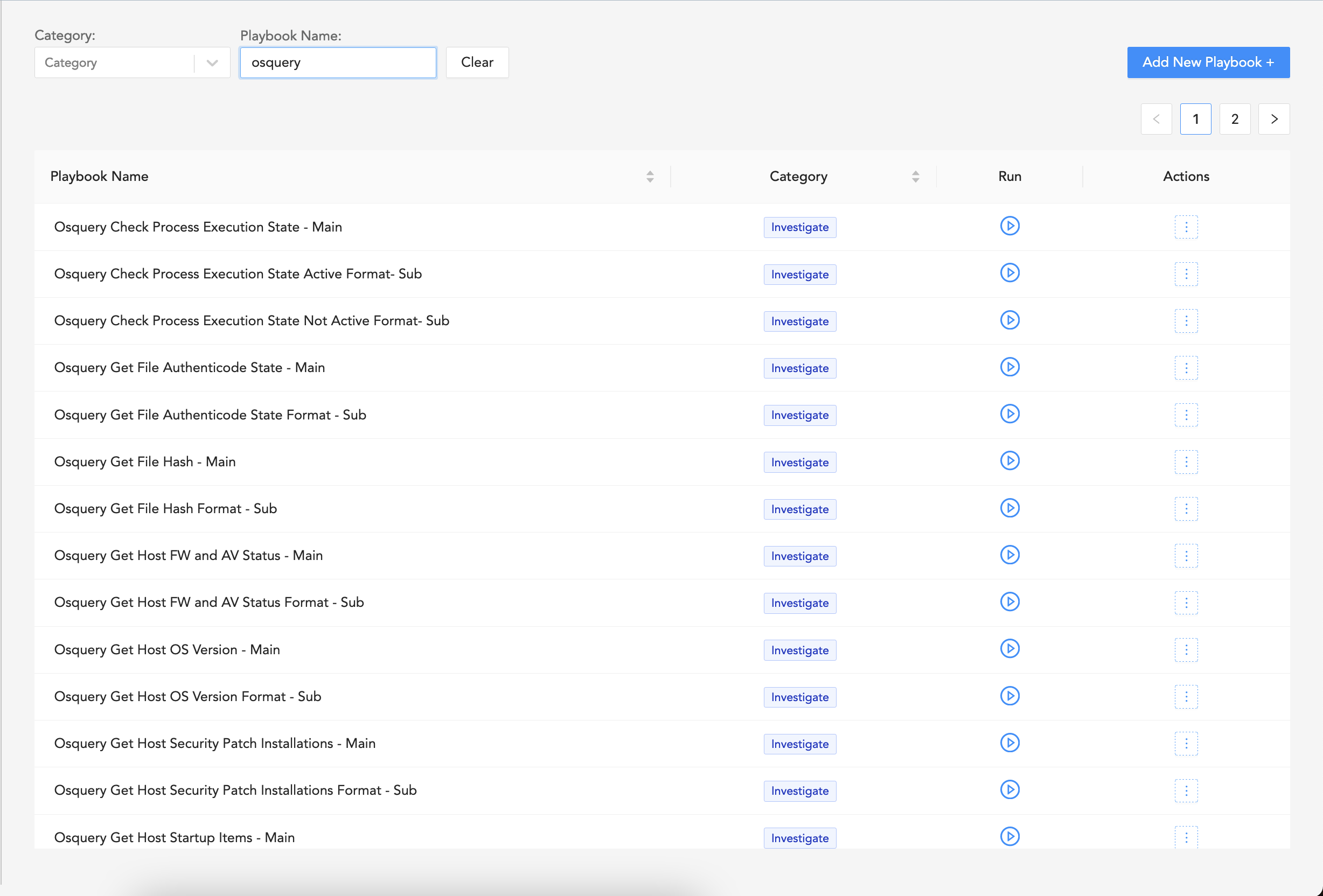
You can access OSQuery playbooks for investigation by searching osquery in playbooks.

_images/accessplaybook2.png

Accessing Logpoint AgentX Playbooks


Helpful?

We are glad this guide helped.


Please don't include any personal information in your comment

Contact Support