
Go to the Azure Portal.
Enter your credentials for the Azure Portal.
Go to Azure Active Directory >> App registrations.
Click New registration.
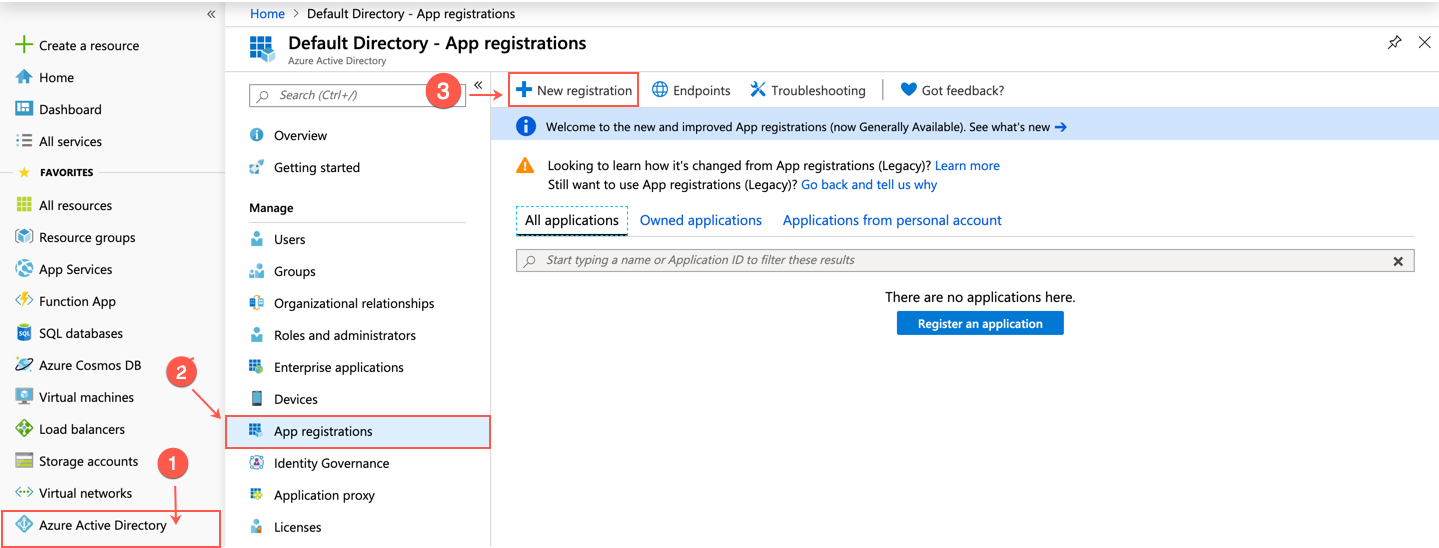
Adding a New Application
Enter a Name.
Select Supported account types.
In the Redirect URI (optional) section:
7.1 Select Public client (mobile & desktop).
7.2 Enter the following address.
http://localhost
Click Register.
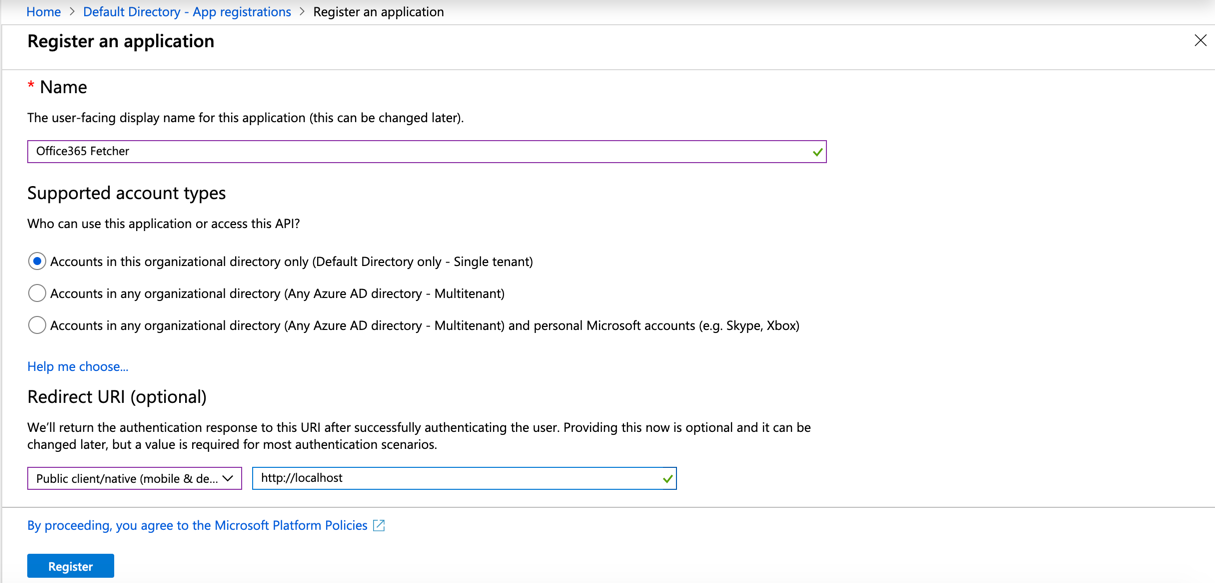
Creating a New Application
Note
You need the Application (client) ID and the Directory (tenant) ID to Configure the Office365 Fetcher in LogPoint.
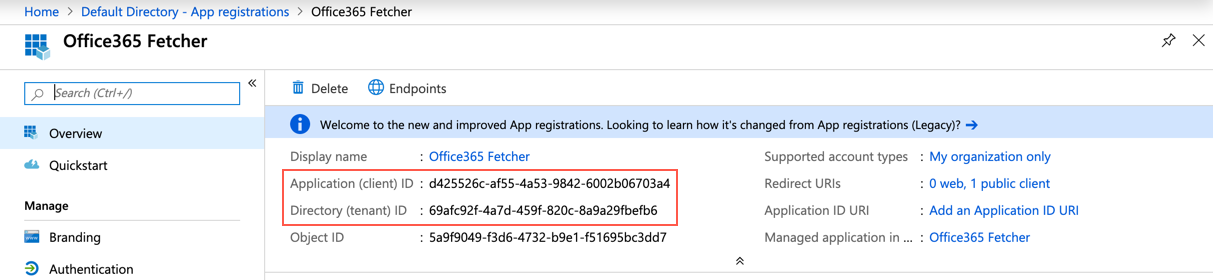
Application ID
Go to API permissions.
Click Add a permission.
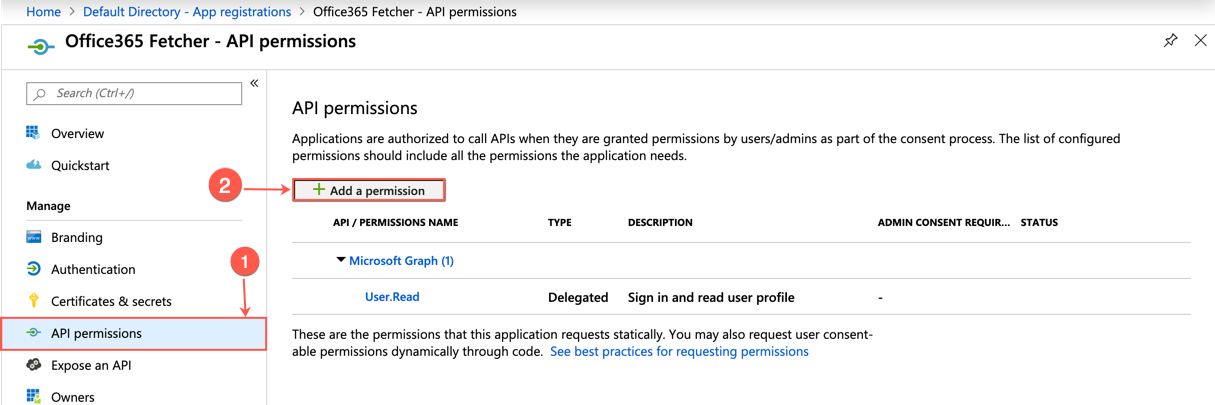
Adding a Permission
Click Microsoft APIs.
Select Office 365 Management APIs.
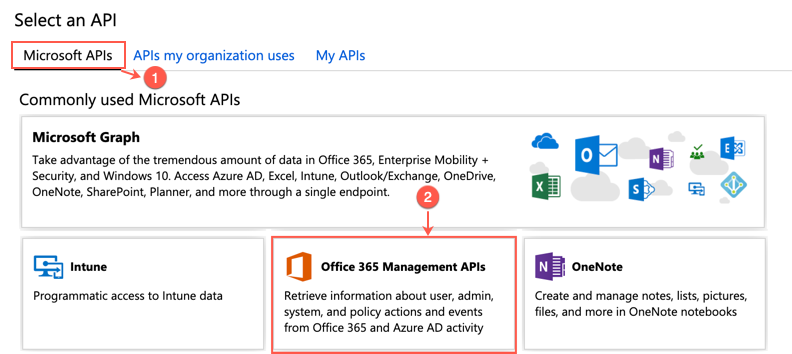
Selecting Office 365 Management APIs
Click Application permissions.
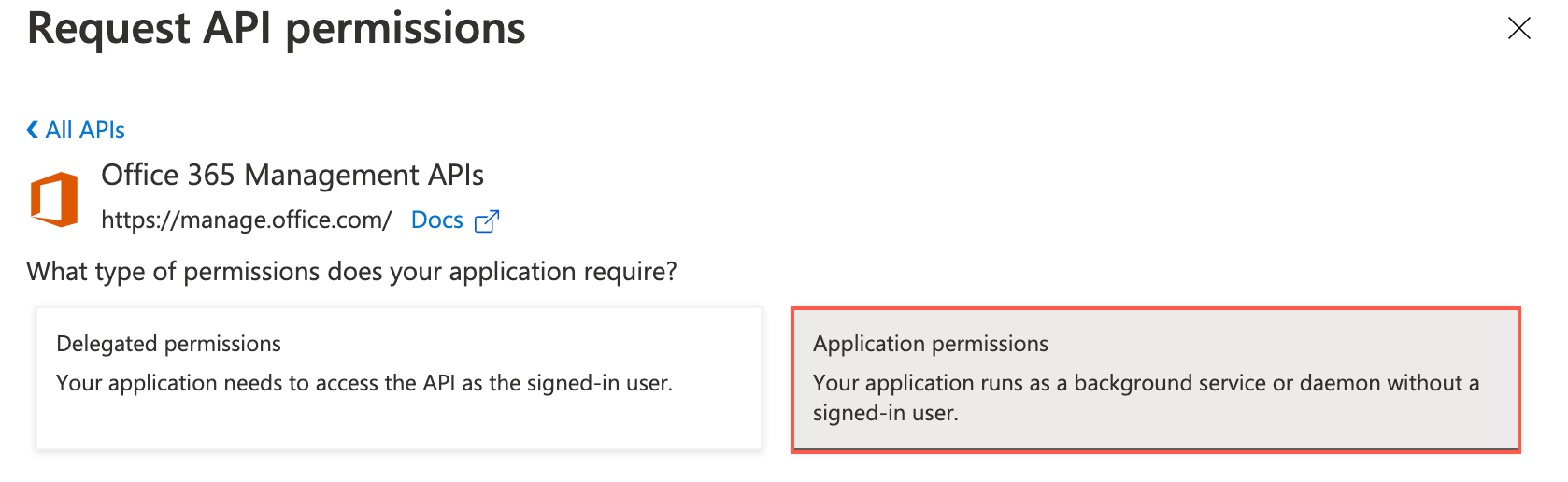
Application Permissions
Select all the available read permissions.
Click Add permissions.
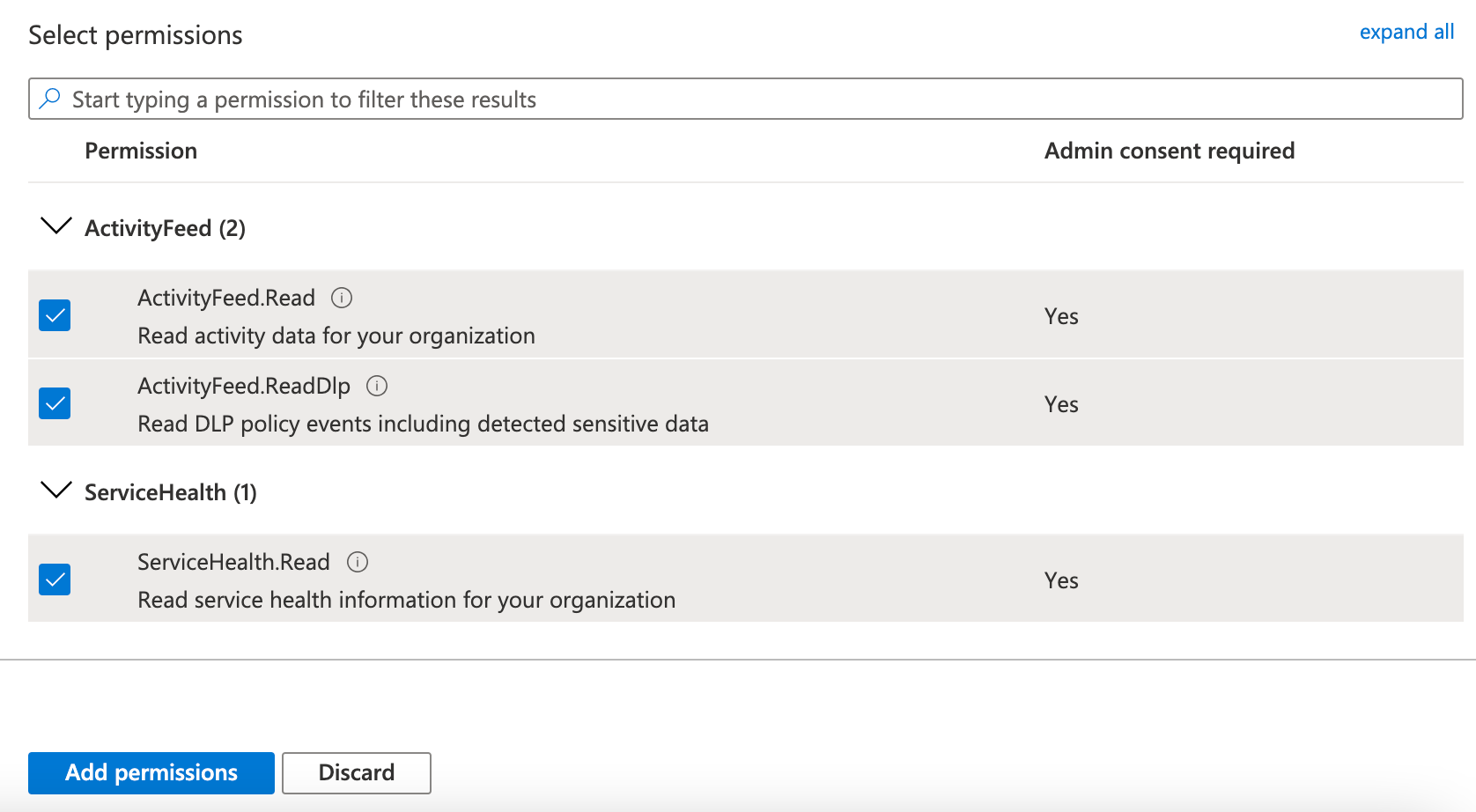
Selecting Read Permissions
Click Grant admin consent for Default Directory.
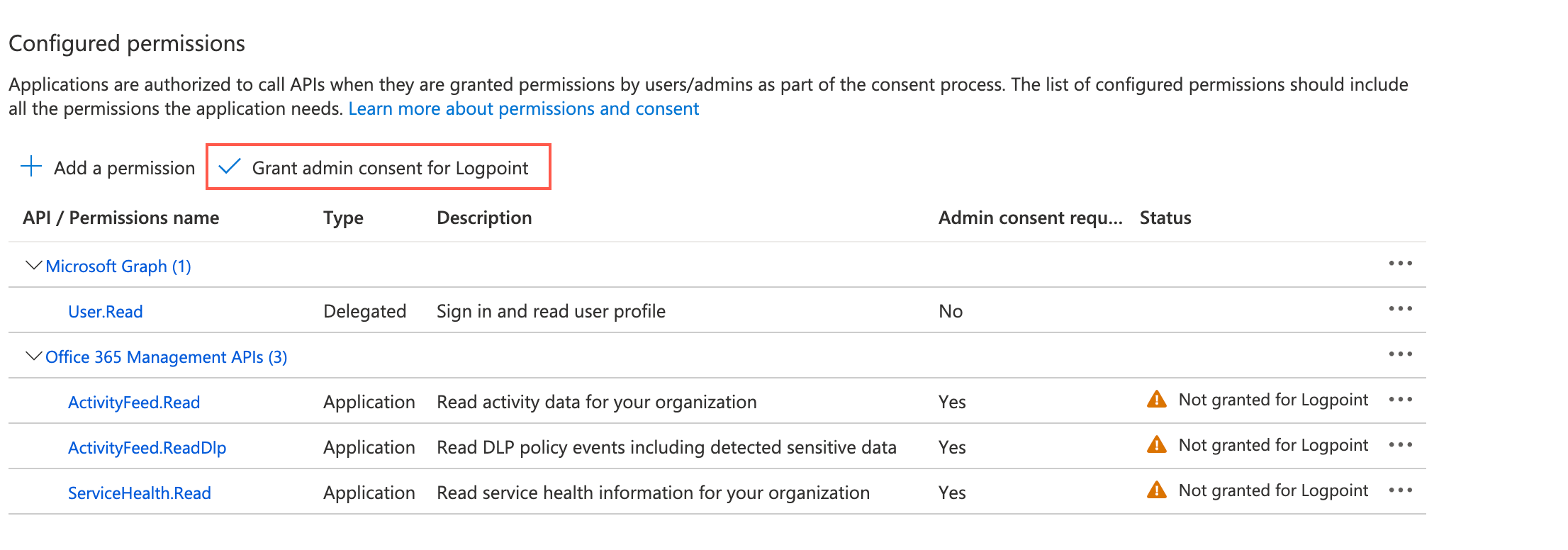
Granting Admin Consent
Click Yes.

Confirmation Dialog Box
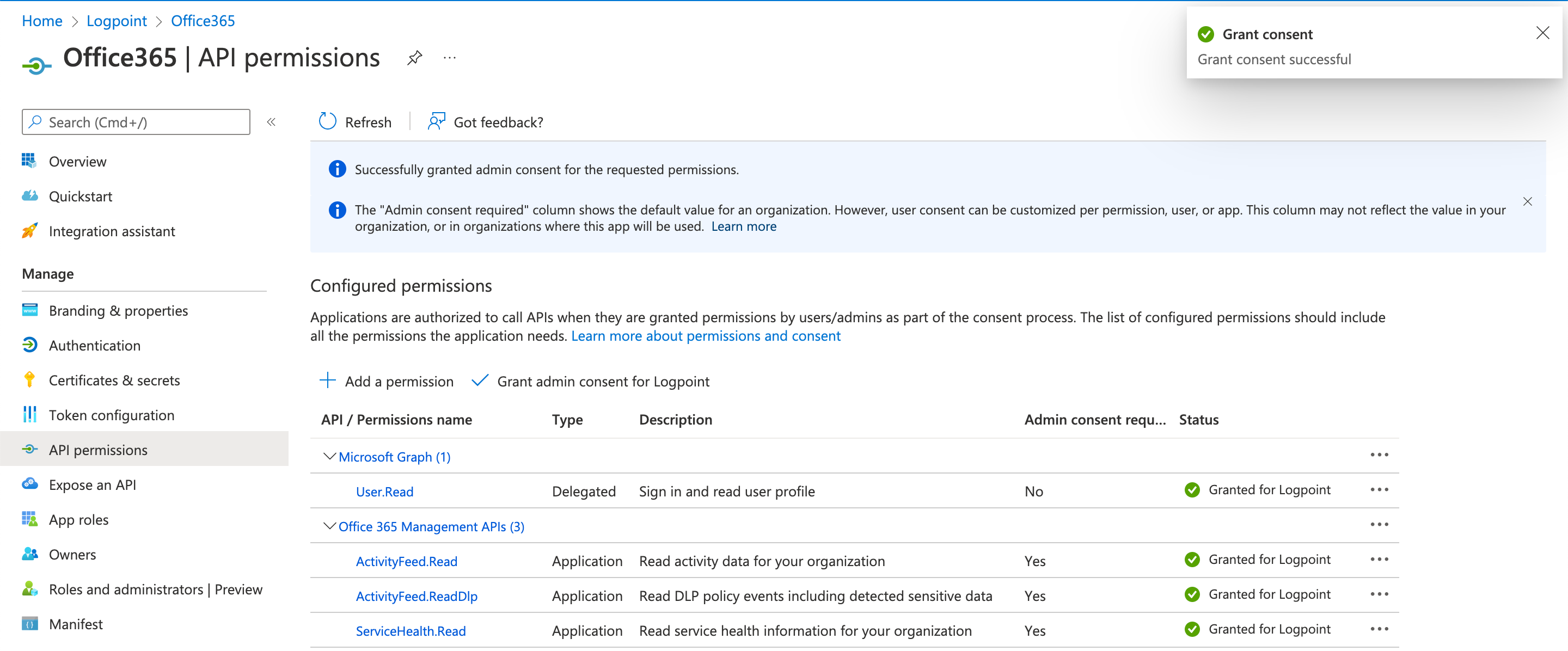
Grant Consent
Go to Authentication.
Enable Allow public client flows to Yes.
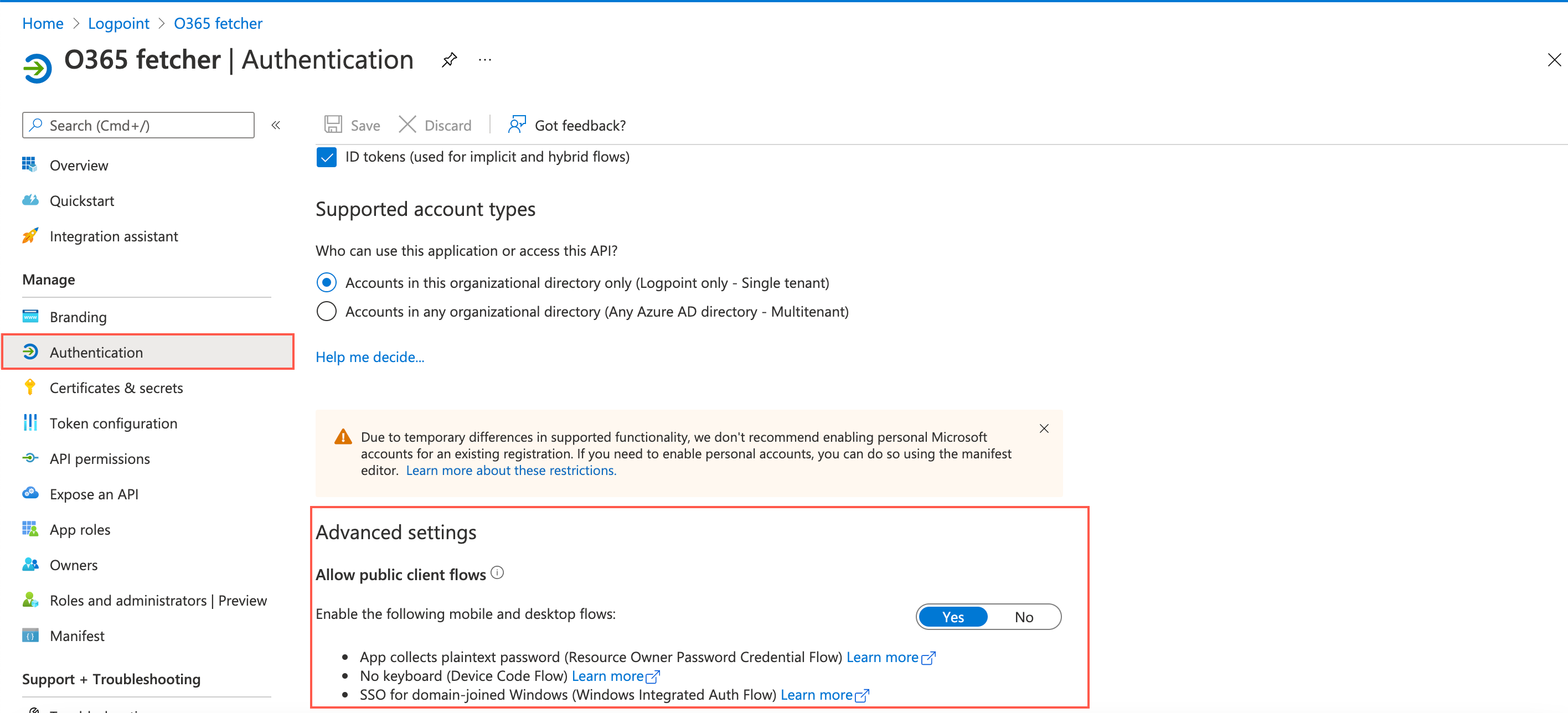
Public Client Flows
Alternatively, you can add the following key to the Manifest section in the Azure portal.
"allowPublicClient": true
Click Certifictes & secrets and Client secrets.
Click New client secret.
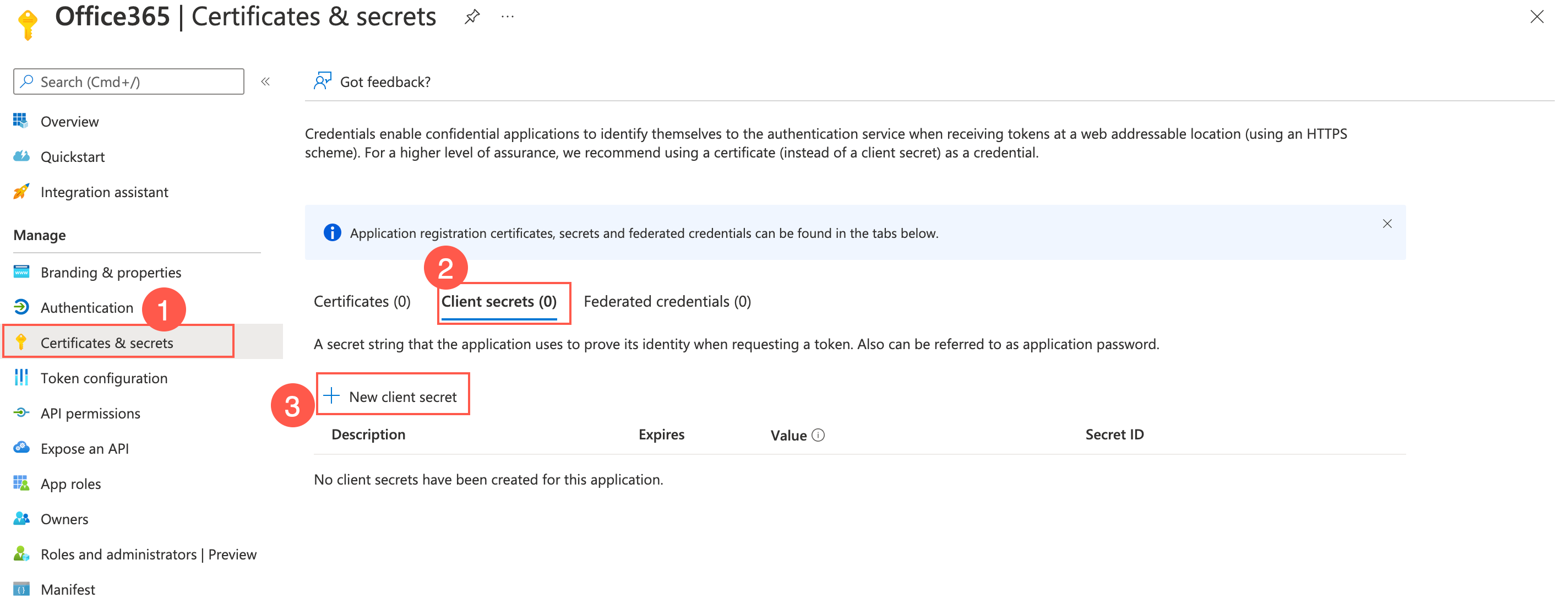
Client Secret
Enter a Description.
Select expiration date for the client secret in the Expires column.
Click Add.
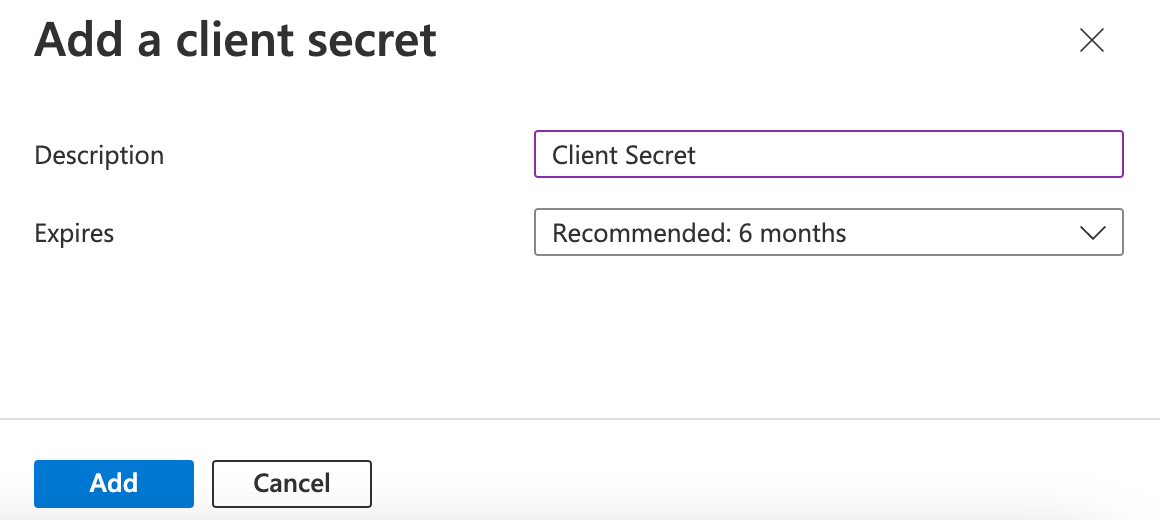
Adding a Client Secret
Note
Note down the Value of the Client Secret before closing the window; otherwise, you cannot retrieve it later. You need the value to Configure the Office365 Fetcher in LogPoint.
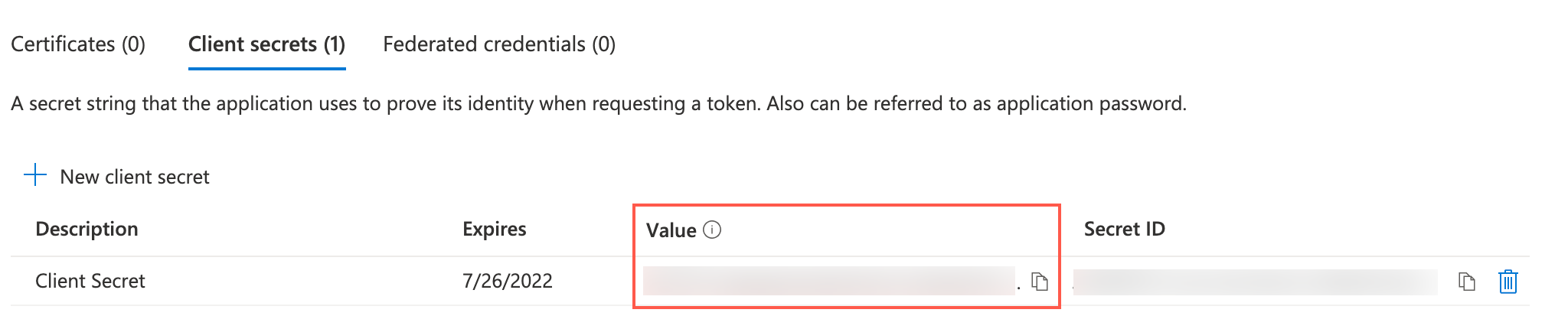
Value of Client Secret
Enter the following command in command prompt to generate a certificate key:
openssl genrsa -out server.pem 2048
Enter the following command to create a certificate request:
openssl req -new -key server.pem -out server.csr
Enter the following command in the command prompt to generate a certificate:
openssl x509 -req -days 365 -in server.csr -signkey server.pem -out server.crt
Save the certificates generated.
Note
The process provides you with two certificates. You must upload the certificate with the .crt extension on Azure Portal and the certificate with the .pem extension in LogPoint’s Office365 configuration page.
Click Certificates & secrets on application page in the Azure Active Directory portal.
Click Certificates and Upload Certificate.
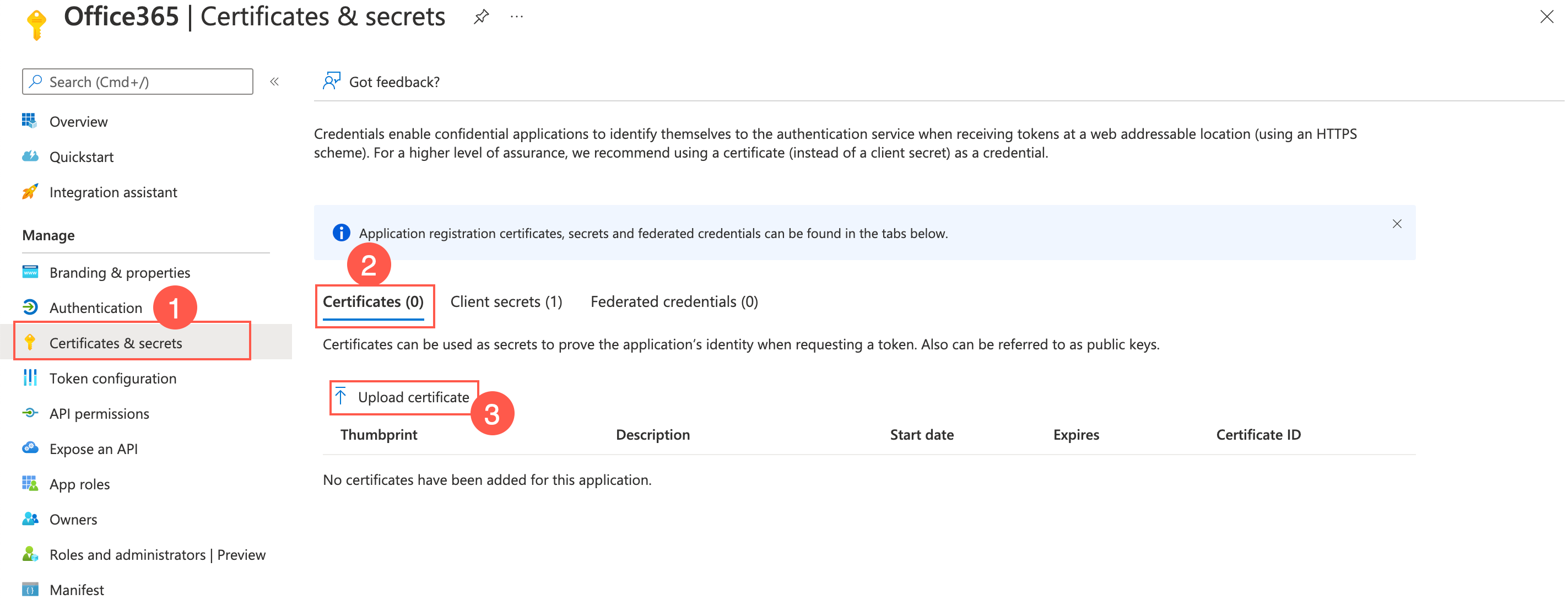
Uploading a Certificate
Select and upload the previously saved certificate with the extension .crt.
Enter a Description for the certificate.
Click Add.
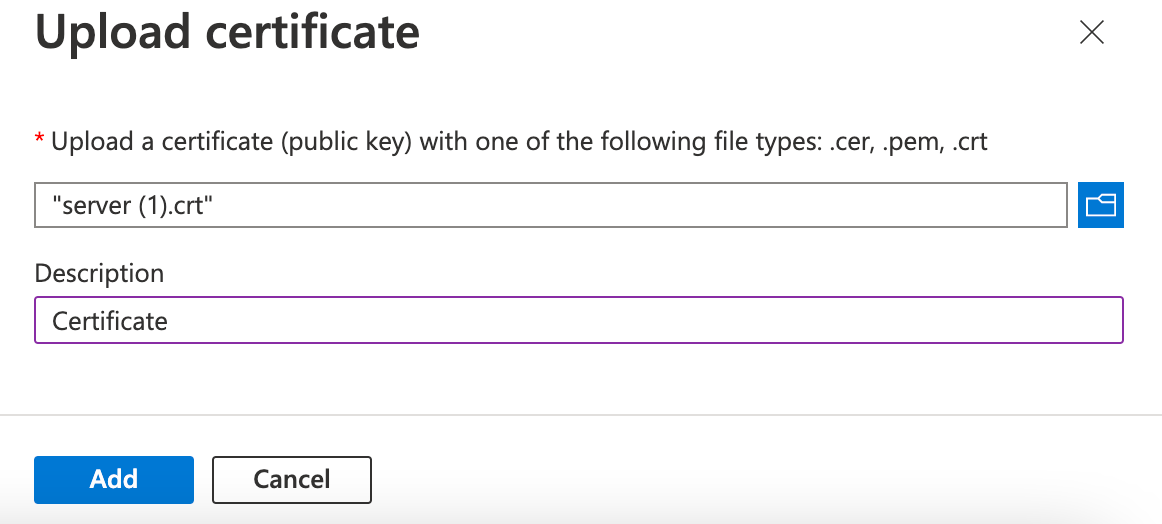
Uploading a Certificate
Note
Note down the Thumbprint of a certificate. You need the value to Configure the Office365 Fetcher in LogPoint.
Value of Client Secret
Go to Settings >> Configuration >> Normalization Policies.
At the top left, click Add.
Enter a Policy Name.
In Compiled Normalizers, select Office365.
In Normalization Packages, select Office365.
Click Submit.
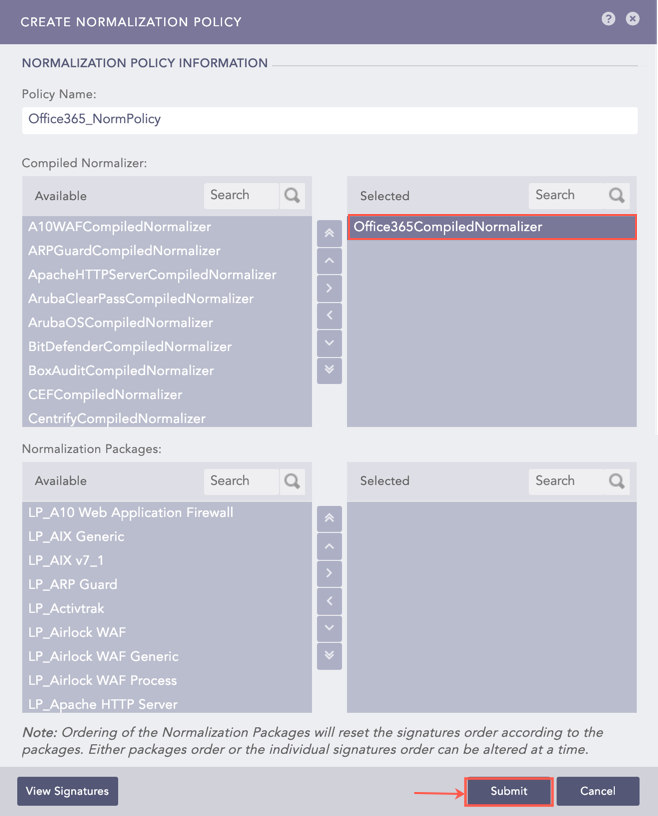
Adding a Normalization Policy
Go to Settings >> Configuration >> Devices.
Click the Add collectors/fetchers ( ) icon under Actions of the localhost device.
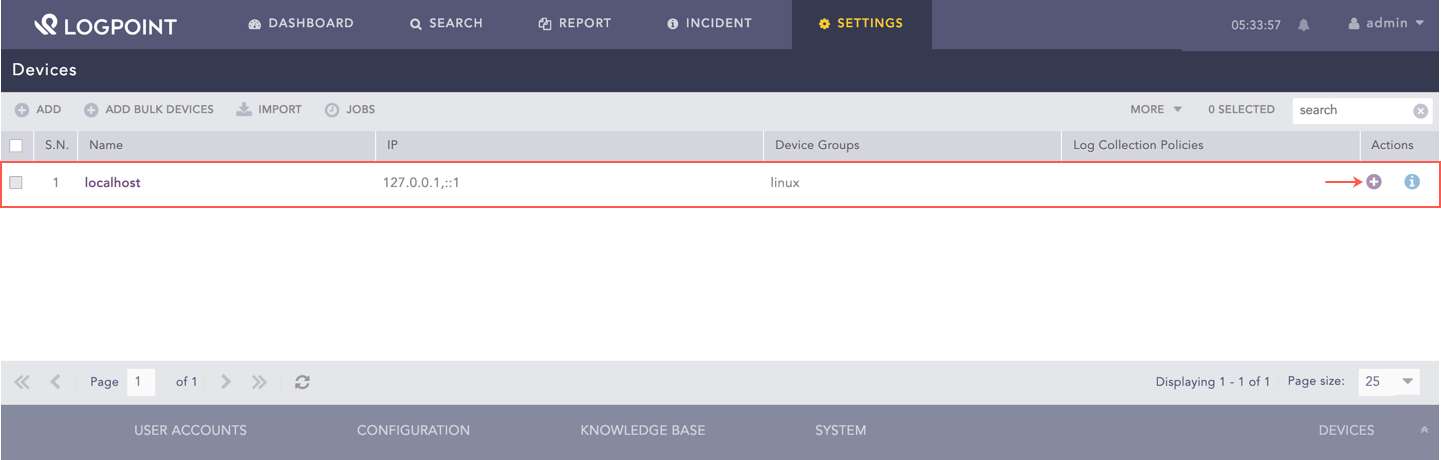
Adding a Fetcher for the Device
Click Office365 Fetcher.
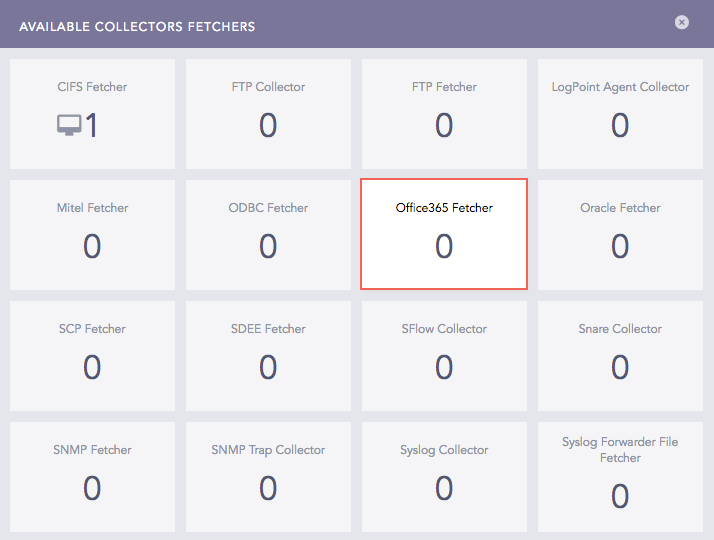
Available Collectors Fetchers Panel
At the top left, click Add.
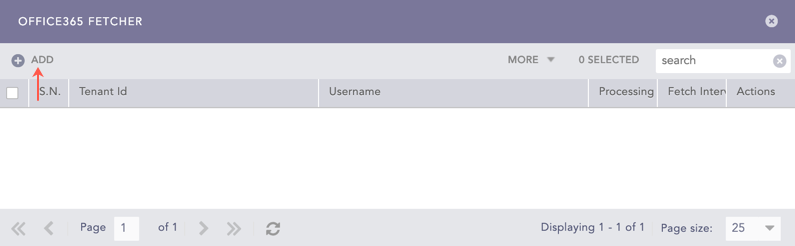
Office365 Fetcher Panel
Select a mode of Authentication:
5.1. If you select the Public Client, enter the Username and Password for the Office 365 account.
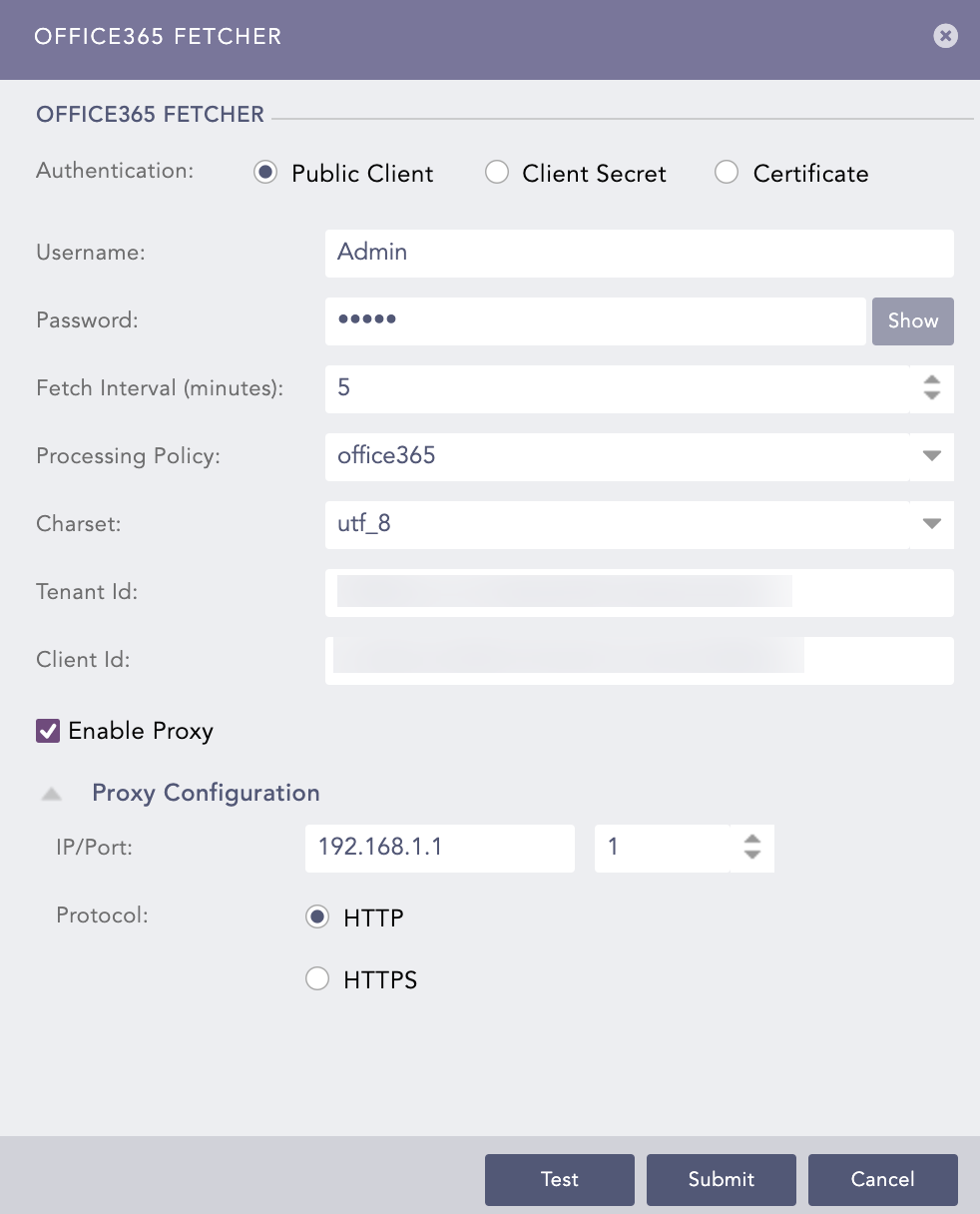
Public Client
5.2. If you select Client Secret, enter the Value of Client Secret in the Client Secret field.
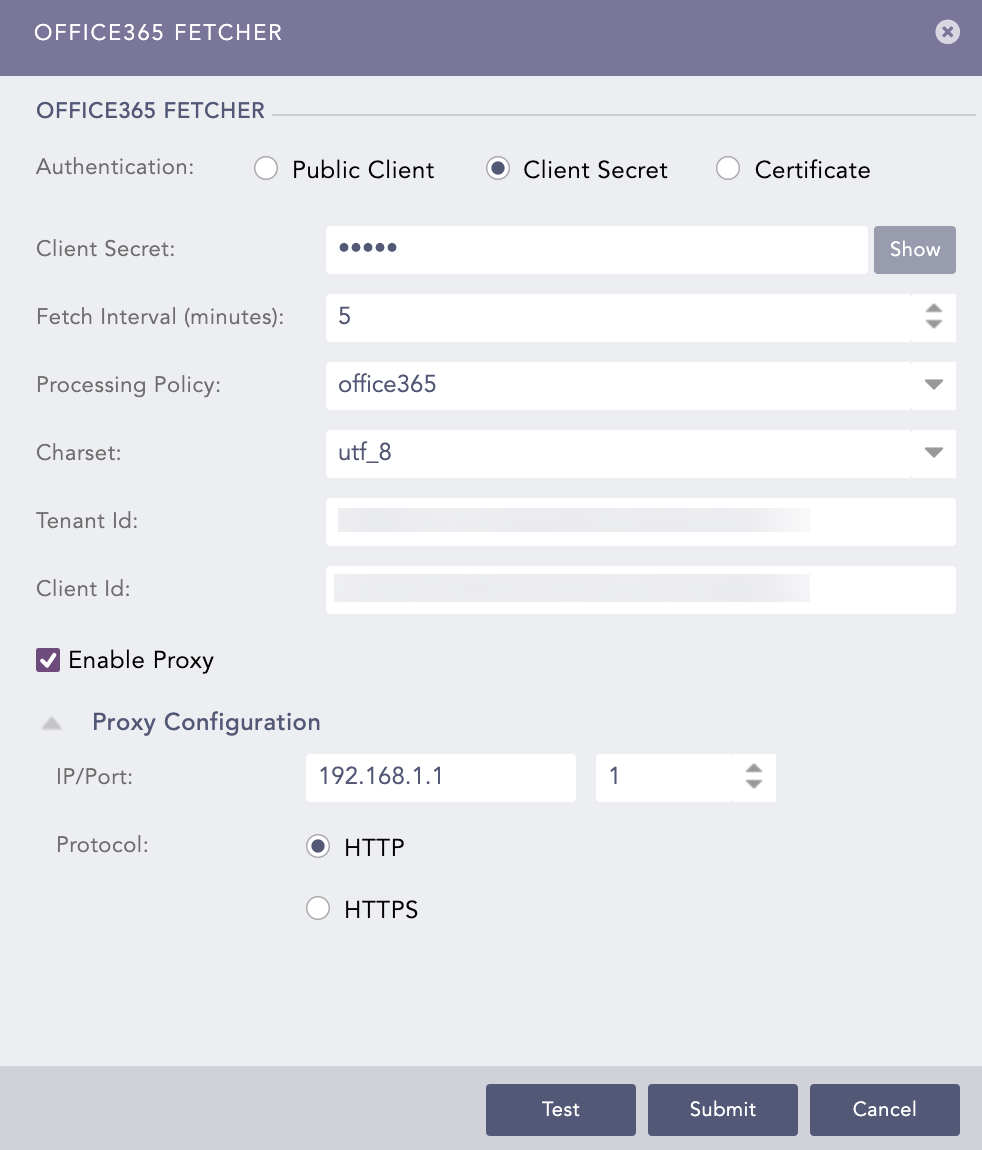
Client Secret
5.3. If you select Certificate,
5.3.1. Enter the Office 365 Certificate Thumbprint in the Certificate Thumbprint field.
5.3.2. Upload the previously saved Certificate with the .pem extension in the Certificate File option.
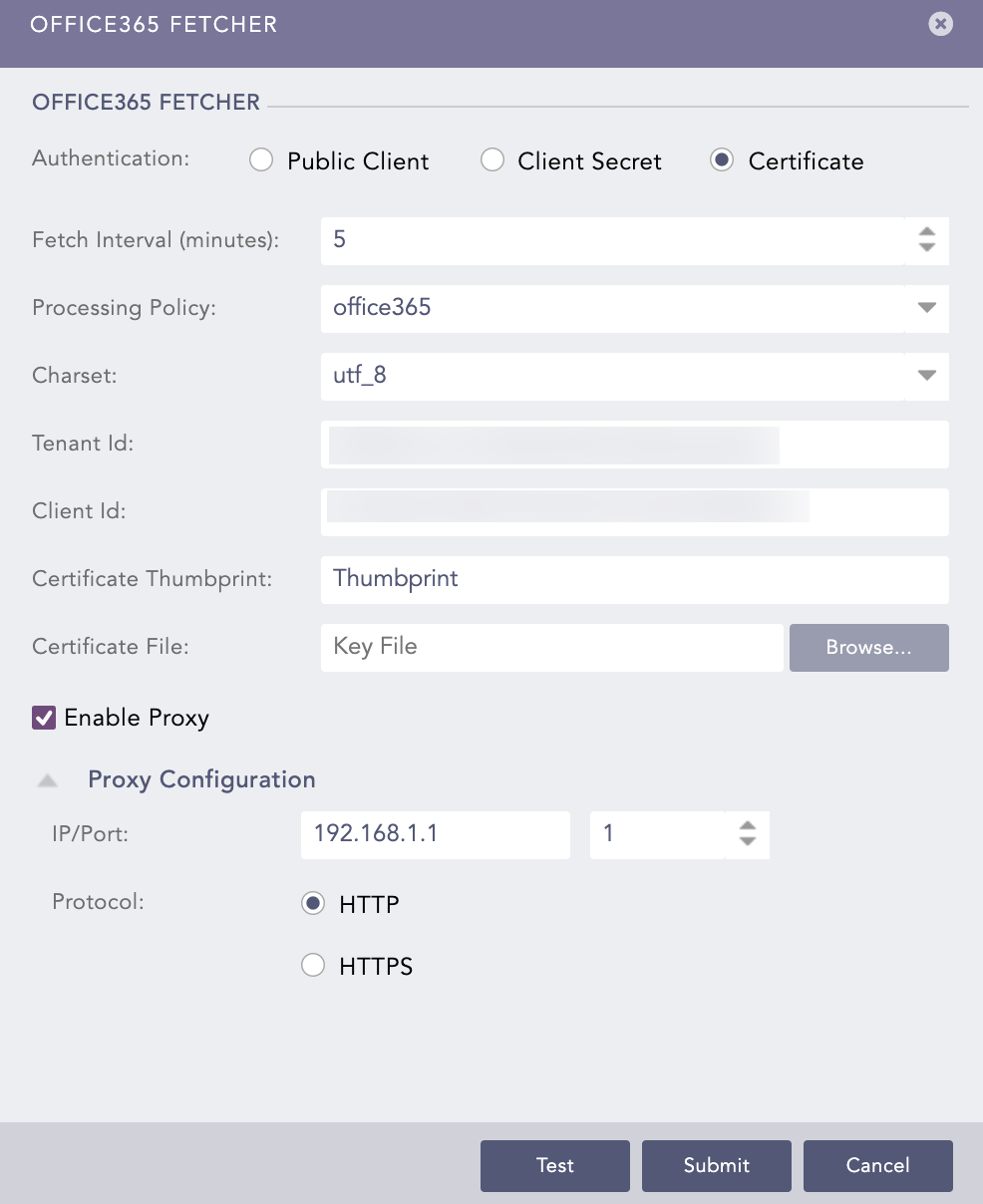
Certificate Thumbnail
Enter the Fetch Interval (minutes).
Select a Processing Policy that uses the previously created normalization policy.
Enter the Directory (tenant) ID in the Tenant ID field.
Enter the Application (client) ID in the Application ID field.
Select Enable Proxy if you use a proxy server.
In the Proxy Configuration section:
12.1 Enter the IP Address and the Port number for the proxy server.
12.2 Select HTTP or HTTPS protocol.
Click Test to validate the configuration.
Click Submit.
Note
When you configure and run Office365 for the first time, a subscription is created to different audit log sources in the API. Once set, there is a time gap of 12 to 24 hours before the logs start to come in.