
You must have configured Sysmon Configuration in your Windows to collect Sysmon logs. Go to Sysmon Configuration to learn how to configure it correctly. Logpoint allows you to access Process Tree from Search. Go to Search to learn about search.
In the navigation bar, click Search.
In Search Bar
2.1 Enter a query to search WindowsSysmon logs. You must use parent_process_guid or process_guid fields for search queries to avoid errors. For example, “process_guid” = * and “parent_process_guid” = *.
2.2 Select a Repo.
2.3 Set a time range.
Click Search.
The search results must contain the process, parent_process, parent_process_guid and process_guid fields.
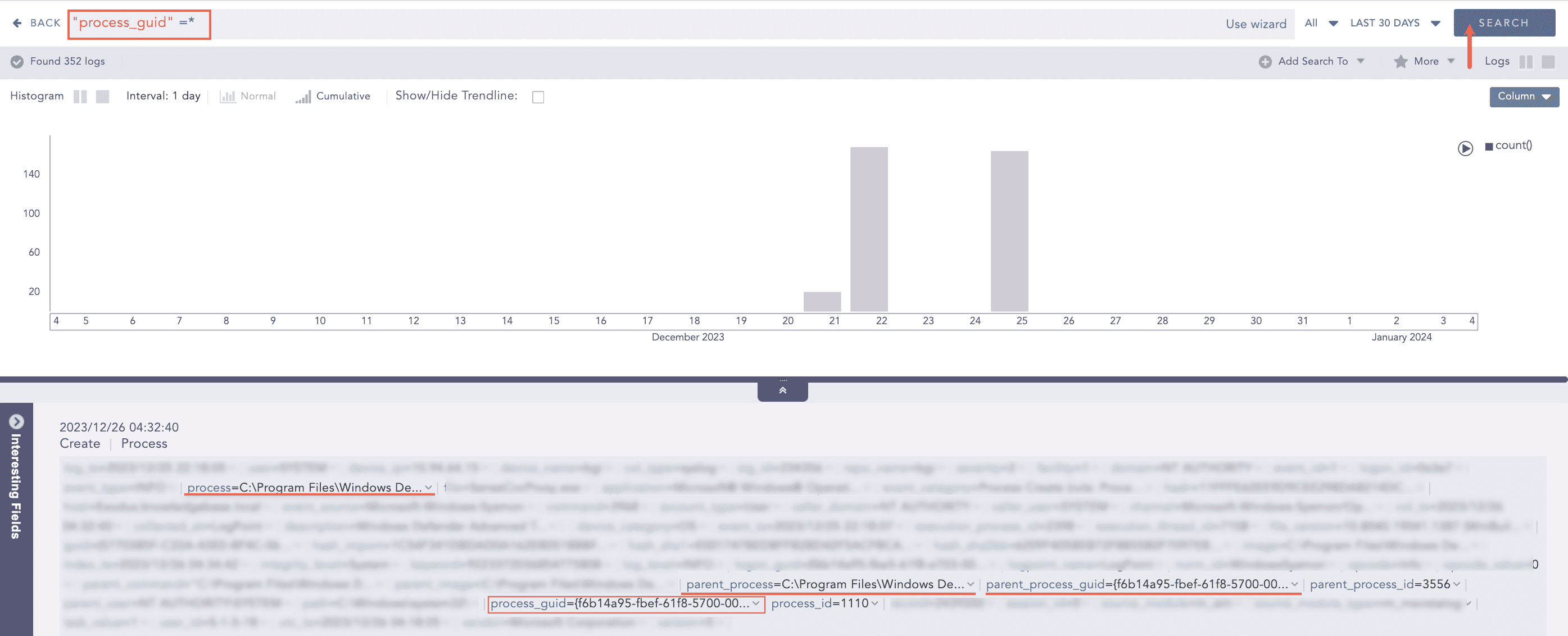
Searching WindowsSysmon Indexed Log
In search results, click parent_process_guid or process_guid value drop-down.
Click Visualize Process Tree With {guid} which takes you to PROCESS TREE. The {guid} value varies depending on whether they are based on the parent_process_guid or process_guid field.
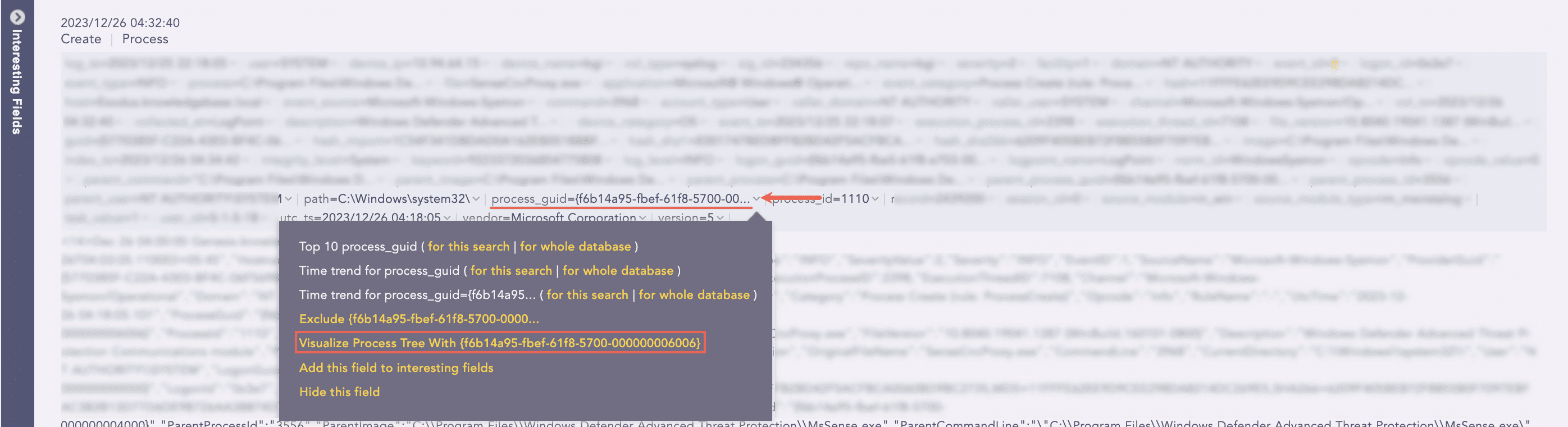
Accessing Process Tree
Click a node to view its process details in Preview Selected. In SHA1, click Analyze VirusTotal Score to go to the VirusTotal website for hash analysis of the selected process. The hash analysis enables you to identify known files without manually opening and inspecting them.
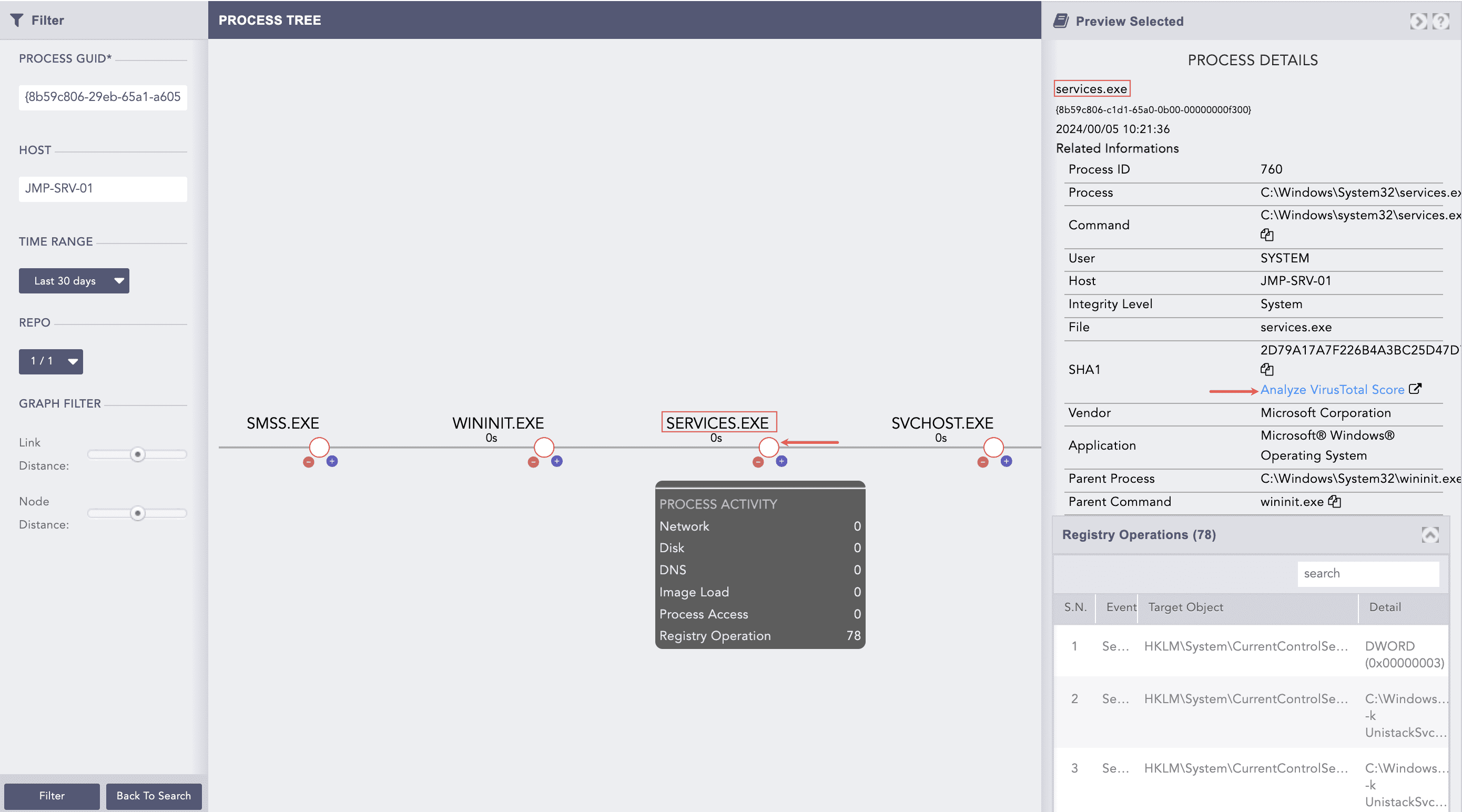
Generating a Process Tree
To return to Search, click Back To Search. You can now enter a new query to get new parent_process_guid and process_guid or edit the filter to generate a new process tree. The PROCESS GUID, HOST, TIME RANGE and REPO are auto-fetched from Search, which can still be edited.
To edit Filter:
You need to first access the Process Tree from Search to enable editing the filter. The filter allows you to generate a new process tree by entering a PROCESS GUID, setting a TIME RANGE and selecting a REPO only. It reduces the need to search for Sysmon logs.
Enter a valid PROCESS GUID.
Enter a HOST if you have one.
Set a TIME RANGE.
Select a REPO.
Click Filter.
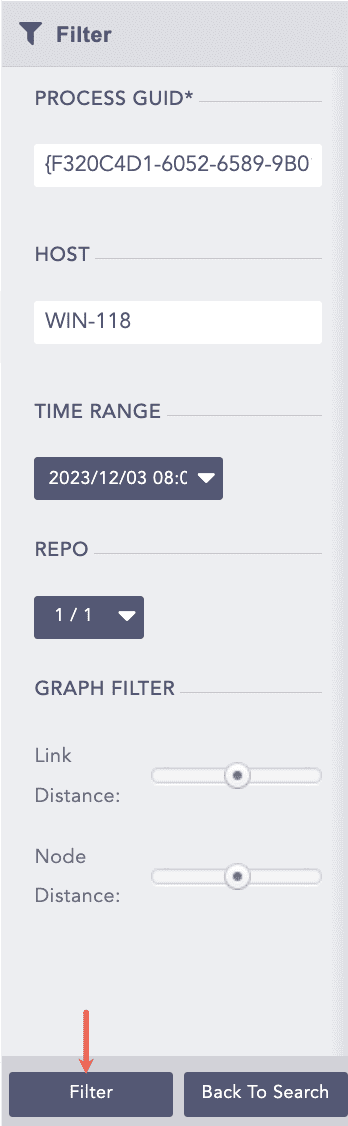
Editing Filter
Use the Link Distance and Node Distance to adjust the tree view.
Click on a node to view its process details. The Preview Selected expands which contains process’s informations like Process ID, Process, Command and SHA1 along with process detail process activities like network operation, disk operation, dns request, registry operation , image load and process access.