
In Director Console, you can:
Configure entities, built-in collectors/fetchers, operations, plugins, system settings, and manage users on the Fabric-enabled LogPoint instances from the Configure page.
Search the configured entities, and modify or delete them from the Search page.
View the Director setup components graphically, configure new entities in a Fabric-enabled LogPoint, and view its existing configurations from the Config View page.
Install and uninstall assets from the Assets page.
Configure different authentication from the Authentication page.
Synchronize the Director Console database from the Resync Database page.
View tasks summary from the Tasks page.
You can search for the entities available in the Fabric-enabled LogPoint instances from the Search page. You can now modify identical entities of same entity type in multiple LogPoint instances from the search result. You can only modify the entities that are version compatible with each other.
Note
You can modify all the entities except enrichment sources.
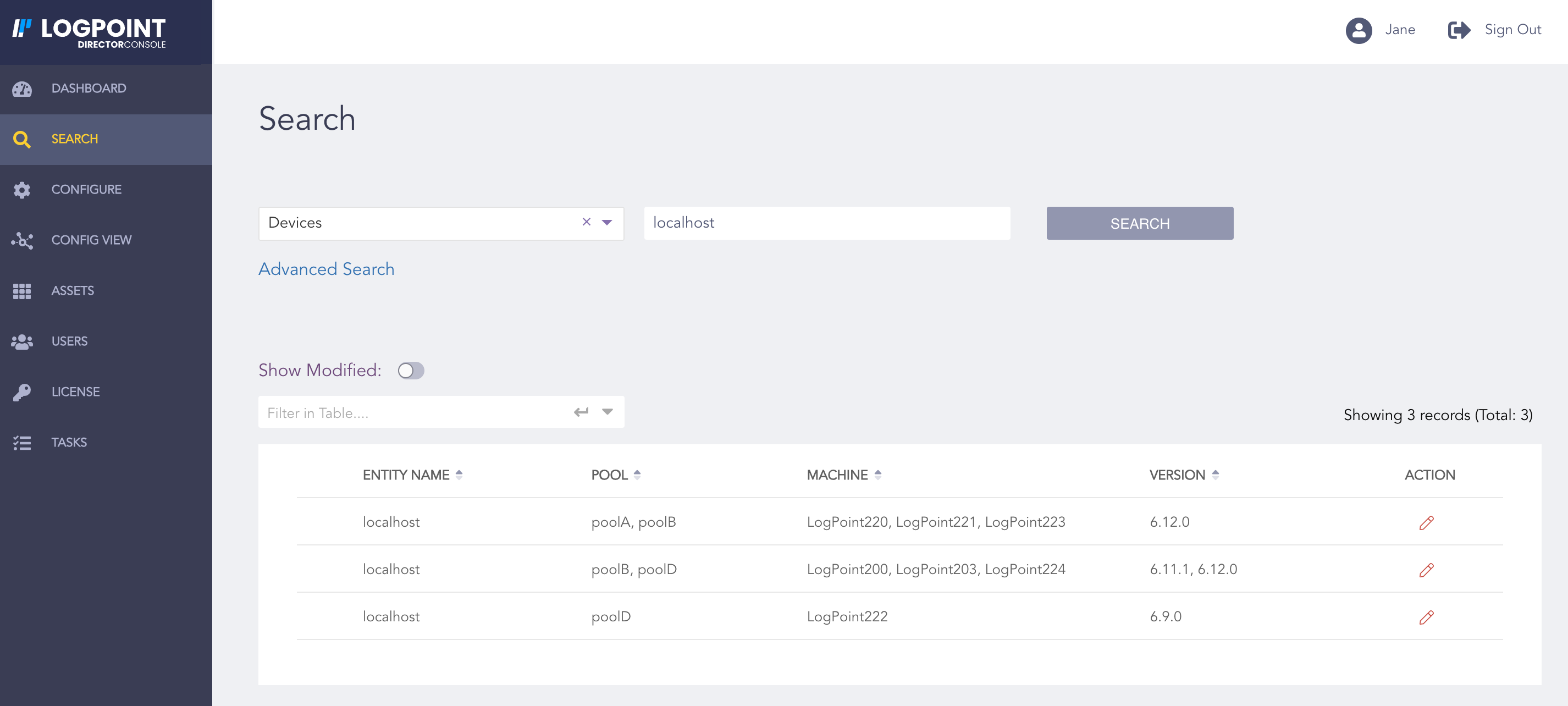
Search Page
You can also use the Advanced Search option to search for the entities in the Fabric-enabled LogPoint instances based on two criteria:
Machine Criteria to search for a LogPoint.
Configuration Criteria to search for the entities created in a LogPoint.
You can use each criteria separately or use them together to enhance the search results.
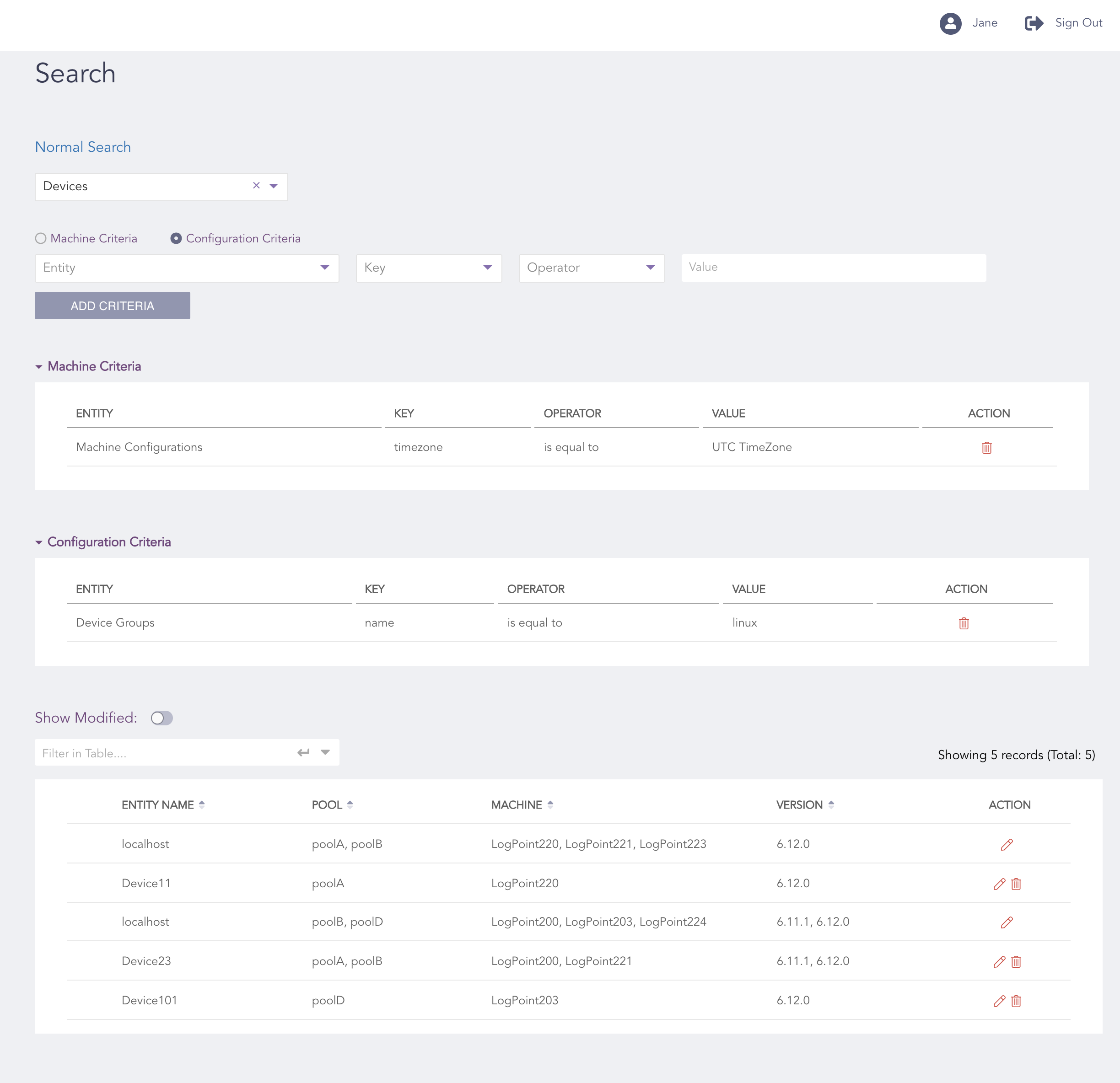
Advanced Search Page
You can also use the Advanced Search in the Configure page. However, in the Configure page, the Advanced Search lets you use the Machine Criteria only to carry out your searches.
You can configure entities, built-in collectors/fetchers, operations, plugins, system settings, shell, UEBA and manage users on the Fabric-enabled LogPoint instances from the Configure page.
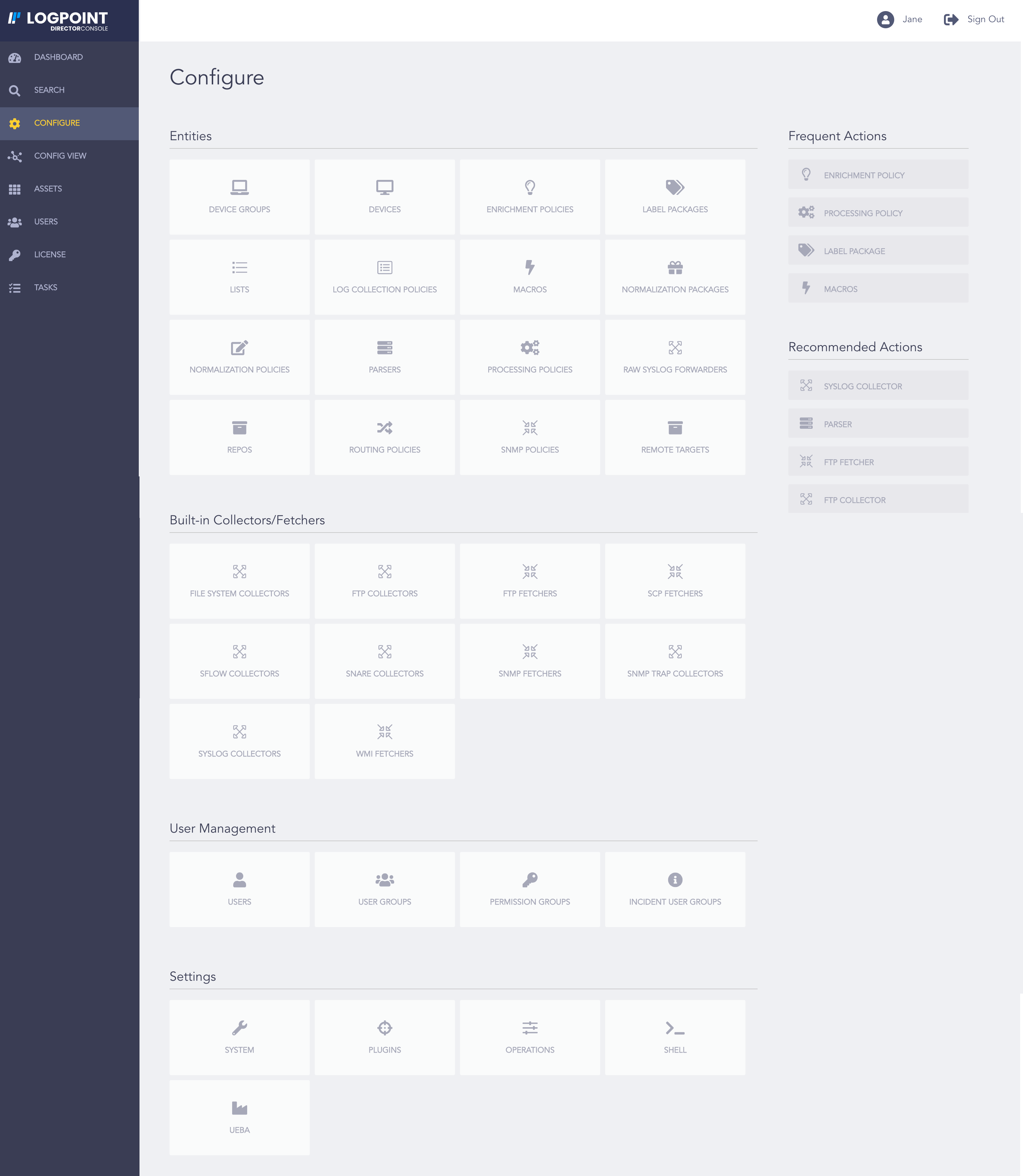
Configure Page
Entities |
Collectors/Fetchers |
|---|---|
Device Groups |
File System Collectors |
Devices |
FTP Collectors |
Enrichment Policies |
FTP Fetchers |
Label Packages |
SCP Fetchers |
Lists |
SFLow Collectors |
Log Collection Policies |
Snare Collectors |
Macros |
SNMP Fetchers |
Normalization Packages |
SNMP Trap Collectors |
Normalization Policies |
Syslog Collectors |
Parsers |
WMI Fetchers |
Processing Policies |
– |
Raw Syslog forwarders |
– |
Remote Targets |
– |
Repos |
– |
Routing Policies |
– |
SNMP Policies |
– |
Plugins |
System Settings |
Operations |
|---|---|---|
Threat Intelligence |
General Settings |
Blocked and Ignored IPs |
Cisco AMP |
SMTP Settings |
Configure Backup |
Stix/Taxii |
NTP Settings |
Create LDAP Strategy |
Microsoft Defender ATP |
SNMP Settings |
Create Snapshot |
CiscoUmbrella |
HTTPS Settings |
Manage LDAP Strategy |
CSVEnrichmentSource |
Lockout Policy Settings |
Manage Snapshot |
– |
SSH Settings |
Refresh List APIs |
– |
Support Connection Settings |
Manage Backup |
– |
Modes of Operation Settings |
– |
– |
Enrichment Settings |
– |
– |
Open Door Settings |
– |
– |
Distributed LogPoint Settings |
– |
You can also select an action from Frequent Actions or Suggested Actions:
Frequent Actions lists the top four actions that you perform frequently. These four actions are the four most frequent tasks you have performed from the list of 100 most recent entities or built-in collectors/fetchers tasks.
Suggested Actions lists the actions that you might find useful. They are based on the last five unique entities or built-in collectors/fetchers tasks that you have carried out.
You can configure Blocked and Ignored IPs, configure Backup, create LDAP Strategy, create Snapshot, manage LDAP Strategy, manage Snapshot, Refresh List APIs, manage Backup, and view machine details of a Fabric-enabled LogPoint from the Operations page.
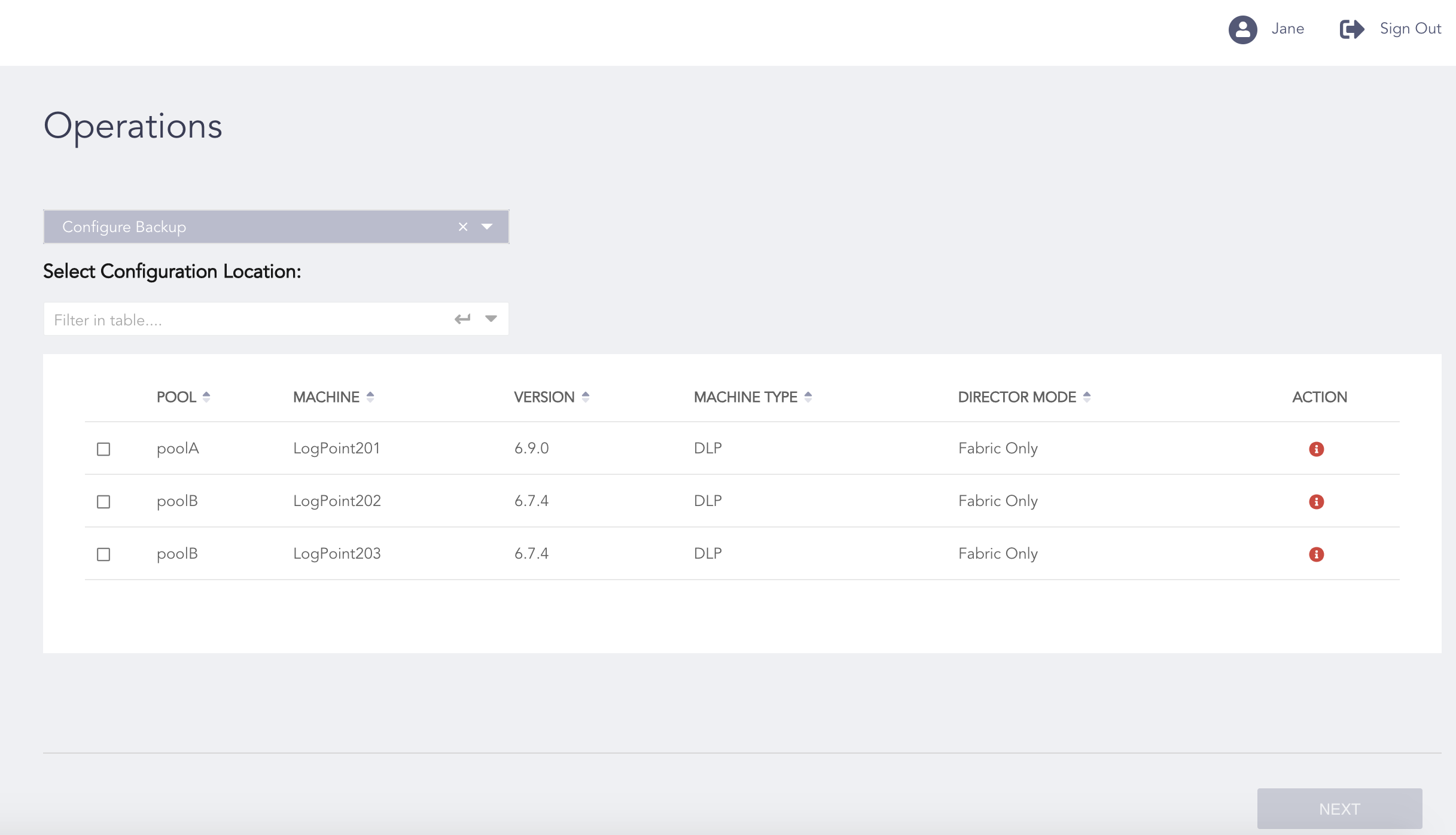
Operations Page
Header |
Description |
|---|---|
Pool |
Provides the pool name of the machine. |
Machine |
Provides the name of the machine. |
Version |
Provides the version of LogPoint. |
Machine Type |
Lets you identify whether the machine is a collector or a distributed LogPoint.
|
Director Mode |
Lets you identify whether the users of the Fabric-enabled LogPoint instances can have complete control over their system despite being connected to the Director setup.
|
Action |
You can view the Machine Info of a LogPoint by clicking the Info icon. The Machine Info lists the following details of the machine:
|
The Config View page allows you to:
View the Director setup components graphically.
Configure new entities in a Fabric-enabled LogPoint and view its existing configurations.
Configure the entities required to add a new source in a single flow.
Retry a failed operation without the need to re-enter the form data in the Add New Source panel.
View LogPoint details such as version, machine identifier, director mode, machine type, and IP address by clicking on the LogPoint node on the graph.
View pool details such as name, UUID, and LogPoint instances connected to it by clicking on the pool node on the graph.
Group LogPoints based on their versions by right-clicking on the pool node and selecting Show in groups.
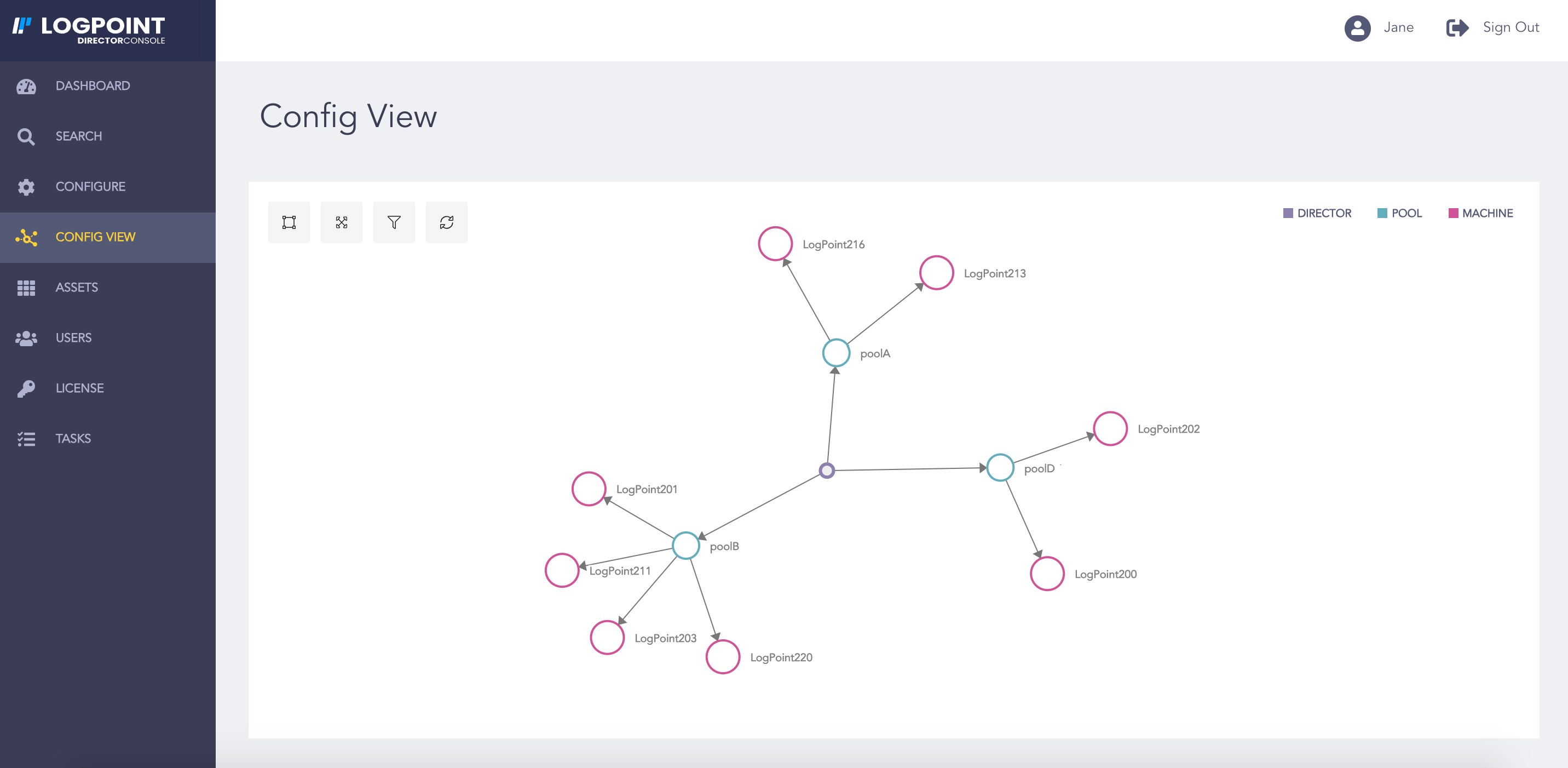
Config View Page
The Config View page also has the following features:
Auto Layout to spread the graph into a clean layout.
Fit to Screen to fit the graph on the screen.
Filter to filter the graph based on pools and LogPoint instances.
Reset to set the graph to the original state.
Assets are the IPLookups, Label Packages, Lists, Macros, Normalization Packages, Patches, and Plugins that you can install on a Fabric-enabled LogPoint. You can install an asset on multiple LogPoint instances of different pools from the Assets page. You can also uninstall assets from multiple LogPoint instances of different pools at once.
You can log into the Director Console using any of the following authentication mechanisms:
Director Console Authentication
LDAP Authentication
AD FS Authentication
The resync database setting allows you to synchronize the Fabric-enabled LogPoint information in Director Console in case of missing LogPoint information.
The Tasks page shows you can view and filter the list of tasks performed in the Director Console.
Admin users can view all users’ tasks. Regular users can only view their own tasks.
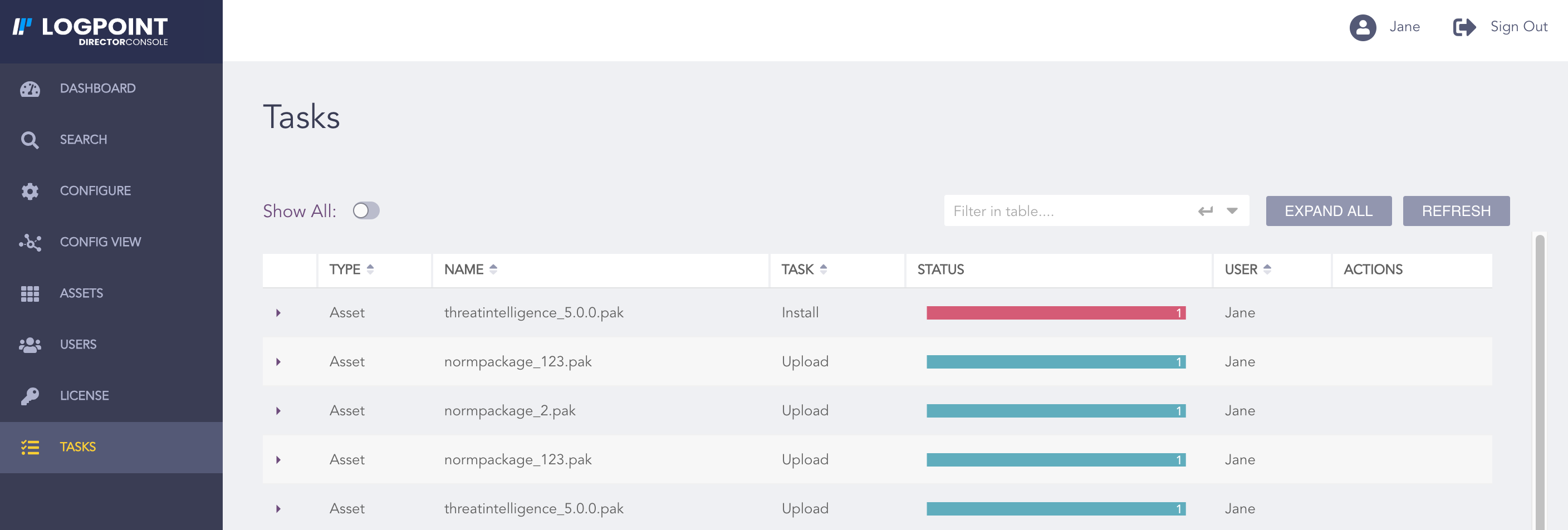
Tasks Page of Regular Users
Status of a task can either be In Progress, Failed, or Completed. Click the corresponding task to see its details.
Admin users can select Show All to view all the tasks.
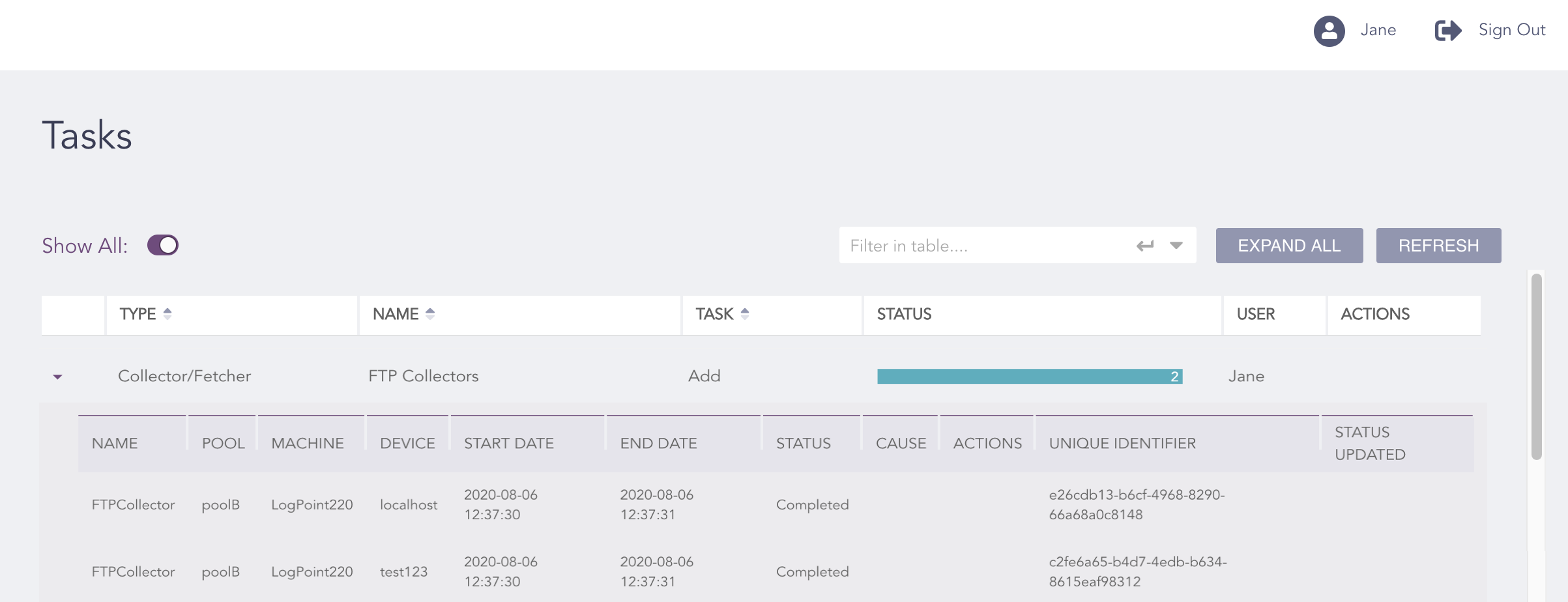
Task Details
You can view the number of tasks summary in the Dashboard Widgets section.
You can also retry configuring entities and built-in collectors/fetchers from the Tasks page. To retry a failed task, click Retry from the Actions column.
Note
You have to retry the failed tasks within four hours.
You cannot retry importing devices.
If you select multiple LogPoint instances for a task, you can retry the task only if it fails in all selected instances. If the task succeeds in any LogPoint, you have to retry the task in the rest of the LogPoint instances individually. For example, you configure a device in three LogPoint instances: LP1, LP2, and LP3, where the task fails in LP2 and LP3 only. Here, you have to retry the task for LP2 and LP3 individually.
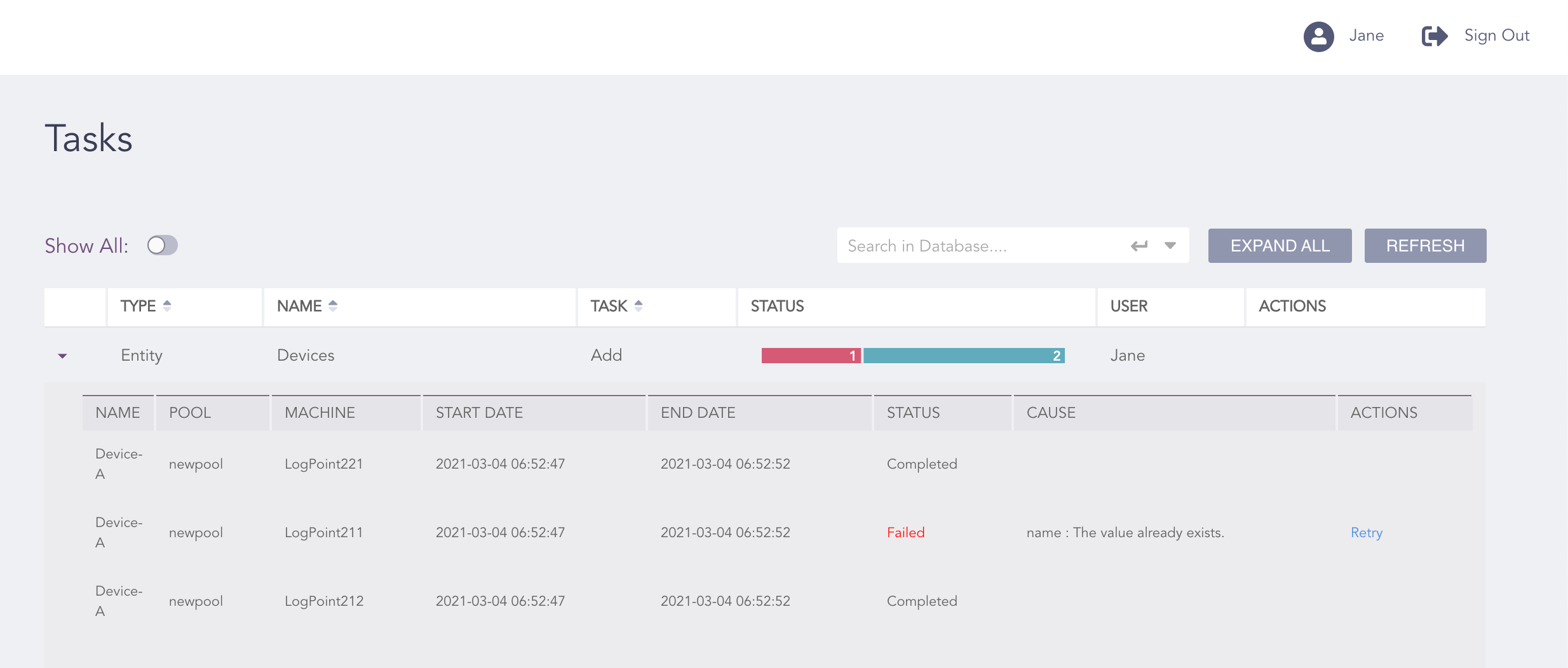
Task Failed for Some LogPoint Instances
You cannot retry a failed subtask. For example, if you fail to configure a normalization package due to errors in its normalization signatures, then, you have to retry configuring the normalization package.
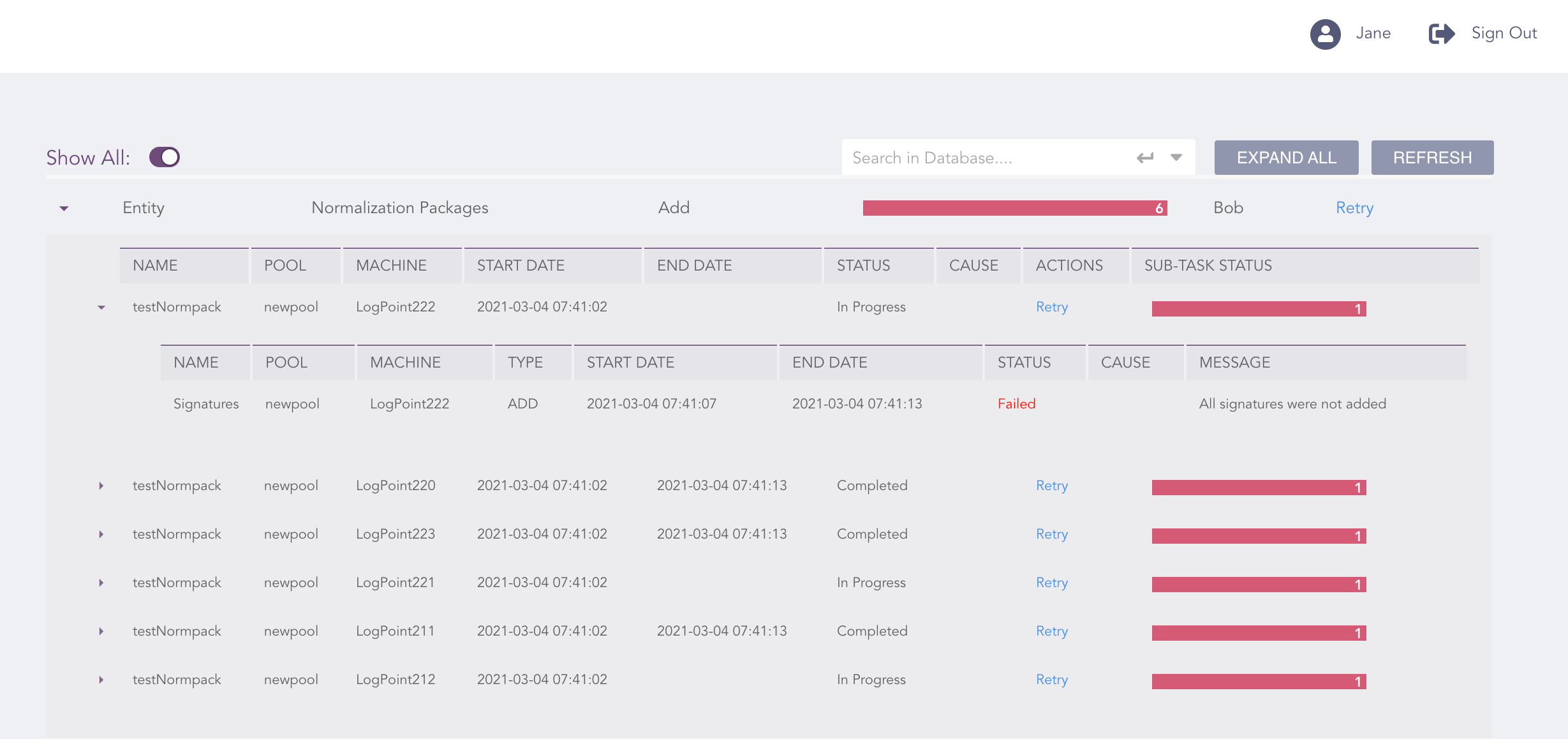
Task Failed Because of a Subtask
If you change a failed task’s parameters before retrying, the old parameters are applied when you retry the task. For example, if you fail to configure a device Device-A which belongs to the device group DeviceGroup-A. If you change or delete DeviceGroup-A before retrying, it is still selected when you retry configuring the device. Here, you have to select the required device group and proceed with the task.