
LDAP (Lightweight Directory Access Protocol) is a service protocol used to communicate with internet directories over an Internet Protocol (IP) network. If your organization uses LDAP for managing users, you can configure Director Console to pull user authentication and role-based access control rules from your LDAP directory. This allows the Director Console to manage user access and roles according to the rules defined in your organization’s LDAP system. When a user’s role is changed in LDAP authentication from a directory server, the new role is applied at their next login into the Director Console.
Before configuring LDAP, execute the following command as cmdr-admin to unlock the port for LDAP:
addldapsrv <IP_address> <port>
IP_address is the IP address of the LDAP server and port is the port to configure LDAP.
Important
You can run the addldapsrv command as cmdr-admin to load all the previous firewall rules after upgrading Director Console to a new version. Once you execute the command, you need to update your password.
The com-appinstaller command updates the physical and tunnel IP address of the Fabric Server in the API Server. If you have run this command, you must re-run the addldapsrv command to let LDAP users log into the Director Console and save configurations.
To configure LDAP Authentication:
Log in as the root user.
Go to Authentication >> LDAP.

LDAP Configuration
In Base Settings, enter the LDAP URL. It consists of the LDAP address and the port number of the LDAP server. If you are using secure ports in the LDAP URL, you must use the following format:
ldaps://<IP_address>:<port>
Example: ldaps://10.45.3.109:636
Enter a Bind DN. It is an unique name for the LDAP server.
Enter your LDAP Password.
Enter a Base DN in the form of an Organization Unit (OU) and a Directory Controller (DC).
In Authenticate Using, select dn to use standard DN format for login, uid to use uid for login (uid for Linux system), SAM Account Name to use SAM Account Name for login (SAM Account Name for Windows), and User Principal Name to use User Principal Name for internet-style login.
Enter a Group Member Attribute which is the attribute of the group member provided in the LDAP server.
Enter a User Search Filter to apply a user filter to the results from the LDAP groups.
Select Enable CN Filter to filter users by their Common Name (CN). When using Active Directory (AD) for authentication with Director Console, enabling the CN Filter is required. It is recommended not to nest an LDAP account within an Active Directory group.
Enter the LDAP groups that have the Root Access, the Admin Access, and the User Access permissions in Role Settings.
For example, if the Group Member Attribute entered is gidNumber, you must add the gidNumber of the group member in the:
Root Access for root permission
Admin Access for admin permission
User Access for normal user permission
Click Update.
Enter the IP address of the API Server into a web browser.
Select LDAP from the drop-down.
Enter your Username and Password.
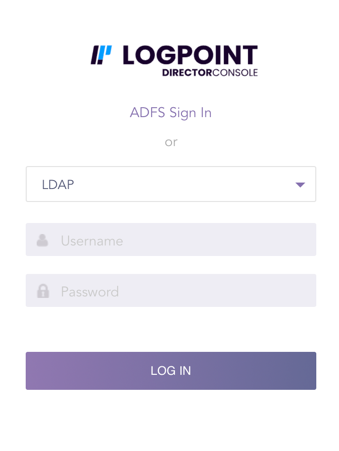
LDAP Login Page
Click Log In.
Captcha authentication is required on the next login after two consecutive failed login attempts.
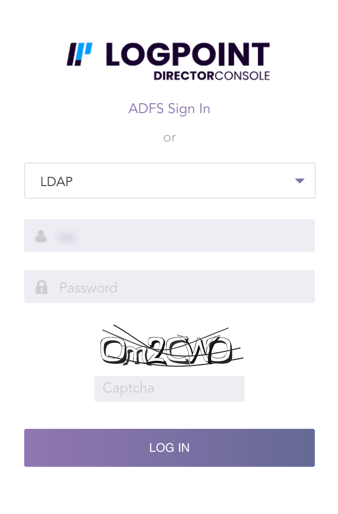
LDAP Login Page with captcha